
Two Settings to Never Oversleep Due to a Silent Alarm
Toggle Dark Mode
Picture this: It’s the night before a big day. You want to be up early so you don’t have to rush, so you set up your alarm or change your iPhone’s sleep schedule.
You go to sleep, and when you wake up the next day, you feel well rested. Maybe too well rested. So you check your iPhone only to find out that it’s well past the time your alarm went off — and it didn’t make any sound. Now you’re late and cursing at your iPhone while you get ready.
Unfortunately, this happens more often than you think, and it’s not really your fault. However, there are a couple of tweaks you can do to fix this. Let’s break them down.
First, Make Sure Your Alarm’s Sound Is All the Way Up
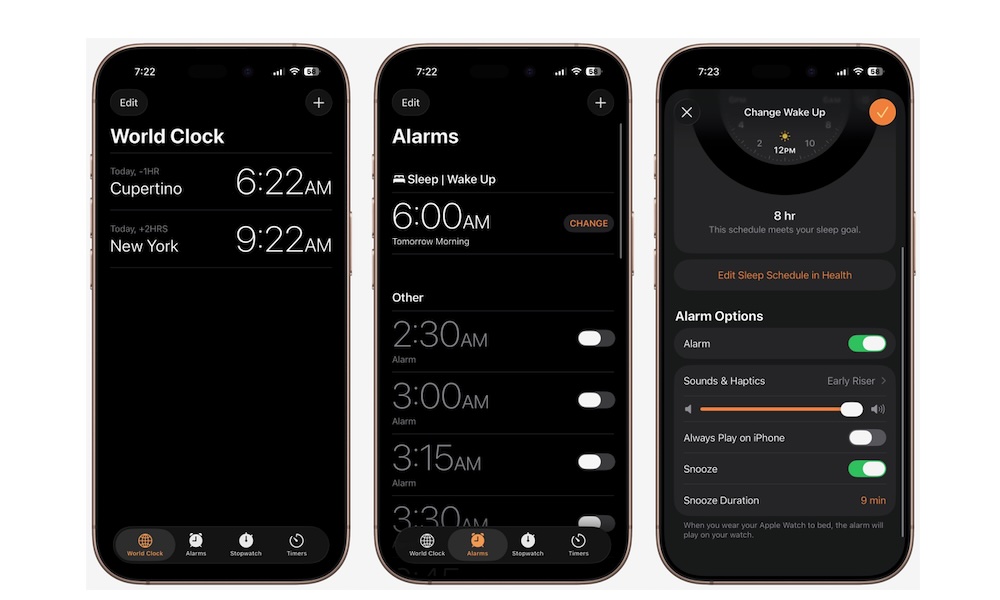
This isn’t really a problem with regular alarms, but if you’re using a sleep schedule, it’s important to note that this has its own independent volume setting — and sometimes, that can be set lower than you’d like. Luckily, it’s a quick and easy change:
- Open the Clock app.
- Tap on the Alarms tab at the bottom of your screen.
- Tap on Change next to your Sleep Schedule’s alarm.
- Scroll down and below Sounds & Haptics, drag the slider all the way to the right or maximum volume.
Test your alarm and see if that fixed the issue. If not, let’s move on to the next thing to check.

Change the Default Haptics of Your Alarms
As we mentioned earlier, many people have had this issue and gone online to try and fix it, and some have reported that changing this seemingly unrelated setting actually works.
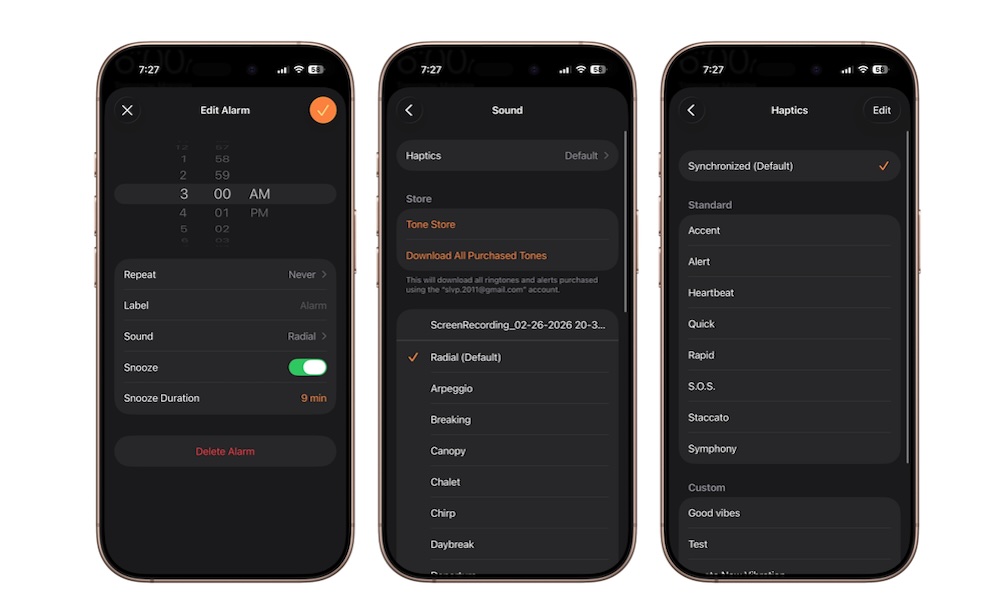
For some reason, using the default haptics on your alarm might cause it to randomly stay silent after it goes off. Changing it could fix this issue, so it’s worth a try. Here’s how to do it:
- Open the Clock app.
- Tap on the Alarms tab at the bottom.
- Scroll down and choose your alarm, or go to your sleep schedule’s alarm.
- Tap on Sound (for regular alarms) or Sounds & Haptics (for your sleep schedule alarm).
- Go to Haptics.
The default option for regular alarms is the Synchronized haptic. Change it to anything else you want. The sleep schedule alarm doesn’t have any haptics by default, so this shouldn’t be an issue for it, but you can still change it to any other option you like.
Never Oversleep Again
More often than not, oversleeping is our own fault. We usually ignore the alarm, beg for five more minutes, and regret it afterward. But when it’s your iPhone’s fault, it stops becoming a matter of forgiveness. You instead start thinking about switching to an Android and never looking back.
The good news is that changing these settings may prevent you from suffering from a silent alarm ever again. Of course, if everything else fails, you can always have a backup alarm at the ready, too, just to make sure at least one does go off.






