
One-Tap Workouts Return to the Apple Watch in watchOS 26.4 RC
Toggle Dark Mode
Not everyone has been a fan of the way that Apple redesigned the Workout app in watchOS 26. If you’re in that camp, you’ll be happy to hear that Apple has addressed the most common complaint about the app’s new design.
Since the release of watchOS 26, many folks weren’t happy that the new Workout app design required additional interactions just to start a workout. It also didn’t help that the new design seemed more sluggish than it was before the update.

Of course, some of this undoubtedly stems from the change to the familiar routine of using the app the same way for a decade before suddenly being required to do it a different way. Still, there was more than one valid complaint about the redesign, and it appears Apple listened to those who felt the new design was less intuitive than the previous one.
The most common issue involved a screen element that worked as a tappable button in previous years, but was now just a screen ornament that didn’t respond to a tap of the finger like before.
Now Apple has responded to these complaints by changing the Workout app’s design to work how most people actually expect it to work. From Apple’s watchOS 26.4 Release Candidate release notes:
This update also includes the following enhancements:
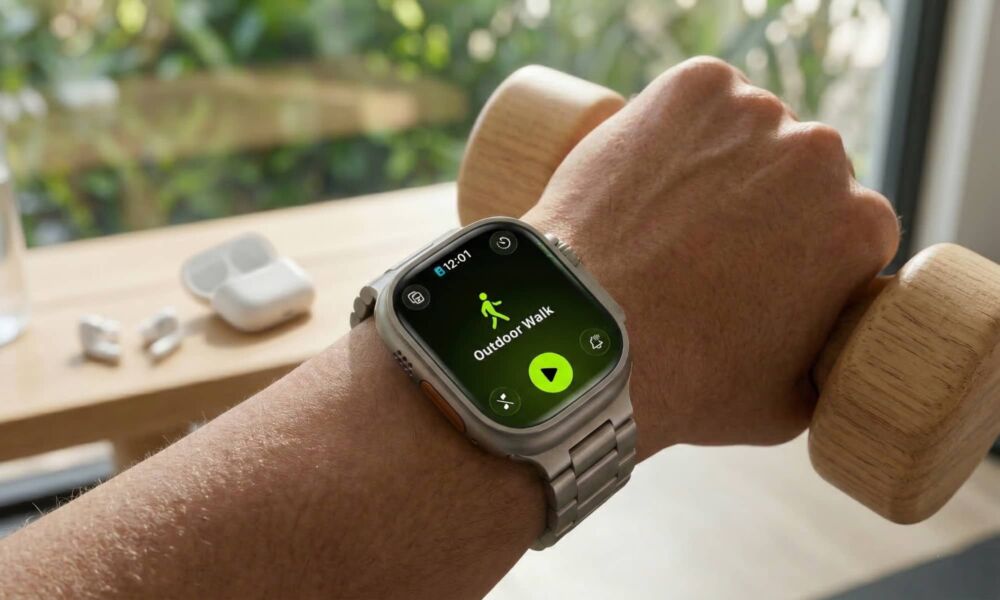
- Workout type icon in the Workout app lets you start a workout with a single tap
- 8 new emoji including an orca, trombone, landslide, ballet dancer, and distorted face are available in the emoji keyboard
For information on the security content of Apple software updates, please visit this website: https://support.apple.com/100100
As you can see above, the “Workout type icon in the Workout app lets you start a workout with a single tap.”
The change means that now, the workout icon and the play button will perform the same task: start tracking your workout.
The Workout app redesign in watchOS 26 was seemingly aimed at preventing a user from accidentally starting the wrong workout, while also providing time for the user to notice and possibly tap the four corner buttons (Workout Views, Goals and Targets, Media, and Workout Buddy and Alerts) before starting the workout.
The trouble with that design was that it irritated users who wanted to jump right into their workout, as the “Play” icon was the only way to kick things off.
Thankfully, watchOS 26.4 fixes this irritating issue.
watchOS 26.4 Release Candidate Availability
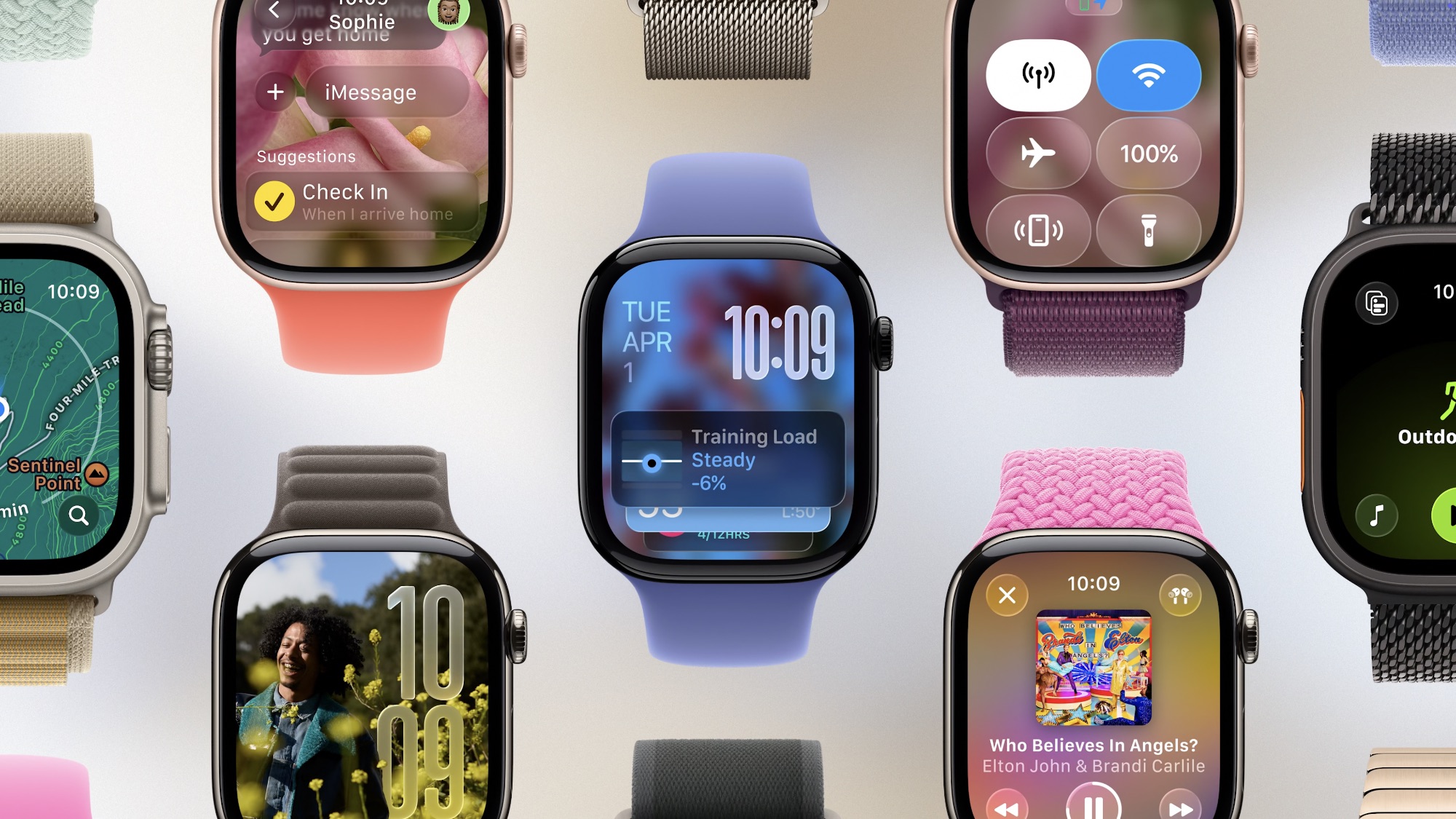
Apple seeded the watchOS 26.4 release candidate (RC) on Wednesday. The final version will likely be made available to the public next week. Barring any problems, that version should be identical to the RC, so if you want to get a head start you can install it today by joining Apple’s Beta Software Program.
Get the watchOS 26.4 Update Now
Before updating your Apple Watch to the watchOS 26.4 RC, you must be enrolled in one of Apple’s beta software programs. Once you’ve done this, you’ll find a new “Beta Updates” option in the normal Software Update screens for both the iPhone and Apple Watch that you can use to enable access to beta and RC builds.
You’ll also need to make sure your iPhone has been updated to the iOS 26.4 RC, which was also released yesterday:
- Open the Settings app on your iPhone.
- Choose General > Software Update.
- Tap Beta Updates and enable the iOS 26.4 Public Beta option.
- Tap the back arrow in the top-left corner to return to the Software Update screen. The iOS 26.4 update should appear. Install it as you would any other iPhone software update.
- Go get a cup of coffee while you wait for that to finish.
Once that’s done, simply follow the below steps to install the watchOS 26.4 release candidate on your watch.
- Make sure that your Apple Watch is on a charger and is charged to at least 50% and it is in the range of your iPhone, connected to a Wi-Fi network.
- Open the Watch app on your iPhone.
- Select General > Software Update.
- Tap Beta Updates and enable the watchOS 26.4 Public Beta option.
- Tap the back arrow in the top-left corner to return to the Software Update screen. The watchOS 26.4 release candidate should appear. Select the option to install it and follow the instructions.
- Grab another cup of coffee while the watchOS 26.4 release candidate downloads, transfers, and gets installed onto your Apple Watch.
If your Apple Watch has watchOS 6 or later (and it really should by now) you can install updates watchOS updates without your iPhone. This can be done from General > Software Update in the watchOS Settings app. However, this lacks the “Beta Updates” option, so it can’t be used to install the RC or other watchOS betas unless you’ve already toggled that on from the iPhone’s Watch app.






