
Your MacBook Is Finally Snitching on Your Cheap Travel Charger
Toggle Dark Mode
This week’s OS 26.4 updates were light on new features, but there’s still more to them than the release notes may have led you to believe. For instance, even though the macOS 26.4 release notes listed nothing more than new emoji and the usual bug fixes and performance improvements, we’d already found a Charge Limit feature in the betas that’s officially present and working well.
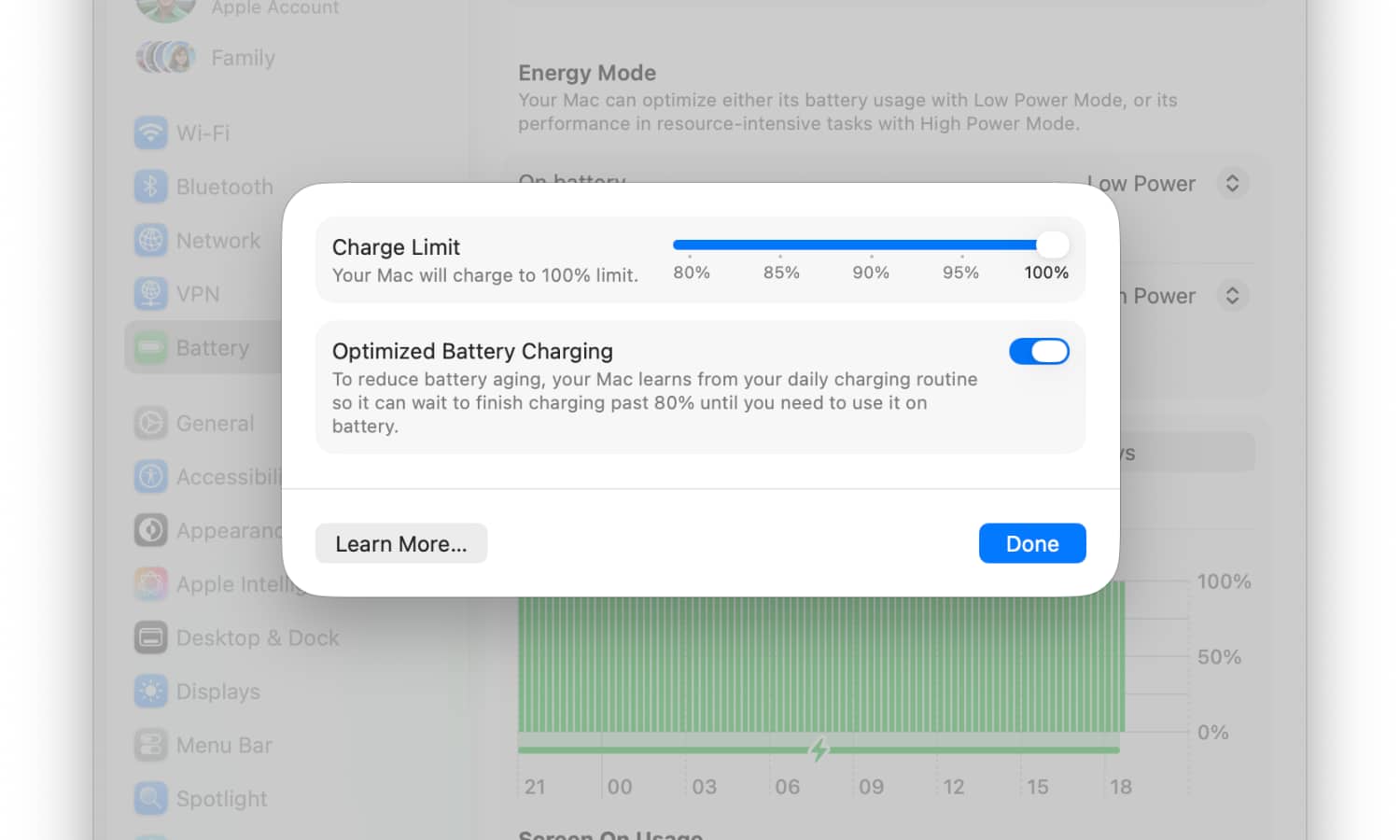
The new Charge Limit, a feature first introduced on the iPhone 15, allows you to put a cap on how your MacBook’s maximum charge level. Since lithium-ion batteries don’t like being left at full capacity for extended periods of time, this avoids unnecessary wear, which will prolong the overall life of your battery. The Charge Limit can be found by opening the System Settings app, choosing “Battery” and then clicking the “i” beside the “Charging” line, where you’ll be able to use a slider to choose a percentage from 80 to 100 in five-percent increments.

Unlike Optimized Battery Charging, which has been around since macOS 11 Big Sur and simply holds off on topping up your battery when it thinks you’ll be connected to power for a while, the Charge Limit is a hard cap that your MacBook will effectively never exceed (although Apple does note that “your Mac will occasionally charge to 100% to maintain accurate battery state-of-charge estimates”).
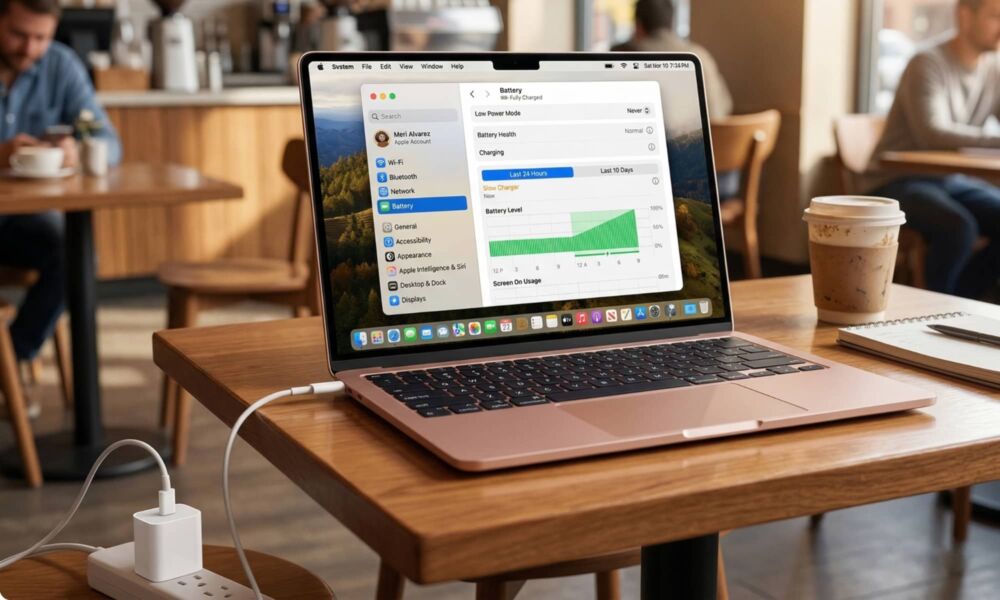
However, the Charge Limit isn’t the only power-related feature that macOS 26.4 brings to the table. Apple has borrowed another page from the iPhone playbook by bringing over the Slow Charger warnings introduced in iOS 18.
The macOS 26.4 implementation is basically the same, but it’s arguably even more useful for a MacBook than an iPhone. After all, most iPhones will comfortably charge at 15W, while even a standard iPhone charger isn’t enough to properly charge anything more powerful than the new MacBook Neo (which unironically uses an iPhone chip).
Apple publishes a list of recommended power adapters for each MacBook, here are the rough minimum power requirements for each:
- 16-inch MacBook Pro: 140W
- 14-inch MacBook Pro: 67W
- MacBook Air: 30W
- MacBook Neo: 20W
That’s not to say that these MacBooks won’t still charge with lower-wattage adapters, and using one won’t cause any damage, but a MacBook will charge much slower than it’s supposed to if you’re not providing enough power.
That’s where the “Slow Charger” warning comes in. It doesn’t mean your battery isn’t charging, but it could be a trickle compared to what it’s normally capable of using. The Slow Charger warning will appear in the battery status menu from the Menu Bar and in the Battery Level graph that appears in Battery settings, where you’ll also see orange bars in the history graph during periods when your MacBook was connected to a slow charger.
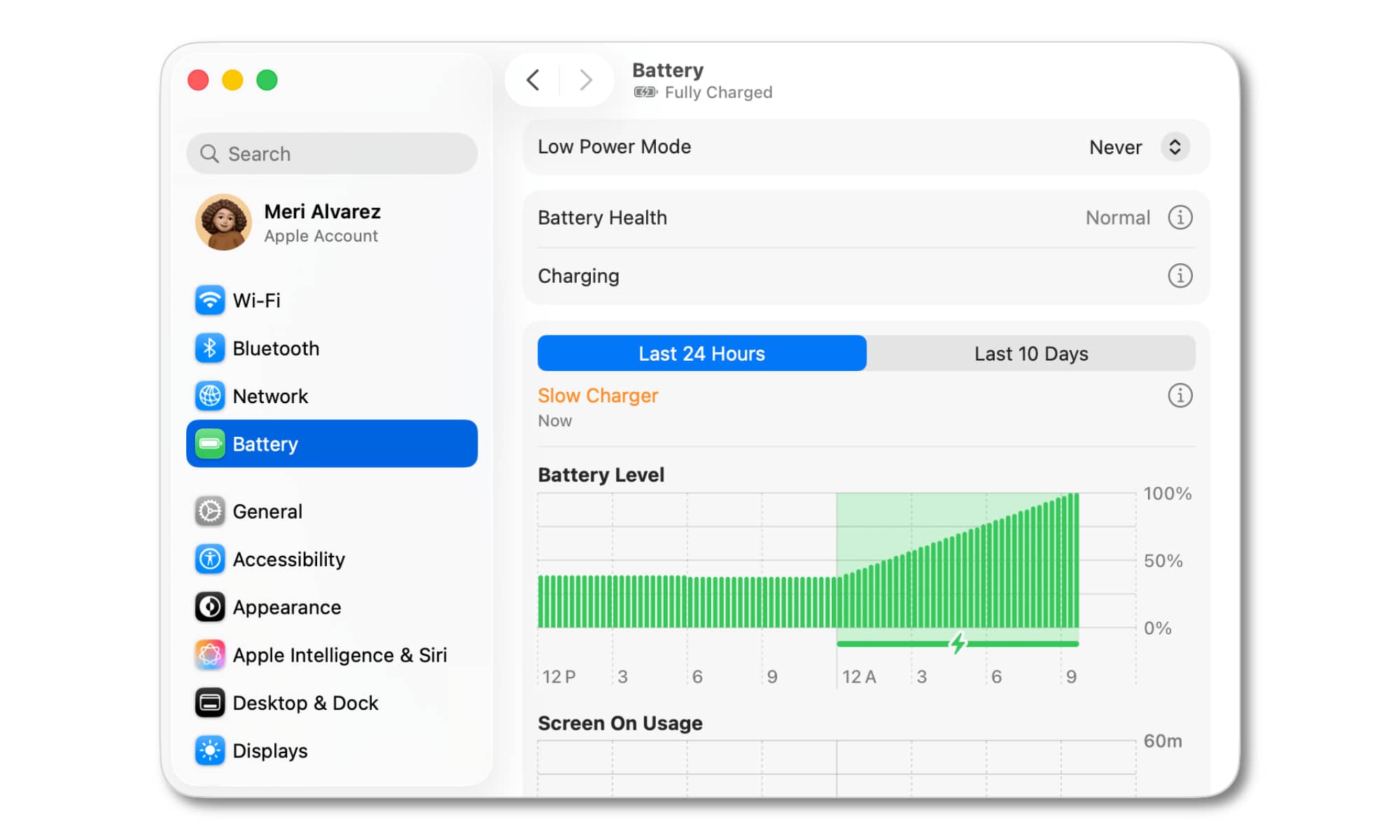
By contrast, you’ll still see “Not Charging” if the power adapter is only providing enough power to run your Mac but not enough to actually charge the battery. In this case, it’s either sitting flat or might even be slowly draining, depending on what you’re doing.
Note that adapters with higher wattages are always fine to use, as a MacBook — or any other electronic device — only draws as much power as it needs, so you can’t overload or overcharge it by using a more powerful adapter.
This is likely to be an especially great feature for MacBook buyers in Europe, where Apple no longer includes the chargers in the box, thanks in part to EU regulations. That’s going to leave many new buyers scrambling to find a charger, and for many folks, one USB-C power brick is the same as any other. Anyone who does armchair tech support for friends and extended family can probably attest to the number of times someone has grabbed a basic 5W or 10W USB-C adapter and wondered why their MacBook isn’t charging properly.






