
Your Mac’s Battery is About to Get the iPhone Treatment (In a Good Way)
Toggle Dark Mode
Earlier this week, Apple released the first betas of its OS 26.4 operating systems, and while it doesn’t look there are too many new features coming to macOS Tahoe 26.4, the update is bringing an important iPhone battery management perk over to the Mac.
While the Mac has supported Optimized Battery Charging since macOS Big Sur in 2020 , even that lagged behind the iPhone, where the feature had arrived a year earlier in iOS 13. Now, it’s time for Tahoe to adopt an iOS 17 feature: the Charge Limit.

That’s taken a bit longer to arrive on the Mac, but the Charge Limit also wasn’t nearly as universal of a setting as Optimized Battery Charging. When Apple unveiled it in 2023, it wasn’t so much an iOS 17 setting as an iPhone 15 feature. This seemed like an odd omission at the time, considering Apple’s environmental stance on batteries and charging, but it turns out it wasn’t an artificial limitation; by the time iOS 17.4 came out a few months later, it was apparent that the iPhone 15 had a new and improved battery and power management system.
That might be part of the reason for Apple’s decision to delay this feature until macOS 26.4, but since it’s still in beta, Apple hasn’t even officially announced the feature, much less said which MacBooks will support it — although it’s a pretty safe bet that the few Intel Macs that can still run macOS Tahoe will still be left out in the cold, as this is tied to the Power Management Controller found only on Apple silicon Macs.
The Charge Limit and How It Works
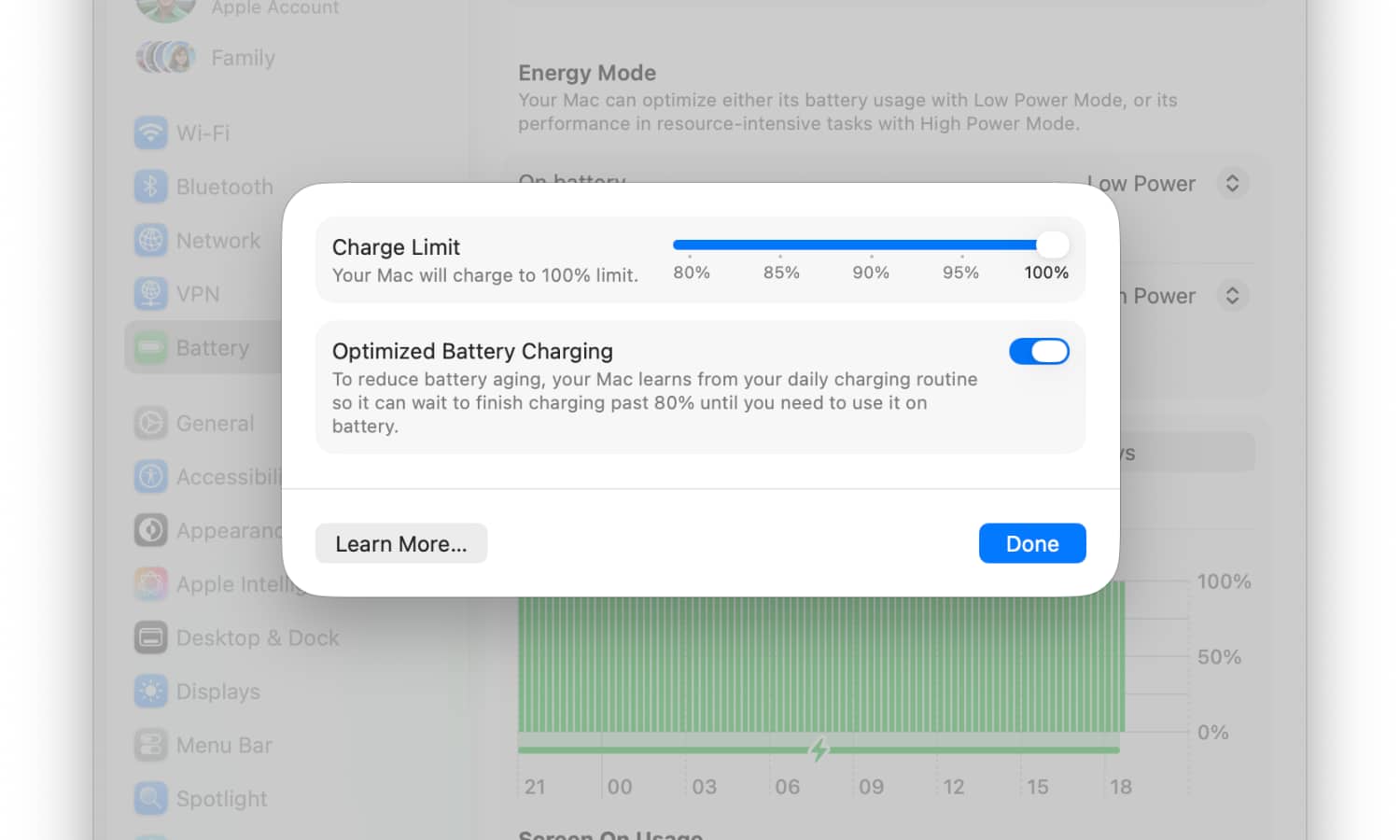
If you’re running the macOS 26.4 beta, the new Charge Limit setting can be found alongside Optimized Battery Charging by opening the System Settings app, selecting Battery and then clicking the info (“I”) button beside Charging.
You’ll get another window that includes a slider with a Charge Limit that works the same way it does on the iPhone: By moving the slider to a lower percentage — from 80% to 95% in 5% increments — your MacBook will always stop charging at that point.
Keeping a lithium-ion battery at a full or near-full charge level puts more stress on it, which in turn causes it to chemically age faster, in turn reducing its maximum capacity sooner. By choosing a lower charging cap, you keep the battery in its comfort zone — a setting that’s arguably more vital for MacBooks than iPhones, given how often our laptops stay tethered to a desk for days at a time.
After all, most iPhone users don’t typically leave their devices plugged in all day. A lower Charge Limit on an iPhone will still help preserve battery health, but for most folks, Optimized Battery Charging will suffice, as it stops at 80% during longer charging periods, such as overnight, but still tops you up to 100% by the time you’re ready to start your day. Still, that doesn’t always work well for people with irregular schedules, which is where the Charge Limit can be much more helpful.
While Optimized Battery Charging still helps with MacBooks that stay plugged in all day, it still leaves it up to macOS to decide when to top up the battery; the Charge Limit feature effectively forbids it from going above the set amount. Like the iPhone, this will probably occasionally still charge to 100% for things like battery calibration, but those will be the rare exceptions.
You can also adjust this setting at any time, so if you know you’ll be going out on a longer excursion without power, you can simply move the slider back to 100%.
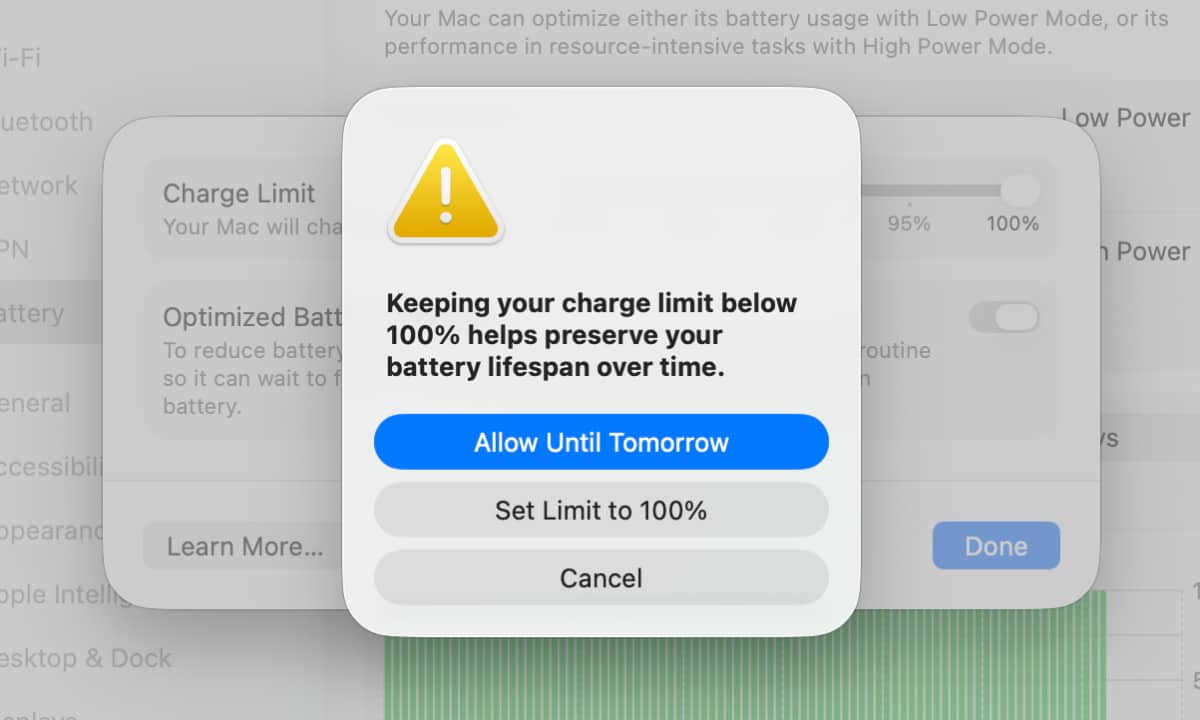
What’s even better is that, like the iPhone, you can also do this temporarily. When dragging the slider back to 100%, you’ll get a pop-up asking if you want to set the limit to 100% until you change it, or just apply it the next day, effectively giving you a top-up for the day and automatically reverting to your previous setting after that.
Apple has also added another bonus for power users: the Charge Limit can also be managed using Apple’s Shortcuts app through new Set Charge Limit and Get Charge Limit actions. Since Shortcuts can be automated, this could allow for custom scenarios such as setting the limit back to 100% when a “Travel” Focus mode is active, or setting it back to 80% when docking the Mac to a Thunderbolt hub or display.






