
Apple Pushes iWork Users to Creator Studio | Here’s How to Make the Move Safely

Toggle Dark Mode
The launch of Apple Creator Studio this week effectively groups all of Apple’s productivity apps under a single umbrella, but the company seems to have released the new bundle in a slightly clunky way. Rather than moving the existing versions of apps like Final Cut Pro, Logic Pro, Pages, and Keynote into the bundle, it decided to release new versions for Apple Creator Studio, leaving the original ones on the outside — although it still released updates for nearly all of them.
This was understandable for the flagship “pro” apps. Final Cut Pro and Logic Pro are still sold separately, so unique entries are needed on the App Store to separate the versions with a $200–300 “Buy” button from those that can be downloaded freely but require a subscription to unlock.

On the other hand, since Pages, Numbers, and Keynote are free, there’s hardly a need for standalone versions, which made things a bit confusing when minor updates appeared for those at the same time Creator Studio was launched.
However, it turns out the “bug fixes and performance improvements” in those updates likely serve only to act as bridge versions for migration and prompt users to hit up the App Store and install the new Creative Studio version.
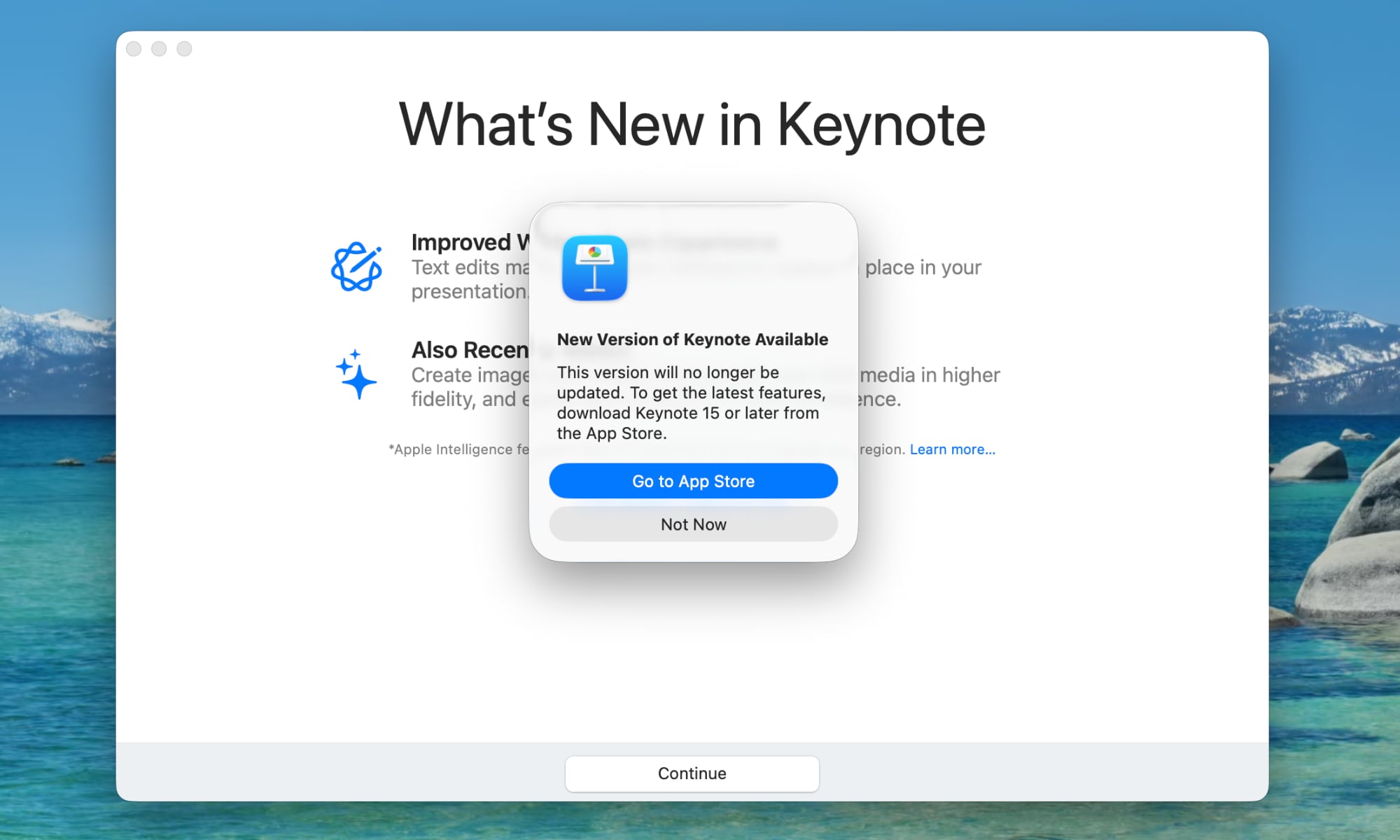
Apple has actually drawn a versioning line in the sand between the two sets of apps. The ones with traditional icons are version 14.5, and will be the last of their kind. In fact, they already feel stuck in the past as they never received a Tahoe Liquid Glass update — an omission that makes a lot of sense in retrospect.
The new version 15.1 apps, which you’ll be prompted to download as soon as you open the updated originals, feature the new unified “family” icons for Apple Creator Studio — and the full Liquid Glass treatment. They’re also “Universal” apps for the first time, with the same version used on the iPhone, iPad, and Mac. The legacy versions were Mac-only, with separate binaries for the iPhone and iPad.
Should You Update?
While Apple once charged for these apps — back when they were actually sold in a box labelled “iWork” — they’ve been free for so long that few Mac users likely remember the days when you had to pay for them (and install them from a DVD).
It’s understandable that Apple’s decision to include these consumer productivity apps in a $129/year bundle alongside its pro apps is making some folks understandably nervous, and one might even make a case that this was an odd decision on Apple’s part, as it blurs the lines between two very distinct families of apps that have long been divided.
The good news is that Apple isn’t planning to start charging for these free apps, although there’s also some nuance to that, as it’s muddying the waters by adding some new features that are exclusive to Creative Studio.
You can continue using Keynote, Pages, Numbers, and Freeform for free. And while these apps remain free for everyone, an Apple Creator Studio subscription offers premium templates, a library of high-quality, royalty-free photos and graphics, and powerful intelligence features.
Apple
The most easily understandable of these is the Content Hub, a library of professionally-designed templates, photos, graphics, and illustrations. These types of stock materials typically cost money, so few people expect Apple to give them away for free.
The trickier part is that Apple is also limiting new AI tools to paying subscribers. Right now, these include “Draft Presentation” in Keynote and “Magic Fill” in Numbers. The consensus is that these will remain behind a paywall, but in its original announcement, Apple also described Creator Studio are including “access to features in beta,” so there’s a slight possibility this may be more about early access, depending on how you read that.
I’m not holding my breath, but it’s also fair to say that Apple isn’t making you pay to access any existing features — and it promises it won’t. The only question is whether Pages, Numbers, and Keynote keep evolving to the point where the free versions turn into “Lite” versions, becoming a shadow of what the paid ones are capable of. “Magic Fill” already feels more like a core productivity feature that free users will be missing out on.
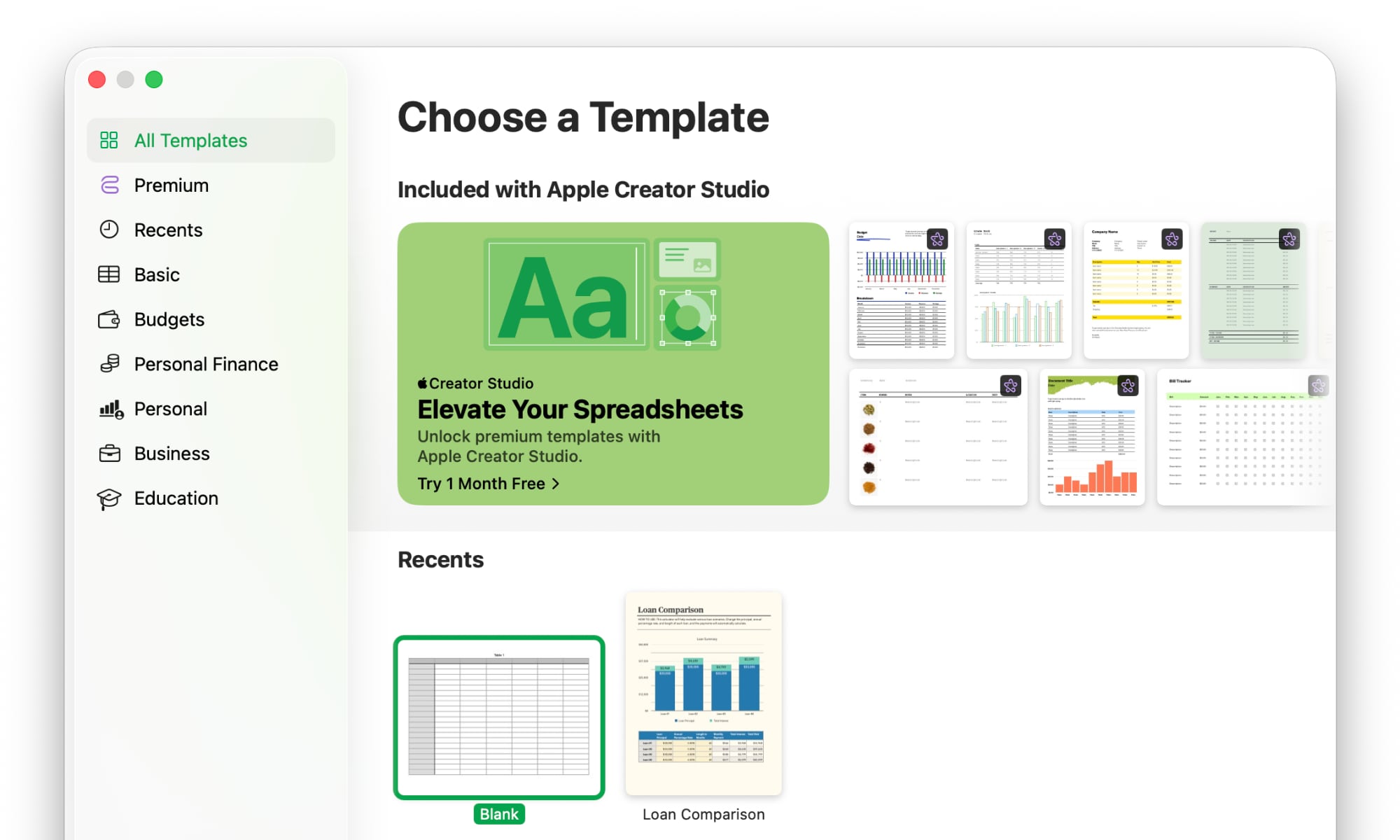
For now, though, the new Creator Studio versions of Pages, Numbers, and Keynote mostly just change the icon, adopt Liquid Glass, and shove in a few “invitations” to get you to subscribe. If you can stomach those things, then upgrading will at least ensure you’re running the most current versions and will continue to get future updates.
Pro Tip: If you plan to jump to the Creator Studio versions of Pages, Numbers, and Keynote, and you have password-protected documents, make sure you install the final legacy 14.5 updates first and open each of them at least once to migrate any saved keychain passwords to the Creative Studio versions. You can do this before or after you’ve installed the new versions.
What Happens to the Old Apps?
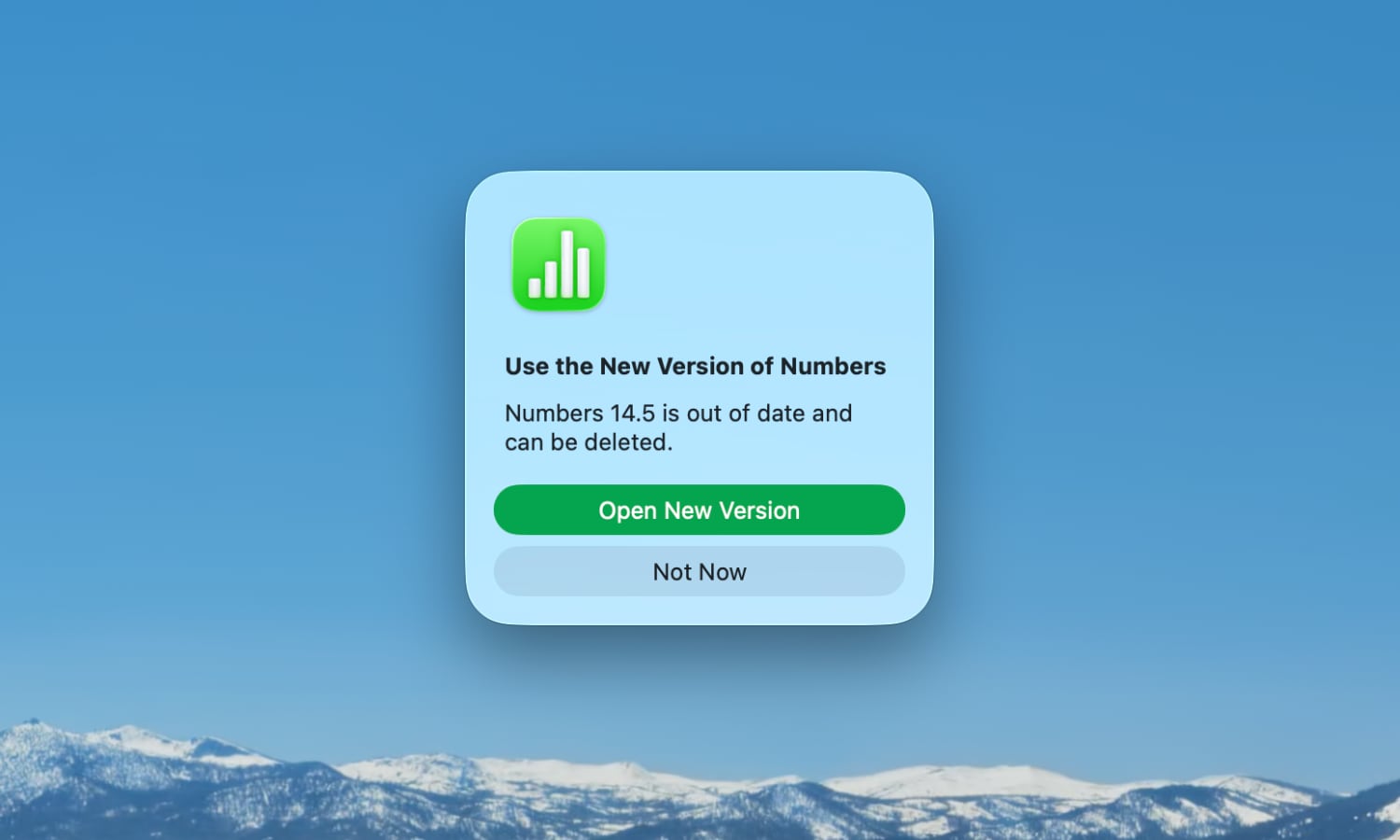
The good news is that Pages, Numbers, and Keynote 14.5 will continue to function just fine, so you don’t need to update just yet. Click Not Now on the pop-up that appears and it appears you won’t be asked a second time — at least not right away.
These apps will no longer receive any updates, but they still work as well as they did three days ago, and there’s no reason to believe they’re going to break anytime soon. That may change when macOS 27 comes along later this year, but we can cross that bridge when we come to it.
However, the other silver lining is that the Creator Studio versions download as separate apps from the legacy ones, effectively giving you both versions living side-by-side in your Applications folder. This means you can go back at any time. Opening the older versions after the new ones are installed will show you a prompt letting you know you can delete the older one, but that’s merely a suggestion, not a request.
In other words, unless you delete the legacy versions of Pages, Numbers, and Keynote from your Mac, they’ll remain in place as long as you want, and continue to run as long as they remain compatible with whatever version of macOS you’re running. This means you can not only go back at any time, but you can easily flip between the two versions — even running them side-by-side if you like, as they really are two entirely separate apps.
Just keep in mind that Apple has removed the legacy versions from the App Store, so if you do choose to delete them, the only way to get them back will be to dig through your purchase history on the Mac App Store.
Pro Tip: Apple notes that if you have a Pages document (14.4 or earlier) linked to a Numbers spreadsheet for Mail Merge, that link will be broken when you open the file in the new Pages 15.1. You’ll need to manually re-link the data source after moving to the new version.
The Verdict: To Update or Not?
- Casual User? Update. You get the fresh Liquid Glass look and the new shapes for free, even if you never pay for the subscription. Just keep the old apps for a week as a backup.
- Professional? Hold off for 48 hours. If you rely on complex Mail Merges or third-party plugins, test your mission-critical files in the 15.1 version first while keeping your 14.5 safety net.
- Intel Mac Owner? Stick with 14.5. The new Universal 15.1 apps are heavily optimized for Apple Silicon, and you likely won’t see the performance benefits (or some AI features) on older hardware.






