
The AirTag 2 Just Got Its First Tune-Up
Toggle Dark Mode
Apple has just pushed out its first firmware update for its new second-generation AirTags, and while it’s usually pretty opaque about updates to its accessories, this one is accompanied by release notes that actually describe what’s changed beyond the usual “bug fixes and other improvements.”
According to the notes, the firmware gives the AirTag a new vibe by updating “the unwanted tracking sound to more easily locate an unknown AirTag during Precision Finding.”

The new firmware is 3.0.45, which is a small bump from the 3.0.41 it launched with in January. However, it’s unclear if this firmware is solely for this year’s new “AirTags 2” or if it will also be coming to the original 2021 version. Part of the confusion here stems from the fact that Apple hasn’t given the 2026 AirTags a new name; we’re all calling it the “AirTag 2” for the sake of sanity, but for Apple, it’s just the AirTag, since it’s effectively replaced the previous model on store shelves. As with other products like the iPad, support documents list it as “AirTag (2nd generation)”, but that’s only where it’s necessary to make a distinction.
A clue that this update may be exclusive to the AirTag 2 is in the version number. The original AirTags are still on 2.0.73, which arrived in early 2024. The 3.0 branch seems to have arrived with the AirTag 2, and never come to the older tags.
One of Apple’s objectives in releasing the new AirTags was to improve the tracker’s anti-stalking protections with louder alerts and improved range. These contribute to legitimate uses by making it easier to locate your AirTags, but they’ll also ensure it’s easier to detect when an unwanted AirTag is nearby, either via a tracking alert on your iPhone, or an audible chirping sound from an “orphaned” AirTag that’s following you around.
Apple designed its original AirTag to sound an alarm if it started moving after being separated from its paired iPhone, on the assumption that this could potentially be used for stalking by planting an AirTag on someone else. The initial alert wouldn’t sound until the AirTag had been orphaned for three days, but Apple later reduced it to around eight hours after domestic safety advocates raised concerns.
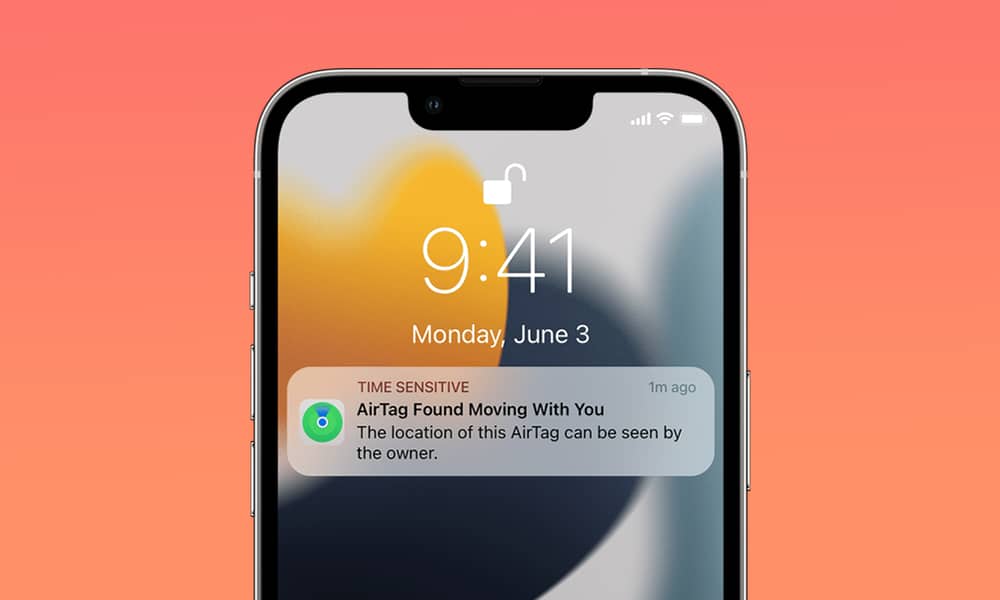
The louder speaker in the AirTag 2 is designed to ensure that people can actually hear the alert, and presumably the change to the “unwanted tracking sound” in today’s firmware update will bolster that safety feature.
Apple’s release notes suggest this change is exclusive to the “unwanted tracking sound,” so it’s not clear if this will improve the sound you play manually when trying to locate your own AirTag. Apple’s Precision Finding feature is very useful, but it’s also notoriously two-dimensional, and I’ve often had it lead me in circles around one floor of my home when my keys or wallet are on another. Similarly, Precision Finding may tell you that your AirTag is buried in the couch, but it can’t always tell you which cushion it’s hiding under.
That’s where playing a sound can be very helpful, but it’s also fair to say that the unwanted tracking alert is much more crucial, not only because of the potential safety risks, but also because you may not be looking merely for a lost item, but an AirTag that’s been deliberately placed to be difficult to find.
How to Check Your AirTag Firmware
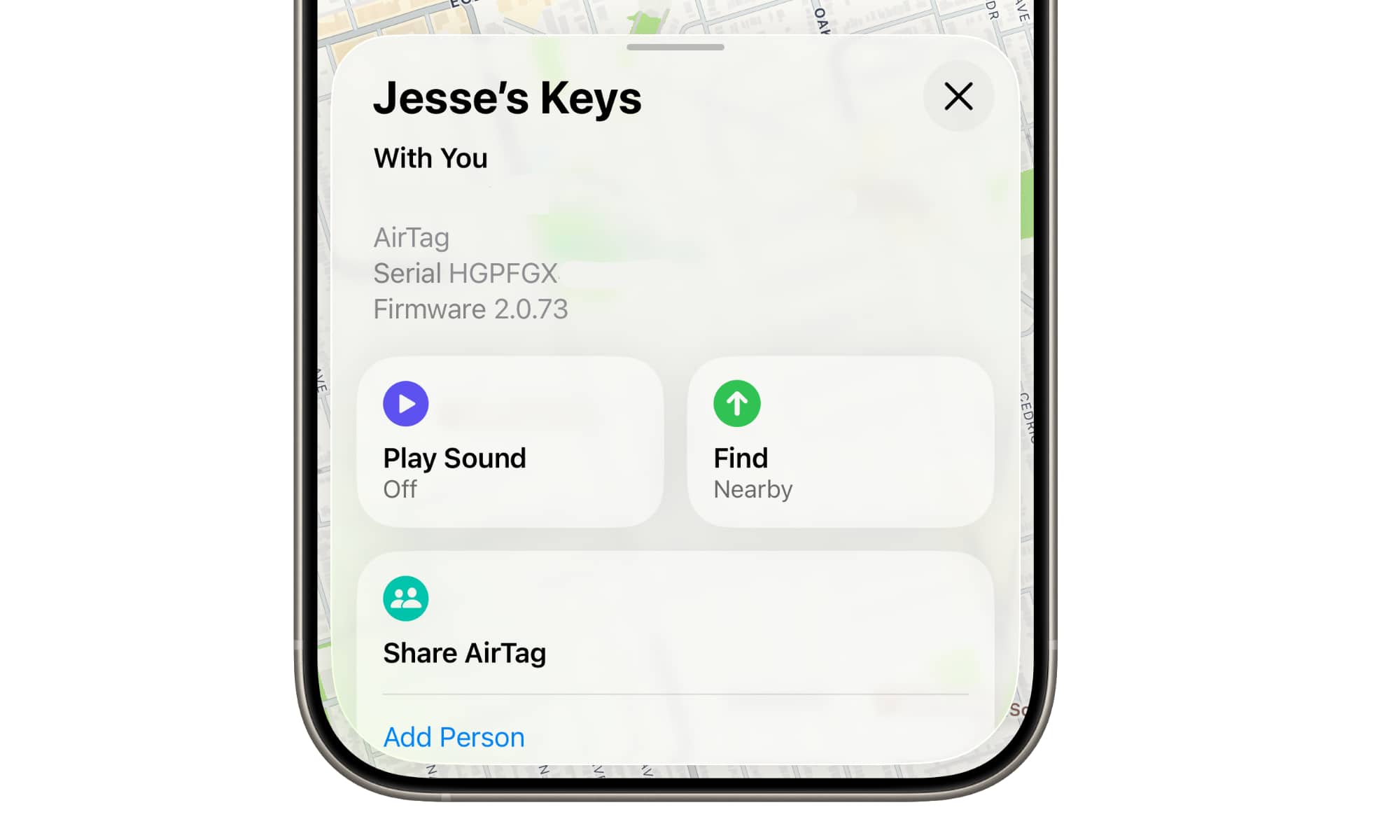
As with other Apple accessories like AirPods, there’s no way to force a firmware update to go to your AirTags. Your iPhone will download and push the update to nearby tags when it’s good and ready — usually overnight as long as they remain within Bluetooth range.
However, you can check to see if they’ve been updated by going into the Find My app:
- Open the Find My app on your iPhone.
- Select the Items button at the bottom.
- Choose the AirTag you want to check.
- Tap on the location below the AirTag name to see the serial number and firmware version.
You can also use the same process to check the serial numbers and firmware of other Find My accessories, but be aware that they’ll have their own independent version numbers based on their own manufacturer’s preferences, and won’t correspond to Apple’s AirTags version numbering.






