
Regret That Email? Here’s How to Unsend It in iOS 26
 webbiz / Adobe Stock
Toggle Dark Mode
How many times have you regretted sending an email? For some of us, it happens more often than you think. Maybe you tried to send a professional message, but got “your” and “you’re” mixed up. Or perhaps you’re sending an email to your boss threatening to quit — only to regret it a few seconds later.
Whatever the reason, you can unsend an email in Apple’s Mail app if you’re quick enough. You’ll have a few seconds to take the message back so you can rewrite it or delete it. Here’s what you need to know.

How to Unsend an Email From the Mail App on Your iPhone
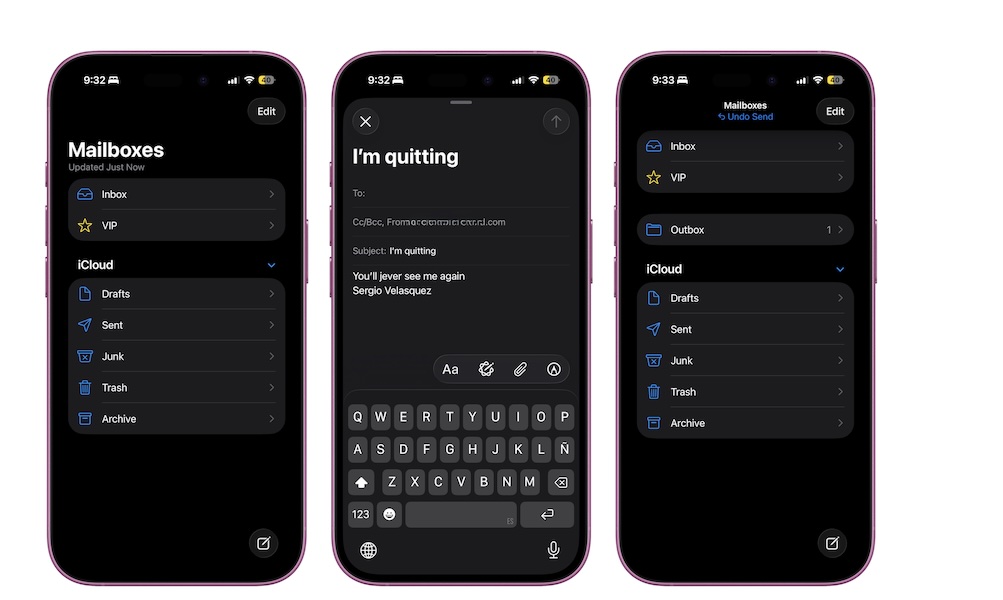
Unsending an email is even easier than sending it. Let’s say you’re not ready to send an email, but you hit the send button by mistake. By default, you’ll have up to ten seconds after you send it to unsend it.
How, you may ask? Right after you hit the send button, the message will disappear from your screen, but a small blue link will appear at the top. Tap the Undo Send button, and the message will pop back up again, so you can change it or delete it. Note that if you haven’t updated to iOS 26 yet, you’ll see the Undo Send button at the bottom of your screen instead, but the feature works exactly the same way.
And that’s it! You can do this as many times as you want, but you’ll need to be quick or the message will be sent.
How to Change the Undo Send Delay Time
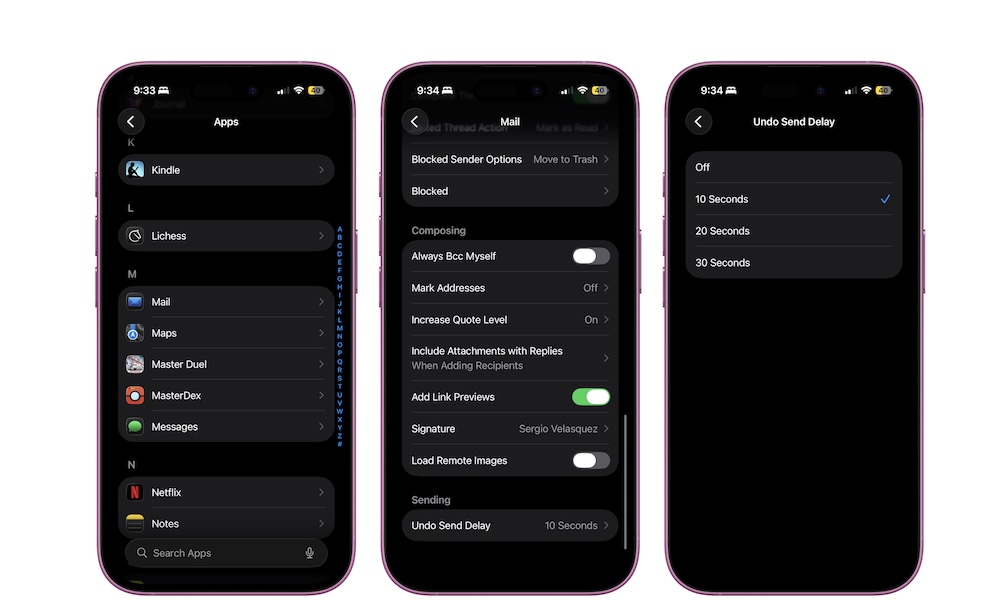
By default, the iPhone gives you 10 seconds to unsend a message, but you can change that with just a couple of taps. Here’s how:
- Open the Settings app.
- Scroll down to the bottom and tap on Apps (if you’re running iOS 18 or later)
- Find the Mail app.
- Scroll down to the bottom one more time and under Sending, tap on Undo Send Delay.
- Choose the time you want.
As you can see, you can increase the time to up to 30 seconds. You can also choose Off to disable the option to unsend messages. Why you’d want to do that is beyond us, but it does ensure your emails go out right away, so it’s good that Apple lets you choose.
Never Send the Wrong Message Again
Whether you instantly regret a message or you’re just sending it to the wrong person, you can unsend an email in just one tap. It’s a quick and simple tip, but it can save you a world of trouble, especially if you tend to write important work emails from your iPhone.






