
Stop Unexpected Mac Battery Drain by Disabling This Sneaky Setting

Toggle Dark Mode
Your Mac has a sneaky setting that sounds boring but has some significant implications. It’s called “Wake for network access,” and chances are you’ve never heard of it before unless you’ve run into an issue trying to remotely access your Mac or MacBook. However, in most cases you don’t need this setting enabled, and there are some notable advantages to turning it off.
Wake for network access allows your Mac or MacBook to wake from Sleep mode to provide shared resources. When enabled, your computer’s network card stays partially powered to listen for and wake up your Mac when it receives requests for file sharing, Screen Sharing, AirPlay, Music playlists, and shared printers as well as tools like Apple Remote Desktop.
If you frequently share files between computers in your house, use your Mac as a media server for an Apple TV, or print wirelessly to a printer connected to your Mac, you should leave this setting enabled. Otherwise, you’re likely better off with “Wake for network access” disabled. If you aren’t sure, try turning it off; if you notice you can no longer see your Mac from other devices in your home once it goes to sleep, you can always toggle it back on.

For MacBook users, “Wake for network access” may result in as much as 20% battery loss overnight versus a typical 1-2% while in Sleep mode, depending on the model you use. Older Intel MacBooks suffer the greatest hit from leaving this on, but while newer Apple silicon models are more efficient, the battery drain can still be up to 10%, which is still excessive and unnecessary for a feature you don’t need.
This setting has privacy and security implications, too, especially for MacBook users who spend a lot of time on public Wi-Fi networks alongside countless other unknown devices. When ‘Wake for network access’ is enabled, your Mac will still respond to pings and discovery requests from other devices on the same network even when the lid is closed, allowing bad actors to scan, identify, or target your machine.
Since it only applies to your local network, this is far less of a risk for users of desktop Macs in a trusted home environment, but anyone with a MacBook should definitely take the time to update this setting. Here’s where to find it.
On a MacBook
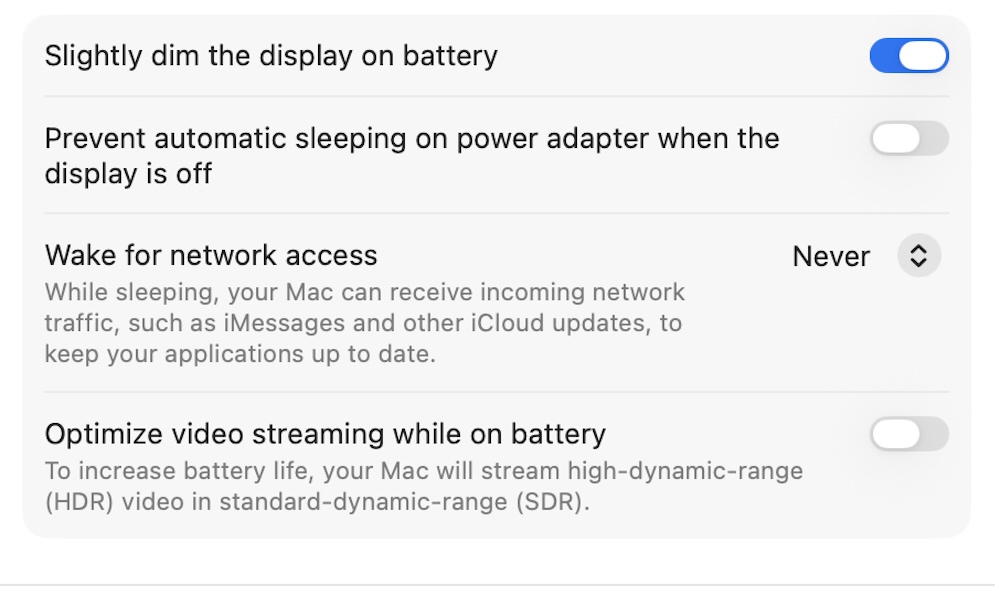
- Open the System Settings app.
- Select Battery.
- Click Options at the bottom.
- Select Never from the pop-up menu next to “Wake for network access.” Your other options are Always and Only on Power Adapter. The latter can be handy if you’re primarily concerned about battery life, but keep in mind your Mac will still be visible on the network if you plug it in while using public Wi-Fi.
- Click Done.
On a Mac
Since the iMac, Mac Studio, Mac mini, and Mac Pro don’t have a battery, these Macs have an “Energy” section instead with a simple toggle option.
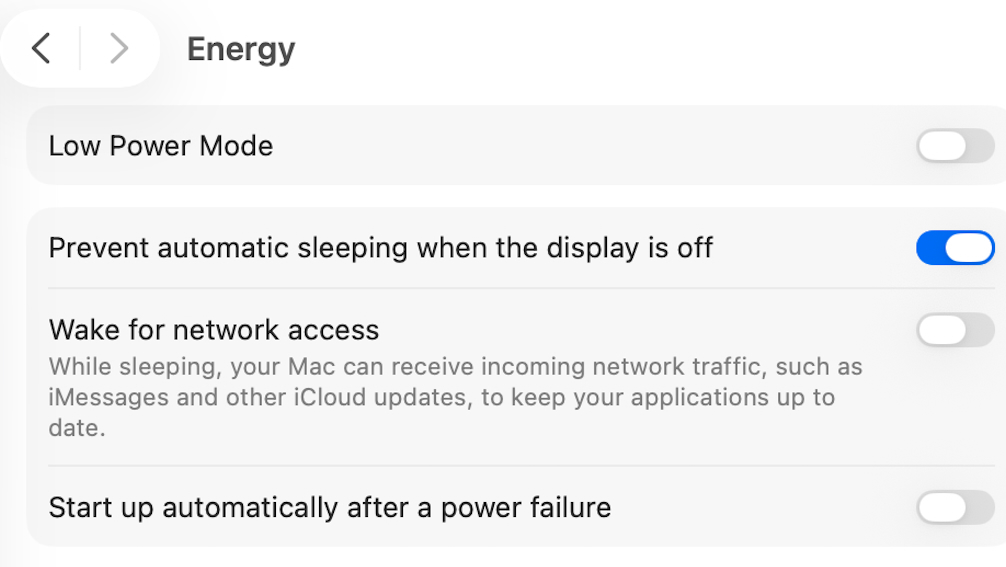
- Open the System Settings app.
- Select Energy.
- Toggle-off Wake for network access.
Will Find My Still Work?
The good news is that disabling “Wake for network access” will not impact Find My in most cases, but it depends on how old your Mac is.
- On M-series Macs, Find My utilizes a dedicated, low-power sub-processor that functions independently of your main network settings. These Macs will continue to broadcast their location even when asleep, powered off, or — thanks to a small power reserve — even when the battery is too low to boot the computer. As long as you have Find My enabled in your iCloud settings, your Mac remains trackable.
- If you’re using an Intel-based Mac from 2018 or newer (with the Apple T2 Security Chip), Find My will continue to work while asleep even if you disable this setting, but it won’t work when the Mac is fully powered off or has a dead battery.
- If you have an older Intel Mac (pre-2018), your computer does need ‘Wake for network access’ enabled to report its location while the lid is closed. If that kind of security is your priority on an older machine, we recommend leaving it on.
Take a minute to review the “Wake for network access” setting on your Macs and MacBooks. There’s a good chance you don’t need it, and will get a boost in battery life by turning it off. You’ll also have the assurance that your device will be far less visible to hackers when you’re using public or other untrusted Wi-Fi networks.






