
Battery Draining Faster After iOS 26.4? Don’t Worry — Just Wait
Toggle Dark Mode
This week, Apple launched a brand new update to the iPhone. Now that iOS 26.4 is available, we have access to things like new emojis, smarter Apple Music features, and new security settings that will keep your iPhone safer.
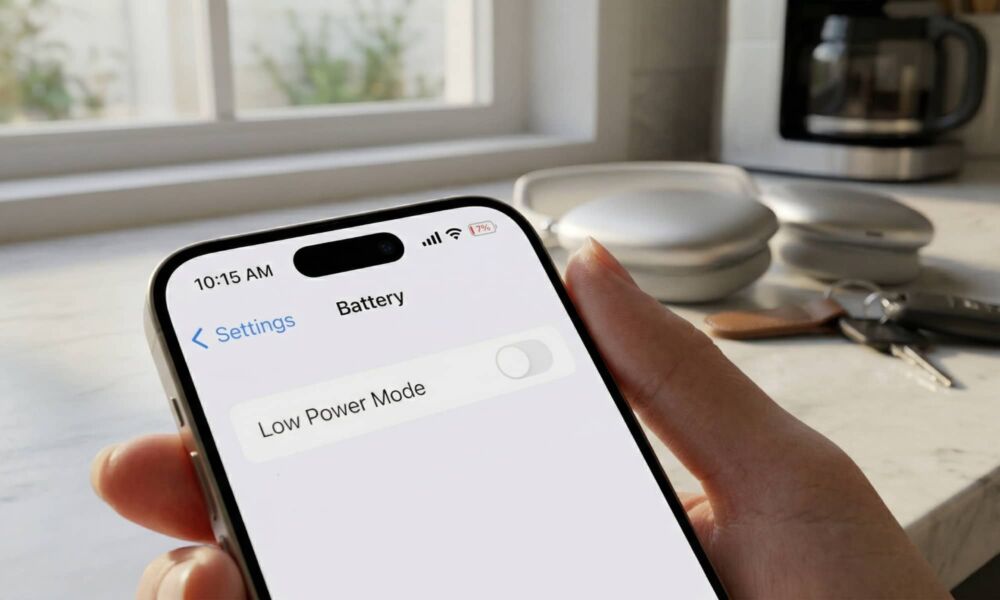
However, not everything is great news. As with new software updates, you may notice that your iPhone starts to feel a bit different. For starters, you might experience bigger battery drain than you usually do. Likewise, it’s possible that your iPhone might feel a bit warmer than it usually does.

The good news is that this is actually totally expected behavior — and Apple explains why. Let’s break it down.
Your iPhone Battery Might Drain Faster After Installing iOS 26.4 (And That’s Okay)
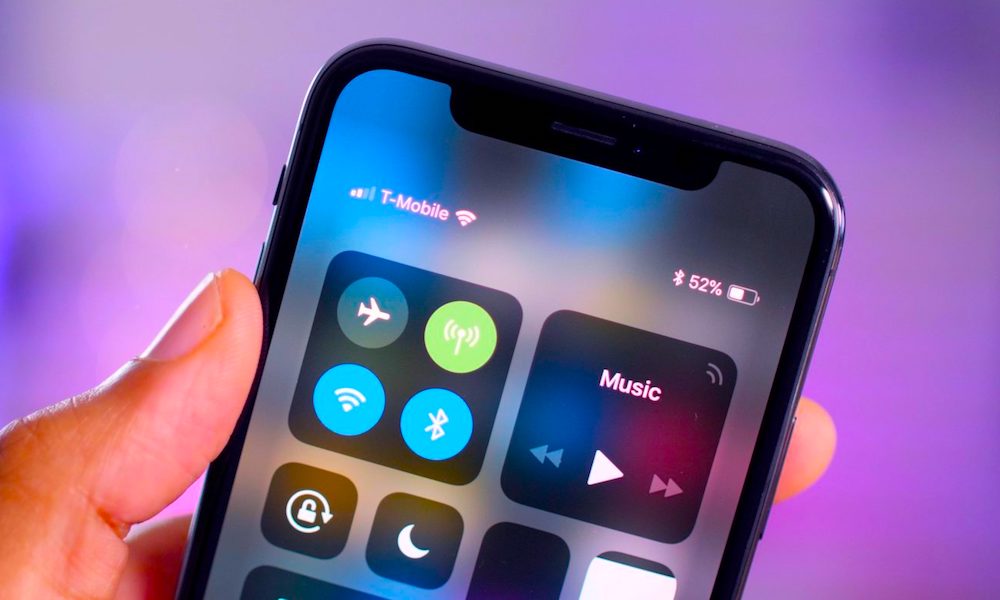
After every major software update, we’ve all experienced or heard about issues with the iPhone’s battery life and temperature. This issue happens so much that Apple has made a statement about it.
Back in September 2025, Apple clarified that software updates (especially big ones) might have a temporary impact on your iPhone. The keyword here is “temporary,” as your iPhone should be back to normal after a while. Here’s how Apple explains it:
Immediately after completing an update, particularly a major release, you might notice a temporary impact on battery life and thermal performance. This is normal, as your device needs time to complete the setup process in the background, including indexing data and files for search, downloading new assets, and updating apps.
So the reason why your battery feels worse, and your iPhone feels warmer than usual, is that, even if you don’t see it, your device is doing a lot of work behind the scenes. Apple also explains that the new features might need more power from your device, and if you’re someone who constantly uses your iPhone, you might also experience faster battery drain.
Again, Apple doesn’t explicitly say how long these issues should last after an update, but we can assume that everything should be back to normal after a day or two at the most. In the relatively rare case where there’s actually a battery-related bug in the release, Apple will undoubtedly fix it with another software update, as it’s always done in the past.
What You Can Do to Preserve Battery Life
Since this issue is temporary, you might not even notice it if you don’t use your iPhone a lot. However, if you installed iOS 26.4 before going to work or a flight, you might want to preserve as much battery life as possible.
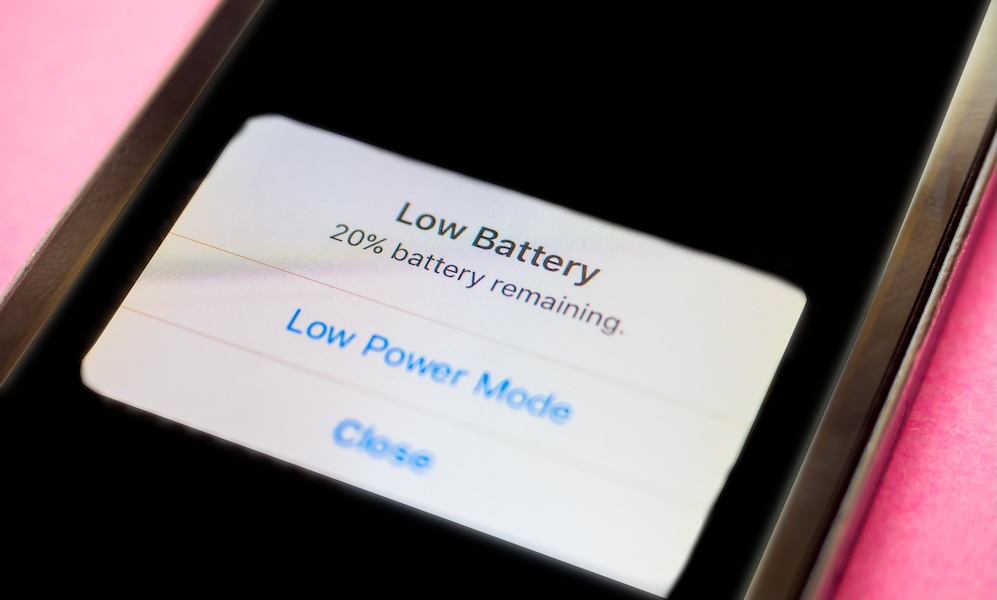
The easiest thing you can do is to turn on Low Power Mode. Your iPhone will reduce the background activity, processing speed, brightness, and even limit certain features like iCloud syncing, so the battery can last longer. To turn it on, go to Settings > Battery > Power Mode, and turn on Low Power Mode.
Just be aware that this is also only a temporary fix. Your iPhone will still need to complete its post-update housekeeping, and turning on Low Power Mode simply pauses it. However, at least it gives you a bit of control by letting you defer it until your iPhone is near a charger.
Pro Tip: If you have a newer iPhone, you might also see a toggle for Adaptive Power. Unlike the blunt instrument of Low Power Mode, this uses Apple Intelligence to subtly stretch your battery throughout the day without you even noticing. This can improve battery life with fewer performance compromises, but we still recommend Low Power Mode for the best post-update savings.
Install iOS 26.4 Right Away
As you can see, any battery-related issues with iOS 26.4 should be completely temporary. If you have a long day ahead of you, you can always be cautious and turn on Low Power Mode, so you don’t run out of power in the middle of the day.
After your iPhone is done with all the background activities, you shouldn’t notice any big issues with temperature or battery life. What you will notice is all the cool new features Apple added this time around.






