
8 Common Habits That Are Quietly Killing Your MacBook’s Battery

MacBooks are known for having excellent battery life, especially the newer Apple silicon models. You can usually get through a full workday without constantly looking for your charger, which is one of the biggest reasons people love using them in the first place.
Still, even the best MacBook battery can drain faster than it should if your daily habits are working against it. Some things waste battery during the day, while others slowly affect your MacBook’s long-term battery health. The frustrating part is that most of these issues don’t seem like a big deal at first.
A bright screen, too many apps, and heat can all add up. You may not notice the problem immediately, but over time, your MacBook might start dying sooner, running warmer, or needing service earlier than expected.
Fortunately, most of these problems are easy to fix. You don’t need to baby your MacBook or obsess over every percentage point; read on for 8 simple changes that will help your battery last longer between charges and age better over the years.
You Keep Your Screen Brightness Too High

Your MacBook’s display is one of the biggest reasons for battery drain. If you keep the brightness at maximum all day, your Mac has to use more power every minute the screen is on. That might not seem like a big deal if you're only opening your laptop for a short period, but it makes a massive difference during long days of meetings, classes, or travel.
A lot of people leave brightness higher than necessary simply because they never adjust it. Indoors, you usually don’t need the screen anywhere near full brightness.
Simply lower the brightness from Control Center or with the keyboard shortcut, which is usually the F1 key. You don’t have to make the screen uncomfortable to read. Just bring it down to the lowest level that still feels clear.
You should also turn on automatic brightness. Go to System Settings > Displays, and enable Automatically adjust brightness. This lets your Mac adapt to the lighting around you instead of wasting power when the room doesn’t require it.
Leaving Too Many Apps Open

It’s easy to leave apps open all day because macOS handles multitasking well. You might have Mail, Slack, Spotify, Chrome, and half a dozen other apps running at the same time. Sure, you might not be actively using them, but they are probably still doing something in the background.
Some apps check for updates, sync files, refresh content, or keep background processes active. Others may use memory or CPU resources even when they’re hidden behind another window. The more apps you keep open, the harder your Mac will have to work.
This is especially noticeable on older MacBooks or models with less memory. If your Mac starts feeling warm, sluggish, or unusually loud, background apps may be part of the problem. Apple silicon MacBooks are good, but they’re not magic.
Get into the habit of quitting apps you aren’t using with Command + Q instead of just closing the window. You can also open the Activity Monitor app and check the Energy tab to see which apps are using the most power. If one app keeps showing high energy impact, it’s worth closing or replacing it.
Don’t Keep Your Keyboard Brightness Higher Than Needed
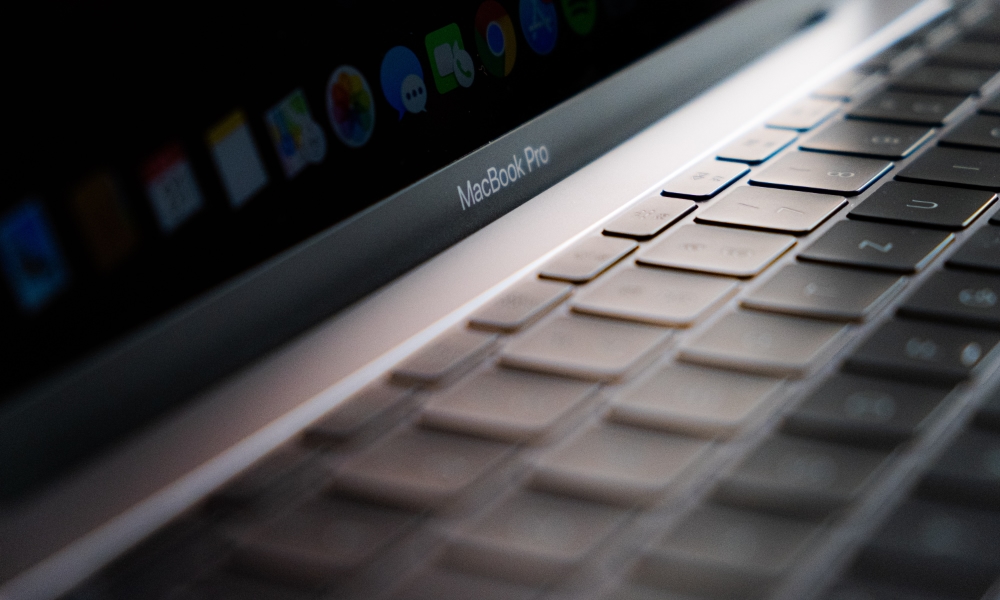
The keyboard backlight is helpful in dark rooms, but it doesn’t need to stay bright all day. If you’re working in daylight or in a well-lit room, the backlight may be wasting power without helping you type any better.
Granted, the keyboard backlight won’t drain your battery as quickly as the display, but it still uses power. Over several hours, small drains start to make a difference, especially when you’re trying to stretch your battery as long as possible.
Lower the keyboard brightness from your Control Center when you don’t need it. If you don’t see it there, you can add it yourself by going to System Settings > Menu Bar and clicking on Add Controls under Menu Bar Controls. You can also turn it off completely during the day and only use it at night.
It’s also worth setting the keyboard backlight to turn off after a period of inactivity. That way, it won’t stay lit when you step away from your MacBook or stop typing for a while.
Letting Apps Launch Automatically At Startup
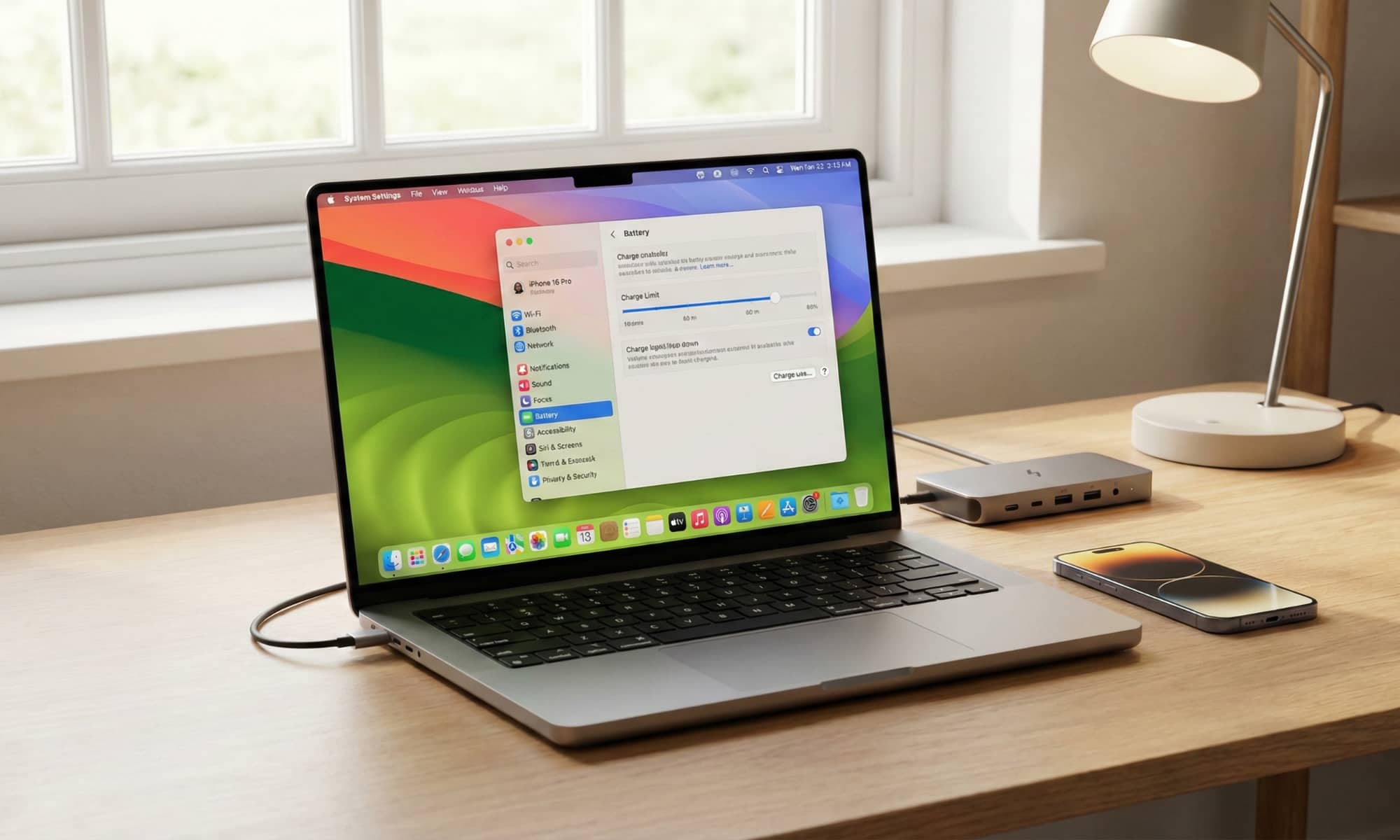
This is one of the things that could affect both your MacBook’s battery life and performance if you aren’t careful.
Letting too many apps open when you first boot up your computer means you’re letting your MacBook load a bunch of apps and background tools before you even begin working. The worst part is that many apps, from productivity apps to even Spotify, often add themselves to your Login Items.
Sure, some of these are useful, but many startup items don’t need to launch every single time you turn on your Mac.
The more background items you allow, the more your Mac may have to manage throughout the day. That can affect performance, battery life, and how warm your MacBook feels, especially if several apps start syncing or checking for updates at the same time.
Go to System Settings > General > Login Items & Extensions. From there, remove the apps you don’t need right at the start, and review the apps that can work in the background while you’re there. Keep the essentials, but don’t let every app decide it deserves to run all day.
Don’t Leave Bluetooth Accessories Connected All Day
Bluetooth is efficient, but connected accessories can still drain battery life. If you keep headphones, keyboards, or other devices connected all day, your MacBook has to work harder to maintain those connections.
This usually isn’t the biggest battery drain on your Mac, but it matters when you’re trying to make every percentage last. It can also become more annoying if accessories keep waking your Mac or reconnecting when you don’t need them.
Apple recommends turning off Bluetooth when you don’t need it to save energy. You don’t have to do this every day if you rely on wireless accessories, but it’s useful during travel, on flights, during long work hours, or whenever you’re away from a charger.
You can disconnect accessories from Control Center or turn off Bluetooth in System Settings.
Using Your MacBook In Hot Environments

Heat is one of the worst things for battery health. If you regularly use your MacBook in direct sunlight, under blankets, or in a hot room, the battery and internal components may run warmer than they should.
Heat can also make your Mac work harder. Intel MacBooks may spin up fans more often, while Apple silicon models may still reduce performance or use extra energy to manage temperature. Either way, working in hot conditions can affect both daily battery life and long-term battery health.
Soft surfaces are another common problem. Beds, couches, blankets, and pillows can trap heat and block airflow, especially on older Intel models with vents. Even newer MacBooks without loud fans still benefit from having space to release heat.
Use your MacBook on a hard, flat surface whenever possible. Keep it out of direct sunlight, avoid charging it when it’s already hot, and give it time to cool down if it feels unusually warm.
Keeping Your MacBook Plugged In At 100% All the Time
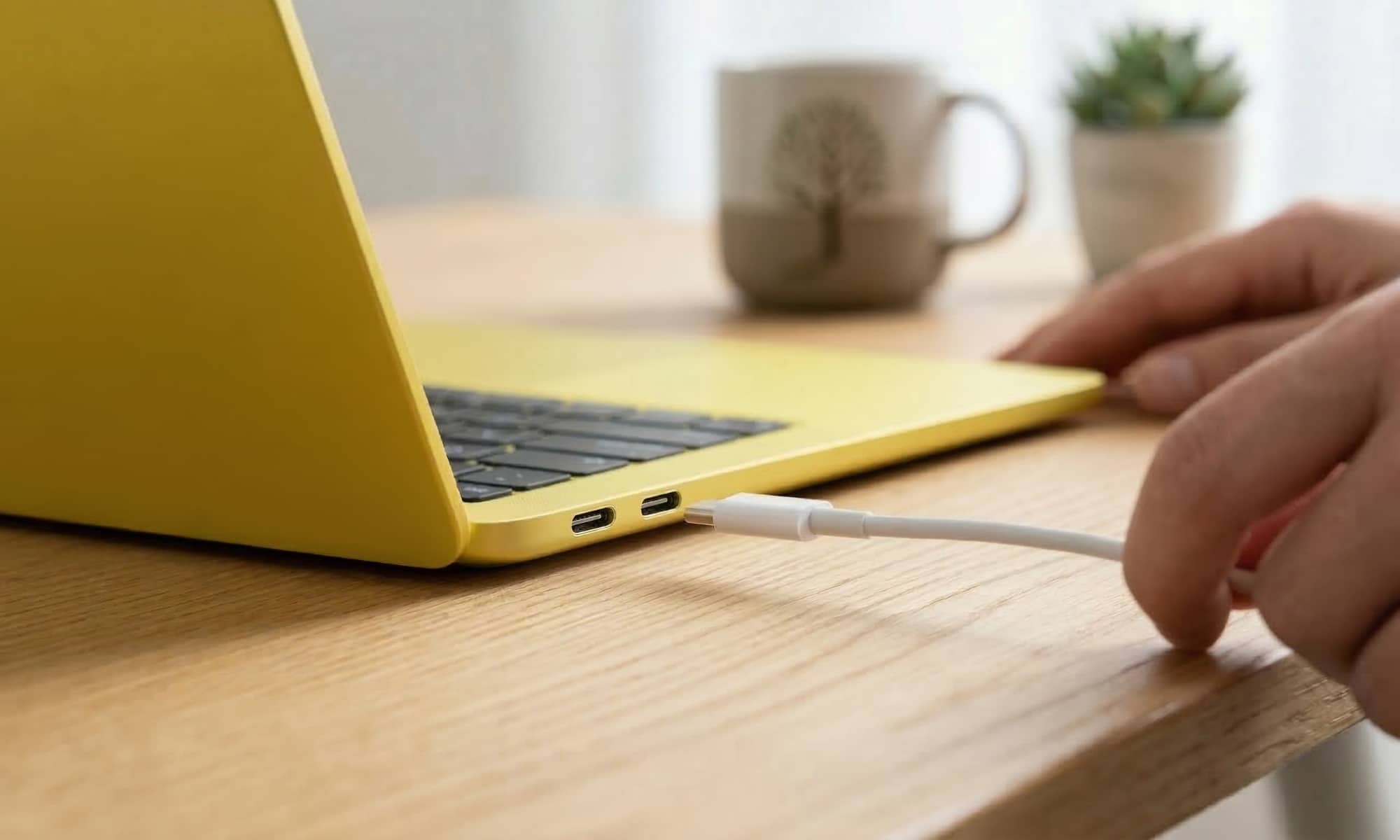
A lot of people use their MacBook like a desktop. They connect it to an external monitor, plug in the charger, and leave it there for days or weeks. That’s convenient, but keeping it fully charged all the time can contribute to battery aging over the long term.
Lithium-ion batteries naturally wear down, and spending too much time at full charge can add extra stress. Apple’s Optimized Battery Charging is designed to help with this by learning your daily routine and reducing how long your Mac stays fully charged.
If macOS pauses charging around 80%, don’t immediately assume something is wrong. Your Mac may be trying to protect battery health. If you need a full charge before leaving, you can choose to charge to full when necessary.
Keep Optimized Battery Charging turned on in System Settings > Battery > Battery Health.
Fully Draining the Battery Too Often
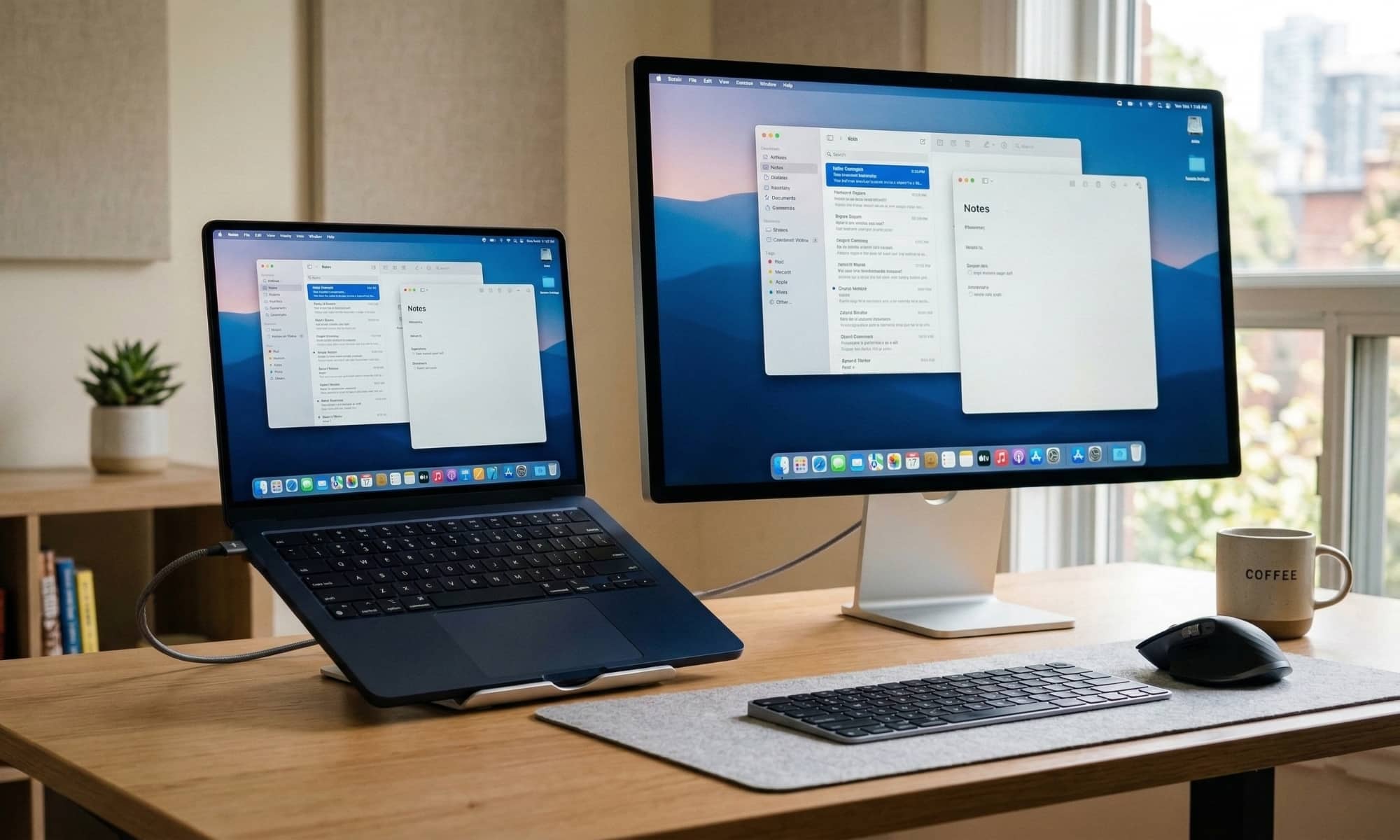
On the other side of the spectrum, draining your battery constantly is also an issue. Sure, letting your MacBook hit 0% once in a while isn’t the end of the world. Sometimes you’re traveling, working, or stuck somewhere without a charger. The real issue happens when you regularly drain the battery until your Mac shuts itself down.
Constantly draining your battery can add wear over time. Modern MacBooks are designed to protect themselves, but that doesn’t mean you should intentionally run the battery to empty every day. It’s much better to plug in before the battery gets extremely low.
A good habit is to charge around 20% when possible. You don’t need to obsess over it, but avoiding frequent full drains can help your battery age better.
This is also important if you’re storing your MacBook for a while. Don’t leave it completely empty for weeks or months. A completely discharged battery can become harder to charge later. Instead, store it with around 50% battery life, as that’s what Apple recommends.
A Few Better Habits Can Help Your MacBook Last Longer
Most MacBook battery problems usually come from a mix of small things that you do during the day. Maybe your screen is too bright all the time, or you have too many apps open.
Whatever the reason, these micro-drains add up, shortening your daily runtime and putting unnecessary strain on the physical battery cells over time, which can cause even more issues in the future.
The good news is that you can fix that simply by changing a few things in your daily life. You don’t need to treat your MacBook like it’s fragile. After all, this computer will last a really long time, even with low maintenance. However, changing a couple of habits and doing that consistently should give you better results and keep your MacBook’s battery healthy for longer.