
Beyond the Mute Switch: 8 Pro Ways to Use the Action Button
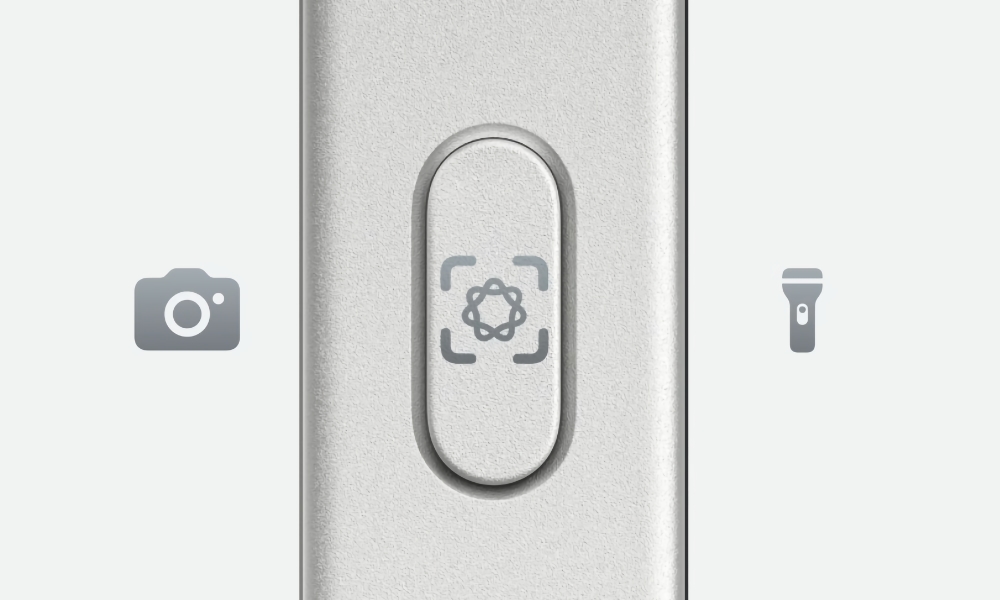
The Action button is one of those newish iPhone features that can feel a little underwhelming if you leave it on the default setting and never think about it again. You might even wonder why the company bothered to remove the Silent switch in the first place.
However, the Action button can do a lot more than you think. Apple gives you a few obvious options right out of the box, including Silent Mode, Camera, Flashlight, Focus, Controls, Shortcut, and Accessibility. Those are a good starting point, but the Action button can do so much more. Where the feature becomes really interesting and powerful is once you treat it as a hardware shortcut for the one thing you always use.
The Controls option will let you select from the same gallery of buttons that can be assigned to the iPhone's Control Center, but the Action button's real hidden superpower comes from the ability to assign it to a Shortcut. With your own custom shortcuts, your Action button can do pretty much anything — launch an app, open a menu of actions, or start a chain of tasks that would normally take several taps.
So if you’ve been leaving the Action button underused, read on for are some of the best ways to make it feel genuinely useful.
Turn It Into a Super-Fast Camera Launcher

One of the most effective uses of the Action button for certain iPhone models is providing instant access to your camera. If you have an iPhone 16e or 17e, or even an iPhone 15 Pro, you won’t have access to one of Apple's newest buttons: the Camera Control. But that doesn’t mean you can’t create your own.
You can set your Action button to open the Camera, but where it really stands out is that it even lets you choose a specific mode like Photo, Selfie, Video, Portrait, or Portrait Selfie instead of just launching the app in a generic way (like the Camera Control does).
So, if you like to take spontaneous photos, customizing your Action button this way is a must. If you’re a parent, traveler, pet owner, or just someone who likes taking quick photos when something interesting happens, this is the best way to do it if you don’t have a Camera Control. It’s not the flashiest, most creative use for your Action button, but it may be the one you use most often.
Turn It Into a One-Press Voice Memo Recorder
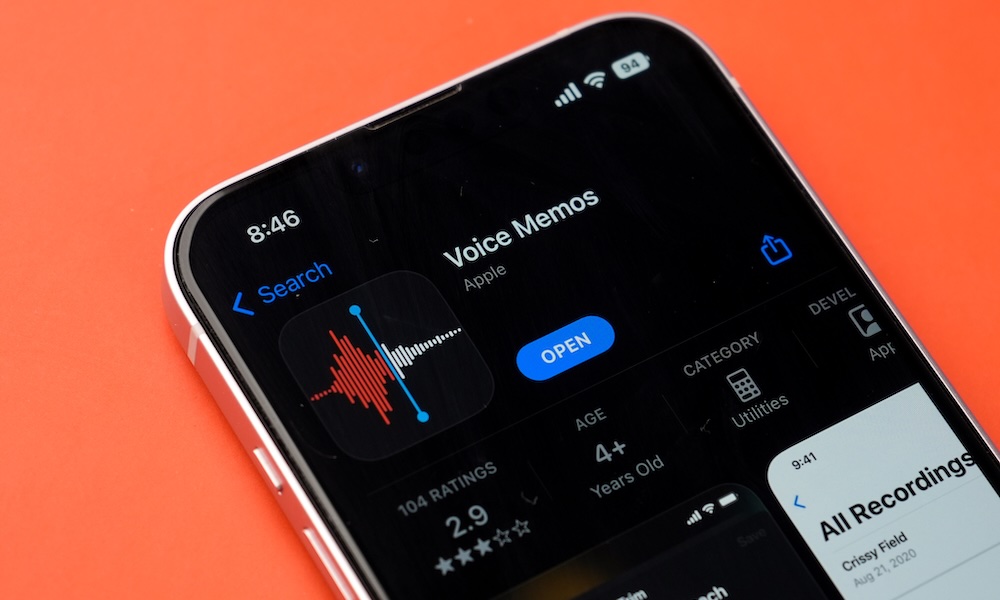
If you collect ideas throughout the day, or you like to quickly record stuff, this is one of the best ways to use your Action button. You can assign the button to a Shortcut that opens Voice Memos and starts recording automatically, which is way faster than opening the app or using your Control Center.
That makes it a great idea for writers, students, journalists, and anyone who thinks better out loud than on a keyboard. Also, if you tend to forget what people tell you a lot, this can help you remember it when you really need it.
Make It an Instant Shazam Button
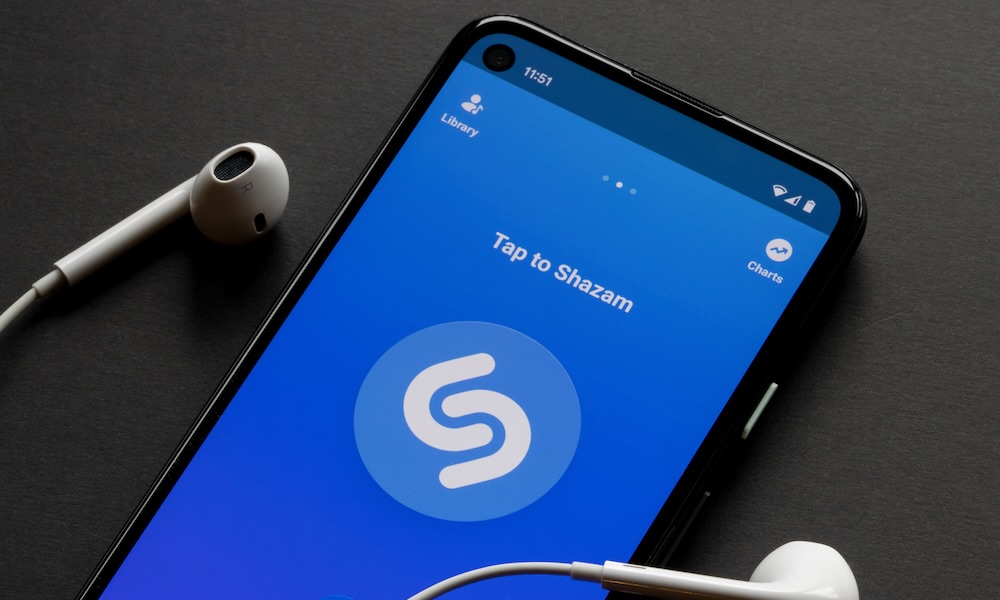
Apple now includes Recognize Music as a built-in Action button option on supported models, which means you don’t even need to build a custom Shortcut if all you want is to get the name of a song that’s a few seconds from ending. You can press the Action button, and your iPhone can start figuring out what’s playing nearby or on the phone itself.
Of course, not everyone needs a music-identification button, but if you’re constantly hearing songs in stores, restaurants, bars, or random videos and wondering what they are, it becomes surprisingly effective. Plus, it’ll give you a nice excuse to actually start using your Action button a little more.
Set Your Action Button to Open Magnifier
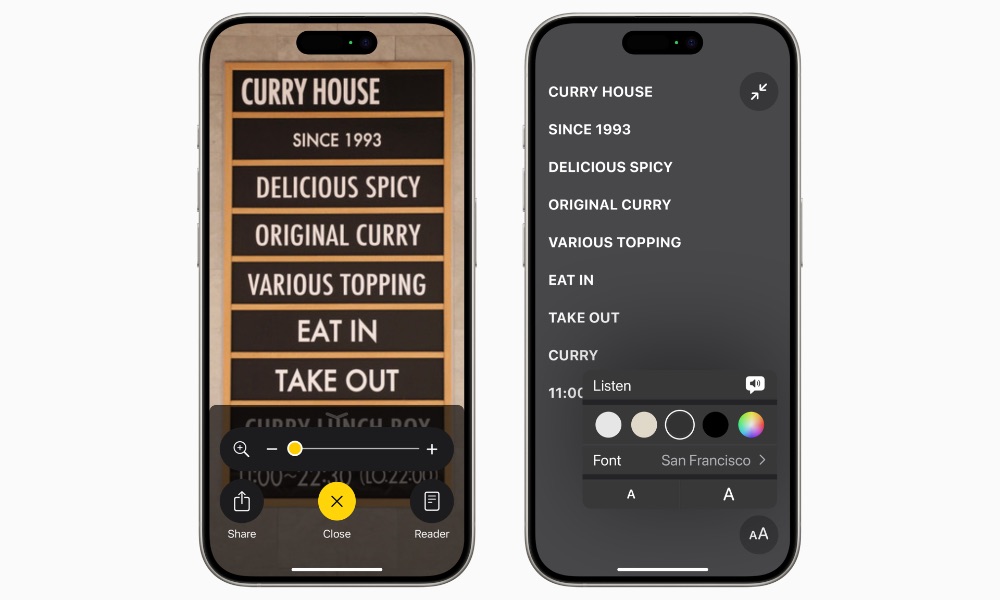
Magnifier is one of the most underrated of the built-in iPhone tools, especially if your vision isn't as good as it used to be. And the best part is that the Action button is a great way to make it easier to use. Apple lets you assign the button to a group of accessibility features, including the Magnifier, so you can turn your phone into a fast reading and inspection tool without digging through your apps first.
That’s useful in more situations than most people expect. Restaurant menus, medication labels, product packaging, serial numbers, appliance text, and tiny printed instructions are all things that can suddenly become annoying to read when you’re in a rush or you forgot your reading glasses. Magnifier solves that problem quickly, and giving it a hardware shortcut makes it easier to use it.
Build a Smart Home Shortcut
If you use smart home devices, the Action button can become a remote control that’s faster than anything else you’ve tried. You can assign it to a Shortcut that runs a smart-home scene or handles a specific accessory, whether that means turning off your lights, opening the garage, locking the door, or running a full Good Night routine.
This is one of the coolest ways to use an Action button because it makes the phone interact with your actual environment. If you have one Home scene you trigger constantly, you can now use a specific button on your phone instead of having to go through your apps or widgets.
Pro Tip: While you can use your Action button to unlock your front door, you'll still need to authenticate with Face ID. That's still faster than swiping into your Home app, but it also means you won't be able to do it by simply reaching into your pocket.
Make It a Shortcut for Your Favorite App
Sometimes the smartest Action button setup isn’t that creative at all — it’s just practical. Using Apple Shortcuts, you can assign the Action button to open whichever app you use most, whether that’s Calendar, Spotify, Todoist, Messages, or something else you reach for constantly.
If there’s one app you open dozens of times a day, making it your hardware shortcut can save you more time than some elaborate automation you only trigger twice a week. Granted, if the app you use the most is Instagram or TikTok, you might want to skip this, as it’s an easy way to just get distracted at work or in class.
With that said, it’s always best to customize your iPhone to match your daily habits, so if you use an app constantly, it’s a no-brainer to give it a specific shortcut.
Use the Action Button to Take Notes in a Flash
If you’re constantly taking notes or using your iPhone to remind yourself of the things you need to do during the day, the Action button can help you capture all your thoughts at any given moment. Instead of just opening the Notes app or using the Quick Note control in the Control Center, you can build a Shortcut that creates a new note immediately, and even sends it to a specific folder if you want to keep things organized.
This is great for writers, students, busy parents, and basically anyone whose brain keeps throwing out ideas and reminders at inconvenient times. Whether you need to remember the groceries you need to buy or your to-do list for tomorrow, this small change will make it easier to remind yourself without losing focus.
Make It A Menu of Different Actions
There is one downside with the Action button: it can only trigger one specific action. It would be great if you could trigger more by double or triple pressing the button, but for now we’re stuck with a single action.
So, if you can’t decide on one best use for the Action button, you don’t actually have to. One of the smartest power-user setups is assigning the button to a Shortcut that opens a menu first, then lets you choose from several actions. That menu could include things like start a note, turn on a Focus mode, identify music, translate something, text someone, or open Apple Maps.
This is probably the most flexible Action button setup you can build because it prevents the feature from being locked to a single task. Instead of choosing a single favorite shortcut forever, you get a small command center behind a single button.
And the best part? You can customize that shortcut however you like. So you can add or remove actions based on what you want to do on your iPhone. It’s ideal if your needs change throughout the day or if you like the idea of a hardware shortcut but don’t want to waste it on something too narrow.
Make Your Action Button Actually Useful
Using the Action button's default setting to silence your iPhone is handy, and it's the most obvious action to replace the missing Ring/Silent switch, but if you’re like most people, you likely only need to do that once in a blue moon.
That’s why it’s important to set your Action button to a task that’s actually useful to you. That might mean using one of the default options, like opening the Camera or turning on the Flashlight, or customizing it to open a specific app for you.
Or, if you want more versatility, you can turn the Action button into a Swiss Army Knife filled with all your most useful tools and shortcuts.
The right choice depends on what you actually do several times a day. If you keep that in mind, the Action button starts to become a lot more useful.