
5 Simple Habits That Will Add Years to Your Apple Gear
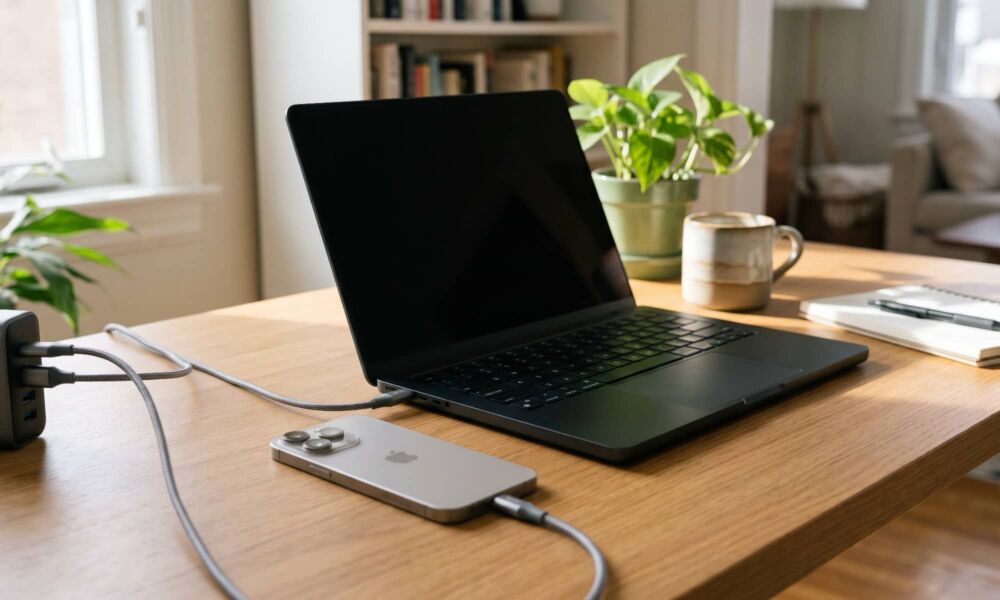
Apple devices are known for their longevity, but that doesn’t mean they’ll last forever, especially if you don’t treat them right.
Your iPhone’s battery will eventually degrade, your MacBook can accumulate dust, and even something as simple as a damaged charging port can make an otherwise perfectly functional device difficult to use.
Fortunately, you can do several things to keep your Apple devices in tip-top shape for as long as possible. Of course, you don’t need to obsess over everything at once, but changing a couple of habits can go a long way.
To get you started, here are the most basic tips to make your Apple devices last longer.
Don’t Expose Your Devices to Extreme Heat

One of the most important things you can do to extend the life of your Apple devices is to keep them away from excessive heat. It’s easy to overlook this, especially when you’re using your iPhone outside or working on your MacBook somewhere without air conditioning.
However, heat can permanently affect your device’s battery. Lithium-ion batteries gradually lose their ability to hold a charge as they age, and exposure to high temperatures can speed up this process.
Apple recommends avoiding using or even charging your devices in ambient temperatures above 95°F (35°C). That means leaving your iPhone inside a parked car on a hot afternoon can be a really bad idea, even if you’re only going to be away for a little while.
Also, you should pay attention to where you charge your devices. For example, charging your iPad under a pillow or leaving your MacBook somewhere with poor ventilation can prevent heat from dissipating properly. Likewise, using your iPhone while it’s charging can make it heat up really fast.
If your device becomes unusually warm, give it some time to cool down before using it again. Doing it once probably won't cause damage, but if you keep doing it, you will start to notice a decrease in battery life.
Use Optimized Battery Charging
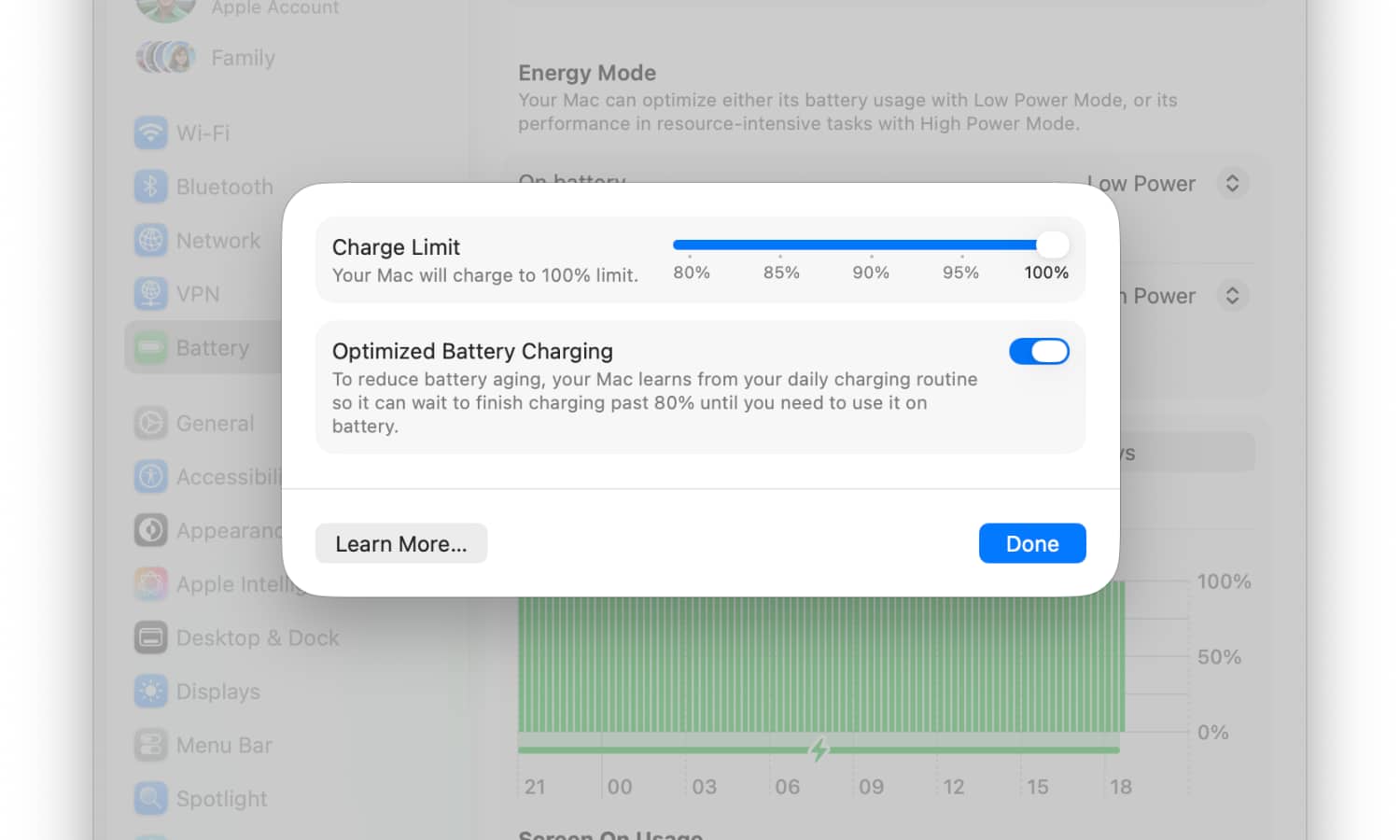
Apple includes several features designed to help your devices’ batteries last longer, and Optimized Battery Charging is one of the best.
This feature learns your charging routine and can delay charging after your device reaches 80% to reduce your battery’s wear and tear. For example, if you usually charge your iPhone at night and wake up around the same time every morning, it may wait before completing the last 20% until it’s time for you to go to work.
This is useful because lithium-ion batteries experience additional chemical aging when they spend long periods of time connected to a charger.
The feature is available on any modern Apple device like an iPhone, MacBook, and Apple Watch.
On older compatible iPhones, you can find it under Settings > Battery > Battery Health & Charging. On newer models, you need to go to Settings > Battery > Charging.
For your MacBook, if you're running macOS Tahoe 26 or later, you can turn this feature on by going to System Settings > Battery and then clicking the info (i) button next to Charging. On older versions of macOS, this button is found next to Battery Health.
Keep in mind that Optimized Battery Charging needs time to learn your routine. If your charging schedule changes frequently, it might not work all that well. Luckily, the next feature can still help.
Set a Battery Charge Limit When Possible
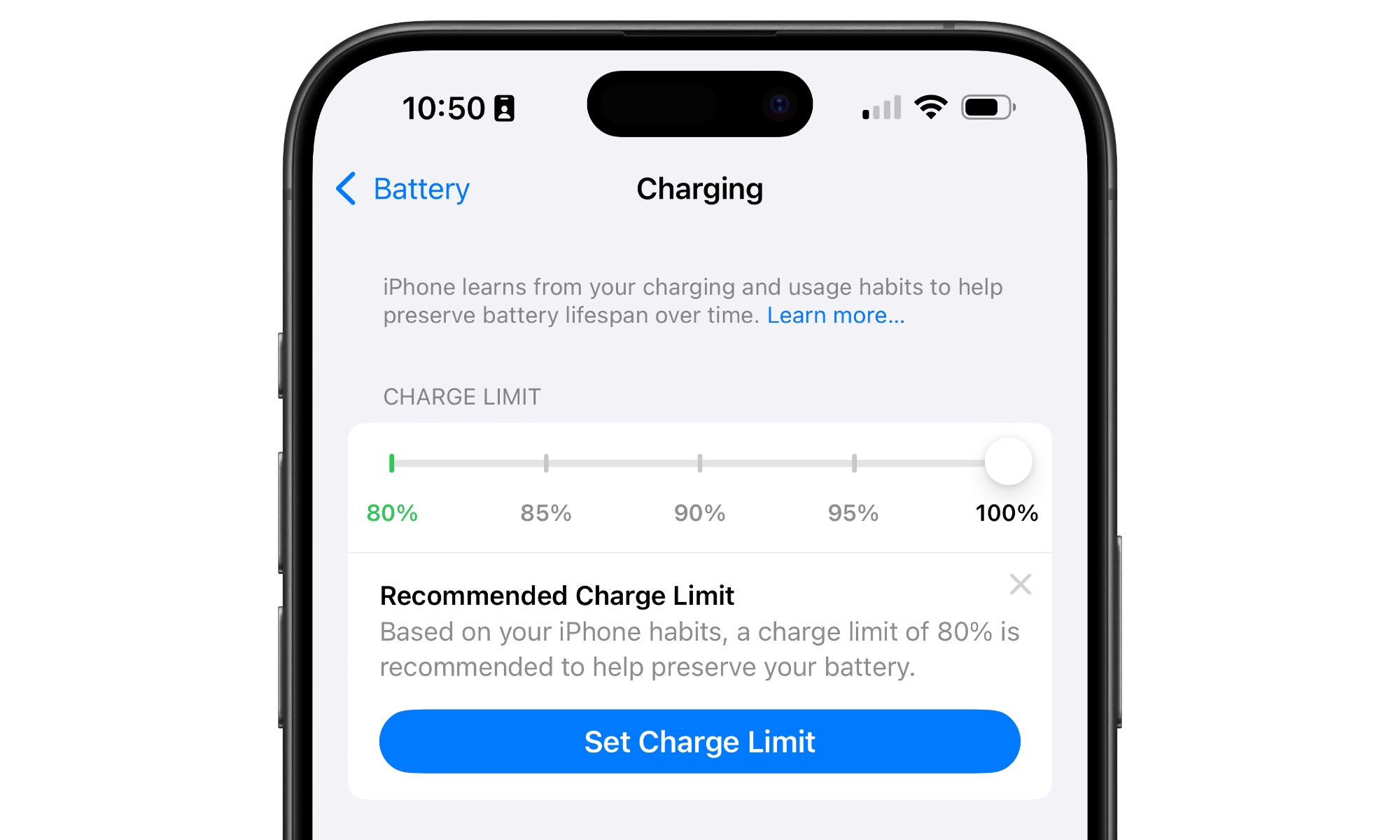
If you don’t need your device fully charged every day, setting a charging limit is one of the smartest features you can use.
Some newer Apple devices let you choose a maximum charge level instead of charging all the way to 100%. So if you tend to leave your MacBook or iPhone connected for a long time, you can set an 80% charge limit, which will be better for your device's battery in the long run.
On iPhone 15 and later, you can adjust the charging limit directly from Settings.
- Open the Settings app.
- Tap Battery.
- Select Charging.
- Drag the slider and choose the charging limit you prefer.
Some of the newer MacBooks also have this feature available as of macOS 26.4. You can check if you have it by going to System Settings > Battery and clicking the info (i) button next to Charging. If available, you should see the slider at the top of the window.
Use Reliable Chargers and Charging Cables
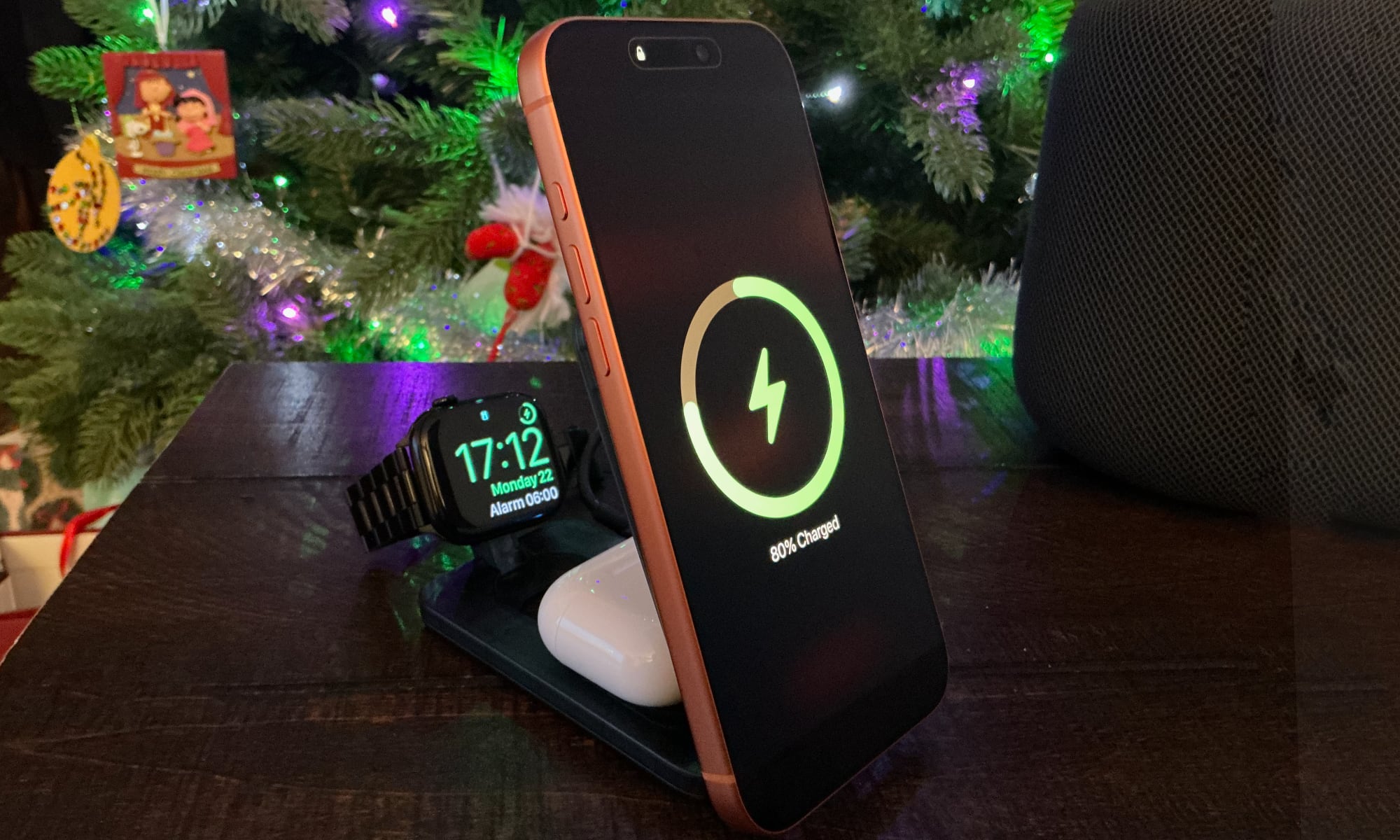
You don’t necessarily need to buy every charging accessory directly from Apple. However, choosing reliable chargers and cables is important if you want to avoid unnecessary problems over time.
There are plenty of cheaper options available online, but their quality can vary considerably. Poorly manufactured cables or power adapters can not only damage your device over time, but they can be a fire hazard.
So whenever you’re thinking of getting charging accessories, choose reputable manufacturers and look for products that meet the appropriate safety and charging standards. Apple’s MFi certification (for Lightning cables) and USB-IF certification (for USB-C cables) can help you identify cables and wired chargers designed to work safely with your iPhone. For wireless chargers, look for "Made for MagSafe" or Qi/Qi2 certification.
If you don’t know the company, just make sure to check the reviews online before buying them. If you don’t want to go through all this trouble, simply buy directly from Apple. It might be more expensive, but you can rest assured that it’ll work right out of the box.
Keep Your Apple Devices Updated
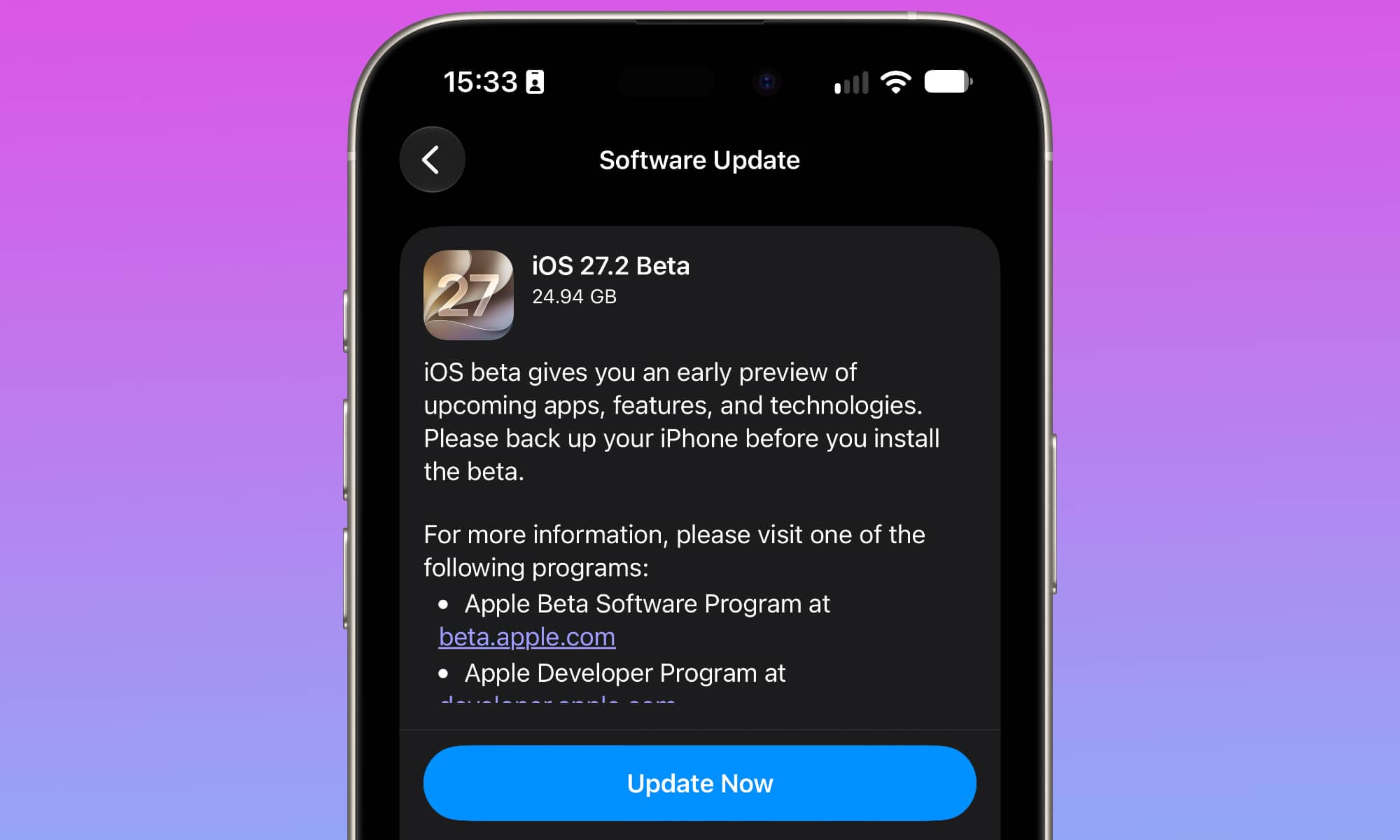
Keeping your devices up to date is such a simple but useful tip. By simply tapping one button, you can extend your Apple devices’ life without changing the hardware.
Apple regularly releases software updates that address security vulnerabilities and fix bugs. Some updates also improve compatibility with newer apps and services, allowing older devices to remain useful for longer.
The latest iOS 27 update, for example, even improved the performance and speed of every iPhone that supports it (even the older models), which is a good reason to keep your device up to date.
While you don’t need to install every update the second it drops, avoiding them can be risky, as most updates address security vulnerabilities — and advertise their existence in the process.
To check for updates on your iPhone or iPad, open Settings > General > Software Update. On your Mac, open System Settings > General > Software Update.
Of course, before installing a major update, it’s also a good idea to back up your devices, so you can go back in case something goes wrong. It doesn’t happen very often, but it’s best to be safe rather than sorry.
Keep Your Apple Devices Working for Years
As you can see, keeping your devices healthy isn’t extremely hard. All you need to do is follow a few tips, and you’ll be good to go.
The most important thing is not to obsess over it. Most modern tech is designed to last with little to no maintenance. Of course, you can make it last longer, but it isn’t worth it if you’re constantly overthinking the way you use your iPhone or Mac.
In the end, all devices age, and there’s nothing we can do about it. So the best tip is to enjoy your Apple devices, use common sense, and follow as many tips as you can.