
Use Optimized Battery Charging
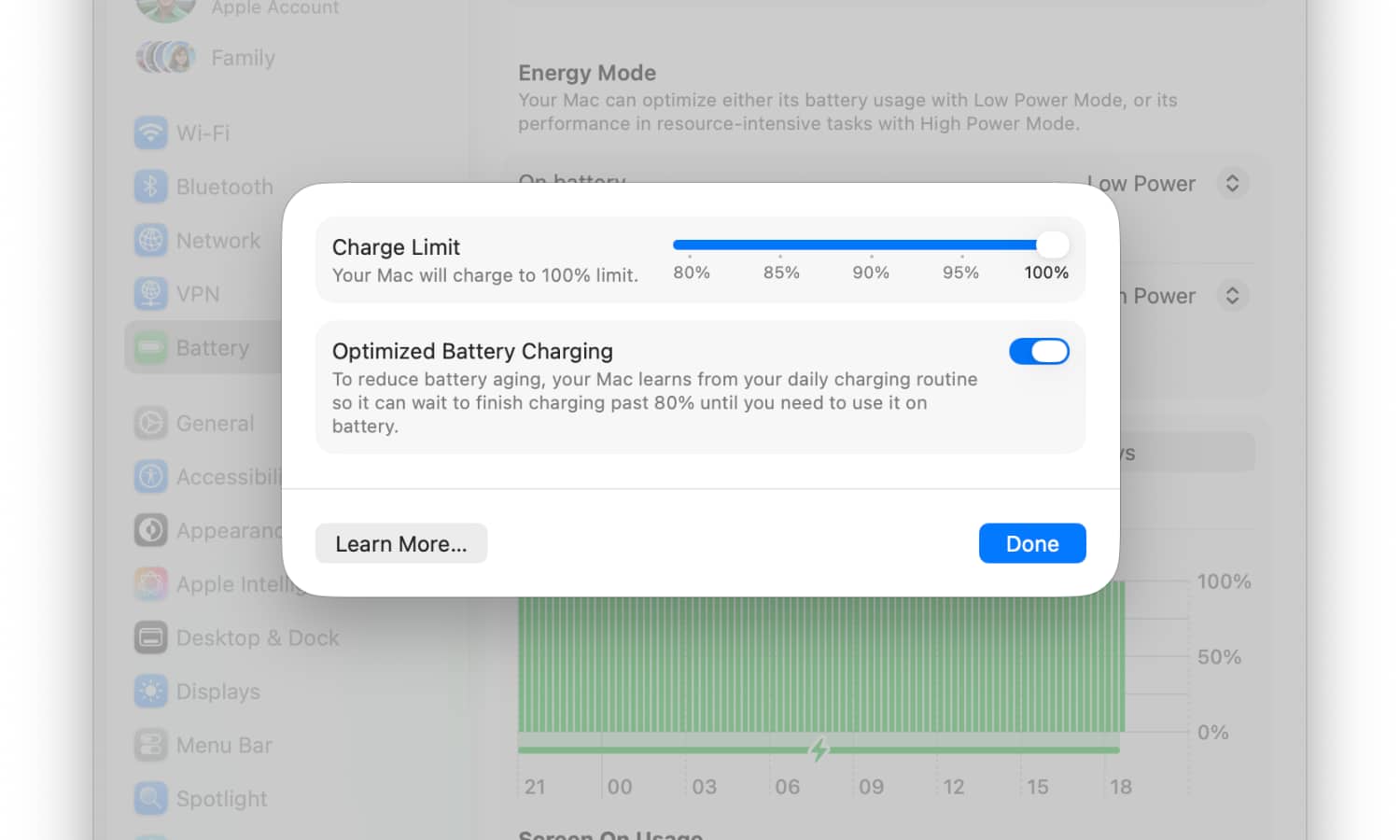
Apple includes several features designed to help your devices’ batteries last longer, and Optimized Battery Charging is one of the best.
This feature learns your charging routine and can delay charging after your device reaches 80% to reduce your battery’s wear and tear. For example, if you usually charge your iPhone at night and wake up around the same time every morning, it may wait before completing the last 20% until it’s time for you to go to work.
This is useful because lithium-ion batteries experience additional chemical aging when they spend long periods of time connected to a charger.
The feature is available on any modern Apple device like an iPhone, MacBook, and Apple Watch.
On older compatible iPhones, you can find it under Settings > Battery > Battery Health & Charging. On newer models, you need to go to Settings > Battery > Charging.
For your MacBook, if you’re running macOS Tahoe 26 or later, you can turn this feature on by going to System Settings > Battery and then clicking the info (i) button next to Charging. On older versions of macOS, this button is found next to Battery Health.
Keep in mind that Optimized Battery Charging needs time to learn your routine. If your charging schedule changes frequently, it might not work all that well. Luckily, the next feature can still help.