
Set a Battery Charge Limit When Possible
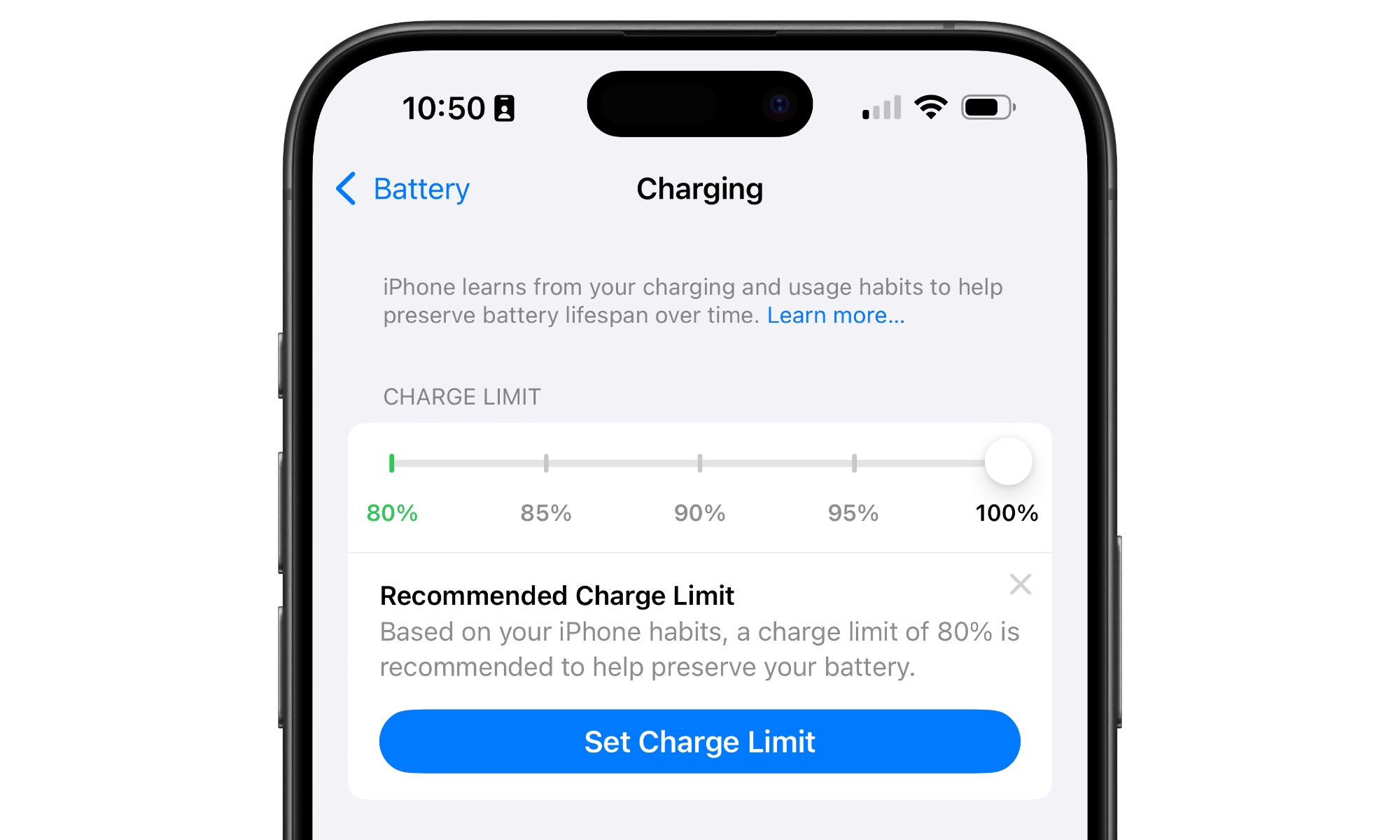
If you don’t need your device fully charged every day, setting a charging limit is one of the smartest features you can use.
Some newer Apple devices let you choose a maximum charge level instead of charging all the way to 100%. So if you tend to leave your MacBook or iPhone connected for a long time, you can set an 80% charge limit, which will be better for your device’s battery in the long run.
On iPhone 15 and later, you can adjust the charging limit directly from Settings.
- Open the Settings app.
- Tap Battery.
- Select Charging.
- Drag the slider and choose the charging limit you prefer.
Some of the newer MacBooks also have this feature available as of macOS 26.4. You can check if you have it by going to System Settings > Battery and clicking the info (i) button next to Charging. If available, you should see the slider at the top of the window.