
10 Common iPhone Mistakes Everyone Makes — And How to Fix Them
Even if your iPhone feels like the best phone on the planet, there will be times when you experience some hiccups. There are some pretty common issues that most of us experience every now and then.
But the thing is that most iPhone problems aren’t really problems; they’re mostly caused by mistakes based on our daily habits.
People keep doing the same tiny things that slowly make their iPhone feel noisier, slower, and less reliable. Then they assume the phone is getting old. In reality, iOS is packed with tools that keep things running smoothly and securely — but you have to know where to find them.
The good news is that none of these fixes require you to be a tech-savvy person; they’re mostly simple changes you can do in a few minutes, and you’ll feel the difference right away. Read on for 10 common things you should probably stop doing to your iPhone.
Force-Closing Apps All Day To Save Battery
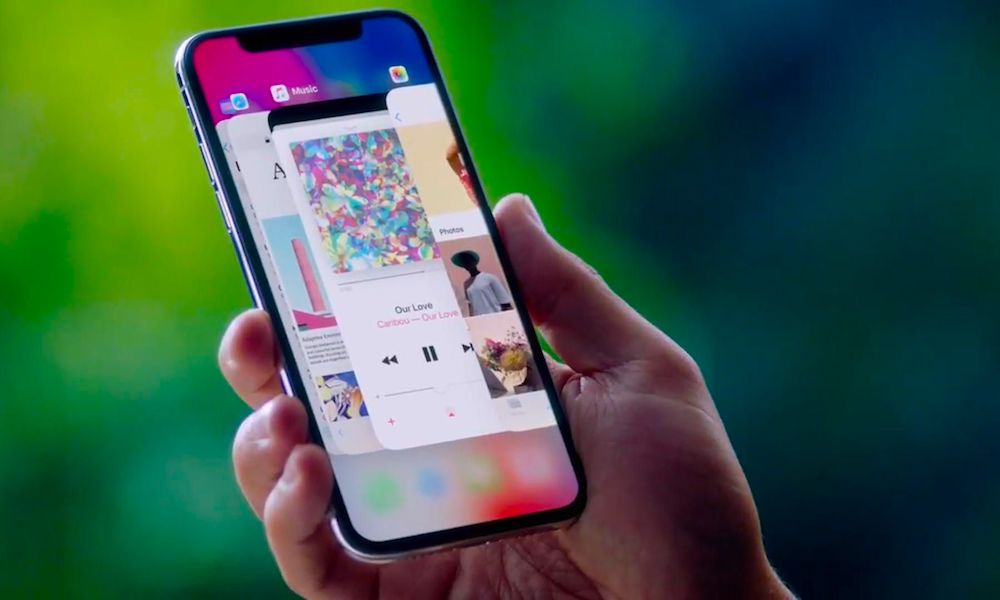
This is one of the most common iPhone habits people fall into. It feels like it works and it’s productive. You swipe up to open the app switcher, close everything out, and think you’re cleaning house.
The catch is that iOS doesn’t work like a desktop computer; apps don't keep running in the background. This means that constantly force-closing apps wastes more power than it saves because those apps have to reload from scratch the next time you open them. If an app is behaving normally, leaving it alone is usually the better move. When you exit an app, it will take a few moments to clean itself up and then go into a state of suspended animation where it's using virtually none of your iPhone's resources.
The only time force-closing makes sense is when an app is frozen, glitching, refusing to load, or clearly draining battery in the background. That’s the moment to kick it out and relaunch it. Otherwise, treat the app switcher as a way to jump between apps, not as a reminder to close apps.
Quick Win: Only swipe up to close an app if it is frozen or glitching. Otherwise, trust iOS to manage your memory — it's better for your battery and your speed.
The 'Storage Full' Trap
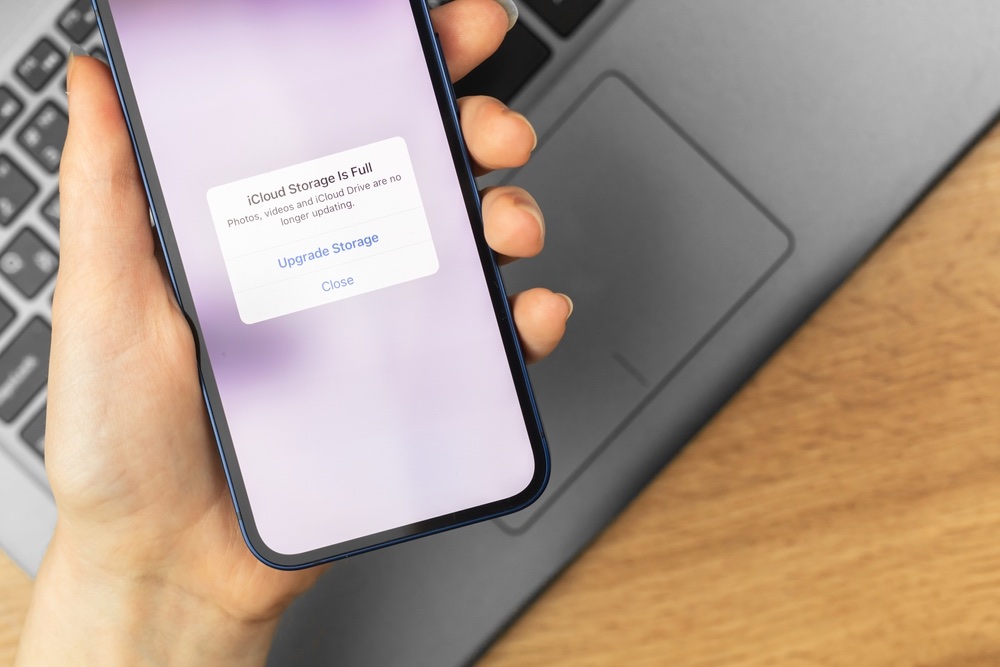
Nothing makes an iPhone crankier than running out of storage. It’s not only about being unable to download apps, either. Low storage can cause slowdowns, failed updates, camera hiccups, and weird behavior in apps that feels random until you connect the dots.
Your iPhone also needs breathing room for temporary files and system tasks. When storage gets full, it can’t handle those things as smoothly, and you'll feel like your iPhone is trying to play catch-up all day long.
The trick is to stop thinking of storage as something you deal with only when you hit the wall. A quick check once in a while prevents the chaos.
So go to Settings > General > iPhone Storage, and check how your iPhone is doing. If it’s near its limit, you might want to start deleting apps and files you don’t need anymore. Getting rid of pictures and videos is also worth doing, as they sometimes take up the most storage on your iPhone.
Your iPhone will also offer a few smart recommendations to help you clean it up more easily.
Quick Win: Enable Offload Unused Apps in Settings > App Store. This automatically deletes the app "bulk" when storage is low but keeps all your personal data and documents intact.
Never Updating iOS (Or Updating At The Worst Possible Time)
Skipping updates is an easy way to end up with bugs you don’t need, security issues you won’t notice, and compatibility problems that show up at the worst possible time.
On the other hand, starting an update right before you walk out the door can be dangerous, too, especially if your iPhone is set to download updates over cellular data.
Updates aren’t just new features. They’re often bug fixes, security patches, and quiet improvements that keep your phone running well. The smartest time to update is when you’re on Wi-Fi, plugged in, and not in a rush.
If you want to keep it simple, let your iPhone handle automatic updates overnight. Then you don’t even have to think about it. You’ll wake up the next morning with the latest software update without any hassle.
To turn on automatic updates, go to Settings > General > Software Update. If you have time and there’s an update available, install it right away. If not, go to Automatic Updates and turn on Automatically Install — but be aware that these won't always install right away, as Apple often delays automatic updates to avoid potential problems for users who may not be ready for them.
Quick Win: Toggle on Security Responses & System Files in Settings > General > Software Update > Automatic Updates. This lets Apple fix critical security holes without needing a full, time-consuming OS restart.
Using Weak Or Reused Passwords (And No Password Manager)
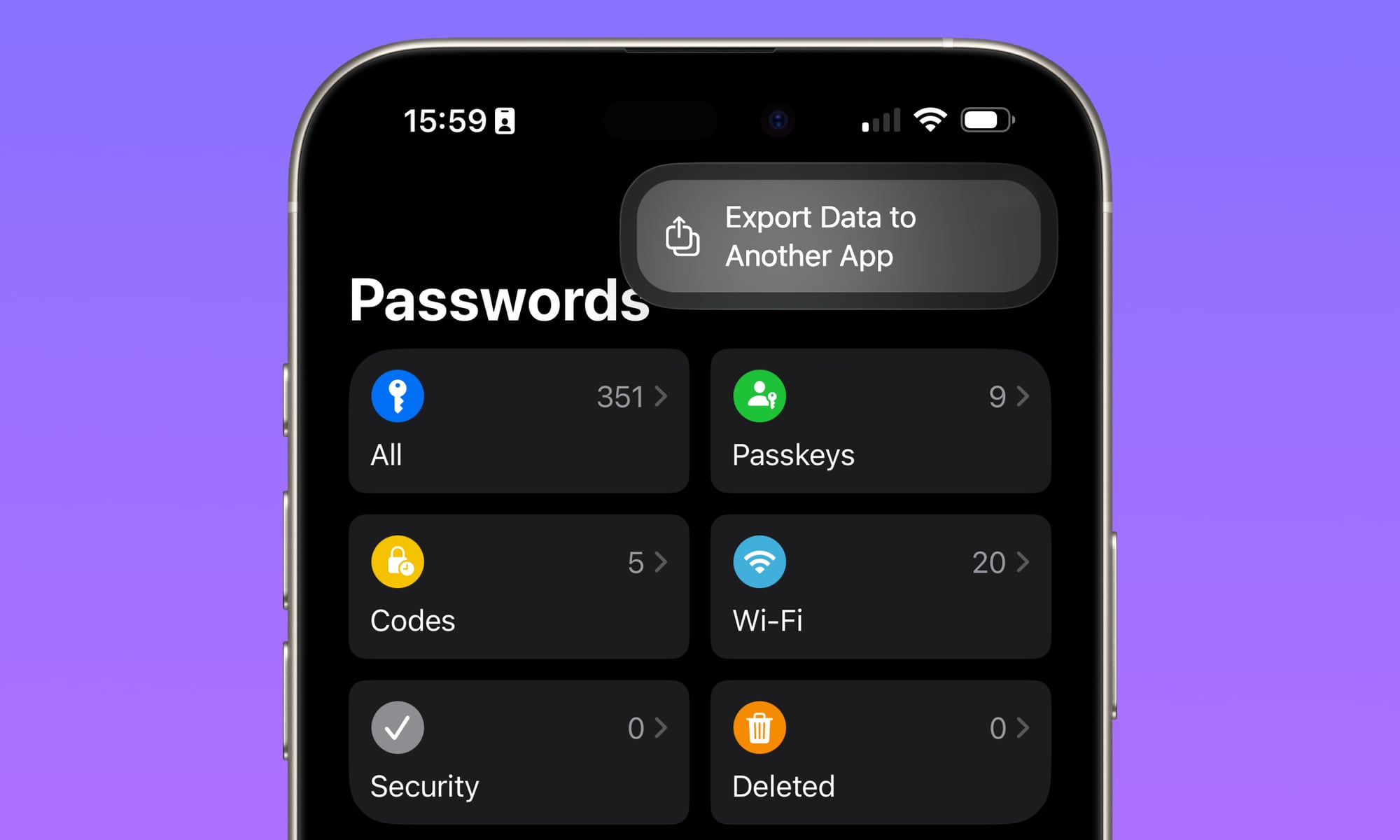
If you reuse passwords, you’re not just taking a small risk; you’re multiplying the risk across multiple platforms. One leak turns into several compromised accounts, and then you’re stuck changing passwords everywhere while hoping nothing important gets hit.
The easiest way to fix this is to stop relying on memory. Your iPhone already has a password manager called Apple Passwords that lets you store all of your passwords in one place.
This app also lets you generate strong passwords, store them, and autofill them automatically. Once it’s set up, secure sign-ins become the quicker option, which is exactly how it should be.
If you use passkeys when available, even better. They’re designed to be more resistant to phishing scams than traditional passwords. While you're at it, also be sure to turn on Stolen Device Protection, as this will ensure that only Face ID or Touch ID can be used open Apple Passwords.
Quick Win: Open the Passwords app and tap Security. Your iPhone will give you a "priority list" of passwords that have been leaked in data breaches or are too easy to guess. Fix the top one today.
Giving Every App Access to Your Location
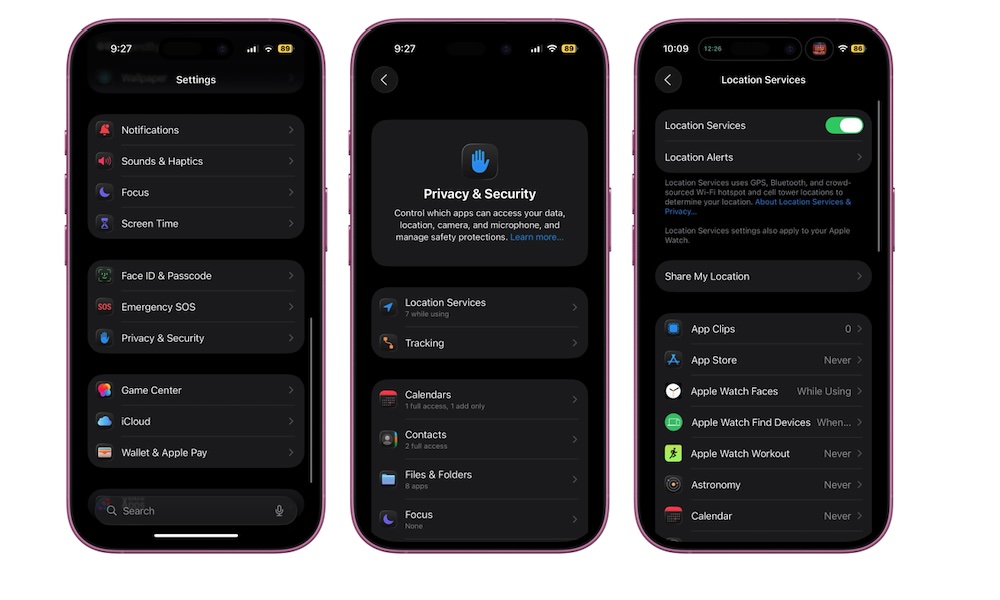
Location permissions are one of the easiest ways to accidentally share more data than you’d like, not to mention that it can also drain your battery. These days, a surprising number of apps ask for constant access to your real-time location when they don’t truly need it.
Navigation apps and safety tools make sense. But most social apps and shopping apps do not. A good rule is that if an app doesn’t need your location to function while you’re actively using it, it probably doesn’t need to know where you are at all.
Also, even if an app does need your location, it probably doesn’t need to know your precise location all the time. Many apps work perfectly fine with approximate location.
To manage which apps have access to your location, go to Settings > Privacy & Security > Location Services. Tap each app, then change most to While Using or Never. Also, turn off Precise Location for apps that don’t need exact accuracy.
Quick Win: For apps like Weather or News, turn off Precise Location in Settings > Privacy & Security > Location Services. They only need to know your city, not your front door.
Letting Your Notifications Turn Into Chaos
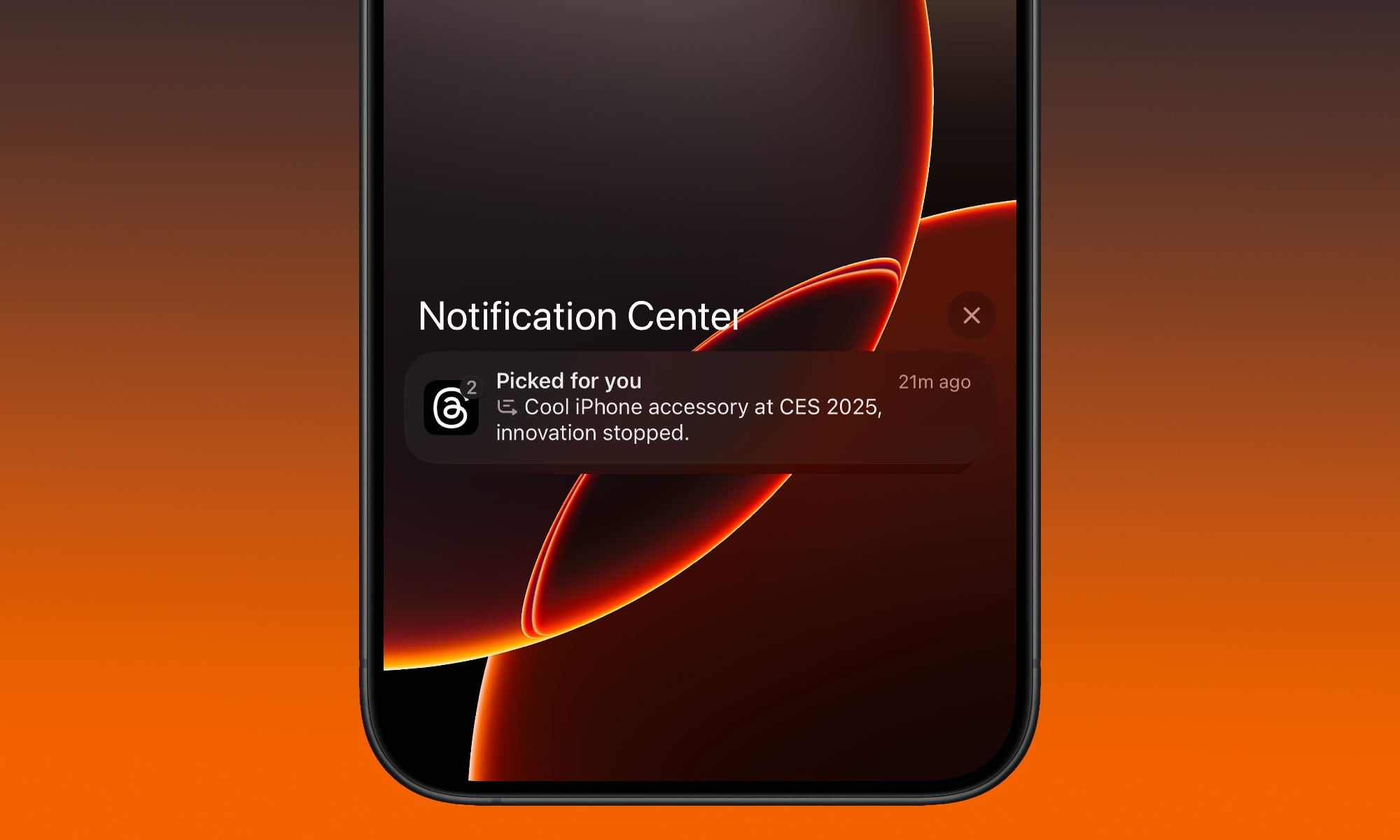
Notifications are supposed to help you stay informed of your most important updates. But if your iPhone is vibrating all day, it simply becomes a regular annoyance, and you stop trusting those alerts. As a result, you’ll miss the important stuff because everything feels equally urgent.
The fix isn’t to turn off all notifications and pretend you don’t live in the real world. What you need to do is choose what deserves your attention right now, and what can wait until you feel like checking it.
Luckily, Apple created a feature to help called Notification Summary. You can create a schedule, so your iPhone holds off less important notifications to present in a summary you can go through when you have some free time.
These notifications won’t alert you, but they will still be available in the notification center. You can choose which notifications go to the notification summary. You will still be pinged when time-sensitive notifications hit your iPhone, so you can rest assured that you won’t miss anything important.
To manage your notifications and create a scheduled summary, go to Settings > Notifications. From there, tap on those annoying apps and select Scheduled Summary. For the important apps, make sure you choose Immediate Delivery.
If you want more peace of mind, you can turn off notifications for those apps that are really just time-wasters, like Reddit, Instagram, and YouTube.
Quick Win: Move "loud" but non-urgent apps (Instagram, Retailers, News) to your Scheduled Summary. You’ll get one quiet digest at 6:00 PM instead of 50 pings throughout the day.
Charging Habits That Wear The Battery Faster
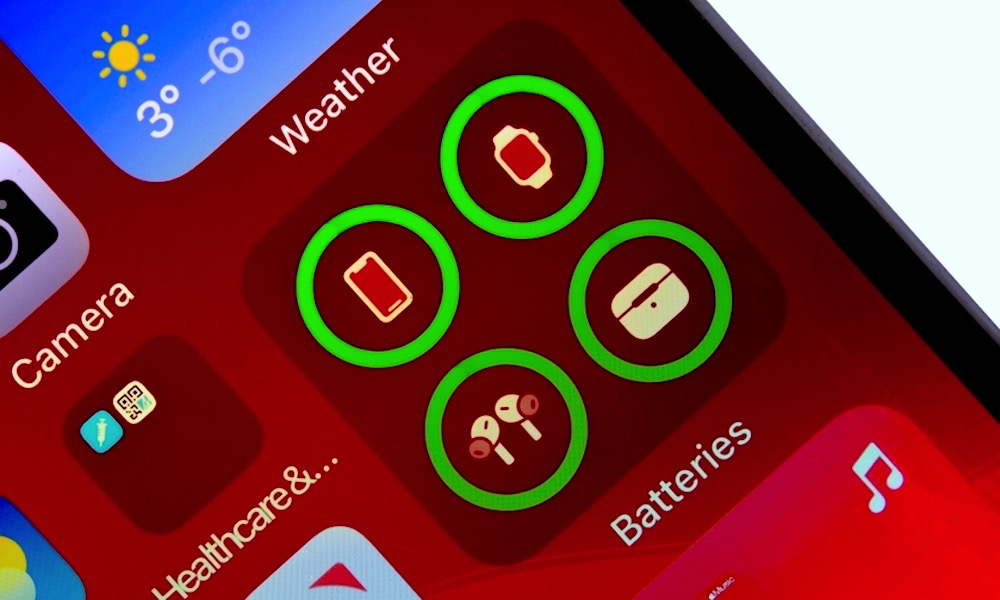
Your iPhone battery isn’t fragile, but it is affected by heat and stress over time. Two things tend to age batteries faster: keeping them hot, and keeping them at 100% for long stretches.
Overnight charging is usually fine because your iPhone has built-in battery management features. The bigger issue is charging in ways that trap heat, like charging under a pillow, under direct sunlight, or while you’re playing demanding games.
If you want to really know how well your battery is going, look at Settings > Battery > Battery Health and see how your phone is aging. Apple also shows you relevant battery information like your Maximum Capacity and Cycle Count.
There are a couple of things you can do to improve your charging habits. First, as we mentioned, stop using your iPhone while it’s charging and make sure to keep it in a room with a good temperature so it doesn’t overheat.
Go to Settings > Battery > Charging, and tweak the settings so your iPhone has a Charge Limit (on an iPhone 15 or newer) or you’re using Optimized Battery Charging. Both of these will make sure that your battery doesn’t age as fast by avoiding that high-stress 100% mark as much as possible. While you're here, also toggle on Adaptive Power if your iPhone supports it, as this can intelligently extend your battery life by learning your usage habits.
Last but not least, make sure to use the right charger and cable. Avoid bad quality charging accessories, and instead make sure that everything you use comes from Apple or is MFi (Made For iPhone) or USB-IF certified.
Quick Win: If you have an iPhone 15 or newer, set your Charge Limit to 80% or 90% in Settings > Battery > Charging. It significantly extends the chemical lifespan of your battery.
Not Backing Up Your iPhone Until It’s Too Late
A backup is one of those things you don’t appreciate until the day you really need it. If you drop your phone hard, have a weird update failure, or lose your device altogether, and didn’t have a backup at the ready, you can say goodbye to all your photos, files, and data.
iCloud Backup is the easiest option for most people because it's basically automatic. The downside is that unless you’re paying for enough iCloud+ storage, you won’t be able to back up your iPhone comfortably. If you want extra peace of mind, a computer backup is a solid second layer, which you can do by plugging your iPhone into your Mac or PC and looking for the backup options in iTunes or Apple Devices for Windows, or Finder on the Mac.
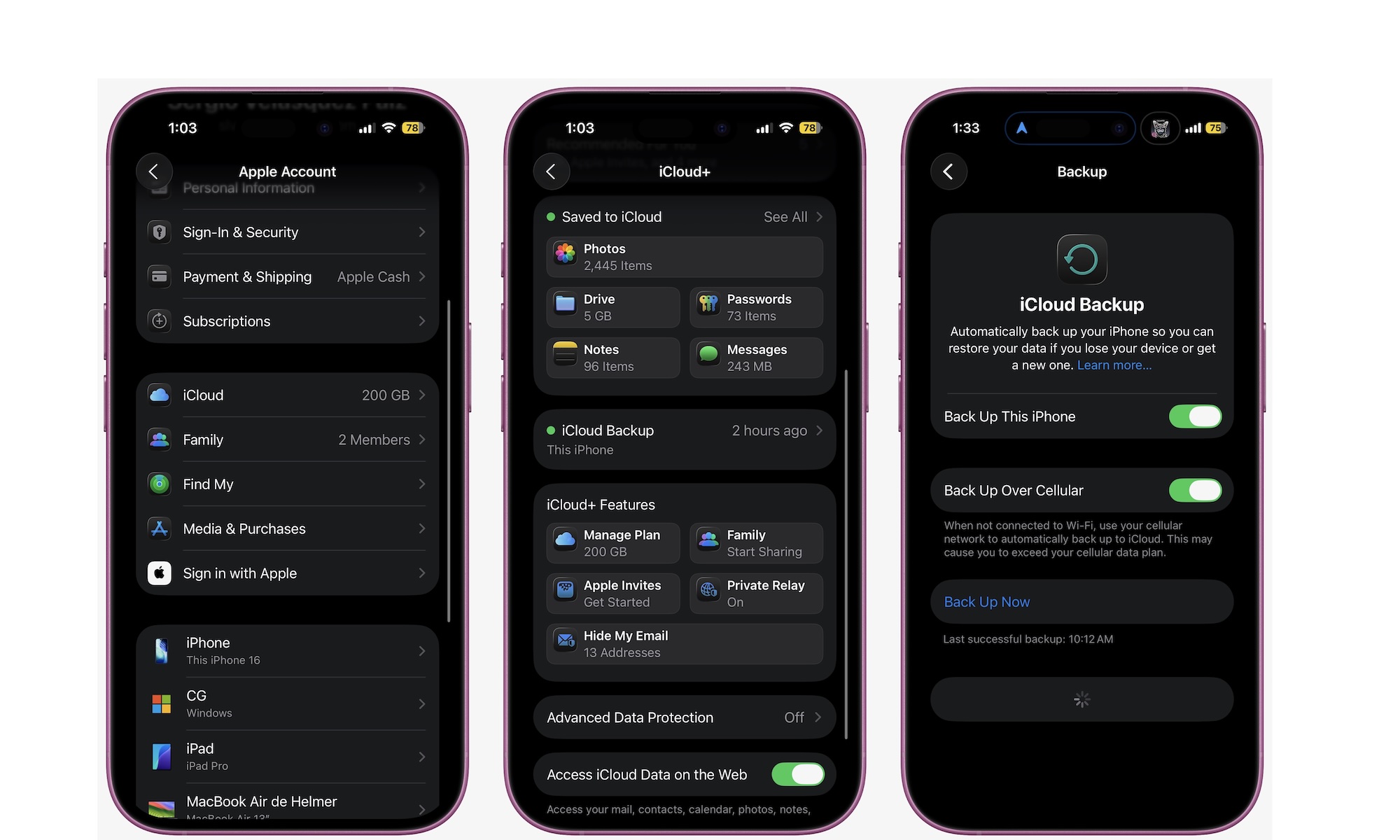
The main point is simple: don’t wait until something goes wrong. Backups are quick and easy. To back up your iPhone to the cloud, go to Settings > Apple Account > iCloud > iCloud Backup.
Turn on Back Up This iPhone, so your iPhone takes care of back-ups by itself. And if you want, you can tap Back Up Now to create a backup copy right away. Right below that button, you’ll see when your last successful backup was.
Quick Win: Check your Last Successful Backup date in Settings > [Your Name] > iCloud > iCloud Backup. If it wasn't within the last 24 hours, tap Back Up Now while you're on Wi-Fi tonight.
Not Customizing Control Center For Fast Access
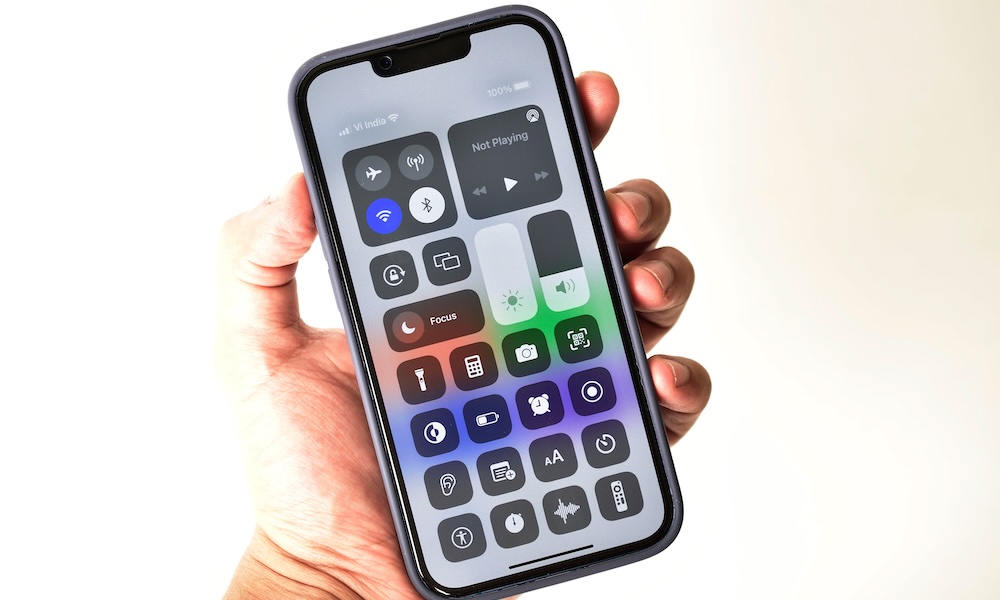
This one is an acceptable mistake, as you couldn’t fully customize the iPhone’s Control Center until recently. But if you keep digging through Settings to toggle things you use constantly, you’re creating extra work for yourself every single day.
Control Center is supposed to be your quick panel. But out of the box, it’s often missing many of the controls people actually use. The moment you add the right controls, your iPhone becomes more personal and easier to manage.
This is also one of the easiest changes to make because it doesn’t require learning anything complicated. It’s just a small upgrade that pays off constantly.
To get started, simply open your Control Center and tap the plus icon in the top right corner of your screen. Next, tap on Add a Control at the bottom of your screen. You’ll be redirected to the controls page, where you’ll find all the controls you have available. You’ll find first- and third-party controls, and you can add as many as you like, as the Control Center now features multiple pages.
Quick Win: Add the Low Power Mode and Dark Mode toggles to your Control Center. It makes managing your battery and eye strain a one-swipe process rather than a hunt through Settings.
Treating Accessibility Features Like They Aren’t For You
Accessibility is one of the most underrated areas on the iPhone, as it’s filled with many powerful tools. A lot of features people think are hidden are sitting right there in plain sight, waiting to make your daily tasks a little easier.
Back Tap is the perfect example. It turns your iPhone into a device with hidden buttons you can program however you want, such as turning on the Flashlight or opening the Camera. Once you set it up, you’ll just need to get used to having two extra buttons on the back of your iPhone.
Even if you don’t think of yourself as someone who uses accessibility features, try a couple. Many of them are really just smart convenience tools.
There are plenty of iPhone accessibility tools you can try, so play around with your settings and find the most useful for you.
Quick Win: Map Double Tap (Back Tap) to Flashlight or Screenshot in Settings > Accessibility > Touch > Back Tap. It effectively gives your phone a "secret" physical button on the back.
Stop Making These Mistakes
The funny thing about iPhone mistakes is that most of them are completely normal. People aren’t doing anything wrong on purpose; they’re just repeating advice they heard years ago, or they never got around to exploring the settings that actually matter. The result is an iPhone that feels more distracting than it should, slower than it should, and more complicated than it should.
If you take one idea from this list, let it be this: don’t wait until your iPhone feels broken to start maintaining it. A little attention to storage, notifications, backups, and security turns your iPhone into something you can trust again.