This Frustrating AirPods Bug Causes Some iPhone Users to Hang Up by Accident
Toggle Dark Mode
You’ve been on hold for 30 minutes. Someone finally picks up, asks how they can help, and then interrupts you halfway through your answer. “Sorry, I can barely hear you.”
“I’ve got you on headphones,” you say. “Let me take them out and see if that helps.”

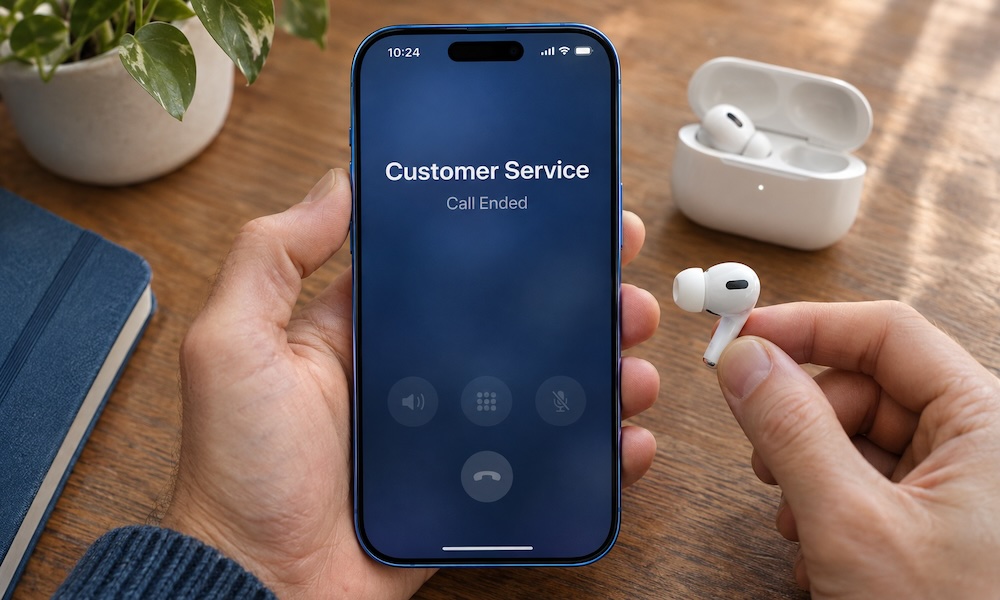
You pull out your AirPods, lift your iPhone to your ear, and glance at the screen. Call Ended. You know exactly what you’ll hear when you dial back. You spent the last half hour listening to it. That can be very frustrating.
One AirPods owner described that very sequence. Callers struggled to hear them, and pulling out the earbuds sometimes ended the call, even after they’d selected the iPhone’s speaker. The cause is currently unclear, but there are three moves worth trying before you risk your place in the queue again.
Turn Off Automatic Ear Detection (Best Fix)
If the call still ends when you remove an AirPod without squeezing the stem, try changing what happens when the earbuds leave your ears.
If the call still ends when you remove an AirPod without squeezing the stem, try changing what happens when the earbuds leave your ears. With your AirPods connected:
- Open Settings
- Tap your AirPods’ name
- Switch off Automatic Ear Detection
Depending on your software version, you may find it under Audio & Routing. This is the fastest fix so you can use AirPods without the above-mentioned issue.
Test this one on a quick call with a friend. With ear detection off, audio can keep playing through your AirPods after you take them out, so use the call’s Audio button when you want to switch to the phone. You’ll also lose the convenience of having music pause when you remove an earbud. If the change doesn’t help, turn it back on. Your next 30-minute hold is a lousy time to experiment.
Set to Press Twice to Hang Up Calls
Think about where your fingers land when you take out an AirPod. If you grab the stem, you’re holding the same control that can end a call. On AirPods 3 and later, and on AirPods Pro, you can check how many presses it takes to hang up.
With your AirPods in and connected, open Settings, tap your AirPods’ name, and select End Call. If you don’t see it, look under Controls & Gestures. Choose Press Twice. That’s Apple’s default, so yours may already be set that way. In that case, try lifting each earbud out by its rounded body to keep your fingers off the stem.
Move to Headset or Speaker Manually
If someone says you sound muffled, leave your AirPods in for a moment. Open the call screen, tap Audio, and choose iPhone to use the handset or Speaker to talk hands-free. Ask, “Can you hear me better now?” Once they say yes, you can carry on talking and leave the earbuds alone until the call is over.
This is the one to remember when you’ve finally reached a real person. You can solve the immediate problem without touching either AirPod.
Let us know in the comments if you’re affected by this bug and if our “best fix” helped you trust your AirPods again.