5 iPhone Privacy Settings an Ex-FBI Cyber Agent Says You Should Change
 Vasilina FC / Adobe Stock
Toggle Dark Mode
When it comes to cybersecurity, you can never be too careful. Whether it’s a cybercriminal or even a big corporation, there’s always someone trying to get a hold of your data.
For the most part, you might think you’re safe, but there are some settings on your iPhone that you need to take care of if you want your daily activity to be more private. And that’s just not us saying it; X user AnderSon shared what their boss, a former FBI agent, told them to change on the iPhone to make it more private and secure.
So if you want companies, including Apple, to stop tracking your every digital move, here are some settings worth changing.
Stop Sharing Your Siri Conversations With Apple
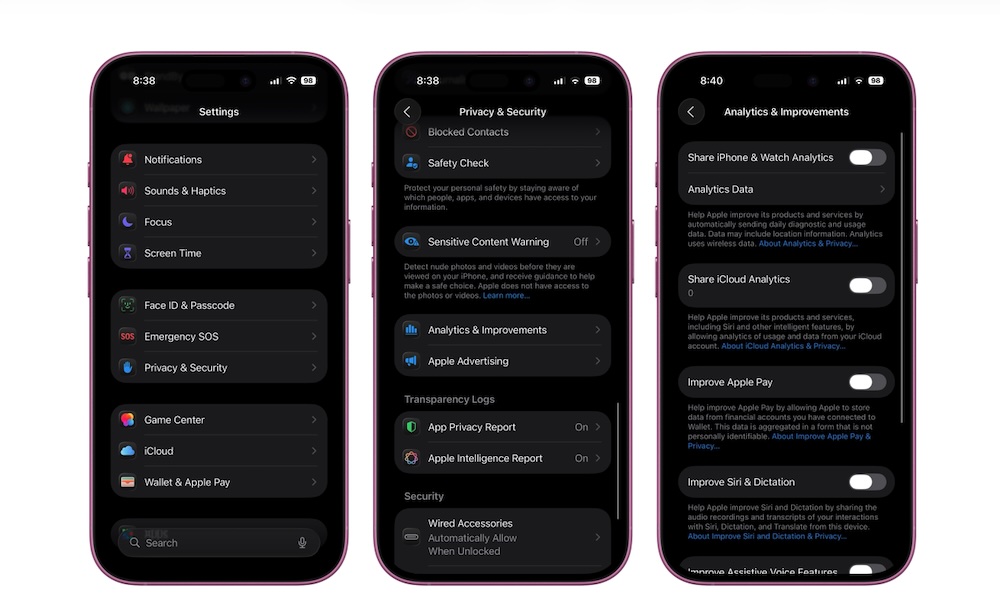
If you’ve set up “Hey Siri” on your iPhone, then you know how useful having a virtual assistant can be. However, what you may not know is that you might be sharing all your Siri conversations with Apple. It routinely collects recordings of your prompts and requests to help improve Siri, and while Apple takes steps to anonymize this data by removing things like your Apple Account and device identifier, it can’t anonymize your words.
Essentially, you’re sharing your voice requests with a trillion-dollar company so they can train and improve Siri. Even with the recent Apple Intelligence overhauls keeping more processing on-device, many of us still don’t love the idea of sharing our audio logs — especially after Apple was already outed for having private contractors reviewing some of these recordings in 2019.
The good news is that you can turn this off completely with just a few steps. Here’s how:
- Open the Settings app.
- Scroll down and go to Privacy & Security.
- Scroll down to the bottom and tap on Analytics & Improvements.
- Turn off Improve Siri & Dictation.
Truth be told, you may want to turn off everything in this section. While Apple has strict privacy policies limiting how they use this data, keeping these analytics toggles on still gives them permission to log your device usage. If you want maximum privacy, it’s best to turn off everything in this section to ensure your data never leaves your device.
Get Rid of App Tracking
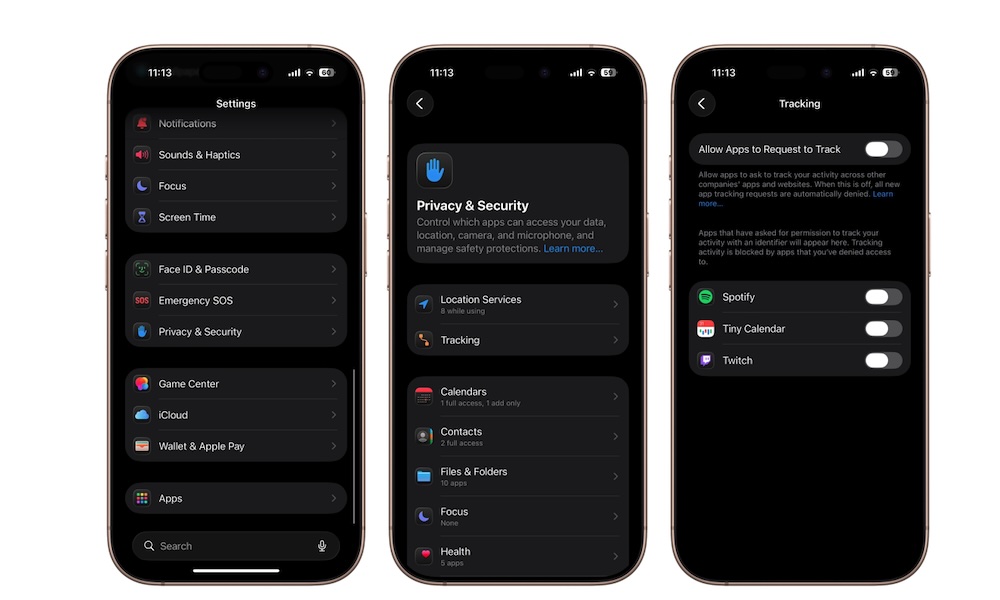
If you’ve installed an app before, you’ve probably gotten a message from these apps asking if they can track your activity. What you may not know is that some apps can track your activity across other apps if you let them.
This is why it’s important to deny any tracking request you get. However, that can be tiring over time. Luckily, Apple lets you turn off these requests altogether, so they’re always denied automatically. This is what you need to do:
- Open the Settings app.
- Scroll down and go to Privacy & Security.
- Tap on Tracking.
- Turn off Allow Apps to Request to Track.
Below that option, you’ll see a list of the apps that have asked if they can track you. You can hit the toggle to block app tracking again.
Clear Your Significant Location History
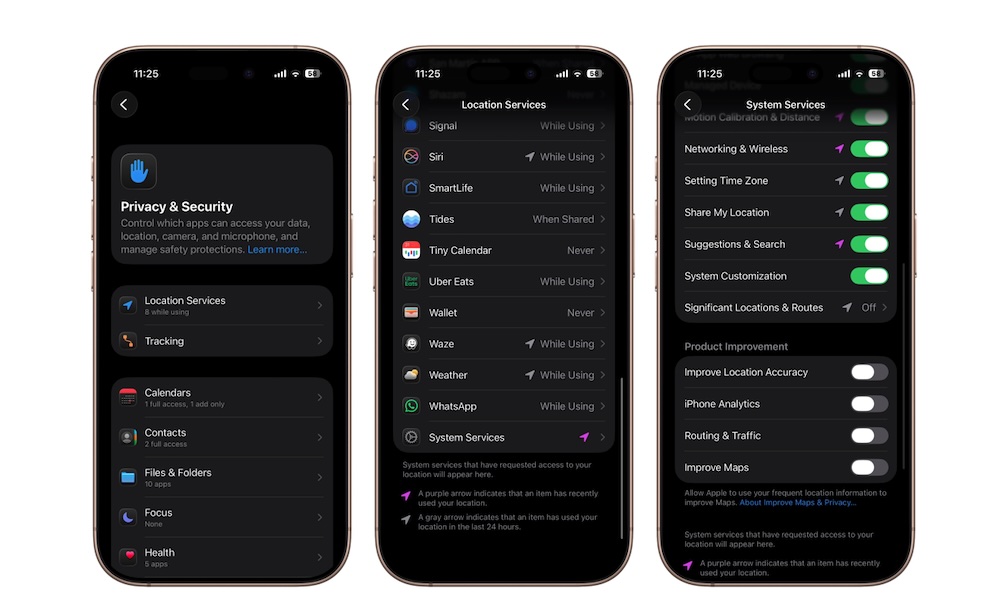
This is a feature that can be both useful and creepy when you really think about it. Your iPhone has a built-in feature called Significant Locations. As Apple puts it, this feature allows your Apple devices to “learn places significant to you, as well as routes you take often, in order to provide useful location-related information in Maps, Calendar, Photos, and more.”
Basically, when this feature is turned on, your iPhone keeps track of places you regularly visit to help with Apple’s built-in apps. While Apple notes that this data is end-to-end encrypted — meaning the company itself cannot read it — many users are still uncomfortable with their device silently logging delicate information like their home or work routines. If you find it a bit creepy, it’s incredibly easy to turn off.
- Open the Settings app.
- Scroll down and go to Privacy & Security.
- Tap on Location Services.
- Scroll down to the bottom and go to System Services.
- Scroll down again and tap on Significant Locations & Routes.
- Turn off Significant Locations & Routes.
Your iPhone won’t record this data anymore, but you can also tap on Clear History at the bottom to delete all the places your iPhone has already listed as significant.
Hide Your IP Address When You Browse the Web
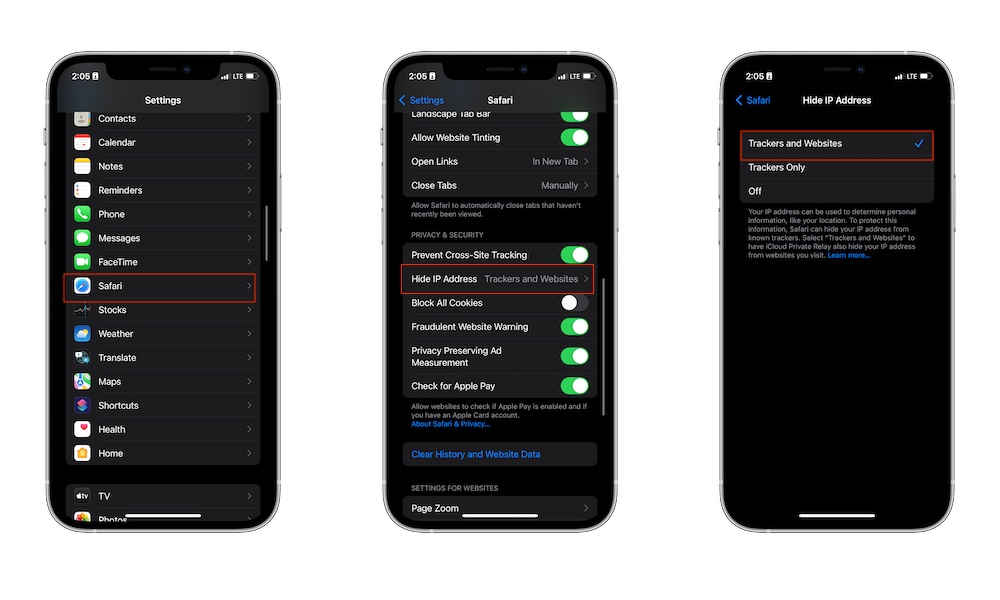
It’s no secret that many websites and platforms track your online activity, but they’re capable of gathering way more information than many people are probably comfortable with. A good example is your IP address.
With this data, websites and trackers can figure out your general geographic area — like your city or zip code — which is still creepy and completely avoidable. Thankfully, Safari in iOS 26 lets you block this with a couple of taps. Here’s how:
- Open the Settings app.
- Scroll down and go to Apps.
- Scroll down again and tap on Safari.
- Scroll down one last time and, under Privacy & Security, tap on Hide IP Address.
- Select Trackers and Websites or Trackers Only.
Stop Sharing Your Exact Locations With the Wrong Apps
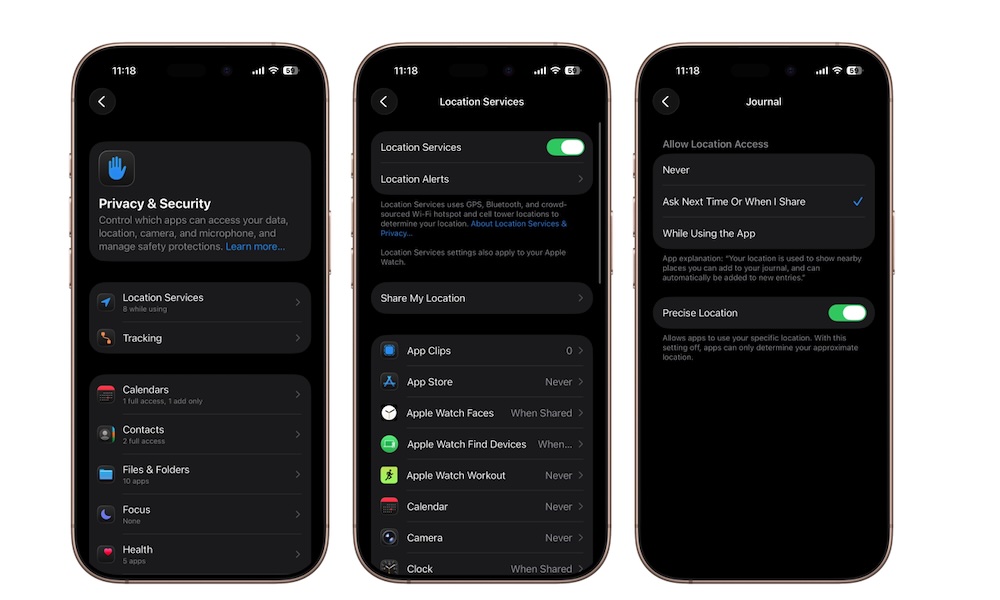
Nowadays, every app will ask to know your location. However, not every app or game needs it. Of course, apps like Pokémon Go, Google Maps, or Uber will definitely need your location, but other apps like Instagram or Facebook can work fine without them.
More importantly, some of these apps are tracking your exact location, which means they know exactly where you are at all times. However, you can turn this off, so they at least only know the area where you are, not the exact place.
- Open the Settings app.
- Scroll down and go to Privacy & Security.
- Go to Location Services.
- Tap on any app that you’re sharing your location with.
- Select Never to stop sharing your location, or turn off Precise Location, so they can’t track your specific location.
Again, some apps might need this data, but be sure to stop sharing your location with apps that don’t really need it.
Keep Your Data Private
You don’t need a former FBI agent to tell you that your personal data is a highly sought-after commodity.
While tech companies and data brokers will always look for ways to track your digital footprint, you don’t have to make it easy for them. By taking a few minutes to adjust these settings, you’re putting a solid roadblock between your personal life and corporate trackers. You don’t have to toggle everything off at once, but every step you take makes your daily routine just a little more private.