
WhatsApp Usernames Are Finally Coming | How to Claim Yours Now
Toggle Dark Mode
It’s been three years since we first heard that WhatsApp was introducing usernames, so we’d been starting to wonder if they would ever show up. Fortunately, the popular messaging app hasn’t forgotten about this — it just clearly took more time than anyone anticipated.
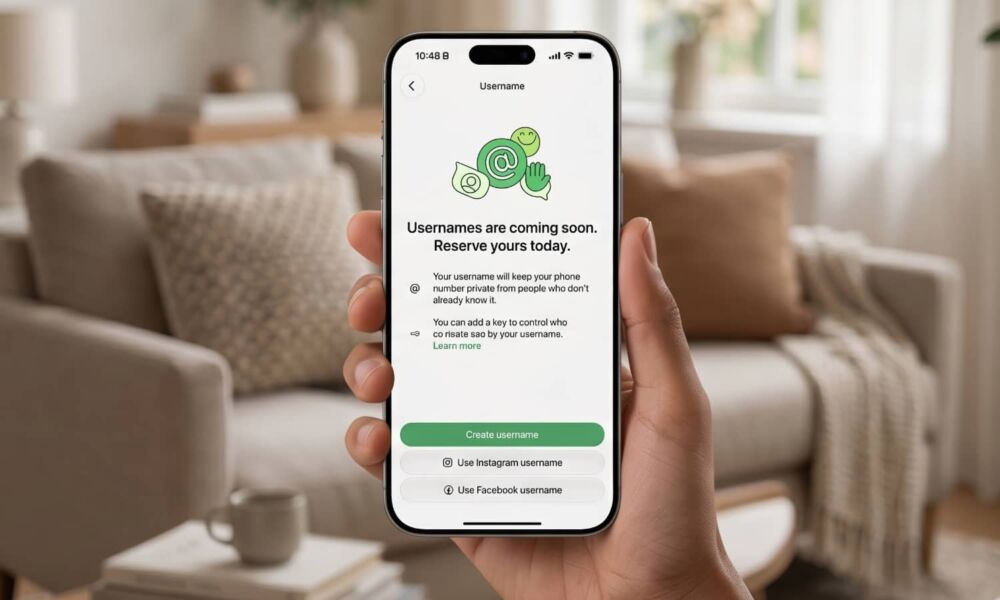
Better late than never, WhatsApp announced the new feature today, and while you won’t be able to switch to a new username right away — the feature is still “rolling out gradually over the next few months” — you can claim one in advance.

This represents a big change for WhatsApp, which until now has relied solely on phone numbers — so much so that you can’t use WhatsApp without one. In fact, for years the popular messaging app was available exclusively on smartphones, relying on an SMS exchange to validate your phone number and sign in. It wasn’t until recent years that it truly expanded to make Macs, PCs, and tablets first-class citizens on the network, rather than simply clients that relayed messages through the primary iPhone or Android apps.
How to Reserve Your WhatsApp Username
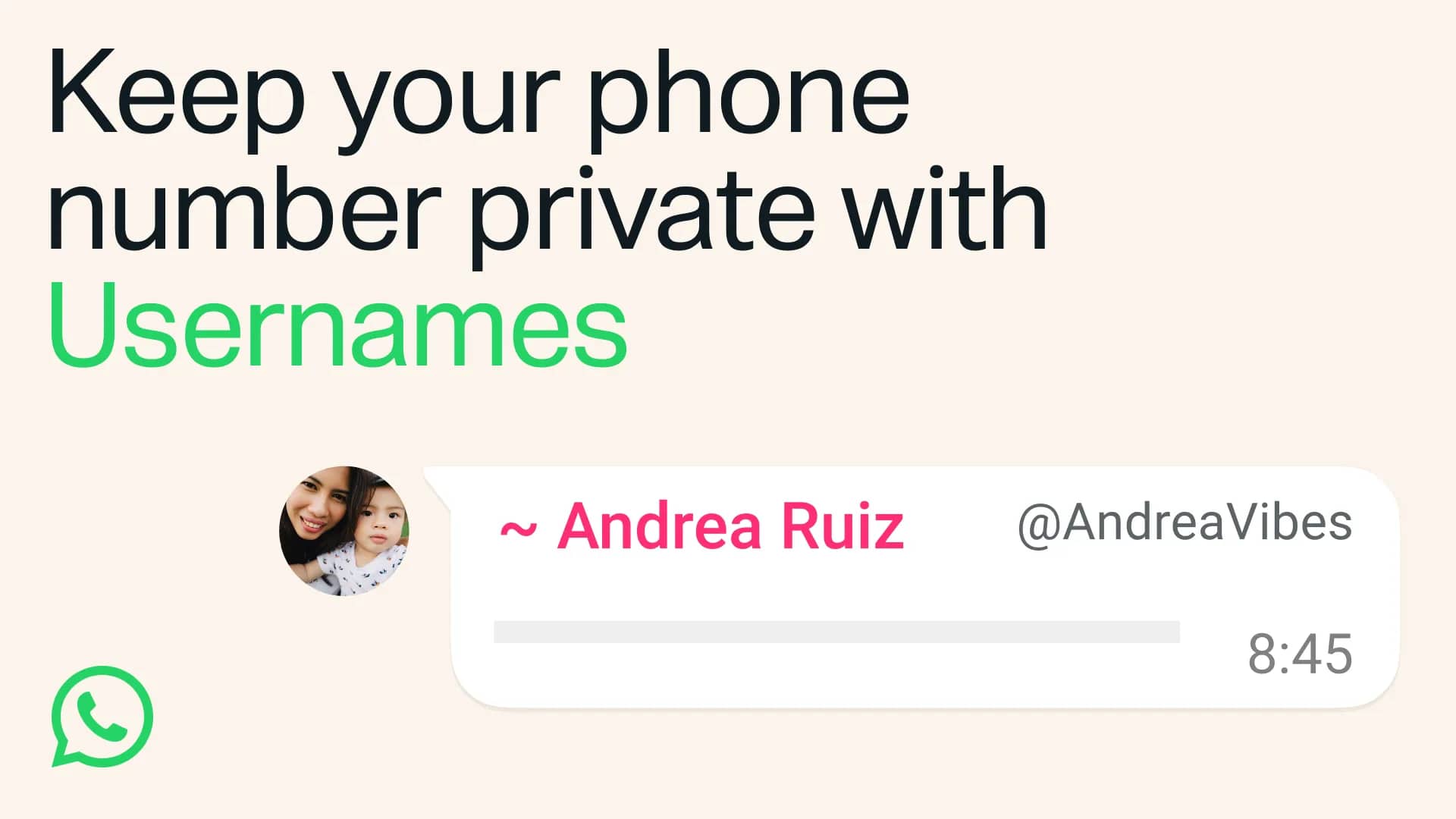
While people may not be able to reach you by your username right away, you can reserve one in advance so it will be ready to go when the feature opens up. This prevents others from claiming it. Here’s how to do this:
- Ensure you’ve updated to the latest version of WhatsApp on your iPhone.
- Open WhatsApp.
- Select You from the bottom-right corner.
- Tap your profile picture.
- Tap Reserve username.
- Select Create username to enter one from scratch, or use the Instagram or Facebook options to link it to the username you’re already using on Meta’s social networks.
- On the next screen, enter your new username or log in to Facebook or Instagram. If you’re choosing a new username, you’ll be shown right away if it’s available or not. You may also be prompted to log into Instagram if the username you’re typing matches an existing Instagram profile.
- Tap Save and then Done at the confirmation screen.
Usernames must also be between 3 and 35 characters long, and can only contain lowercase letters, numbers, underscores, and periods. They also can’t be exclusively numeric and can’t mimic web domains.
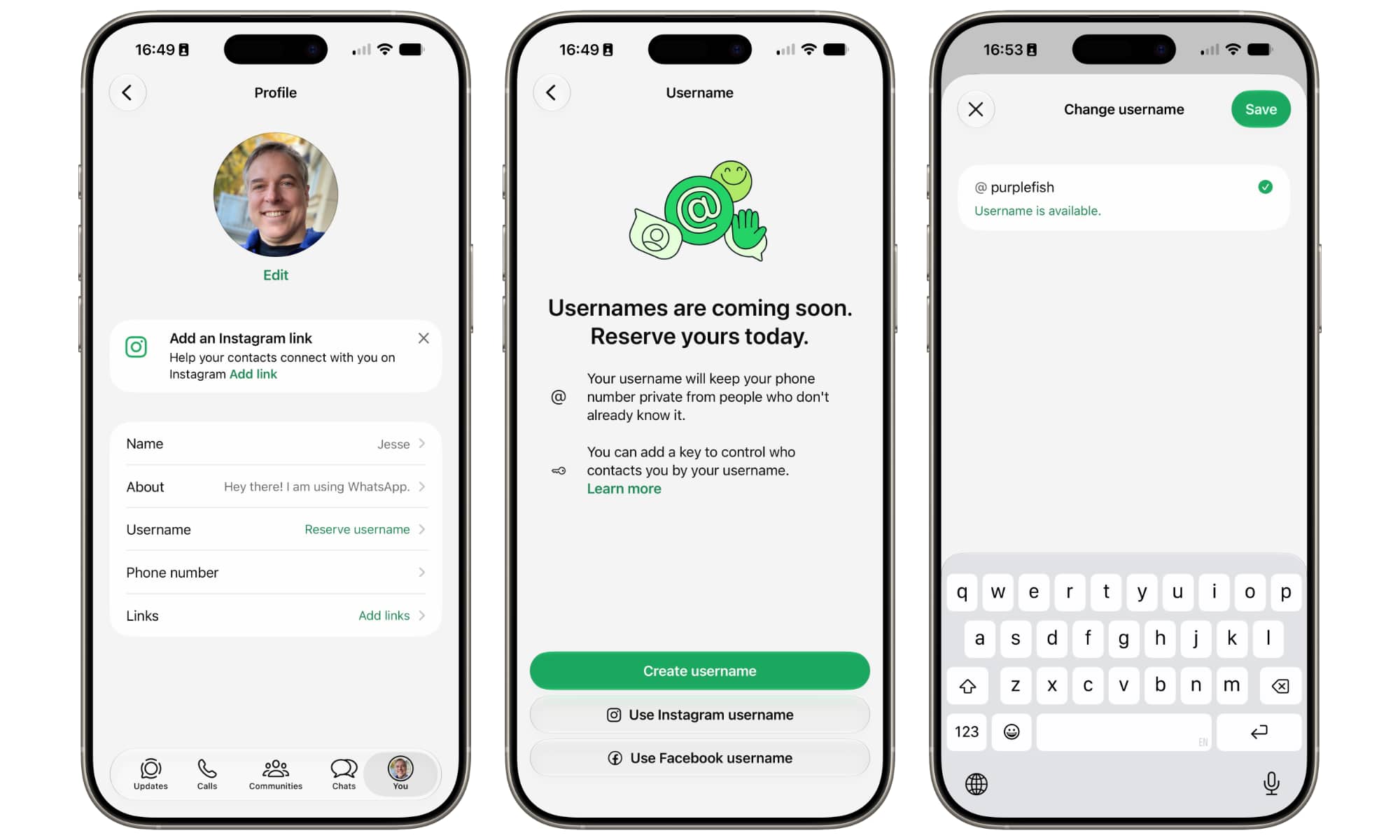
Don’t worry if you can’t make up your mind. Reserving a username isn’t a one-shot deal. You can change it at any time by going to your profile (steps 1–4), selecting your existing username, and tapping Edit in the top-right corner. Of course, you’ll still only be able to select usernames that aren’t already taken by someone else, as every username must be unique.
WhatsApp also notes that “certain usernames are held for businesses, governments, public figures and can’t be claimed by others.”
How do Usernames Work?
For now, your username will simply appear on your profile. WhatsApp says you’ll get a notification when your username is ready to use, but that may not happen for everyone at the same time.
Once your username is active, other WhatsApp users will be able to contact you using your username — but only if they already know it. There’s no directory where usernames can be browsed or searched for.
However, a username offers a big privacy advantage in that you can share it with people that you don’t want to give your phone number to. Plus, if you’re chatting with someone who doesn’t have your phone number, they’ll see your username instead.
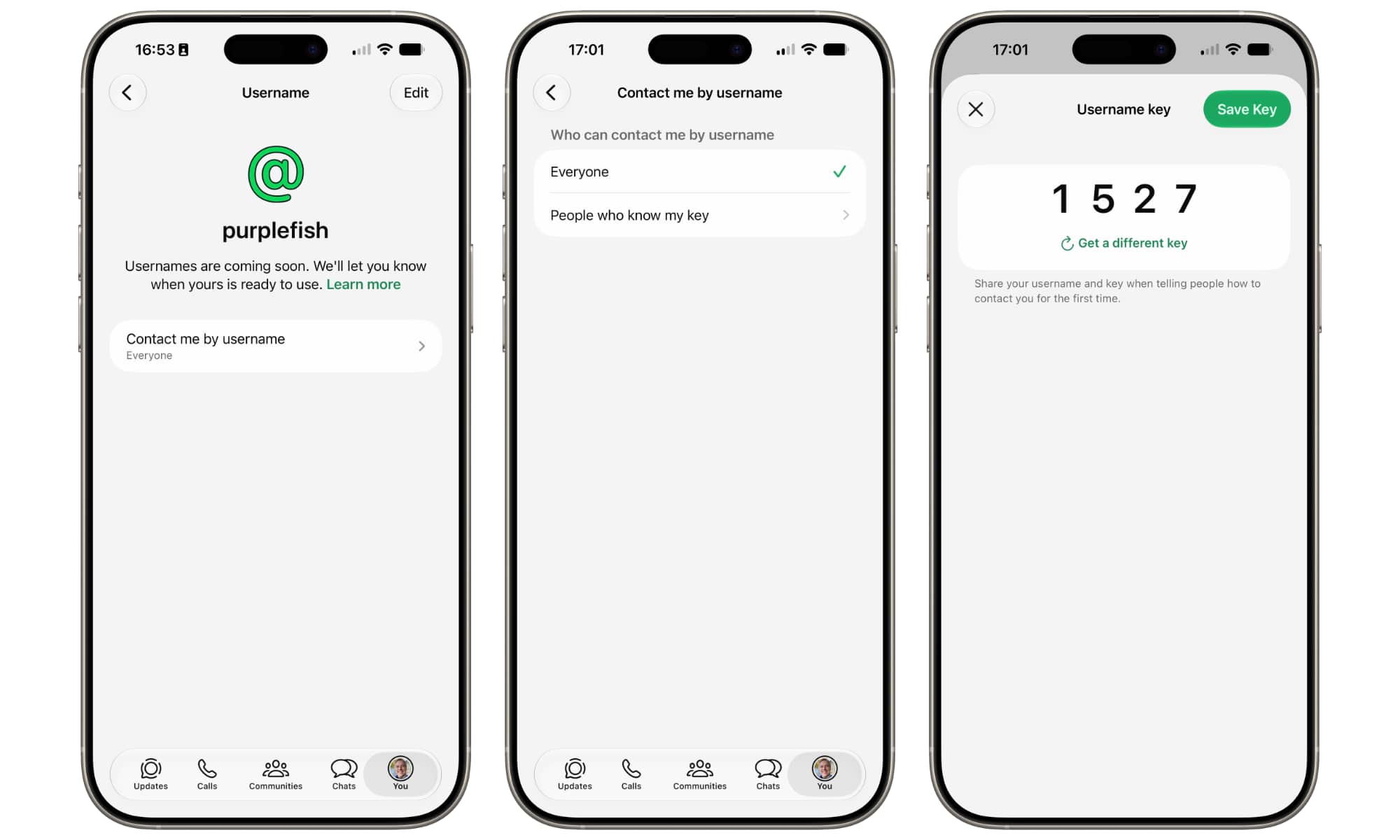
You also don’t need to worry about choosing an obscure username. To prevent folks from being bombarded with spam or other unwanted communications, WhatsApp lets you set a PIN that will be required for anyone to contact you via your username. Once you’ve reserved your username, you can set this up right away so you’re protected the moment your username becomes active.
- Open WhatsApp on your iPhone.
- Select You from the bottom-right corner.
- Tap your profile picture.
- Select your username.
- Choose Contact me by username.
- Select People who know my key.
- A random four-digit number will be displayed. Tap Save Key to use that number or Get a different key to generate a new one.
WhatsApp still relies on phone numbers at its core, so anyone who has your phone number will still be able to contact you. Usernames are essentially just aliases to facilitate privacy while simplifying communications. If you change your phone number on your iPhone, your username will be associated with the new phone number, but you can’t currently transfer your username from one phone number to another across two different devices, which is something to be aware of if you’re swapping to a new iPhone and a new phone number at the same time.






