
The End of the Intel Era Looms as macOS 26.4 Puts Legacy Apps on Notice

Toggle Dark Mode
Apple released the first developer beta of macOS Tahoe 26.4 yesterday with a new compatibility warning feature to prepare users for what’s coming. Starting with macOS 26.4, Mac users opening their favorite Intel-based apps will now see a cautionary note advising them that these apps won’t work once Rosetta 2 support is bumped off in macOS 28 next year.
Rosetta 2 debuted with Apple’s transition to its own M-series chips in November 2020 to provide a way for Mac users to continue running apps made for Intel chips on Apple silicon Macs. This echoes the original Rosetta translation layer that Apple introduced in Mac OS X Tiger to handle the transition in the other direction, when Apple switched the Mac from PowerPC to Intel in 2006.

Users will see a warning appear in macOS 26.4 when launching an app that depends on Rosetta 2, but will also be reminded at seemingly random intervals about the end of support.
macOS Tahoe 26 is also the final version of macOS to support Intel-based Macs; they won’t receive the macOS 27 update later this year, which will only be available for Macs with Apple silicon. However, macOS 27 will offer Rosetta 2 translation to run Intel-only applications for another year, with the door to Intel apps not being completely slammed shut until macOS 28. Apple also typically provides security updates for older versions of macOS for several years — as of this writing it’s recently released patches for both macOS Sequoia (15.7.4) and macOS Sonoma (14.8.4), and the same will undoubtedly be true for those Macs that get left behind on Tahoe.
The list of Intel Macs compatible with macOS Tahoe 26 is already pretty short:
- 16-inch MacBook Pro (2019)
- 13-inch MacBook Pro (2020 version with four Thunderbolt ports)
- 27-inch iMac (2020)
- Mac Pro (2019)
The new warning in macOS Tahoe 26.4 serves as a reminder to developers that after the five-year grace period they’ve already benefited from, they have about a year and a half to get their code together and update their applications to provide support for Apple silicon.
A limited version of Rosetta 2 will remain available in macOS 28 solely for Intel binaries in Linux Virtual Machines and a limited subset of older games that rely on Intel-based frameworks.
While we’ll almost certainly see complaints that Apple’s eventual removal of Intel support from macOS is coming too soon, developers have had a goodly amount of time to update their applications. As pointed out by AppleInsider, the timeline pretty much matches up with similar platform transitions in the past.
When Apple moved from using 68K processors to PowerPC processors, it took four years and seven months to complete the transition, with the first Power Macintosh shipping in March 1994, and support for 68K ending in October 1998.
The move from PowerPC to Intel began with an announcement at WWDC 2005, followed by the release of the first Intel Mac in January 2006. The original Rosetta, which allowed Intel Mac users to run old PowerPC apps, was available for nearly 5.5 years after the first Intel Mac was released, finally ending with the release of Mac OS X Lion in July 2011.
Considering Apple’s initial Apple silicon Mac announcement was made at WWDC 2020, the Intel to Apple silicon transition will have taken close to seven years to complete.
Check Your Apps
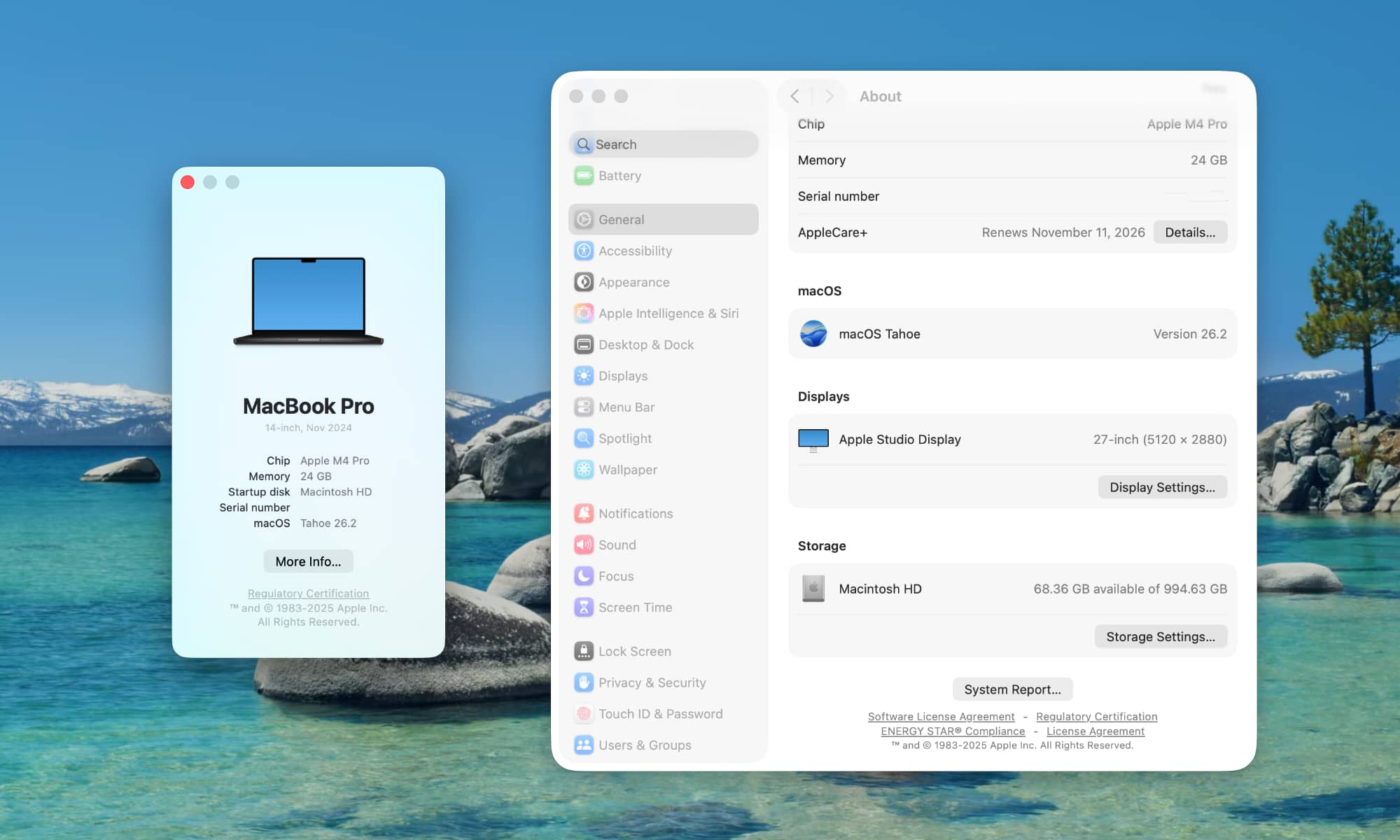
If you’re concerned about which apps will cease working with the release of macOS 28, here’s how you can check:
- Click the Apple icon in the upper-left hand corner of your Mac’s Desktop
- Select About this Mac.
- Click the More Info… button.
- Scroll to the bottom of the About window and click System Report.
- Choose Applications from the left-hand side-bar in the next window that opens.
This will show you a list of your Mac’s installed apps, with a “Kind” column on the right that displays the processor architecture the app was designed for. Look for apps marked as “Intel” as those are the ones you’ll need to find upgrades for; those marked as “Universal” or “Apple silicon” are fine.






