
The iPhone Setting You Should Change to Stop ‘Automatic’ AirPlay Hacks
 AppleInsider
Toggle Dark Mode
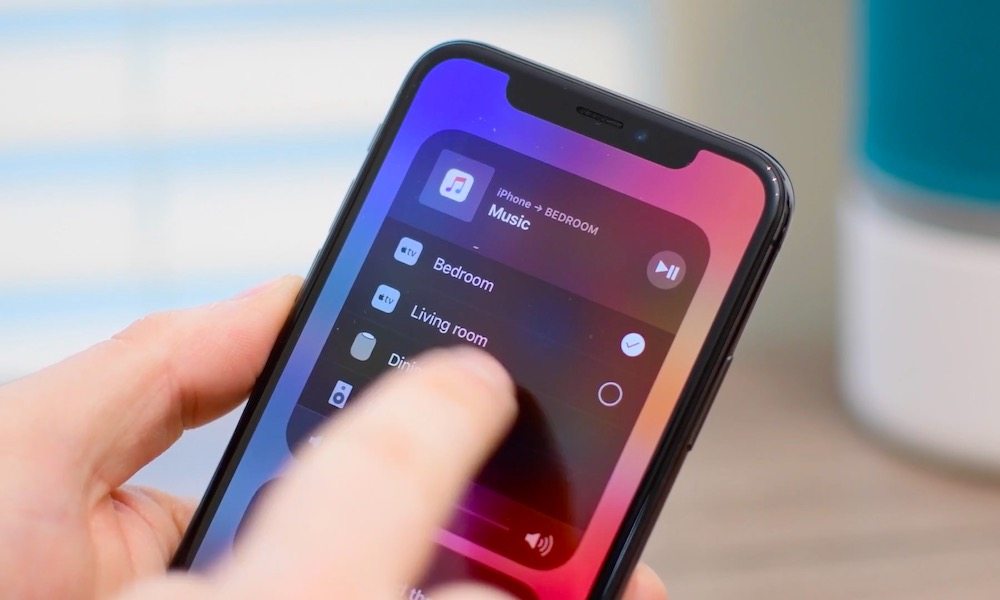
Last year, an AirPlay vulnerability was exposed that could allow an AirPlay connected device to be hacked via Wi-Fi. Apple addressed the issue, which predominantly impacted third-party AirPlay enabled devices, via a series of security patches. While most of us likely enjoy the convenience of AirPlay, there’s a little-known setting that could leave your iPhone more exposed to malicious actors. Here’s what it is and how to change it.
Apple is quick to patch known bugs, but leaving your device in a state where it’s perpetually searching for connections creates a wider window of opportunity for future, unpatched exploits. This appears to be the case with the “Automatically AirPlay” setting, which is often enabled by default on iPhones. This is a useful setting that Apple describes as allowing your iPhone to connect to nearby speakers and TVs when playing content from apps you regularly use with AirPlay, but there’s also a downside; as convenient as this sounds, security experts suggest this additional connectivity poses an unnecessary risk.

David Chronister, CEO of Parameter Security, told HuffPost about his concerns with regard to automatic AirPlay connections. “…I could set up a device that would broadcast AirPlay. If a vulnerable system connects, I can send the exploit code, and without any user interaction, their device would be compromised…it may also give me access to almost anything on the device.”
To be clear, this is still a proximity-based risk, rather than a remote exploit that hackers could use from anywhere. An attacker would need to be within Wi-Fi range of your iPhone, and running a malicious “honeypot” — a device designed to mimic a legitimate speaker or TV — that would encourage iOS devices to automatically initiate AirPlay sessions.
While your iPhone typically only looks for devices it has connected to before, which would typically make this a targeted attack, the “Automatic” setting still increases the risk of a “dragnet” attack, where a malicious device mimics common hardware or exploits the discovery process itself before the user even knows a connection is being attempted.
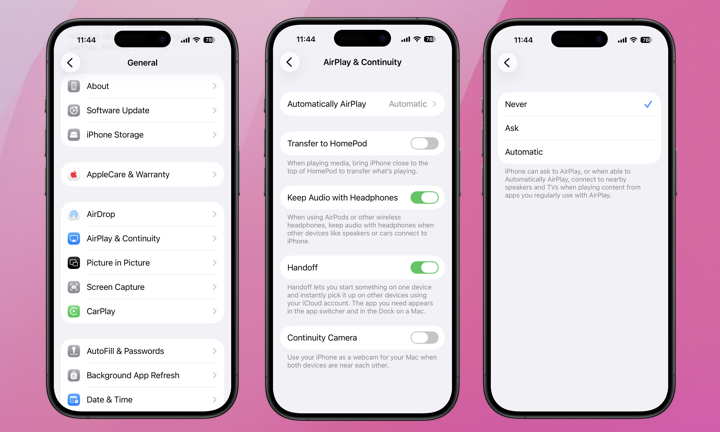
Here’s how to double check your AirPlay settings and turn off automatic AirPlay connectivity:
- Open the Settings app.
- Choose General.
- Select AirPlay & Continuity.
- Tap Automatically AirPlay.
- Select Never or Ask.
Pro Tip: While Never is the most secure setting, Ask provides a solid middle ground. Your iPhone will still notify you of nearby devices, but it won’t transmit data without your explicit permission.
While staying on top of iOS updates is one of the most critical steps a user can take in terms of managing their device security and privacy, sometimes iOS updates change settings to “automatic.” This appears to be the case with AirPlay. Chronister calls this attempt by Apple to showcase a new feature, “…the classic war between functionality and security.” Oftentimes, iOS updates reset important configurations to settings that are less secure than what the user had in place prior to downloading the update.
The takeaway is to both stay up to date on iOS updates, but also to revisit important privacy and security settings after each update. This way, if a sensitive setting has changed, users can revert back to something they’re comfortable with. Turn off any connectivity settings you don’t use, like AirPlay or Bluetooth. For Bluetooth and Wi-FI, remember to make sure you know exactly which devices and networks you’re connecting to.






