
10 Tips and Tricks to Master Your New Phone
 James A. Molnar
If this is your first time getting an iPhone, welcome. You’re going to love it. Of course, things might be a bit different from Android, but as soon as you start learning a handful of features that make the phone feel faster, cleaner, and more personal, it’ll feel like you’ve used iOS your whole life.
Once you understand how navigation works, how to customize your most-used controls, and how to take advantage of a few built-in shortcuts, using an iPhone is as smooth as butter.
Even so, all the features in iOS 26 can make it hard to know where to start. That’s also why many first-time iPhone users feel overwhelmed in the first few days.
The device can do a lot, but not all of its best features are immediately in front of you. The good news is you don’t need to learn everything at once; a few basic tips will help you understand the system quickly. To help you out with that, read on for 10 of the most useful tips and tricks that will help you master your new iPhone.
Learn the Basic Swipe Gestures First
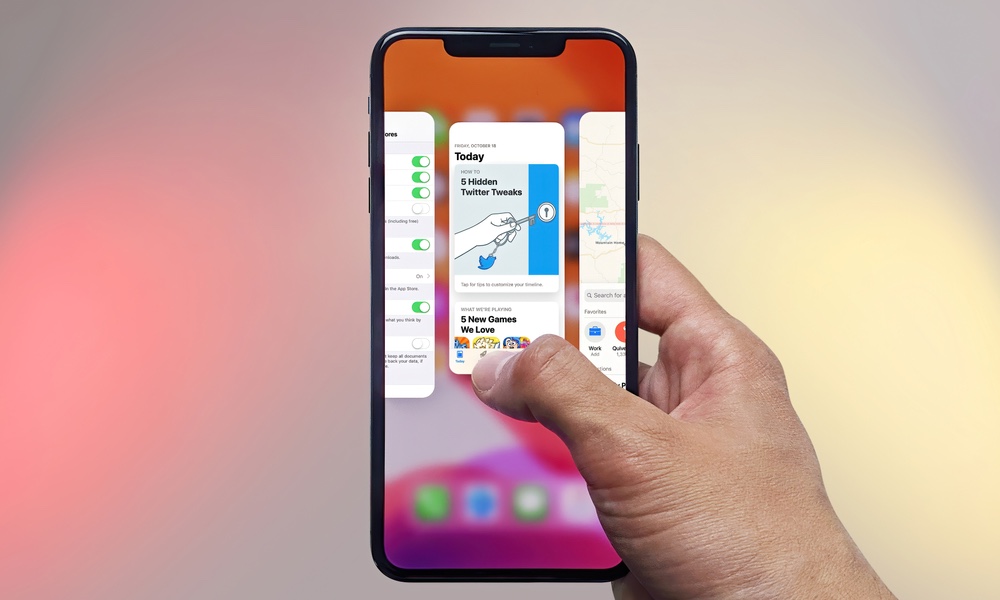
Modern iPhones rely solely on gestures instead of physical buttons. If you’re coming from an older iPhone or an Android phone, this may feel unfamiliar at first. However, once you get the hang of them, navigating your iPhone becomes second nature — and extremely fast.
Many new users slow themselves down by looking for visible navigation buttons that simply aren’t there anymore. The key is to trust the gestures and practice them for a few minutes. Once you do, switching apps, opening notifications, and returning to the Home Screen will feel natural.
There are a lot of things we could show you, but for now, you can get started by learning these basic gestures:
- Swipe up from the bottom edge of the screen to return to the Home Screen.
- Swipe up from the bottom to the middle of your screen to open the App Switcher.
- Swipe down from the top-left area of the screen to open Notification Center.
- Swipe down from the top-right corner to open Control Center.
- When you’re in an app or page, swipe from the left edge of your screen to the middle to return to a previous page.
Customize Control Center Right Away
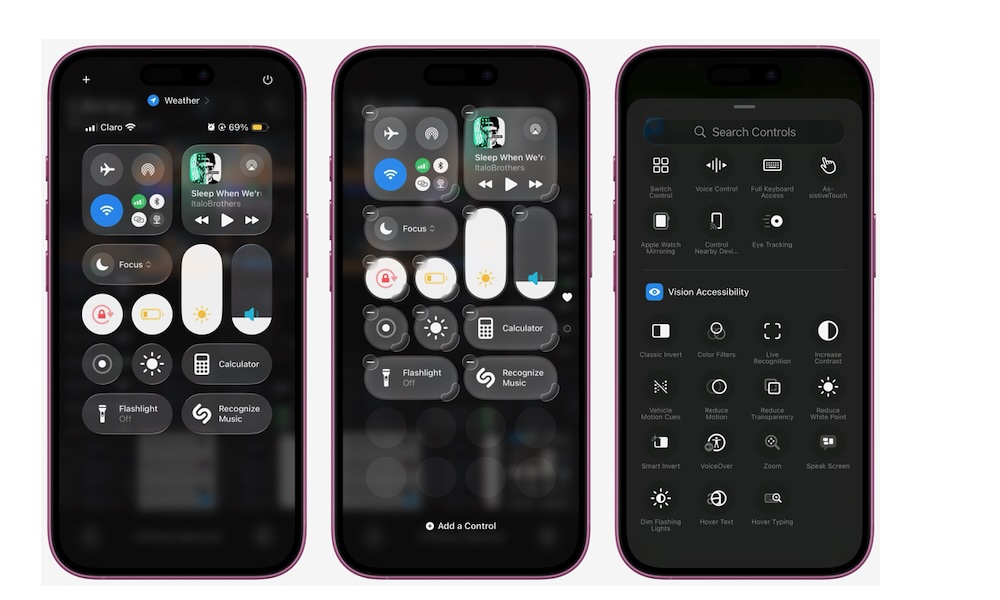
Control Center is one of the most useful parts of iOS because it gives you instant access to your most important tools. Instead of digging through Settings every time you want to adjust or access something, you can open Control Center with a quick swipe and manage many functions immediately.
The default layout includes common controls like brightness, Wi-Fi, Bluetooth, and music playback, but you can customize it to include tools you actually use, like flashlight, screen recording, voice memos, and even smart home controls.
And thanks to iOS 26, the Control Center is more customizable than ever. You can even add third-party controls if the app supports them. Setting Control Center up early helps your phone feel more personal and much more efficient. Here’s what you need to do:
- Swipe down from the top-right corner of the screen to open Control Center.
- Tap the plus icon in the top right corner of your screen.
- Tap on Add a Control at the bottom.
- Choose the controls you want to add.
- Drag them into the order you prefer. You can also drag the handle in the bottom right of each control to change its size.
- Exit the Control Center once you’re done.
There are countless controls you can try. What’s more, you can add multiple pages to your Control Center, so you can literally have everything you need just one swipe away.
Set Up Your Lock Screen so It’s Actually Useful
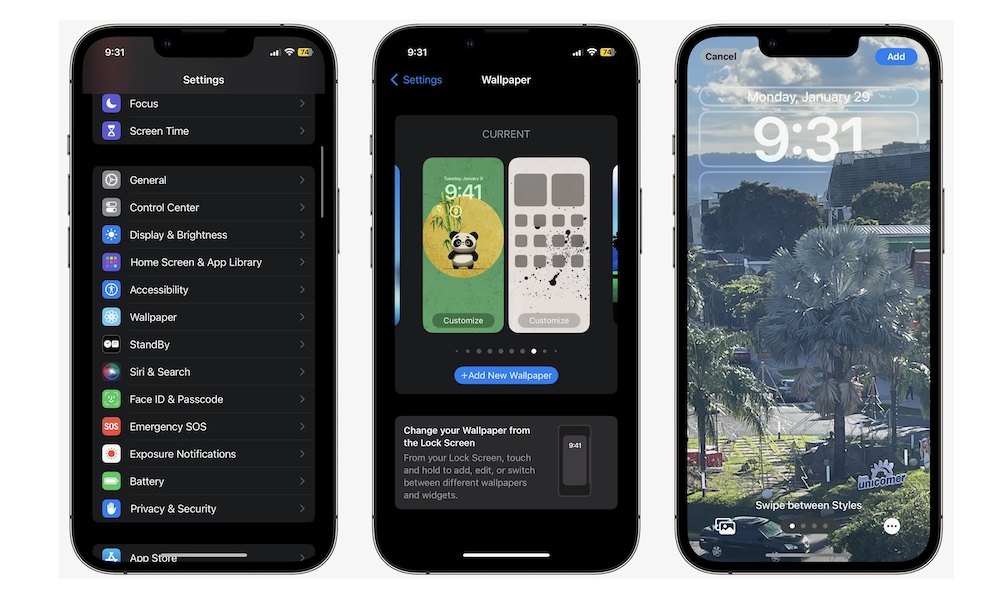
The Lock Screen has evolved into much more than a wallpaper and clock. You can now customize it with widgets, change the clock style, and adjust the shortcuts available right at the bottom of your screen.
Taking a few minutes now to personalize this area can save you time throughout the day. Instead of unlocking the device every time you want quick information, you can glance at weather updates, calendar events, reminders, and more directly from the Lock Screen.
There are a couple of ways to customize your Lock Screen, but this is the most straightforward way:
- Open the Settings app.
- Scroll down and tap on Wallpaper.
- Tap your Lock Screen wallpaper (on the left side) to customize it.
From there, you can add widgets near the bottom or top of the screen, adjust the clock’s size by dragging the handle in the bottom right, or change the controls at the bottom of your screen.
Add Home Screen Widgets for Useful Information and Shortcuts
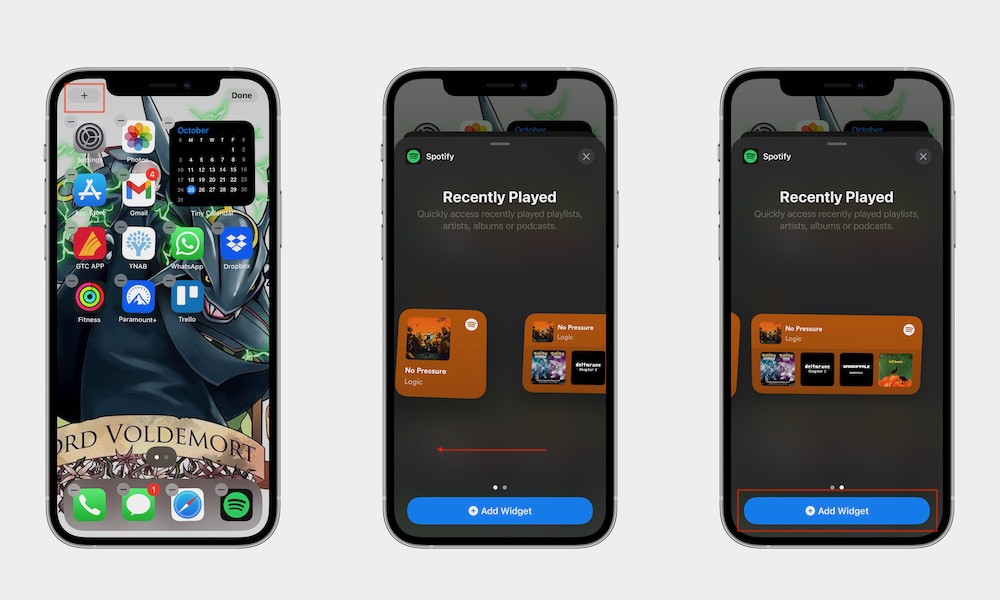
Widgets help transform your Home Screen from a simple grid of apps into a dashboard of useful information. Many apps offer widgets that display things like weather forecasts, calendar appointments, reminders, and battery levels.
The simplest widgets will work as a shortcut to a specific app or action, while other widgets will let you do specific actions without having to open the app, like checking things off your Reminders list.
This makes it easier to check important information quickly without constantly opening apps. Here’s how to add a new widget to your Home Screen.
- Touch and hold an empty area on the Home Screen until apps start to jiggle.
- Tap Edit in the top left corner.
- Tap Add Widget.
- Choose a widget and size.
- Place it anywhere on the Home Screen.
And that’s it! You can add as many widgets as you want, which can help keep your Home Screen more organized.
Customize Your App Icons and Home Screen Appearance
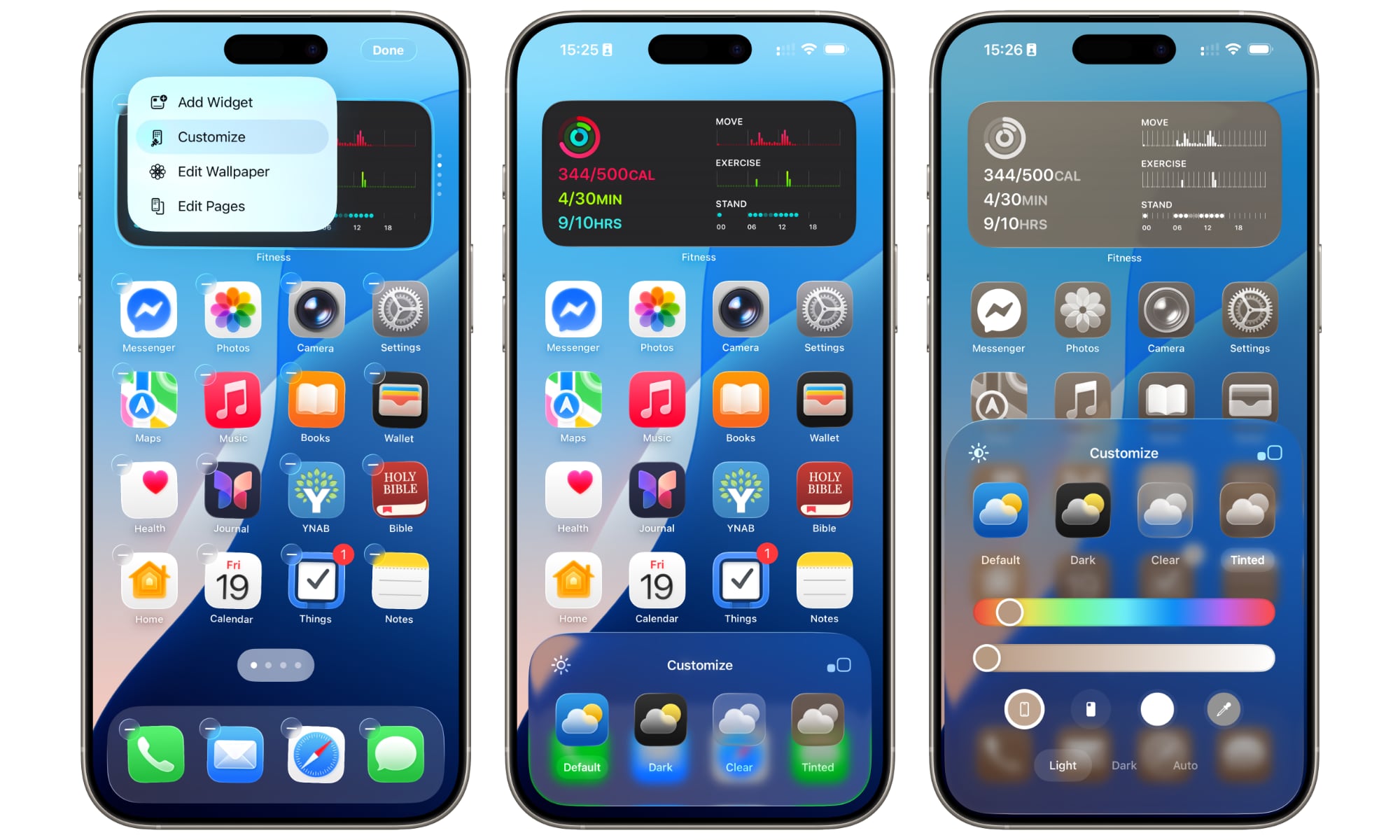
Apple now allows more customization of the Home Screen than many new users might realize. You can adjust icon appearance, change icon size, and choose visual styles that better match your wallpaper or aesthetic preference.
This doesn’t change functionality, but it does help your phone feel more personal. Plus, a simple visual adjustment can refresh your entire Home Screen. This is what you need to do:
- Touch and hold an empty area of the Home Screen until the apps start to jiggle.
- Tap Edit in the top right side of your screen.
- Tap on Customize.
- Choose Light, Dark, Clear, or Tinted styles.
- You can also tap the sun icon in the top left to make your screen darker or brighter.
- Tap the size toggle (the square icons) in the top right to change the size of your icons.
- When you’re done, tap on your Home Screen.
Use and Customize the Action Button (if Your iPhone Has One)
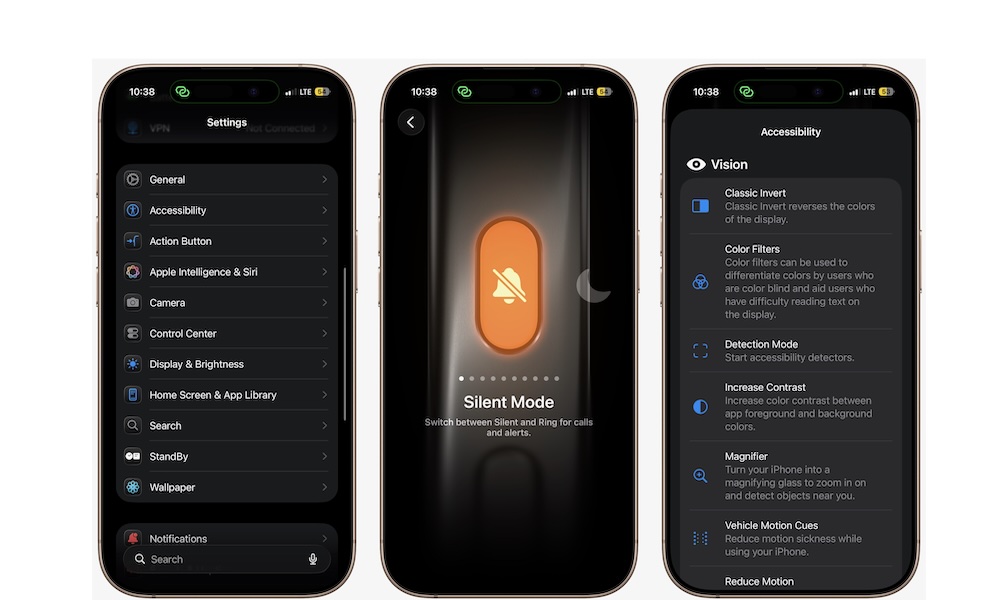
All the newer iPhone models include an Action button that replaces the traditional switch. This button can be customized to perform a variety of tasks.
Instead of toggling silent mode, you can assign it to open the camera, turn on the flashlight, start a voice memo, activate Focus modes, or even launch a custom shortcut. Unfortunately, it can only do one thing at a time, but it’s still a pretty versatile tool you’ll want to customize.
- Open the Settings app.
- Scroll down and tap on Action Button.
- Swipe through the available actions, and choose whatever you want.
- When you’re done, exit the settings and now press and hold the Action button to activate it.
Turn On Back Tap for a Couple of Hidden Buttons
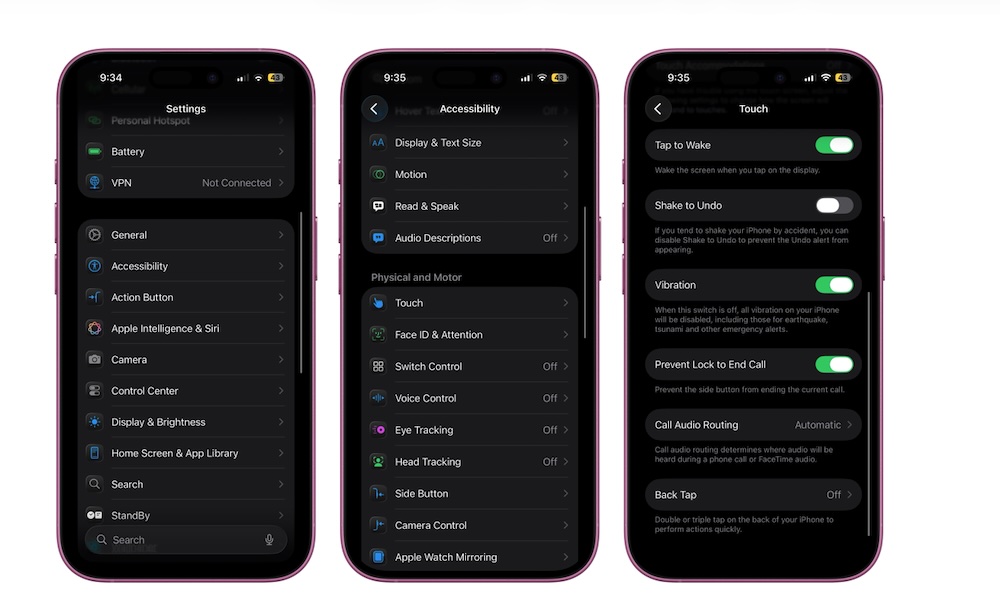
Just because you don’t have the Action button doesn’t mean you can’t still customize one or two extra buttons on your iPhone, and that’s where Back Tap comes in. This feature allows you to double-tap or triple-tap the back of the phone to perform actions.
This essentially turns the back of your phone into an invisible button that can help you do things like take screenshots, open Control Center, launch shortcuts, or activate other features. Back Tap is turned off by default, but here’s how you can start using it.
- Open the Settings app.
- Scroll down and go to Accessibility.
- Tap on Touch.
- Tap Back Tap.
- Select Double Tap or Triple Tap.
- Assign a specific action for each “button.”
Once that’s done, try tapping your iPhone’s back twice or three times and see how this feature works by yourself.
Try StandBy When Charging Your Phone
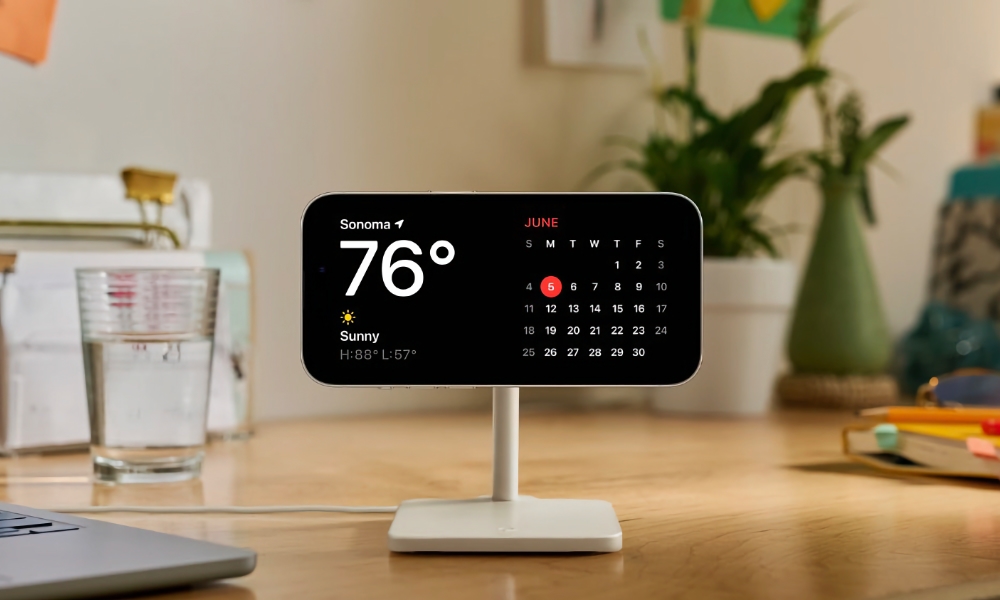
StandBy mode activates when your iPhone is charging and placed horizontally. It basically turns the screen into a large display showing clocks, widgets, photos, and live updates. If you have an iPhone with an Always On display, this feature will appear constantly on your screen. If not, you’ll need to press the side button or tap the screen to see the information.
This makes your iPhone even more useful when it’s sitting on a desk or nightstand. Here’s how you can use it:
- Place your iPhone on a charger.
- Rotate it into landscape orientation.
- Wake the screen if necessary.
Now you’ll see a cool clock and maybe even some useful widgets. If not, you can swipe between displays to get other, more useful widgets and clocks.
Pro Tip: You can adjust your StandBy settings by going to StandBy in the Settings app. This lets you control whether notifications or notification previews are shown, how long the display remains on, and whether a red "Night Mode" tint is used in low lighting.
Use Hold Assist When You’re on Hold
Being placed on hold during a phone call is frustrating, especially if you’re in a hurry or in the middle of something. Luckily, Apple thought about this, which is why it added Hold Assist in iOS 26.
If you’re placed on hold, your iPhone will detect it and ask if you want it to wait for you. If you say yes, the feature monitors the call while you’re on hold and alerts you when a real person returns to the line.
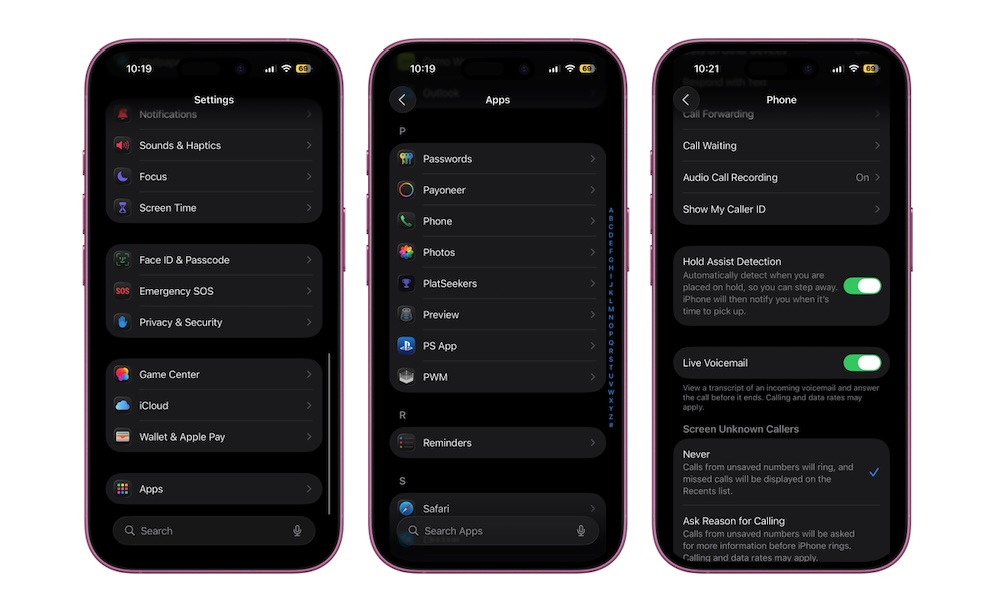
Instead of listening to hold music, you can set your phone down, do anything you want, and wait for your iPhone to alert you. This feature is turned on by default, but you might need to enable the automatic detection by doing the following:
- Open the Settings app.
- Scroll down and go to Apps.
- Scroll down and tap on Phone.
- Go down one more time and turn on Hold Assist Detection.
If you don’t want automatic detection, you can simply tap the three-dot button while you’re on a phone call and select Hold Assist. Your iPhone will start listening for you and alert you when it’s your time.
Get Tips From Your Own iPhone

Of course, we believe our tips are better, but we might be biased. If you want to know more tips, you can get help from Apple itself. The Tips app is designed to help users learn new iPhone features over time. It includes short lessons and suggestions that highlight useful tools and tricks.
Instead of reading a long manual, you can learn more about your iPhone gradually. All you need to do is download the Apple Tips app and see what it can teach you. There are many sections you can check out, and the company updates the app as soon as there’s a new software update. Overall, it’s one of the easiest ways to keep discovering features without spending hours researching them.
Get Used to Your New iPhone
The first thing you need to avoid as a new iPhone user is trying to learn everything immediately. Sure, you probably already knew everything about Android before, but now there will be a slight learning curve.
The better approach is to focus on a few features first. Learn the swipe gestures, customize Control Center, set up widgets, and personalize your Lock Screen. Once those basics are in place, the rest of the system becomes much easier to understand.
With a bit of patience, you’ll become an iPhone power user in no time. And once you become familiar with these features, your iPhone stops feeling like a new device, and it will instead become a powerful tool for your everyday needs.