
Your iPhone Has These 9 Secret Superpowers (And It’s Time to Use Them)

If you’ve owned an iPhone for years, it’s easy to assume you already know everything that it can do. You can text, take photos, use apps, and get on with your day. But Apple has a funny way of hiding its best stuff, as if it's your job to look for it. The company keeps adding genuinely useful features that don’t scream for attention, so unless you go looking, you might never notice them.
And the irony of it all is that the iPhone features that make the biggest day-to-day difference in our lives are usually the ones that don’t look all that relevant at first. They’re the tools that save you time, keep you safer, cut down annoying interruptions, and make your phone feel more personal — all without downloading a single extra app.
It might not be your job to look for hidden features, but it is ours. Read on for the 9 most helpful iPhone features that many of us miss — and how to make the most of them.
Back Tap
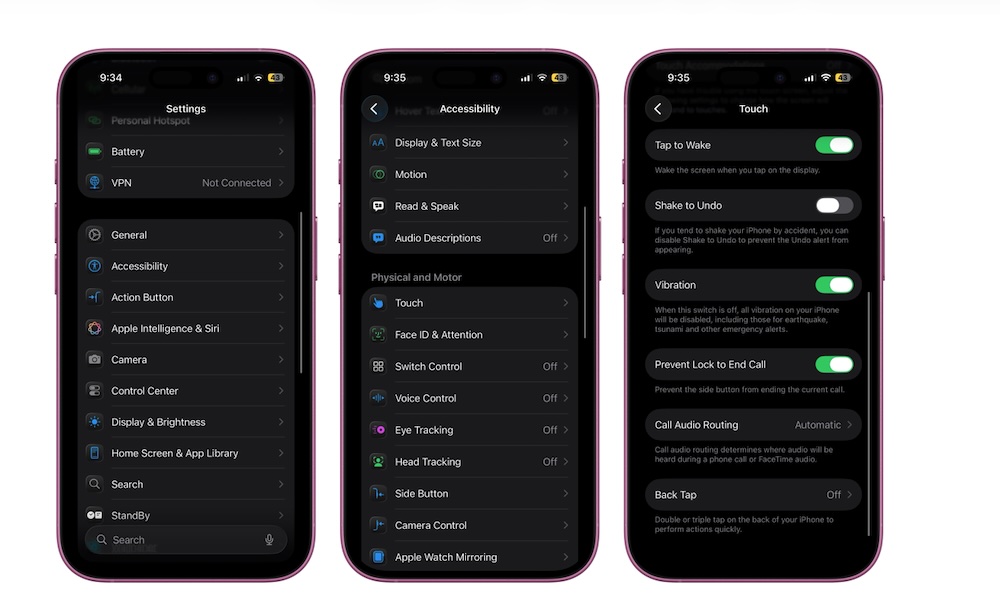
Back Tap is one of those features that feels like you found a secret button your iPhone forgot to tell you about.
Once it’s on, you can double-tap or triple-tap the back of your iPhone to trigger an action. That action can be something simple like taking a screenshot, locking your screen, opening Control Center, or turning on the flashlight. Or it can be something more powerful, like running a Shortcut, which turns Back Tap into a customizable launchpad for whatever you do most.
What makes Back Tap so useful is how quickly and cleanly it works. You’re not adding widgets everywhere or hunting around in Control Center. You’re giving your iPhone a physical shortcut that works from almost anywhere.
It’s especially handy with working with one hand. If you’ve ever tried to reach for your Notification Center on a larger iPhone while holding groceries, a coffee, or just your dignity, Back Tap feels like a tiny upgrade that saves you from daily annoyance.
Here's how to get started with Back Tap:
- Open the Settings app.
- Scroll down and tap on Accessibility.
- Go to Touch.
- Scroll down and tap on Back Tap.
- Choose Double Tap or Triple Tap.
- Pick an action, or scroll down and choose a Shortcut.
Pro Tip: Back Tap works best when you tap closer to the top half of the phone, near the camera area. If it feels inconsistent, try tapping a little higher and a little firmer. How hard you tap it will depend on your case as well. If you use a really rugged, thick case, you’ll need to tap your iPhone harder.
Visual Look Up
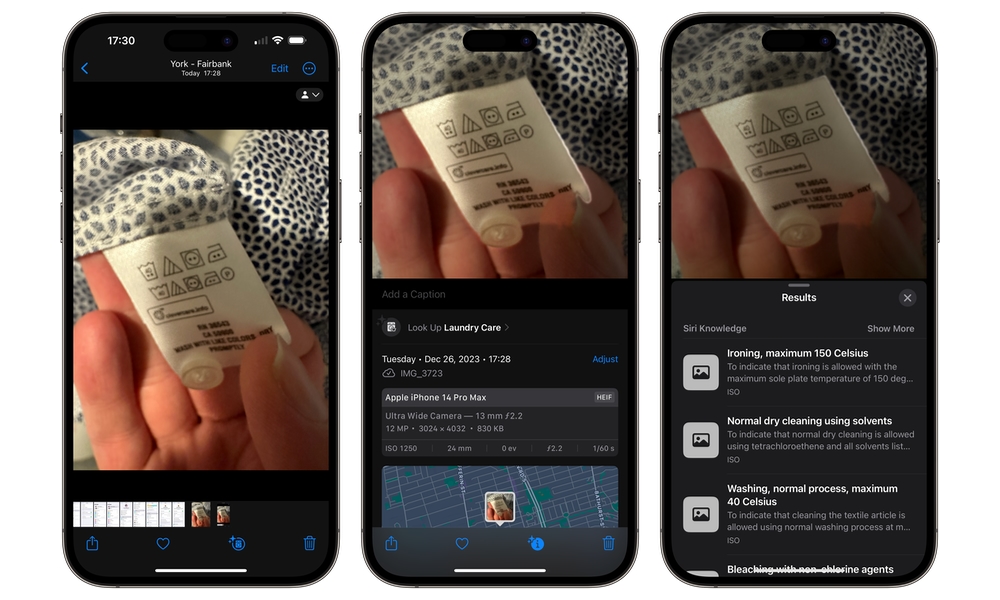
Visual Look Up turns your screenshots into fun little discovery tools. When your iPhone recognizes something in a photo, it will show you an indicator that can be used to identify plants, pets, landmarks, and other objects and pull up related information. It’s not meant to replace deep research, but it’s perfect for those moments when you’re staring at a photo, asking yourself what you’re looking at.
Granted, Visual Look Up isn’t the most reliable of features. It doesn’t always recognize the subject in the photo, so you might not get any information at all. However, when it works, it’s incredibly useful.
Visual Look Up can help when you’re traveling and want to identify a landmark, when you’re shopping and trying to recognize a plant, or when you’re sorting photos and want more context about what you captured. To use Visual Look on your iPhone, you need to:
- Open the Photos app.
- Tap a photo that has a clear subject, like a pet, plant, or landmark.
- Tap the Info button (the i icon).
- If Visual Look Up is available, you’ll see a prompt to Look Up.
- Tap Look Up to see results and related info.
If you don’t see the option, it doesn’t mean your iPhone is broken. It usually means the photo doesn’t have a recognizable subject, the lighting is too messy, or the feature doesn’t support that specific thing.
Text Replacement
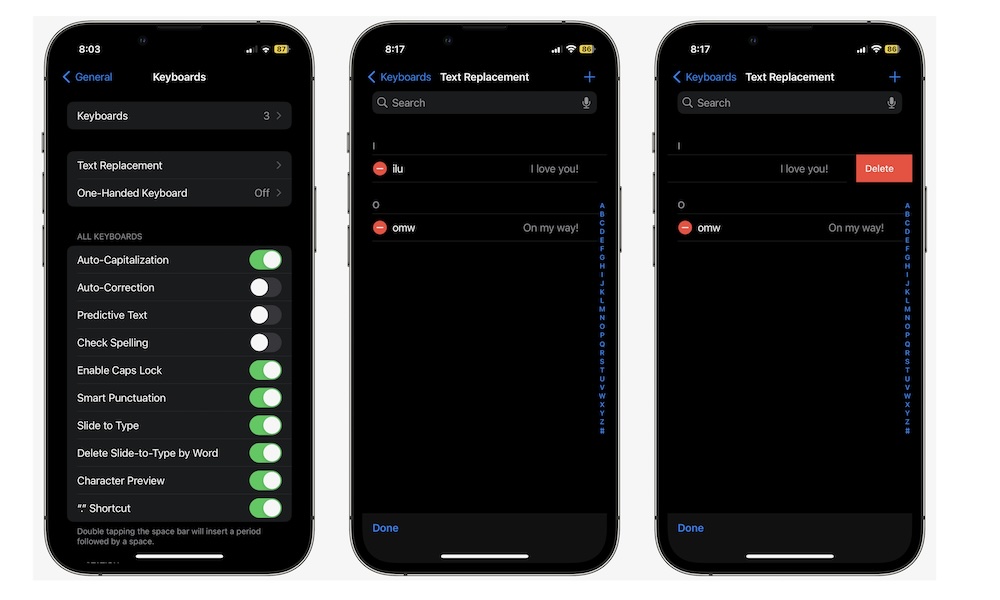
Text Replacement is an iPhone feature that will make you faster at typing without learning anything new. It lets you create custom shortcuts that expand into full phrases. You type something short, and your iPhone replaces it with something longer.
Most people assume this is only for casual stuff like “omw” turning into “On my way.” But you can actually use it for anything you type repeatedly: your email address, your mailing address, your phone number, client templates, a standard work reply, or even a mini paragraph you reuse when you’re answering the same questions. Your only limit is your imagination.
If you write for work, Text Replacement is a huge win. It turns your iPhone keyboard into a personal toolkit. And because it syncs across devices when iCloud is enabled for keyboard settings, you can build it once and benefit everywhere — even on your Mac.
Follow these steps to start using Text Replacement:
- Open the Settings app.
- Scroll down and go to General.
- Tap on Keyboard.
- Go to Text Replacement.
- Tap the + button.
- In Phrase, type the full text you want your iPhone to insert.
- In Shortcut, type the trigger you’ll remember.
- Tap on Save when you’re done.
Pro Tip: Pick shortcuts that you’ll never type by accident. Something like @@ for your email or adr1 for your address works well because it’s fast but intentional.
Haptic Touch Customization
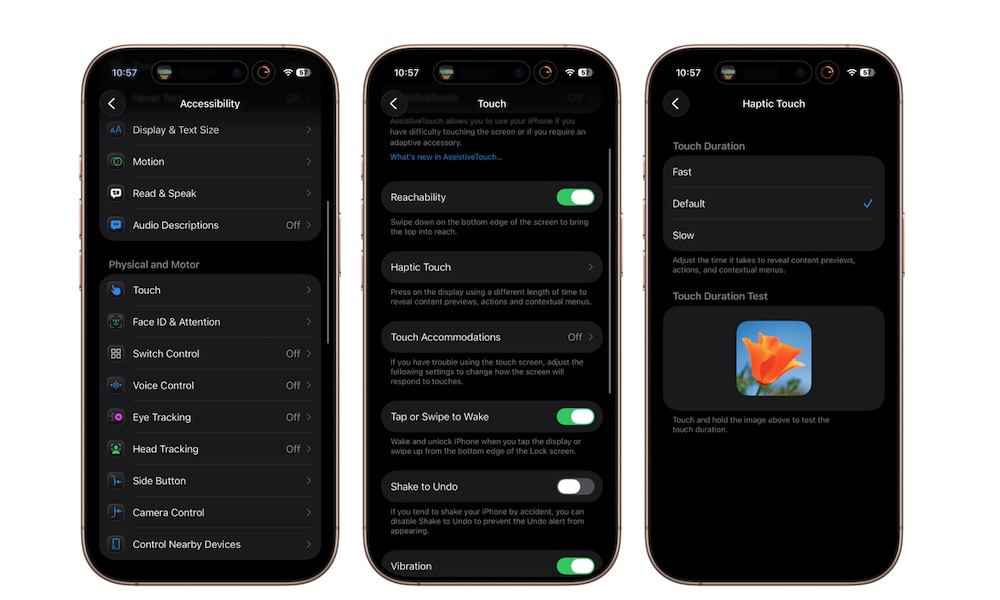
Haptic Touch is the long-press gesture that opens quick menus on app icons, links, and many interface elements. It’s how you quickly jump into actions like taking a selfie from the Camera icon, scanning a document from Notes, or previewing a link without fully opening it. If you’re a long-time iPhone fan, you probably remember 3D Touch from the iPhone 6s. Well, this is its far less cool replacement.
What many users don’t know is that you can control how fast Haptic Touch responds. If you’ve ever felt like iOS is making you wait just a beat too long before the menu appears, changing this setting makes your phone feel snappier immediately. It’s a small tweak, but it makes common interactions feel more responsive, especially if you use long-press menus constantly.
Here’s how you can customize your Haptic Touch duration:
- Open the Settings app.
- Scroll down and tap on Accessibility.
- Go to Touch.
- Tap on Haptic Touch.
- Under Touch Duration, choose Fast.
- Use the test area below to feel the difference.
If you try Fast and it feels too jumpy, you can always switch back to Default.
Quick Notes
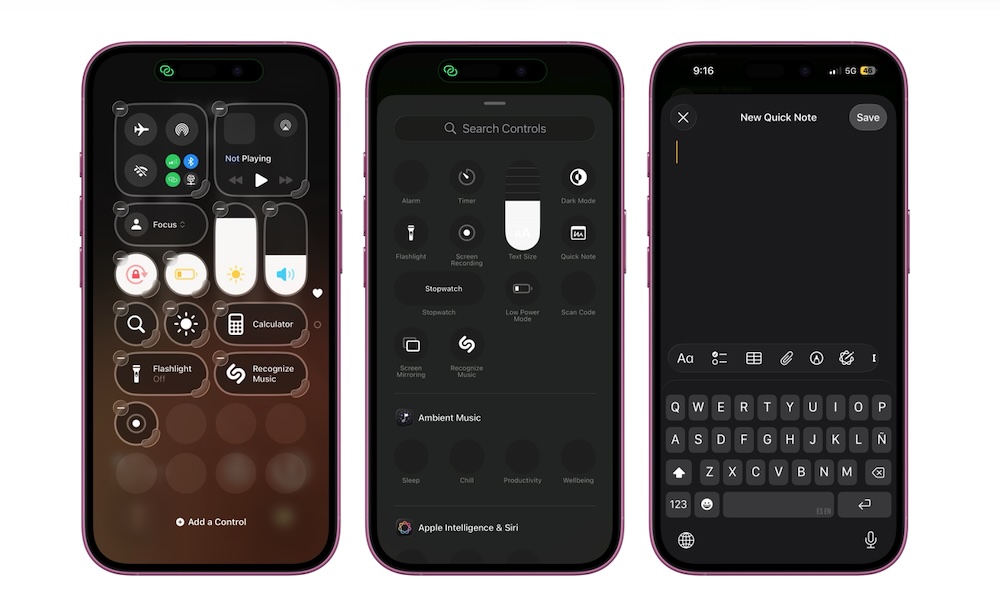
Quick Notes is a feature that makes your iPhone feel more like a tool for capturing ideas rather than just consuming content. It lets you create a note instantly while you’re already doing something else, like browsing in Safari, scrolling through a recipe, reviewing an email, or researching a product.
Instead of copying text, switching to the Notes app, making a new note, pasting, and trying to remember what you were doing, Quick Notes cuts down a few steps, making it feel seamless. It’s especially good for saving links and thoughts when you’re in the middle of something and don’t want to break your flow.
Quick Notes are stored in their own section in Notes, so you can dump everything there without feeling like you’re wrecking your organized notes system.
First, you need to add the Quick Note button to your Control Center. To do this, open your Control Center and tap on the plus icon in the top right corner of your screen. Next, tap on Add a Control at the bottom and use the search bar to look for Quick Note.
Afterward, you can try it out for yourself. Open a Quick Note and write down anything you want. You can then tap on save and continue your day.
Later, you’ll find all your quick notes in the Notes app under the Quick Notes folder.
Pro Tip: If you’re using the Safari app, you can take Quick Notes one step further. Tap the three-dot button in the bottom right corner of your iPhone and select Share. Next, scroll down and tap on Add to Quick Note. You’ll open a new note with the URL already pasted. You can add more text or just tap on Save.
Drag and Drop Between Apps
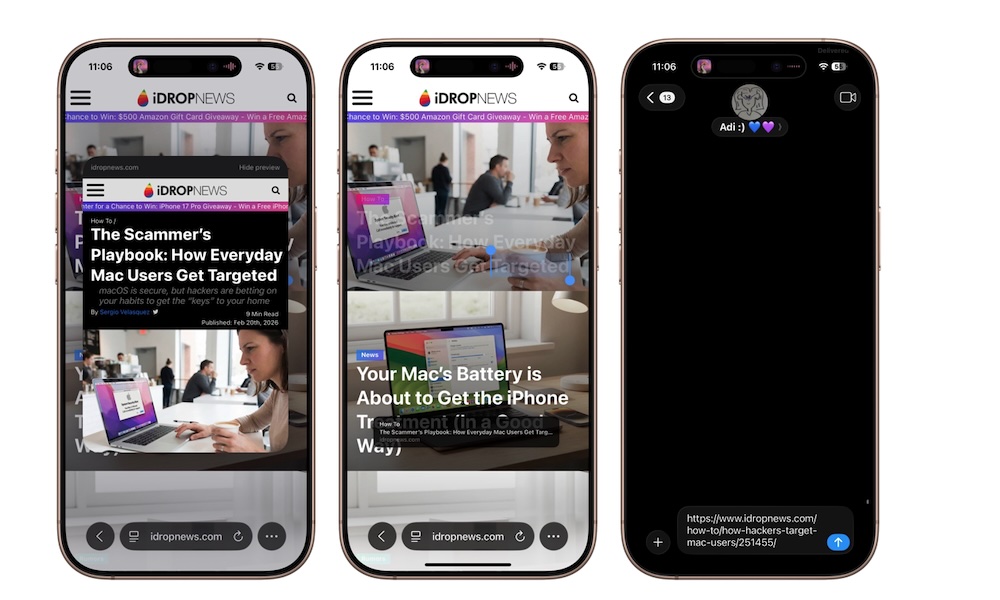
Dragging and dropping stuff between apps feels like something that should only work on computers, but your iPhone can do it, too. Not only that, but it’s way more useful than most people realize. You can drag text, photos, links, and files from one app to another using multitouch.
Once you get the hang of it, it changes the way you move information around. You can drag a photo from Photos into Messages without opening the share options. You can drag a link from Safari into Notes. You can grab a chunk of text and drop it into an email draft.
This feature makes your iPhone feel less like a series of separate apps and more like one connected workspace. Here’s how you can start using it:
- Press and hold on a photo, link, file, or selected text until you feel a haptic response. You might need to drag it up or down so it “floats” under your finger.
- Keep holding it with one finger, and with another finger, swipe up to go Home, or switch apps using the app switcher.
- Open the destination app (like Notes, Messages, or Mail).
- Drag the item into the spot where you want it, then release.
It takes about a minute to learn, and then you start doing it without thinking.
Safety Check
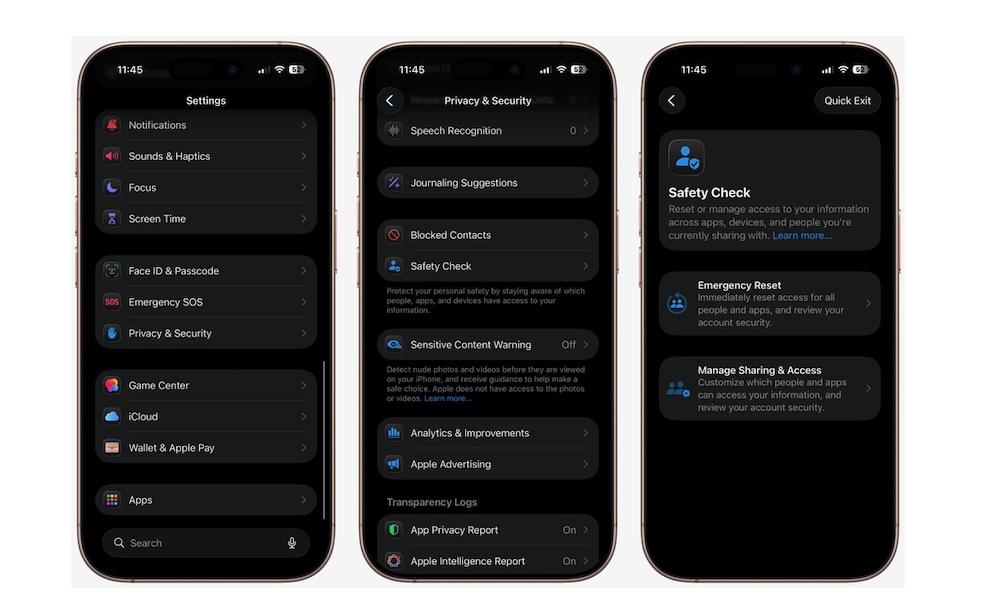
Safety Check is one of the most important privacy features Apple has ever added, and many people still don’t know it exists. It was designed to help people in situations where they need to quickly stop sharing information, but it’s useful for everyone because sharing data can add up over time.
Maybe you shared your location with someone months ago and forgot about it. Maybe an app still has access to data it no longer needs. Or maybe you signed into something on a shared device. Safety Check makes it easy to review who and what has access to your information, then revoke anything you don’t want.
It’s basically the fastest way to audit your iPhone’s sharing and permissions without hunting through a dozen menus. Here’s how to use it:
- Open the Settings app.
- Scroll down and go to Privacy & Security.
- Tap Safety Check.
- Tap Manage Sharing & Access to review who and what has access.
- Follow the instructions on your screen and remove anything you don’t want.
If you ever need a more drastic option, Safety Check also has an Emergency Reset feature, but most people will be using it as a smart privacy clean-up tool.
Live Activities
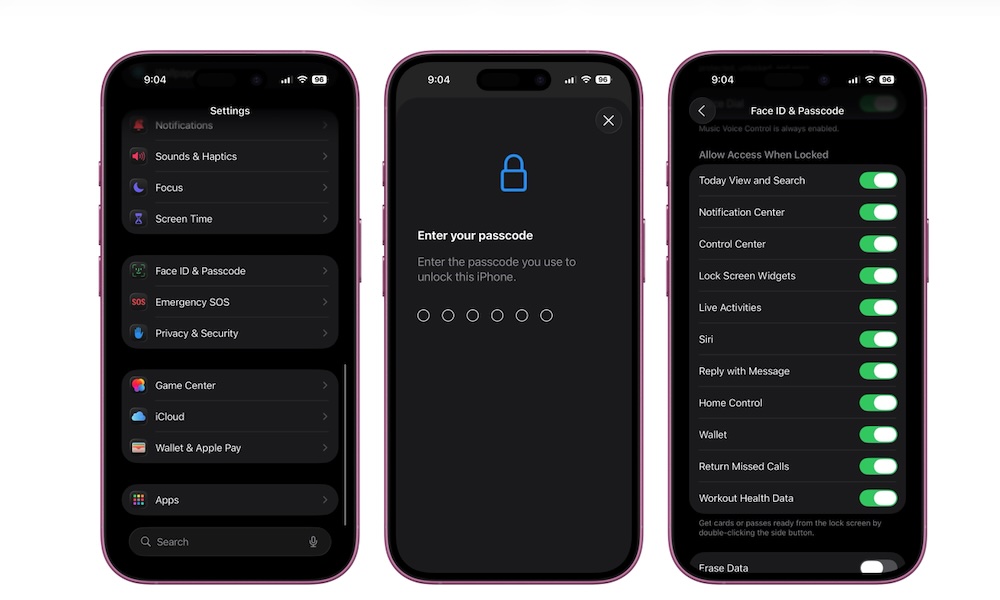
Live Activities give you real-time updates right on your Lock Screen, and on iPhones that support it, in the Dynamic Island too. This can include things like timers, ride-share progress, food delivery status, sports scores, flight updates, and more.
What makes Live Activities actually useful is that you don’t need to constantly unlock your phone and check an app. You get the update at a glance.
If you’ve ever checked a delivery app ten times in ten minutes, Live Activities are made for you. This feature should be turned on by default so it appears on your Lock Screen, but here’s how you can enable it manually.
- Open the Settings app.
- Scroll down and tap Face ID & Passcode.
- Enter your passcode.
- Scroll to Allow Access When Locked.
- Turn on Live Activities.
After that, Live Activities will appear automatically when you use an app that supports them. If you don’t see them, it may be because the specific app hasn’t implemented the feature.
Offline Maps in Apple Maps
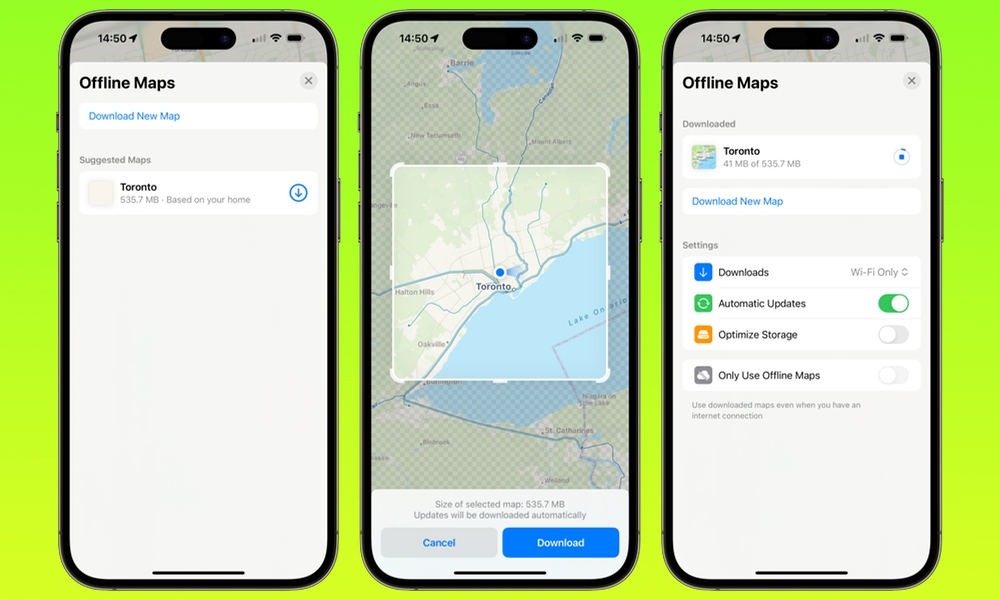
Offline Maps are ideal for anyone who travels, drives through spotty coverage areas, or just wants a backup plan. You can download a region in Apple Maps and use it even when your internet connection is weak or completely gone.
This is useful in more situations than you’d expect. Underground parking garages, road trips, rural areas, or international travel. Offline maps turn Apple Maps into something you can actually rely on when your signal is not cooperating.
Here’s how you can download a map in Apple Maps:
- Open Maps.
- Tap your profile icon.
- Go to Offline Maps.
- Tap Download New Map.
- Search for the area you want.
- Adjust the region size, then tap Download.
You can also manage and update your downloaded maps from the Offline Maps screen, which is helpful if you’re prepping for travel and want to make sure everything is current.
Make the Most Out of Your iPhone
The best part about these iPhone features is that they don’t require a new phone, a new app, or a complicated setup. They’re already sitting on your device, waiting for you to flip a switch or learn a gesture.
And once you start using even a few of them, your iPhone stops feeling like a noisy grid of apps and starts feeling like a personal tool that actually supports your day.