
7 ‘Hidden’ iPhone Features You’ll Wish You Found Sooner
 Kite_rin / Shutterstock
Many folks still think accessibility features are only for a small group of users with very specific needs, but that couldn't be further from the truth. In reality, accessibility features offer improvements for vision, hearing, mobility, speech, and even reading that can be helpful for everyone’s daily life.
Some of them make your iPhone easier to control with one hand. Some help when you’re in a loud place, or when you’re getting dizzy in the car.
Unfortunately, since few ever explore the Accessibility section in their iPhone Settings, many of us just assume these features don't apply to us. However, some of Apple’s smartest iPhone features are tucked away in here — and they can entirely change the way you use your iPhone.
If you’ve never really explored this part of your iPhone before, read on for 7 accessibility features worth checking out.
Background Sounds
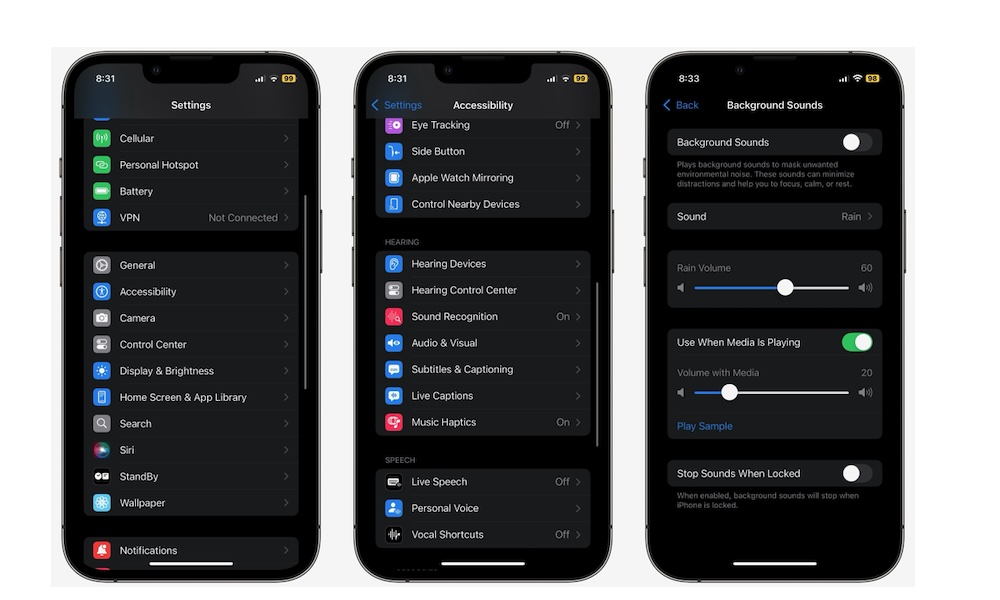
Many people download or even pay for third-party apps to get what Apple already provides with Background Sounds.
As you can probably guess by the name, this feature lets you play ambient audio like rain, ocean, stream noise, white noise, dark noise, and other sound textures directly from your iPhone. Because it’s built into iOS, it is lighter and more dependable than having to open a separate app every time you want some soothing sounds.
This feature is useful in more situations than you may expect. It can help if you’re trying to focus in a noisy office, relax before bed, or take the edge off a distracting environment without opening a music app. It also works well if you want calm background audio under a podcast or other type of music, because you can control whether it plays besides other audio and adjust the volume separately.
To start using Background Sounds, go to Settings > Accessibility > Audio & Visual > Background Sounds, turn on Background Sounds, and pick the sound you want. You can also adjust the volume, playback speed, and other settings to match the relaxing experience you really want.
Pro Tip: You can also add Background Sounds directly to your iPhone Control Center. It's available either in a dedicated Background Sounds control or as part of the broader Hearing control that also provides access to Headphone Accommodations and Live Listen.
Sound Recognition
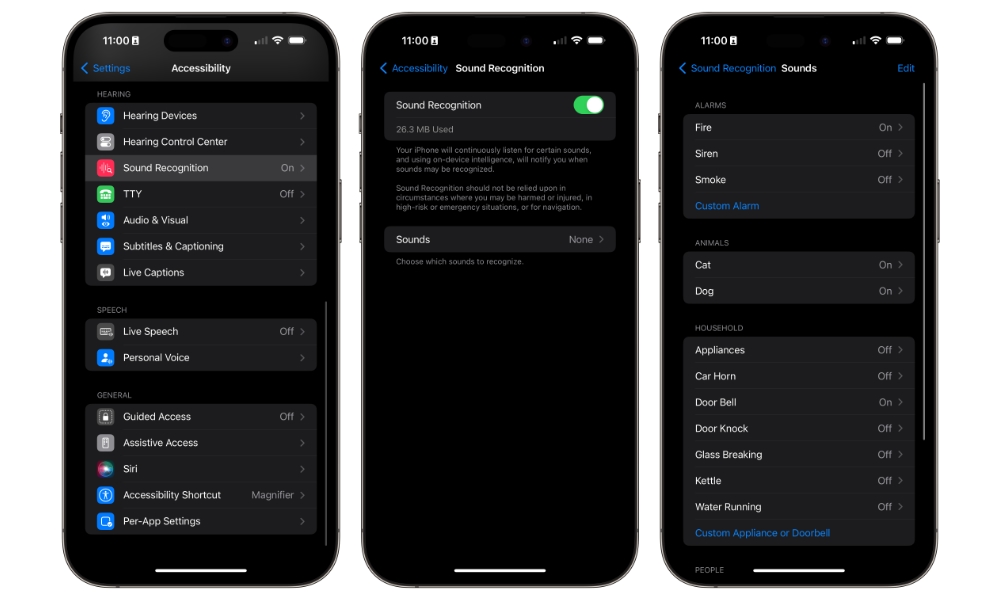
Sound Recognition is one of the most practical hidden gems in your iPhone’s Accessibility settings because it turns your device into a smart listener. It can detect sounds like a doorbell, siren, smoke alarm, baby crying, cat meowing, dog barking, and much more. Then your iPhone alerts you when it hears them. If you wear headphones often or live in a noisy house, that can be a much bigger deal than it sounds on paper (pun intended).
The most obvious use case is hearing accessibility, but you absolutely do not need hearing loss to find this feature useful. If you work with earbuds in, spend time in another room from the front door, or just don’t want to miss an important sound at home, this feature can quietly become part of your daily life. Apple has also expanded it with features like custom alarms and appliance recognition, which make it feel more flexible than many people realize.
Of course, while it’s useful, this feature isn’t perfect. Sure, it can alert you if your baby is crying, but don’t entirely rely on it, especially if you don’t have issues with your hearing. Still, if you want to try this feature for yourself, simply go to Settings > Accessibility > Sound & Name Recognition. From there, choose Sound Recognition and turn this feature on. Lastly, tap on Sounds, and turn on all the sounds you want.
Your iPhone will begin downloading these sounds because this feature works inside your device. This means you won’t have to worry about Apple listening in to your every move, as everything will be done without sending data to the company.
Pro Tip: A more focused version of Sound Recognition is also available in CarPlay that can notify you when it detects a siren, car horn, or crying baby while you're driving.
Music Haptics
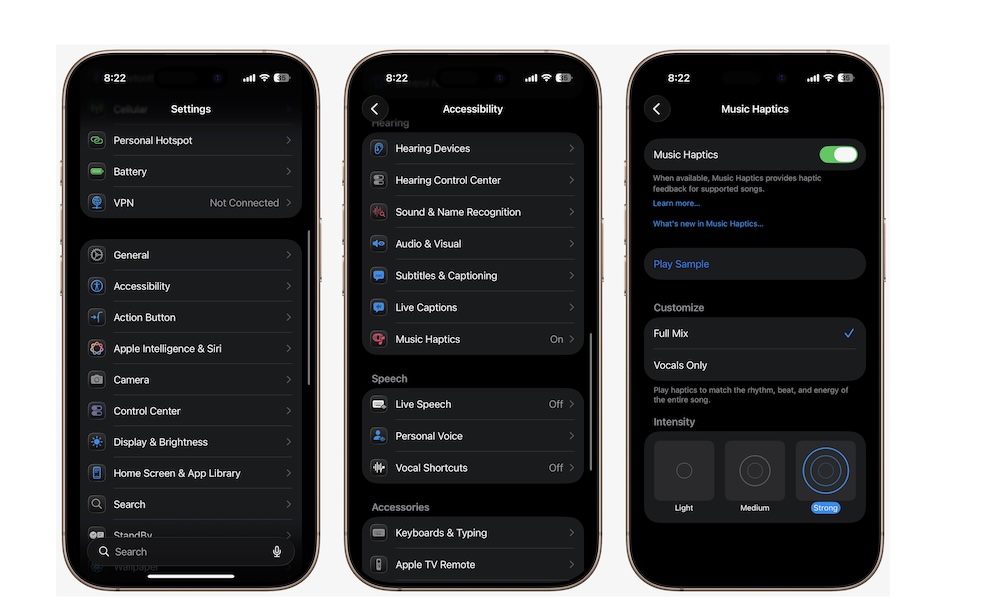
Music Haptics is one of Apple’s most creative accessibility additions, and it’s also one of the easiest to describe badly if you haven’t tried it yourself.
The basic idea is that your iPhone can translate supported songs into haptics and vibration patterns using something called the Taptic Engine. That means you’re not only hearing music, you’re also feeling it.
The accessibility purpose here is obvious, but it’s also cool to try, even if it might not be as useful as other features on the list. It can make familiar songs feel completely fresh, especially if you care about rhythm and texture. It also gives music a more immersive quality that feels surprisingly natural once you get used to it. This is the rare accessibility feature that feels useful, expressive, and just plain fun.
With all of that said, this feature isn’t for everyone. To use it, you’ll need the right app and iPhone. For the former, you can use music haptics in the Apple Music, Music Classical, and Shazam apps. As for your iPhone, you’ll need to have at least an iPhone 12 or a later model. Additionally, not every song will support this feature, but you’ll still find many of them that work.
If you have all of that covered, you can use this feature by going to Settings > Accessibility > Music Haptics. Turn Music Haptics on, and you're good to go. Open one of the supported apps and play a supported song.
Vehicle Motion Cues
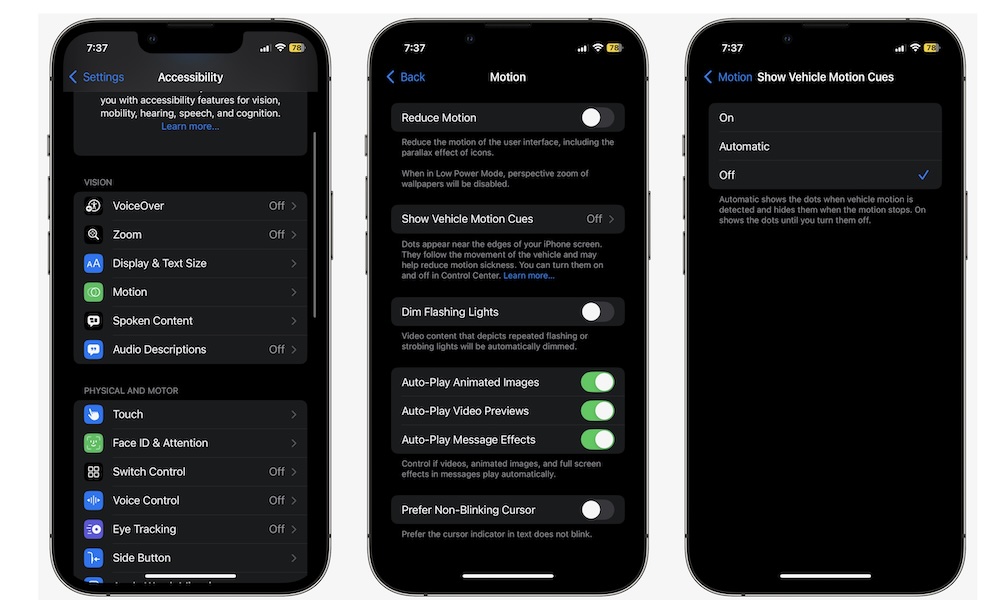
Vehicle Motion Cues might be one of the most practical hidden gems on your iPhone that Apple has added in years. When you turn it on, this feature displays animated dots on your screen that move in sync with a moving vehicle, which can help reduce motion sickness when you use your iPhone as a passenger. If you’ve ever felt nauseous scrolling social media or replying to messages in the car, this is worth trying right away.
What makes it so good is that it addresses a very real, everyday problem without forcing you to completely change how you use your phone. It's estimated that anywhere between one-third and two-thirds of the general population can be affected by motion sickness, and if you’ve suffered it, you know how much this sucks. Granted, this feature might not work with everyone, but it’s definitely worth a shot.
To start using this feature, go to Settings > Accessibility > Motion > Vehicle Motion Cues. Turn this feature On, or choose Automatic, if you want your iPhone to detect the moving vehicle for you (which might not work all of the time).
Vocal Shortcuts
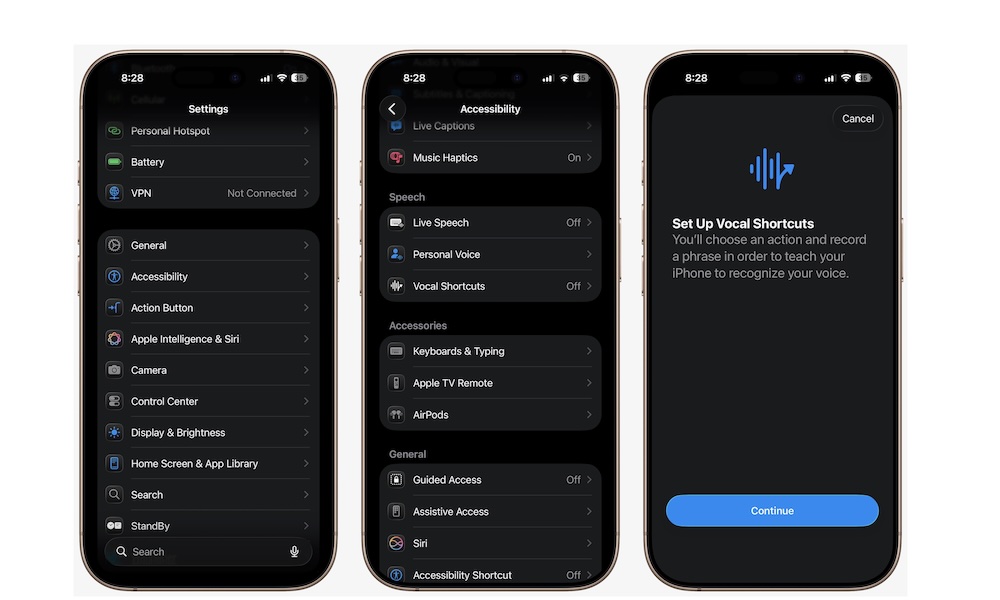
Vocal Shortcuts lets you set a custom voice command system that’s completely personal and incredibly useful. Instead of relying only on standard Siri phrasing, you can create your own spoken phrase to trigger an action on your iPhone. That might be launching a specific accessibility feature, running a particular action, or even handling a Siri request more quickly.
You can set your own phrase for something you do all the time, which makes your iPhone feel more tailored to you. It’s especially useful if you want quicker, hands-free control without memorizing formal commands or digging through different menus every time.
To create your own vocal shortcuts, head to Settings > Accessibility, scroll down to the Speech section, and tap on Vocal Shortcuts. Tap on Continue and create your own custom actions.
Eye Tracking
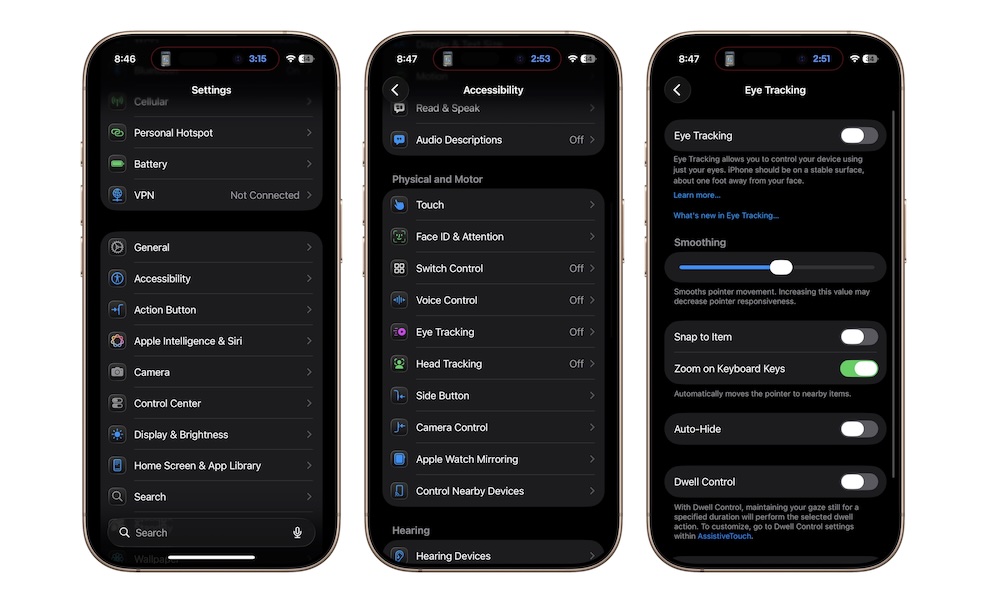
Eye Tracking is a feature that really makes you stop and think just how accessible smartphones have become. This feature basically lets you control your iPhone with nothing but your eyes, using an on-screen pointer that follows your gaze. When you look at an item and hold your gaze steady, your iPhone can treat that as a regular tap.
This is obviously a major mobility feature, but it’s also one of the clearest examples of Apple taking on-device intelligence and camera technology and applying it in a genuinely useful way. Apple says the setup and control data are processed on the device, which also matters because a feature this personal needs to feel private as well as powerful.
To start using eye tracking, simply go to Settings > Accessibility > Eye Tracking. Turn on Eye Tracking, and then follow the steps on your screen to set it up.
Accessibility Reader
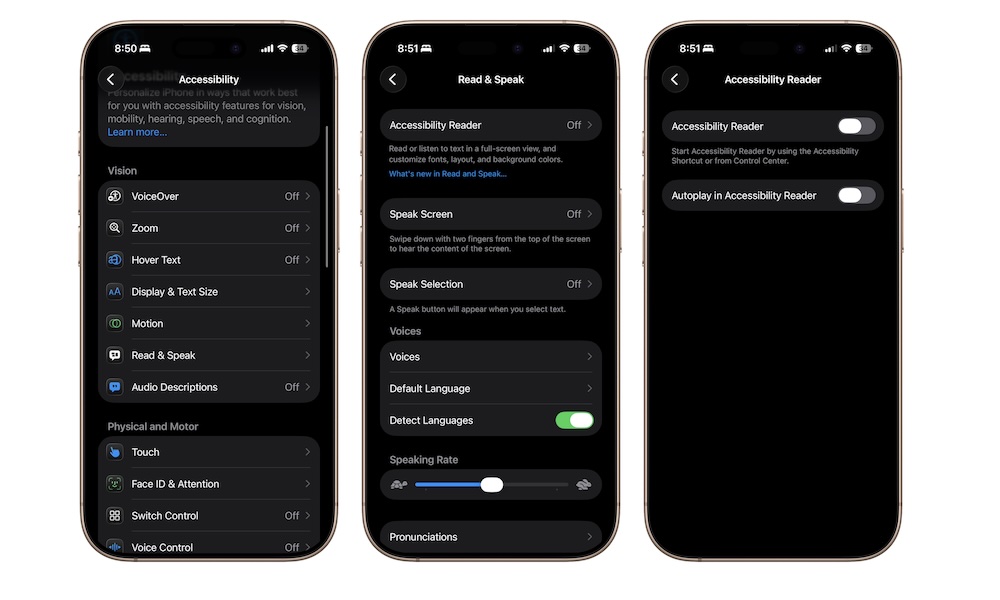
Accessibility Reader is one of the newest and most immediately useful reading tools Apple has added in recent times. It creates a customized full-screen reading experience that can simplify cluttered layouts, adjust text, and even read something aloud for you. If you’ve ever opened a web page or app and felt like the design was fighting you instead of helping you read, this is the kind of feature that you need.
What makes it stand out is that it’s not only for people with diagnosed reading difficulties or eye issues. Anyone who gets distracted by visual clutter, struggles with website layouts, or simply wants more control over how text appears on screen can use it.
To test the accessibility reader for yourself, go to Settings > Accessibility > Read & Speak > Accessibility Reader. This will let you access the Accessibility Reader from your Control Center. So open it and add the Accessibility Reader control. Once you do, go to a web article or an app, open Control Center, and tap the control. You’ll be redirected to the Accessibility Reader, where you’ll have a cleaner view of the article you want to read, alongside some media controls in case you want your iPhone to read for you.
You can also tap the three-dot button in the top right corner of the Accessibility Reader to customize your reader or hide the audio controls.
Make the Most of These Accessibility Features
Most of us tend to make the mistake of assuming your iPhone’s accessibility tools are a bunch of features you only visit if you already know you need them. In reality, some of the smartest and most useful iPhone features live there, and a lot of them solve everyday issues and annoyances that have nothing to do with who you are.
The best part about all of these features is that they make the iPhone easier and more flexible to use in ways that a lot of people can benefit from. Of course, it might be a lot to try at once, so start off with a couple of features, and once you’re ready to try something else, you can go back to this list.