
5 Apple Intelligence Features Actually Worth Using in iOS 27
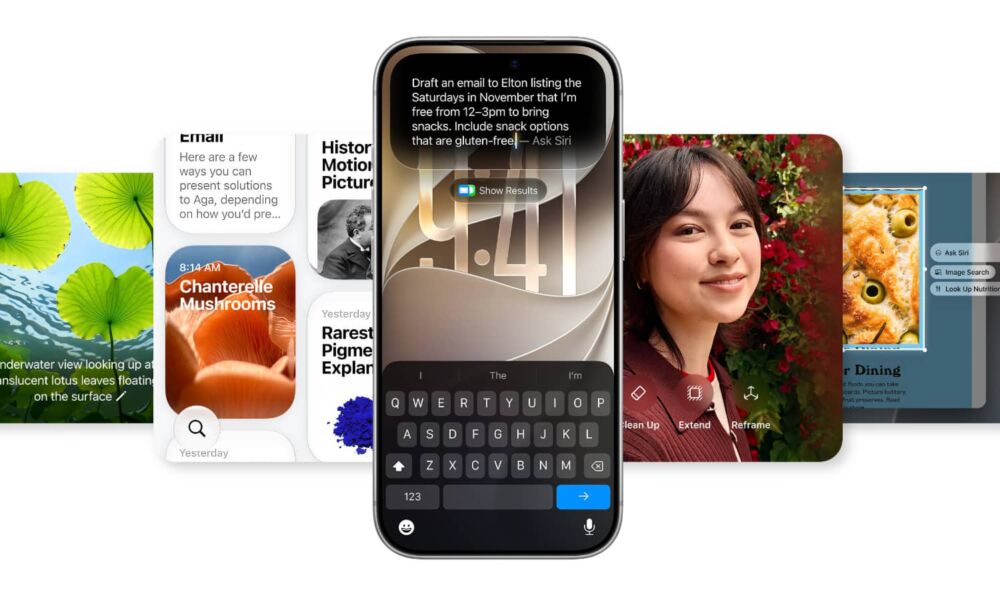
Apple Intelligence has been around for a couple of years now, and it’s fair to say that not every feature Apple released has been something you’ll use every day (or at all, for that matter).
Sure, generating a Genmoji of your friend is fun, and summarizing a notification can occasionally save you a few seconds. However, neither feature is going to completely change the way you use your iPhone.
Fortunately, Apple Intelligence has become way more useful in iOS 27.
With this software update, Apple added a ton of useful features that have a lot of potential. And while some features are exclusive to the newest flagship models, there are still many useful things you can use Apple Intelligence for, even with a base iPhone 16.
So, if your iPhone supports Apple Intelligence, read on for 5 new iOS 27 features that are actually worth trying.
Safari Can Tell You When a Website Changes
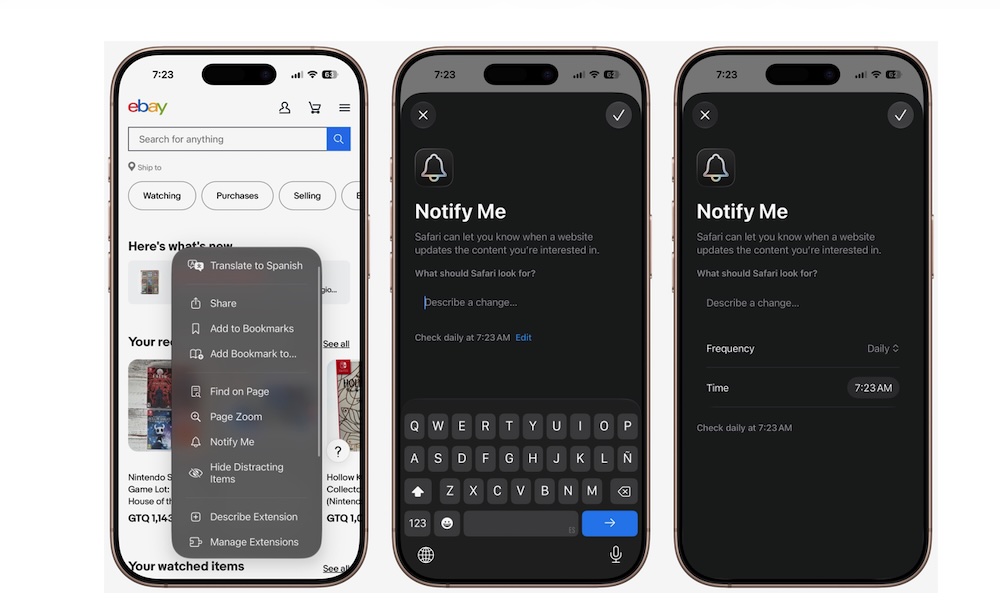
Notify Me might be one of the most useful Apple Intelligence features that Apple has released so far.
The feature lets Safari monitor a webpage for you and notify you when something you’re interested in changes. Instead of constantly refreshing the same website, you can tell Safari what you’re waiting for and let your iPhone check for you.
For instance, if you want to buy a pair of shoes that’s currently out of stock in your size, you can ask Safari to notify you when they’re available again. You could also keep an eye on the price of something you want to buy and receive an alert if it gets cheaper.
Safari even lets you describe what you want it to monitor, so you aren’t limited to a handful of predetermined options.
Here's how to try Notify Me on your iPhone:
- Open Safari and visit the webpage you want to monitor.
- Tap on the Page Menu button.
- Select Notify Me.
- Describe the change you want Safari to look for.
- Tap on Edit, and adjust how frequently Safari should check the page if necessary.
- Tap the checkmark in the top right corner to finish.
And that’s it. After that, you can forget about the webpage until Safari detects the change you need.
You Can Finally Create Shortcuts Without Understanding Shortcuts
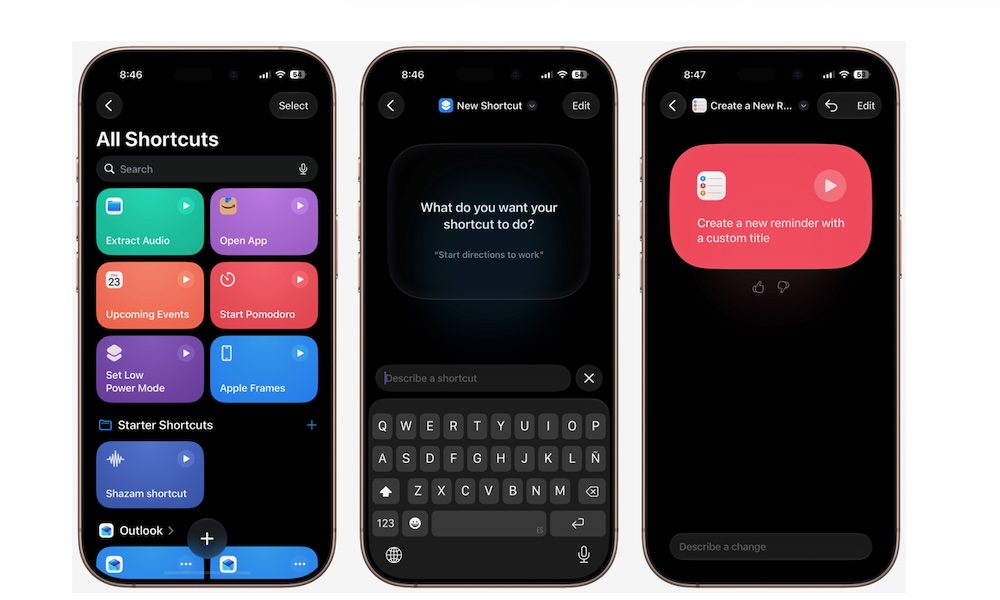
The Shortcuts app can do some incredible things, but there’s always been one problem: you need to understand how to build a shortcut first.
Even something that sounds simple can require several actions arranged in the correct order. Add variables or conditions, and it’s basically like you need to learn to code before you can properly use Shortcuts. Luckily, Apple Intelligence changes this completely.
You can now describe what you want in normal language, and Shortcuts will attempt to build it for you. For example, you could ask it to text your partner that you’re on your way home from work or to automatically turn on Low Power Mode when you’re running low on battery life.
Apple Intelligence figures out which actions are necessary, puts them together, and even gives your new shortcut a name. Of course, after it’s created, you can customize the shortcut further if you want. Here’s how to get started.
- Open the Shortcuts app.
- Tap the + button.
- Describe what you want your shortcut to do.
- Wait for Apple Intelligence to build it.
- Run the shortcut to test it.
This is an incredible use of AI, and it’ll make things so much easier for those of us who don’t know much about Shortcuts. And if you’re already a pro, this feature can help you create the basis for your much more complicated shortcut.
The Photos App Has Much Better Editing Tools
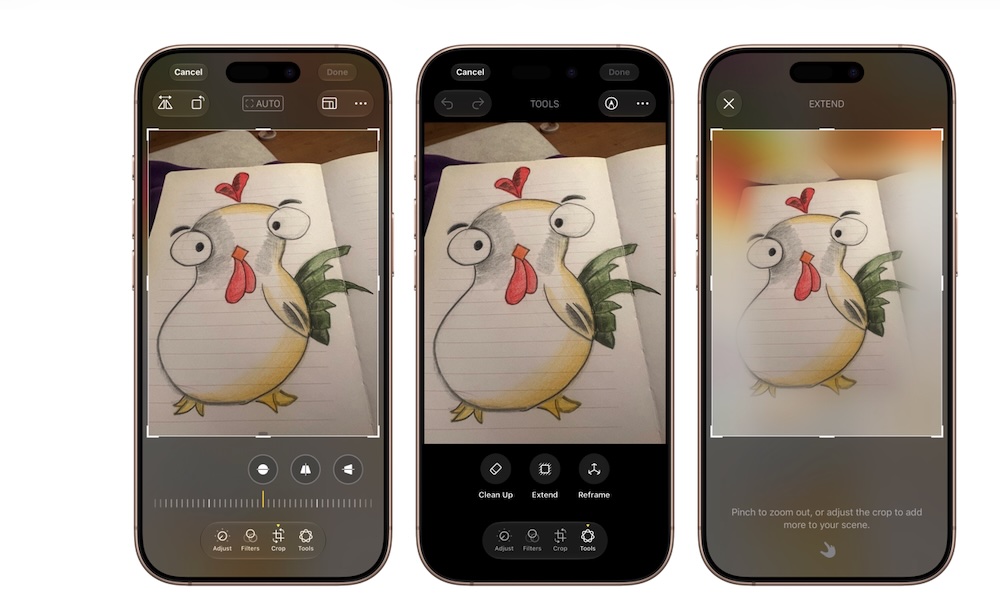
Apple Intelligence already brought Clean Up to the Photos app two years ago in iOS 18.1 — a tool that lets you remove unwanted objects from pictures. But iOS 27 enhances that and brings a couple of even more powerful tools you need to try.
Extend is probably the most useful one from the get-go. It lets you expand a picture beyond its original borders, with Apple Intelligence generating whatever needs to fill the new space in the background.
So if you want to make the image a bit larger, or give the subject more background, you can drag the edge of the picture outward and let Extend create additional background around it.
There’s also Spatial Reframing, which lets you change the perspective of a photo to help you find a better frame. So if you take a selfie looking directly at the camera, you can shift the perspective so it looks like it was shot from the side. Apple Intelligence will adjust your eye line and facial alignment to keep the new angle looking natural.
Clean Up has received a big upgrade too. Apple says it can now remove larger objects and produce more realistic results when filling the empty area.
Of course, AI photo editing tools still aren’t perfect, but they get the job done for casual users who just want a polished photo for social media.
Smart Reply Can Actually Sound Like You

Smart Reply isn’t completely new, but Apple gave it an interesting upgrade in iOS 27.
Messages can now offer Personalized Smart Replies based on your conversations. Instead of suggesting the same generic responses for everyone, Apple Intelligence can use your communication style to create something more similar to the way you normally write.
This could make Smart Reply way more useful. AI responses can sometimes sound generic — fine for acquaintances, but off-putting when messaging friends and family. But letting a more personalized AI talk like you during a conversation could be a time saver.
Of course, you still get to review a suggestion before sending it and ignore it completely if you want.
At the time of this writing, Personalized Smart Reply in Messages is only available in English. Hopefully, Apple expands language support in future updates.
Image Playground Is Finally More Capable
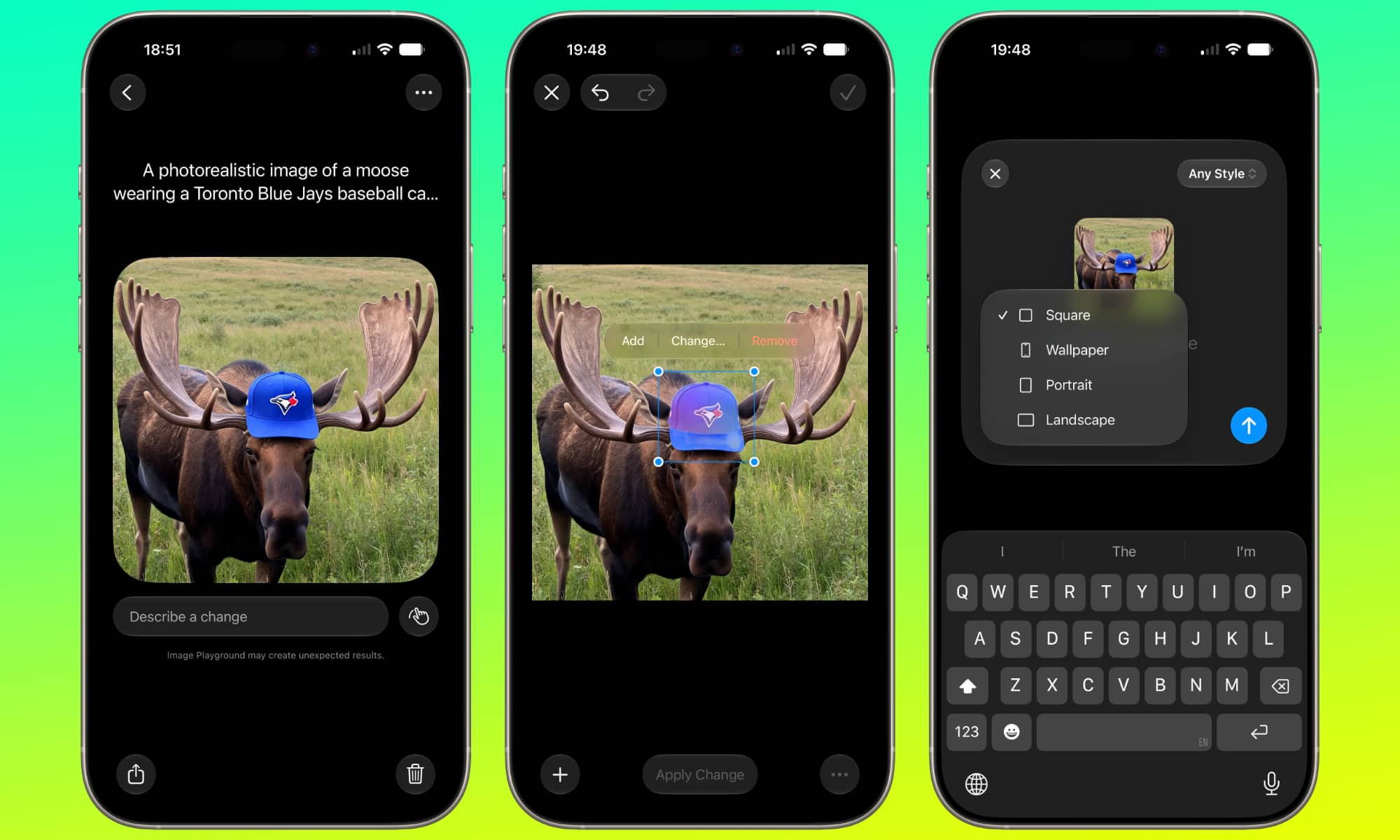
Image Playground was one of Apple’s first generative AI features, but the original version was pretty limited. Images had a recognizable cartoon-like appearance, and you didn’t have nearly as much control as you’d get from dedicated AI image generators.
But now, Apple has completely changed Image Playground in iOS 27.
The biggest addition is photorealistic image generation. Apple’s new model can generate images in virtually any style, so you aren’t restricted to cartoony images.
Editing is much more powerful too. You can describe a change you want to make to an existing image. If you only want to change one specific part, you can tap or circle it and tell your iPhone what you want to change without starting from scratch.
Granted, it’s still probably not something everyone will use every day. However, Image Playground finally gives you enough control to make it a worthy competitor to the image-generating tools available online and in the App Store.
Apple Intelligence Is Becoming More Useful
At the beginning, Apple Intelligence was way behind all other competitors. You could clearly see that Apple had to rush it in order to be part of the AI craze.
But after a slow start, it seems the company is finally making its AI tools better. Siri AI is finally smarter than ever, and now you can use AI in many of Apple’s first-party apps.
Sure, AI isn’t everyone’s cup of tea, but there’s no doubt that it can be useful. If you use it right, Apple Intelligence can make your life easier without spending extra money on it, at least for now.