
StandBy
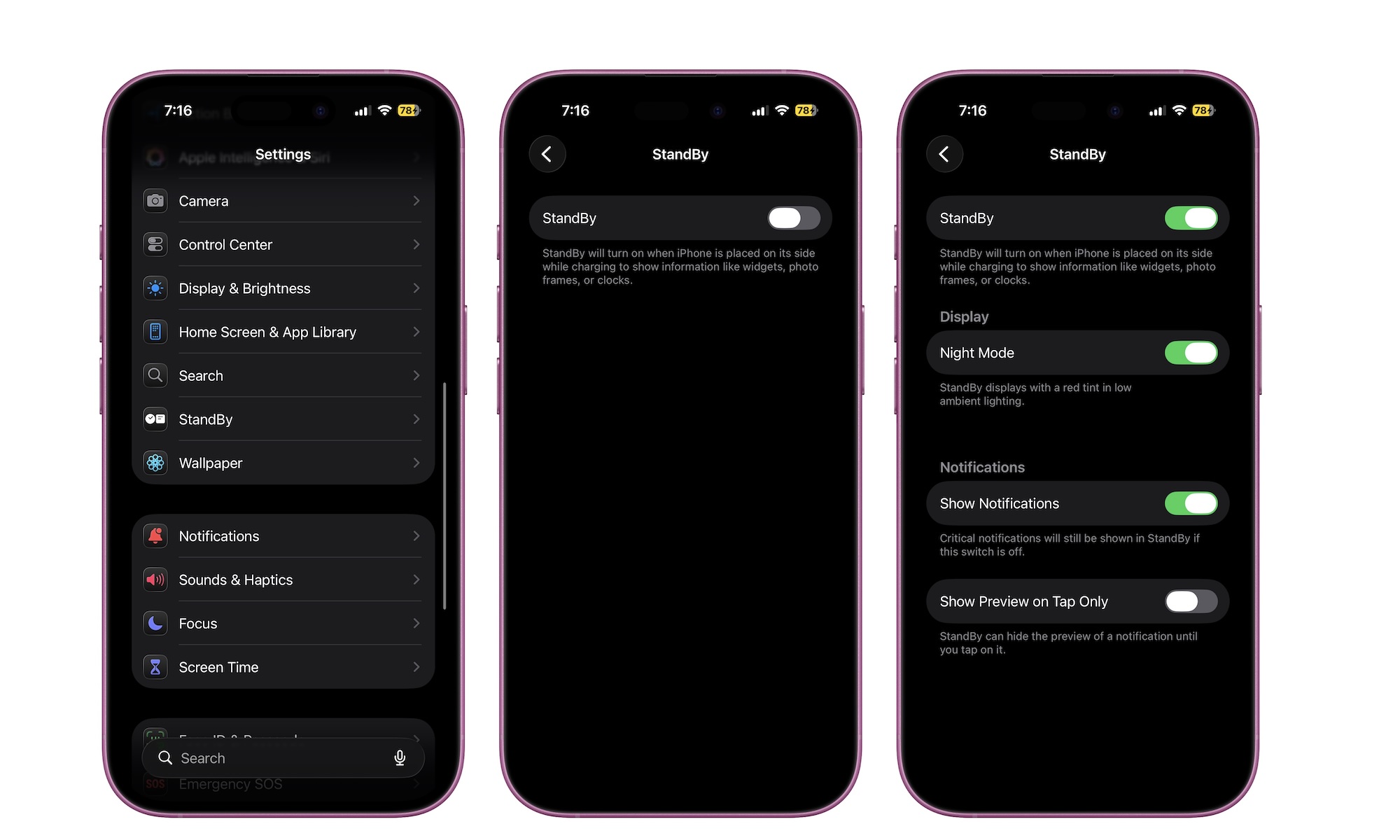
StandBy turns your iPhone into a desk or nightstand display while it’s charging in landscape mode. When it’s enabled, you can easily glance at the clock, widgets, photo displays, and more while you’re at the office or at home. It’s the kind of feature you don’t care about until you place your phone on a charger at your desk or bedside table and realize it can be useful even when you’re not holding it.
StandBy is available on all iPhone models, but it’s especially useful with an iPhone Pro or the iPhone 17 and iPhone Air, as they all feature an Always On display that will let you glance at all your important information without having to tap your screen.
Here’s how to enable StandBy:
- Open the Settings app.
- Scroll down and go to StandBy.
- Turn StandBy on
And that’s it. Now put your iPhone on its charger and place it sideways. You should see a StandBy screen pop up. If it doesn’t, just try pressing the side button and give your iPhone a few moments. Once it shows up, you can swipe left or right to switch between three StandBy screens: widgets, photo gallery, and clocks, and swipe up or down to change the widgets, styles, and selections on each screen.
Pro Tip: If you’re using officially-certified MagSafe chargers, your iPhone will remember the StandBy layout for each charger, so you can set up a clock view for your bedroom nightstand and a photo gallery for your living room table.