
Turn Off Raise to Wake
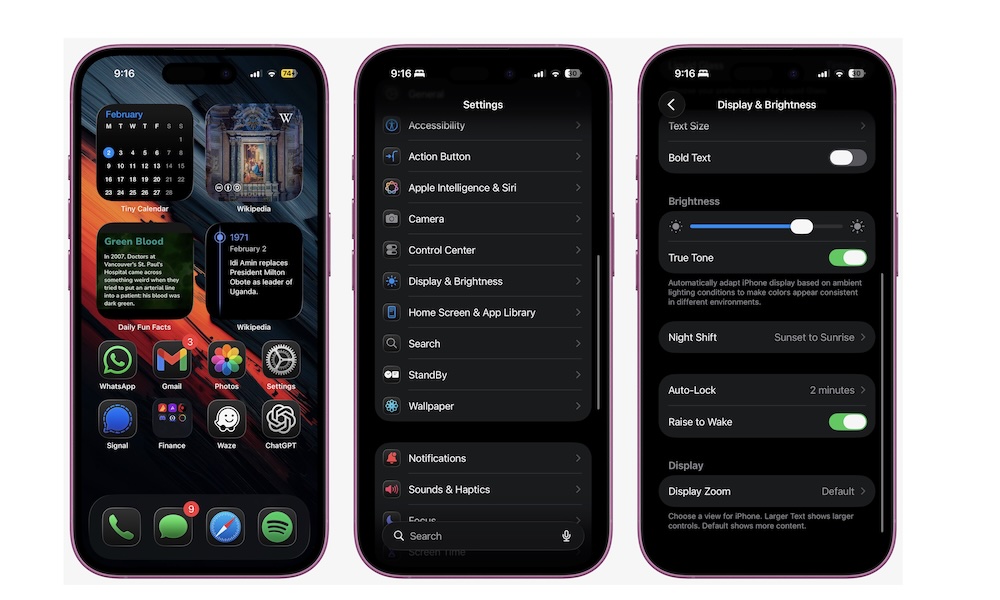
Raise to Wake is a convenient feature, but it can also cause a lot of accidental screen wake-ups, especially if you move around with your iPhone a lot or pick it up constantly during the day.
Each wake-up is a little battery hit: the display turns on, sensors activate looking for a face to unlock the iPhone, and your phone does a small burst of work. If it happens dozens or hundreds of times a day, it adds up more than people expect.
Turning it off doesn’t make your iPhone harder to use. You can still tap the screen or press the side button when you actually want to check your notifications or unlock your iPhone. The difference is that your phone stops waking up when you didn’t ask it to.
Here’s how to disable Raise to Wake:
- Open the Settings app.
- Scroll down and tap on Display & Brightness.
- Scroll down and disable Raise to Wake.
Note that you don’t need to worry about this if you’re carrying your iPhone in a pocket or bag, as the screen won’t wake up when it’s blocked, but it can definitely be a problem if you frequently walk around with your iPhone in your hand.
Pro Tip: For another huge screen-related energy saver, consider turning on Dark Mode. On the OLED screens found on all modern iPhones, black pixels are literally “off” and consume no power. With over 3 million pixels on an iPhone screen, those savings can add up fast.