
Tone Down Brightness a Bit More With Reduce White Point
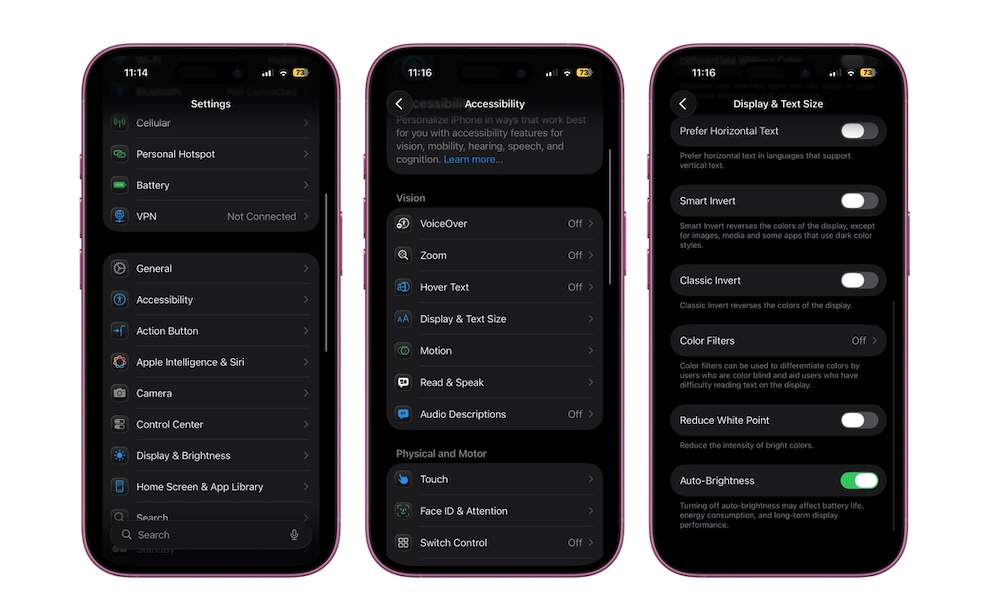
Even at the lowest brightness, iPhones can still feel too bright in a dark room. That’s because brightness isn’t the only factor; the intensity of white and bright UI elements also matters. Reduce White Point lets you dim that intensity without changing the main brightness slider.
Apple describes this setting as a way to “reduce the intensity of bright colours,” and it’s specifically made for people who experience discomfort from bright displays. With that said, anyone can use it by following the next steps:
- Go to the Settings app.
- Scroll down and tap on Accessibility.
- Under Vision, tap on Display & Text Size.
- Scroll down to the bottom and turn on Reduce White Point.
Pro Tip: For a quick way to toggle this on or off on the fly, you can go to Settings > Accessibility > Accessibility Shortcut and select Reduce White Point. This lets you triple-click the side button to instantly dim your screen even further when you’re in a pitch-black room.