
Use Night Shift to Warm Up the Display
Blue-heavy light in the evening doesn’t just contribute to eye strain; it can also interfere with your sleep by making your brain think it’s “daytime mode.” Night Shift pushes the display toward warmer tones after dark, which makes the screen easier on the eyes and may help you wind down more naturally.
This change is adjustable, so you can choose a subtle warmth or an almost amber tint, depending on what feels right.
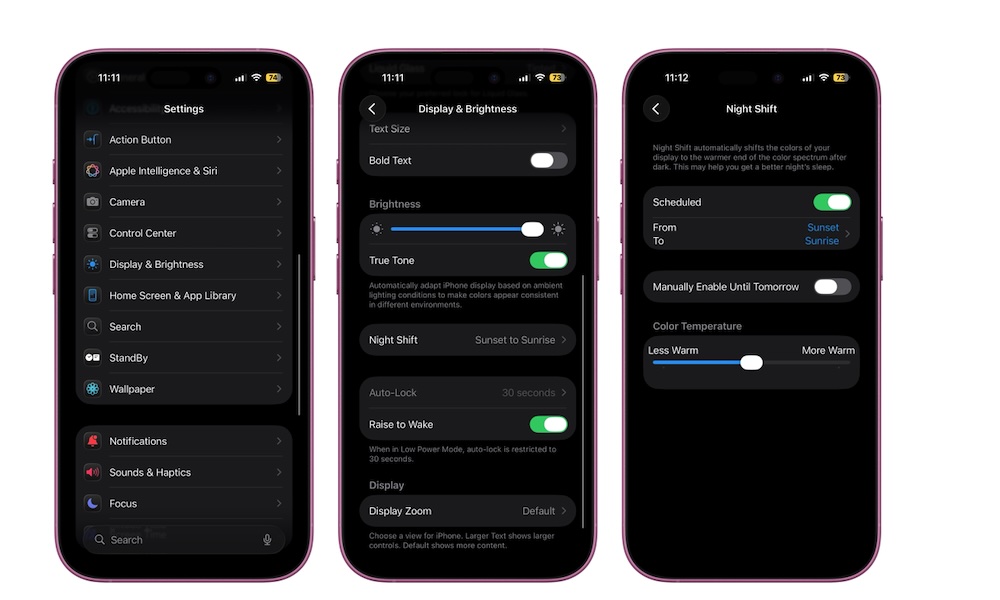
To configure Night Shift, do the following:
- Go to the Settings app.
- Scroll down and tap on Display & Brightness.
- Tap on Night Shift.
- Set it to Sunset to Sunrise or choose a Custom Schedule that matches your routine.
Use the Color Temperature slider at the bottom to pick how warm you want the screen to get at night.