
Switch to Dark Mode for More Comfortable Browsing
Staring at a bright white screen in a dim room is one of the fastest ways to experience eye fatigue. That’s where Dark Mode comes in. It flips most system backgrounds to dark tones and uses lighter text on top, which can feel a lot less harsh in low light. Plus, it just looks really cool.
Most native Apple apps and a huge number of third-party apps already support Dark Mode. Once you turn it on, you’ll see the effect across Messages, Mail, Settings, Safari, many social apps, and more.
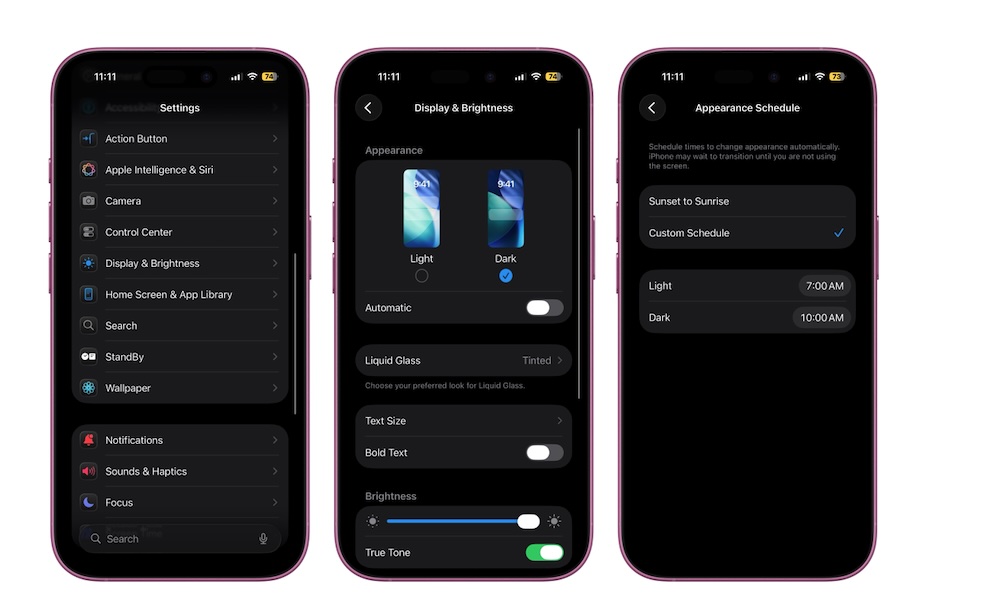
Here’s how to turn on Dark mode on your iPhone:
- Open the Settings app.
- Scroll down and tap on Display & Brightness.
- Select Dark.
- If you want it to switch automatically based on time of day, toggle Automatic and set a schedule.