
Keep Brightness Controls One Swipe Away
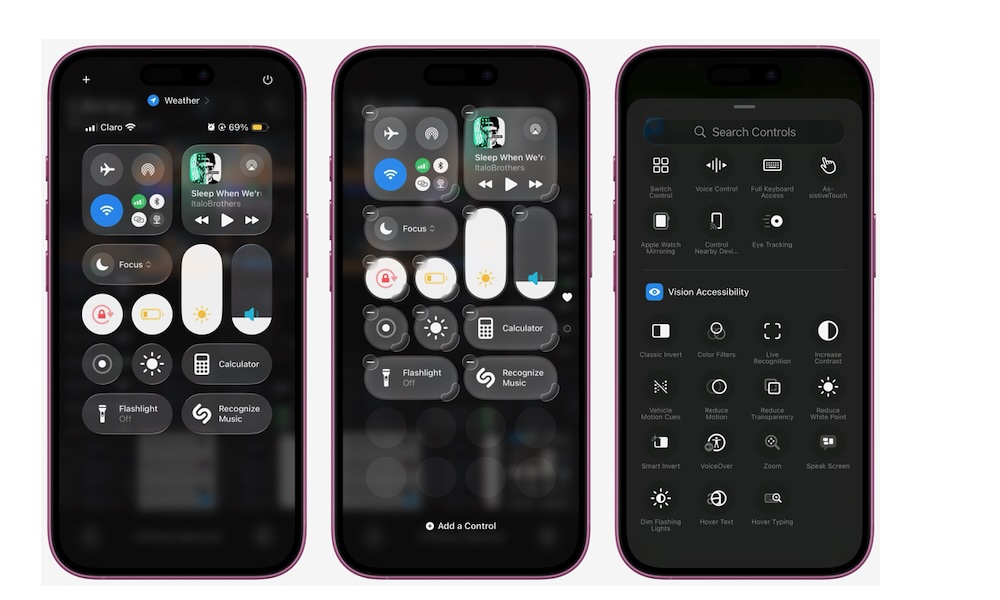
Even with Auto-Brightness and Night Shift, sometimes you just need to nudge the screen a bit darker or brighter in the moment. The key is making that adjustment effortless so you actually do it.
The Brightness slider lives in Control Center by default. On iOS 18 or later, you can customize nearly everything that appears there, including other eye-friendly toggles like Dark Mode, Increased Contrast, and Dim Flashing Lights.
To change your Control Center, simply swipe down from the top right corner of your screen and tap on the plus icon in the top left corner of the screen. Next, tap on Add a Control and scroll down to the bottom until you reach the Vision Accessibility section.
Choose a control you want to add by tapping it and then repeat the same steps until you’ve added all the controls you want.
If you don’t see a plus icon in your Control Center, you can still add some of these buttons by going to Settings > Control Center and tapping the green plus icons next to the vision tools you want to add.