
Customize Control Center Right Away
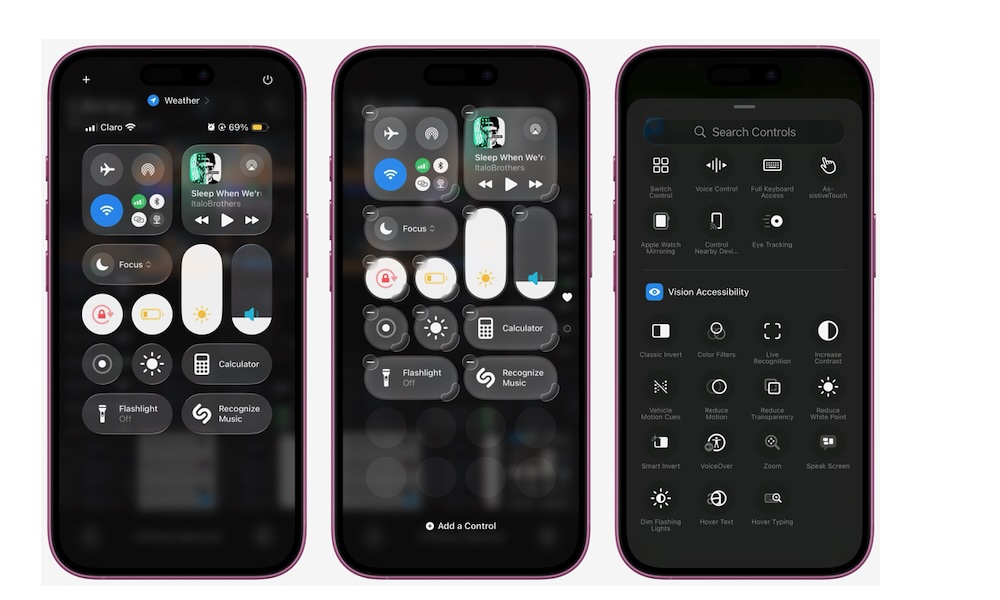
Control Center is one of the most useful parts of iOS because it gives you instant access to your most important tools. Instead of digging through Settings every time you want to adjust or access something, you can open Control Center with a quick swipe and manage many functions immediately.
The default layout includes common controls like brightness, Wi-Fi, Bluetooth, and music playback, but you can customize it to include tools you actually use, like flashlight, screen recording, voice memos, and even smart home controls.
And thanks to iOS 26, the Control Center is more customizable than ever. You can even add third-party controls if the app supports them. Setting Control Center up early helps your phone feel more personal and much more efficient. Here’s what you need to do:
- Swipe down from the top-right corner of the screen to open Control Center.
- Tap the plus icon in the top right corner of your screen.
- Tap on Add a Control at the bottom.
- Choose the controls you want to add.
- Drag them into the order you prefer. You can also drag the handle in the bottom right of each control to change its size.
- Exit the Control Center once you’re done.
There are countless controls you can try. What’s more, you can add multiple pages to your Control Center, so you can literally have everything you need just one swipe away.