
Live Text
Live Text is one of the most practical features on iPhone, and people still underuse it. Your iPhone can recognize text in the camera view or from a picture and let you copy it, translate it, call numbers, open websites, convert currencies, and more. It’s basically doing all the things that you want to do when you take a picture of a specific object to research later.
It’s perfect for Wi-Fi passwords on a router, tracking numbers on a label, meeting notes on a whiteboard, and anything printed that you need to turn into usable digital text.
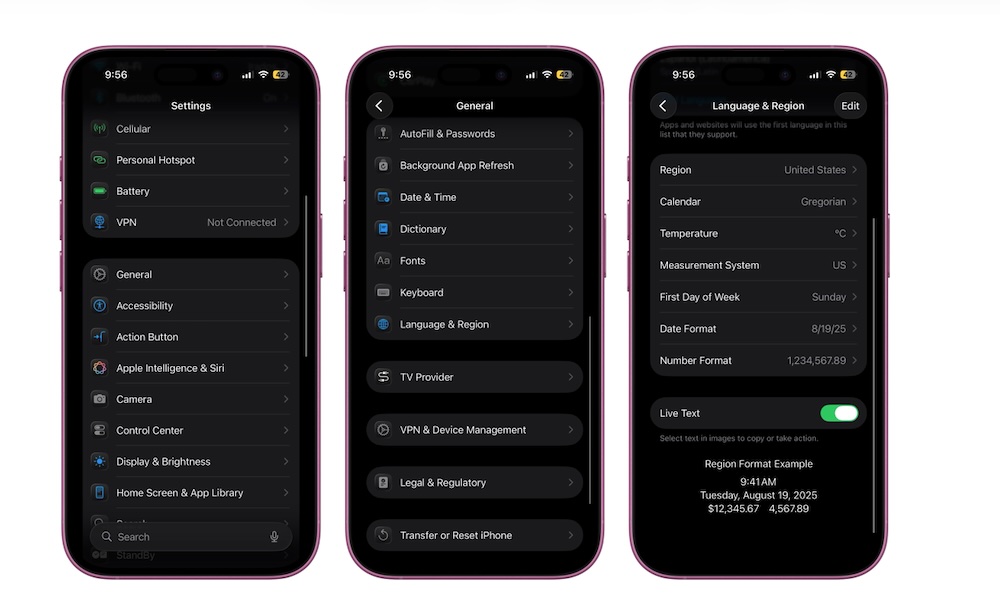
To get started with Live Text, you first need to make sure it’s enabled on your iPhone. This is how:
- Open the Settings app.
- Scroll down and go to General.
- Go to Language & Region.
- Scroll down to the bottom and turn on Live Text.
Now you can start using it. Simply open your Camera app and point it at text. The Live Text button, which looks like a square with three lines inside, will appear in the bottom right (in portrait mode) or bottom right (in landscape mode). Tap it, and your iPhone will capture the text. Tap or slide the words you can and then copy. You can also tap on Copy All.
Pro Tip: You can also use Live Text in Apple’s Notes app to transcribe any text you see into an editable note. To access this, tap the paperclip icon when composing a new note and choose Scan Text. The keyboard will turn into a camera view; point it at the text you want to insert into your note and tap Insert.