
Drag and Drop Between Apps
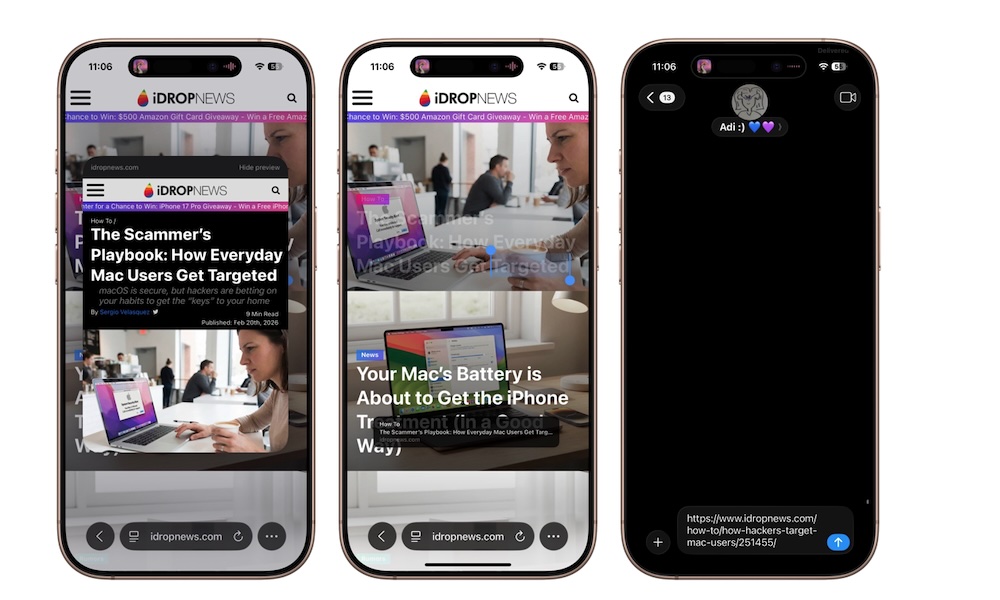
Dragging and dropping stuff between apps feels like something that should only work on computers, but your iPhone can do it, too. Not only that, but it’s way more useful than most people realize. You can drag text, photos, links, and files from one app to another using multitouch.
Once you get the hang of it, it changes the way you move information around. You can drag a photo from Photos into Messages without opening the share options. You can drag a link from Safari into Notes. You can grab a chunk of text and drop it into an email draft.
This feature makes your iPhone feel less like a series of separate apps and more like one connected workspace. Here’s how you can start using it:
- Press and hold on a photo, link, file, or selected text until you feel a haptic response. You might need to drag it up or down so it “floats” under your finger.
- Keep holding it with one finger, and with another finger, swipe up to go Home, or switch apps using the app switcher.
- Open the destination app (like Notes, Messages, or Mail).
- Drag the item into the spot where you want it, then release.
It takes about a minute to learn, and then you start doing it without thinking.