
Back Tap
Back Tap is one of those features that feels like you found a secret button your iPhone forgot to tell you about.
Once it’s on, you can double-tap or triple-tap the back of your iPhone to trigger an action. That action can be something simple like taking a screenshot, locking your screen, opening Control Center, or turning on the flashlight. Or it can be something more powerful, like running a Shortcut, which turns Back Tap into a customizable launchpad for whatever you do most.
What makes Back Tap so useful is how quickly and cleanly it works. You’re not adding widgets everywhere or hunting around in Control Center. You’re giving your iPhone a physical shortcut that works from almost anywhere.
It’s especially handy with working with one hand. If you’ve ever tried to reach for your Notification Center on a larger iPhone while holding groceries, a coffee, or just your dignity, Back Tap feels like a tiny upgrade that saves you from daily annoyance.
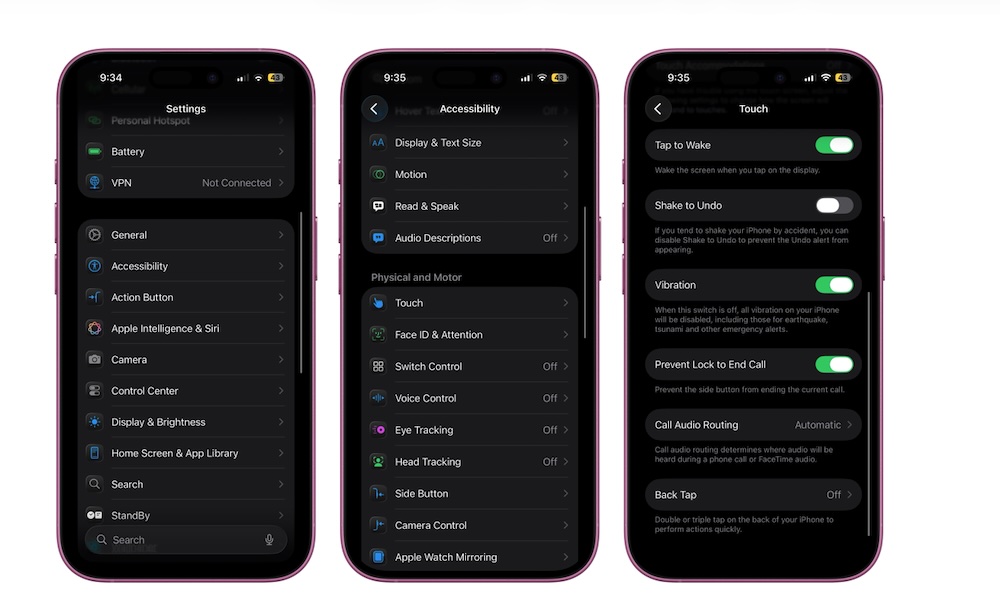
Here’s how to get started with Back Tap:
- Open the Settings app.
- Scroll down and tap on Accessibility.
- Go to Touch.
- Scroll down and tap on Back Tap.
- Choose Double Tap or Triple Tap.
- Pick an action, or scroll down and choose a Shortcut.
Pro Tip: Back Tap works best when you tap closer to the top half of the phone, near the camera area. If it feels inconsistent, try tapping a little higher and a little firmer. How hard you tap it will depend on your case as well. If you use a really rugged, thick case, you’ll need to tap your iPhone harder.