
Spoken Content
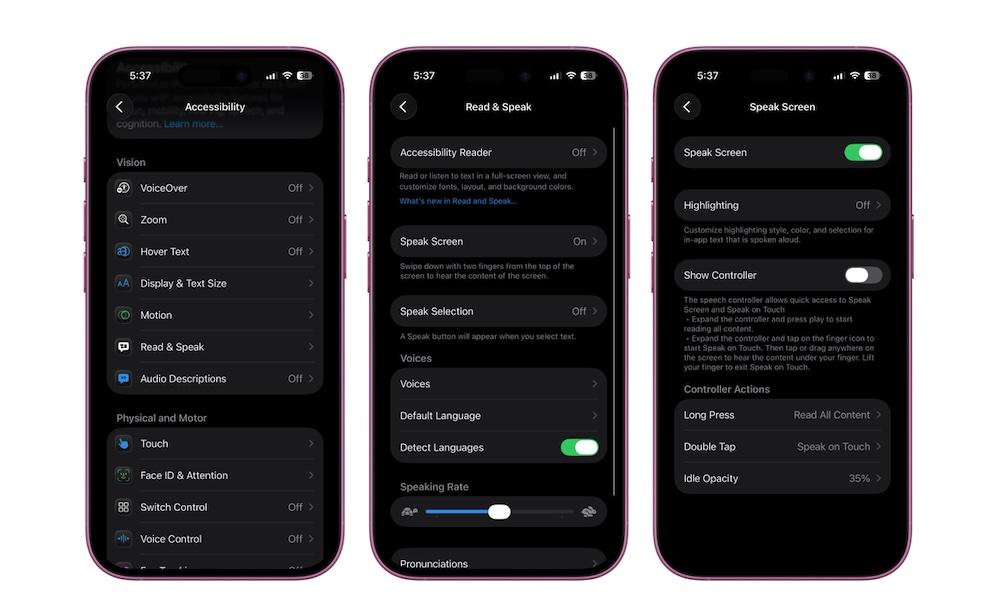
Spoken Content is one of the most underrated iPhone accessibility features for anyone who reads a lot. It can read selected text aloud or speak the entire screen, which is perfect when your eyes are tired, you’re multitasking, or you want to absorb an article while doing something else.
This is also a great feature for proofreading. Hearing text read back to you makes awkward phrasing jump out in a way that silent reading doesn’t. If you write emails, documents, or long notes on your phone, Spoken Content can catch mistakes your eyes gloss over.
The name is a bit different depending on whether you’re running iOS 18 or older or iOS 26 or newer, but it still works the same way. Here’s where to find it:
- Open the Settings app.
- Scroll down and go to Accessibility.
- Tap on Read & Speak (iOS 26 and later) or Spoken Content (iOS 18 and earlier).
- Tap on Speak Screen, or Speak Selection, and turn either or both of them on.
Once you turn this feature on, you can make your iPhone read for you by swiping down two fingers from the top of your screen. You can also adjust voices and speaking rate so it sounds natural instead of robotic.