
Voice Control
Siri is great for quick requests, but Voice Control is on a different level. It’s designed for full, hands-free iPhone control using voice commands. That means you can navigate screens, tap buttons, scroll, open apps, dictate text, and interact with interface elements without touching the display.
This is perfect when your hands are busy, like when you’re cooking, holding a baby, working out, or wearing gloves. It’s also a surprisingly handy option if you want to reduce tapping throughout the day. The iPhone becomes more of a tool you talk to, rather than something you constantly tap at.
Voice Control works best when you learn a few basic commands you’ll actually use, such as scrolling, going to your Home Screen, opening specific apps, and selecting items on screen. The feature even has a built-in command list that helps you learn it without guessing.
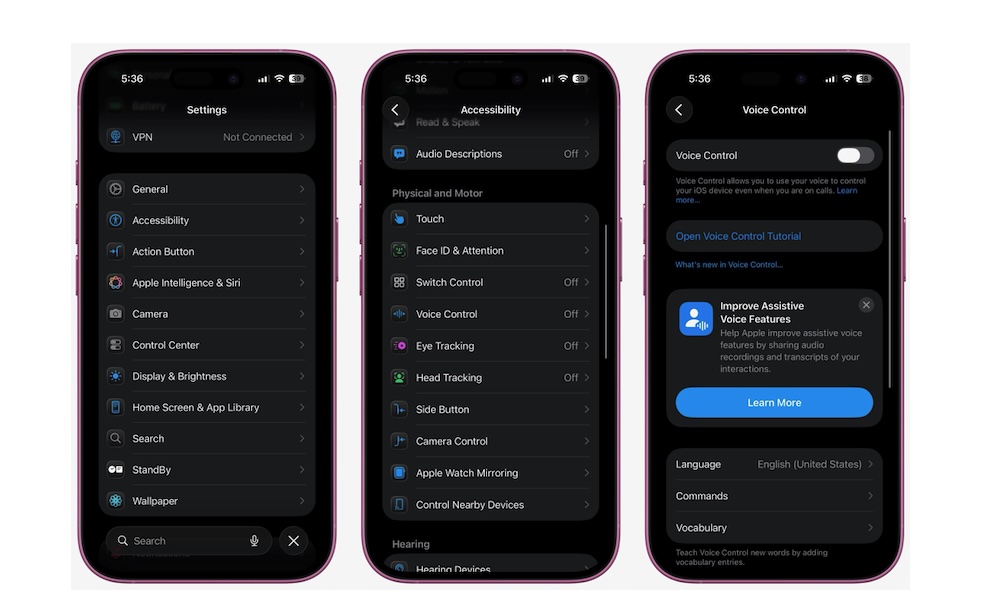
- Open the Settings app.
- Scroll down and go to Accessibility.
- Scroll down and under Physical and Motor, tap on Voice Control.
- Turn on Voice Control.
Once enabled, you can say something like “Show me what to say” to get an on-screen list of supported commands. If you want to go deeper, you can customize commands and create your own phrases, which is where it becomes especially powerful. It also runs entirely on your device, so you can use it even when you don’t have cellular or Wi-Fi coverage.