
AssistiveTouch
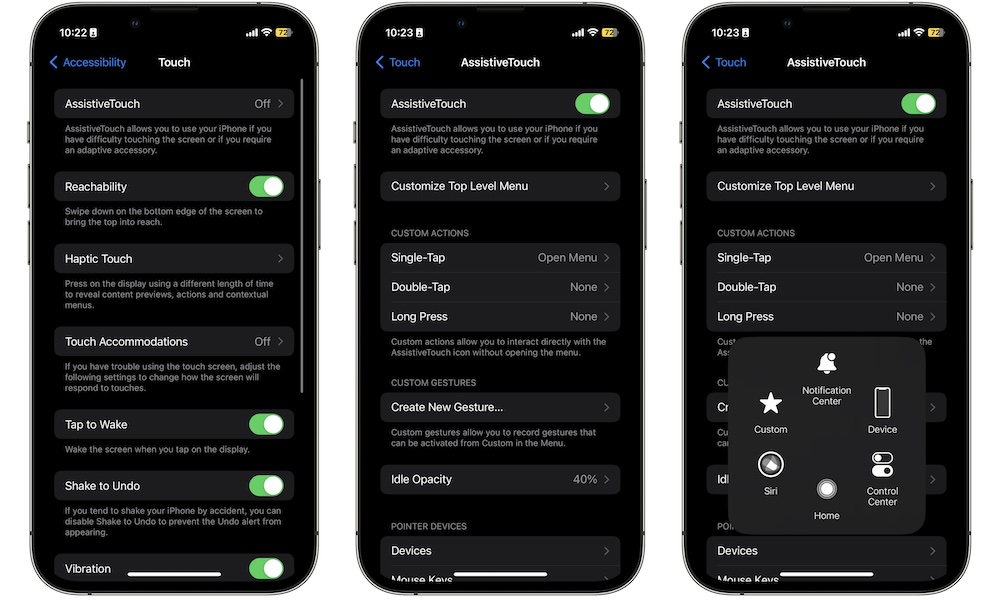
AssistiveTouch is often introduced as a way to replace physical buttons, but it’s much more than that. Think of it as an on-screen control hub that can simplify gestures, give you quick access to system actions, and make one-handed use feel more intuitive. If you’ve ever struggled with reaching, swiping, or doing multi-finger gestures consistently, AssistiveTouch can make your iPhone feel dramatically more forgiving.
You can set up AssistiveTouch so a single tap opens a menu of actions you care about. Or you can assign gestures to taps and long presses, which is especially helpful if you want a consistent way to do things like open App Switcher, lock the screen, take a screenshot, or talk to Siri without actually talking.
There’s also a feature within AssistiveTouch called Sound Actions, which lets you trigger certain actions with simple sounds. Even if you don’t use that part, the core AssistiveTouch menu is worth trying because it makes the iPhone feel more controllable, especially during busy moments when you can’t use both of your hands.
You’ll first need to enable AssistiveTouch on your iPhone, which you can do by following these steps:
- Open the Settings app.
- Scroll down and go to Accessibility.
- Scroll down and under Physical and Motor, tap on Touch.
- Tap on AssistiveTouch.
- Turn on AssistiveTouch.
Now you can start using AssistiveTouch with its default settings. Of course, you can scroll down and personalize this feature however you want.