
10 Ways to Turn Your Old iPad Into Something Useful
Most of us tend to treat our old iPads as obsolete once we get a new one. After all, most people treat an iPad either as brand-new and amazing or too old to bother with. However, most older iPads are still perfectly good as dedicated devices — and changing the way you look at them will bring them back to life.
If you try to use an older iPad the same way you use your main one, it can feel sluggish. Too many apps, too many notifications, too many tabs, too many of everything. But when you give it one job and set it up to do that job well, an older iPad suddenly becomes one of the most convenient gadgets in your house.
The trick is to pick the right purpose for your old iPad. Once you do that and strip away distractions, it becomes a dedicated device that’s incredibly easy to use without thinking.
All you need to do is get creative. To help you, read on for 10 of the best ways to use your old iPad.
Turn Your iPad Into a Dedicated Kitchen Recipe Screen
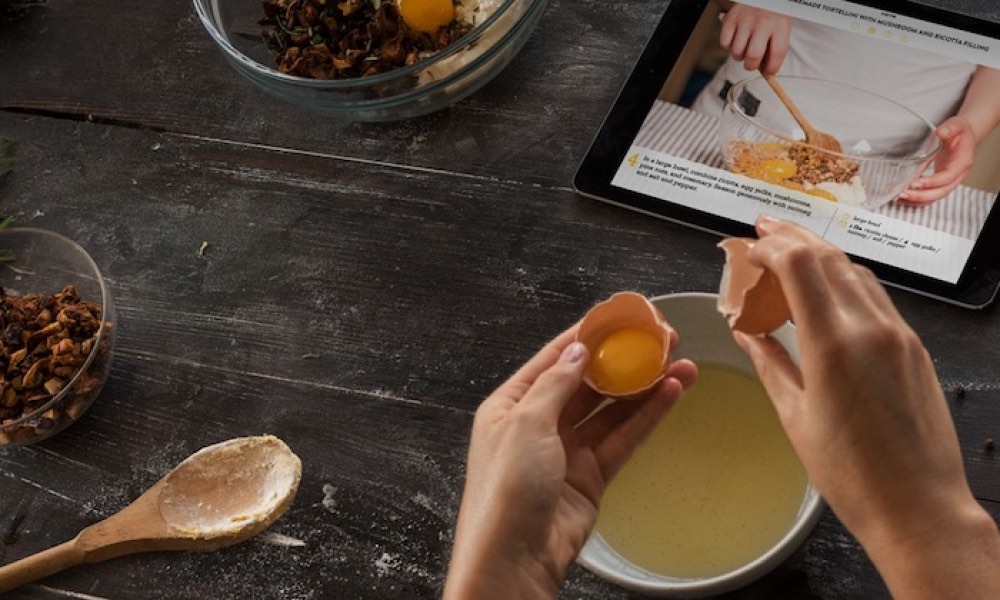
Your kitchen is one of the best places for a repurposed iPad because it thrives on one simple promise that it will always be ready when you need it. A dedicated recipe and timer screen is the kind of thing you don’t realize you want until you have it. Suddenly, you’re not grabbing your phone with messy hands or letting your cooking session turn into a doomscrolling session.
Start by simplifying the iPad so it feels like a kitchen tool, rather than a general-purpose tablet. Keep the Home Screen minimal, add your recipe app (Paprika is a favorite for saving and organizing recipes), and make Safari bookmarks for the sites you actually use. Then add a stand or mount so it’s always visible without taking up space on your cutting board.
A simple upgrade that makes a big difference is keeping it quiet. A kitchen iPad doesn’t need notifications from anything. Timers, yes. Everything else, no.
Make A Smart Home Control Panel
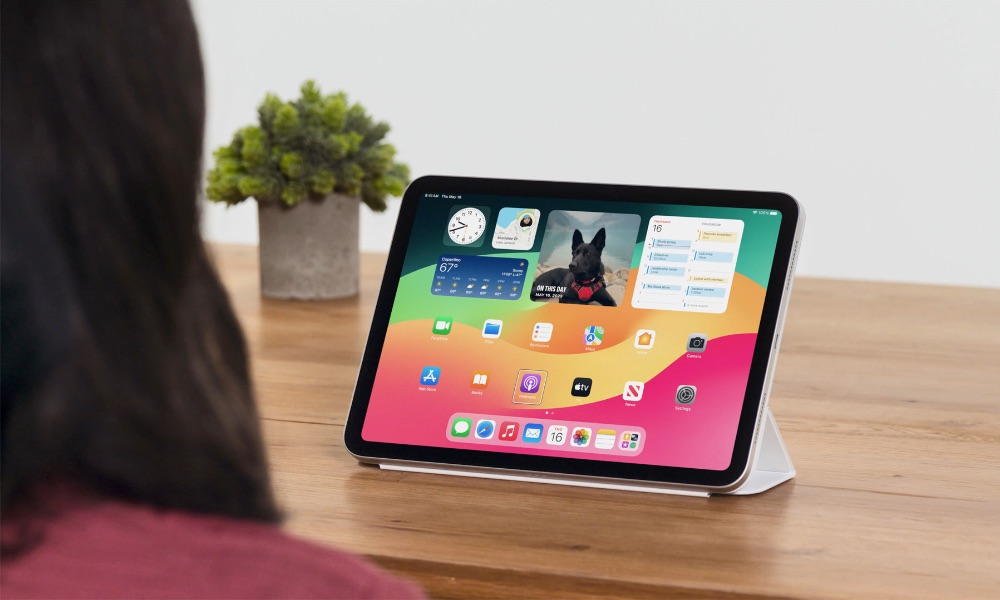
If you use smart lights, plugs, cameras, or a thermostat, a wall-style iPad dashboard can make your whole setup feel much easier to control. Instead of yelling at a voice assistant or hunting for the right app on your phone, you get a dedicated control center you can tap in two seconds.
This works especially well with Apple Home, because it’s built in and can act as the main hub for scenes and accessories. If you also rely on device-specific apps like Philips Hue, Eufy, or Ring, you can keep those too, but the point is to make the iPad feel like a control panel, not a multitasking device.
Placement matters more than people expect. Put it somewhere central, keep it powered, and set the display brightness so it’s readable without being blinding at night. You can also build simple Shortcuts that act like big buttons for things you do constantly, like turning off all lights or setting a bedtime scene.
Use It to Express Your Creativity
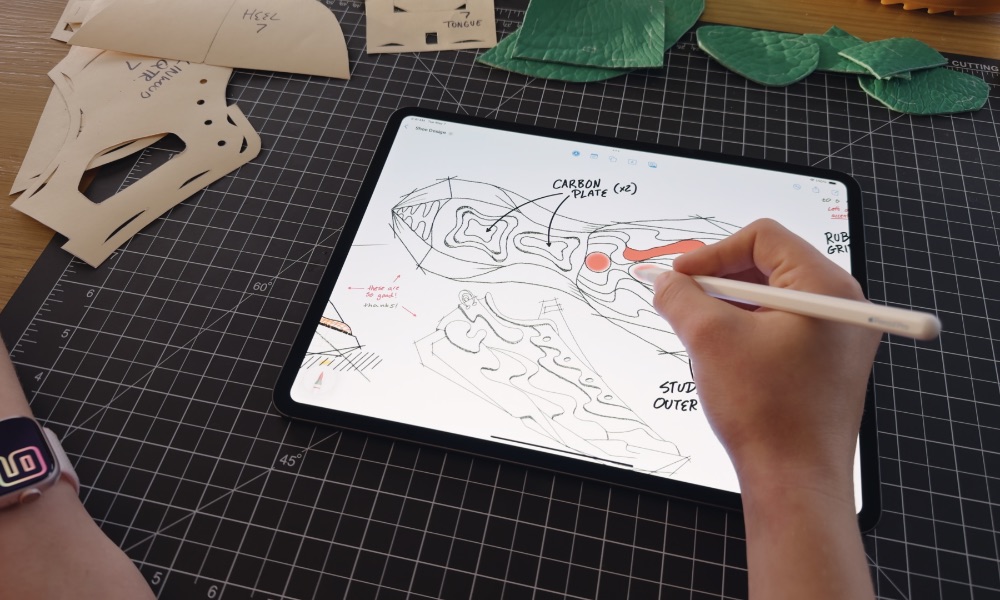
Apple is quietly leaving the old Apple Pencil models behind, which means if you have an old iPad and Apple Pencil, they will probably become "obsolete" together. Luckily, that just means you can use them together as a dedicated place to let your creativity run wild.
After installing a creative app like Procreate or iMovie, you can use your old iPad for drawing or video editing, letting your creative side grow without having to worry about battery or storage on your new iPad.
Even old Apple Pencil models work great and will be precise enough to do amazing art on the go. You can even use it as a personal journal so you can write your thoughts down with more privacy.
Give It To Your Kids
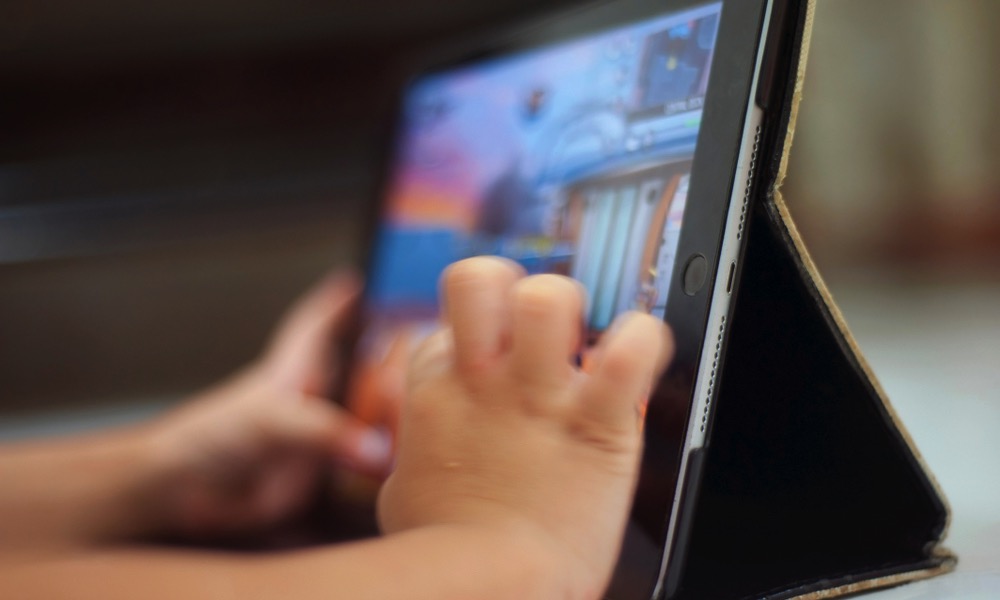
If you have kids in the house, handing them an older iPad is one of the easiest ways to get real value out of it again. It becomes their device, not a borrowed one. And because it’s not your main iPad, you don’t have to worry about your personal apps, messages, photos, or accounts being one accidental tap away from chaos.
The key is to set it up so it feels simple and safe from day one. Start by stripping it down to a small set of kid-appropriate apps and making the Home Screen boring in the best way. When kids can only see what they’re allowed to use, they stop hunting for trouble.
This is also where Screen Time turns into your best friend. You can set downtime hours, app limits, content restrictions, and purchase blocks so the iPad stays in the lane you want it in. It’s especially helpful if your child is old enough to explore but not old enough to make good decisions about ads, random downloads, or pop-ups.
Once it’s set up, your old iPad stops being a forgotten tablet and becomes a reliable, kid-friendly device that’s always ready. And the best part is that you can keep your main iPhone and iPad completely out of the kid zone, which is usually the real upgrade.
Use It As A Bedside Clock and Sleep Device
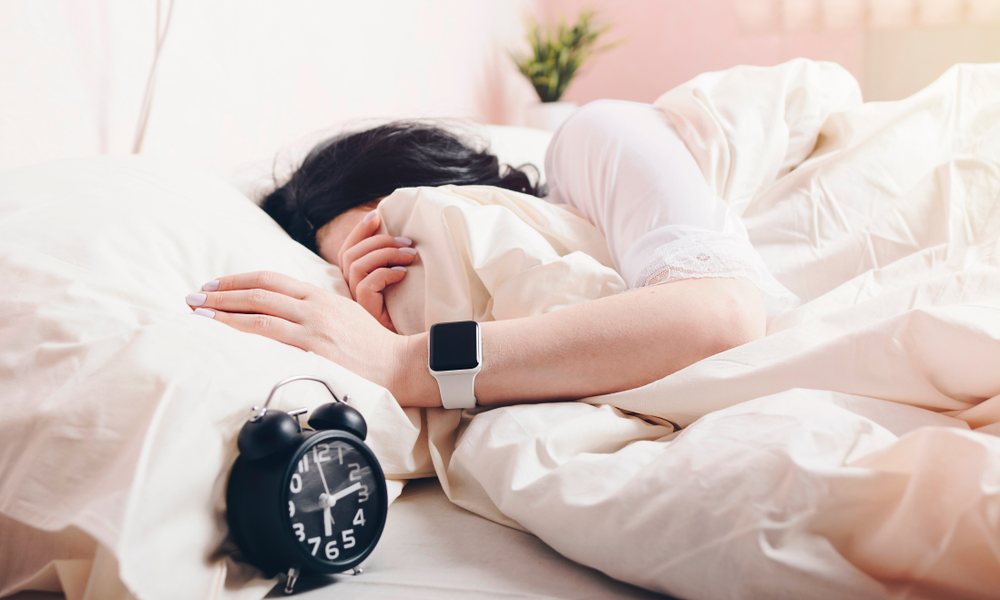
A nightstand iPad can be a surprisingly good replacement for the habit most people want to break: taking their phone to bed. If your iPad becomes the device that handles alarms, white noise, and a simple clock display, your iPhone can stay off the nightstand entirely.
You don’t need a complicated setup here. You just need the iPad to stay silent, dim, and easy to use. Set up a Sleep Focus schedule or Do Not Disturb so notifications don’t light it up. Keep brightness low. Plug it in so it never dies overnight. Then use it however you want: as a clock, calming audio device, or both.
If your iPadOS version supports it, Background Sounds can be a great option. If not, a simple white-noise app works fine. Either way, you’re creating a sleep environment that doesn’t depend on your phone.
Turn Your iPad Into a Digital Photo Frame That Doesn’t Feel Cheap
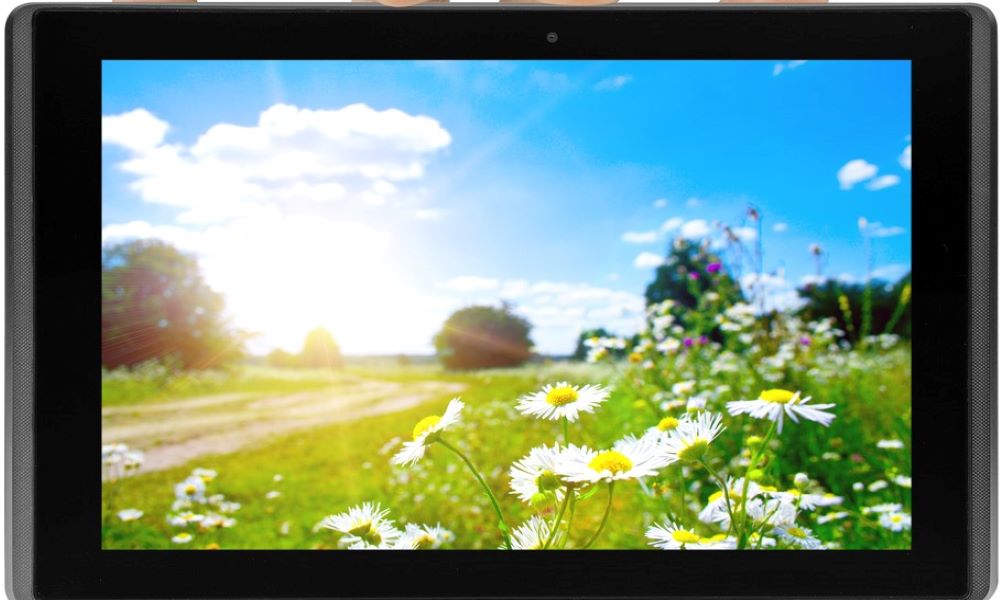
Most digital photo frames feel like they belong in a bargain bin. An old iPad can do it better, with a nicer screen and better photo management, as long as you manage it properly.
You don’t need to dump thousands of random photos into a slideshow and call it a day. A great iPad photo frame is curated. Pick an album that actually looks good when it cycles. You can have family highlights, travel favorites, pets being ridiculous, or a rotating seasonal album you update once a month.
Once you have the album, use Photos to play a slideshow. Then just silence the notifications on your iPad and find a place where you can keep it plugged in at all times. The best part is that it’s quick and easy to use, so you can update your pictures in a flash.
Make Your Old iPad a Home Gym Screen
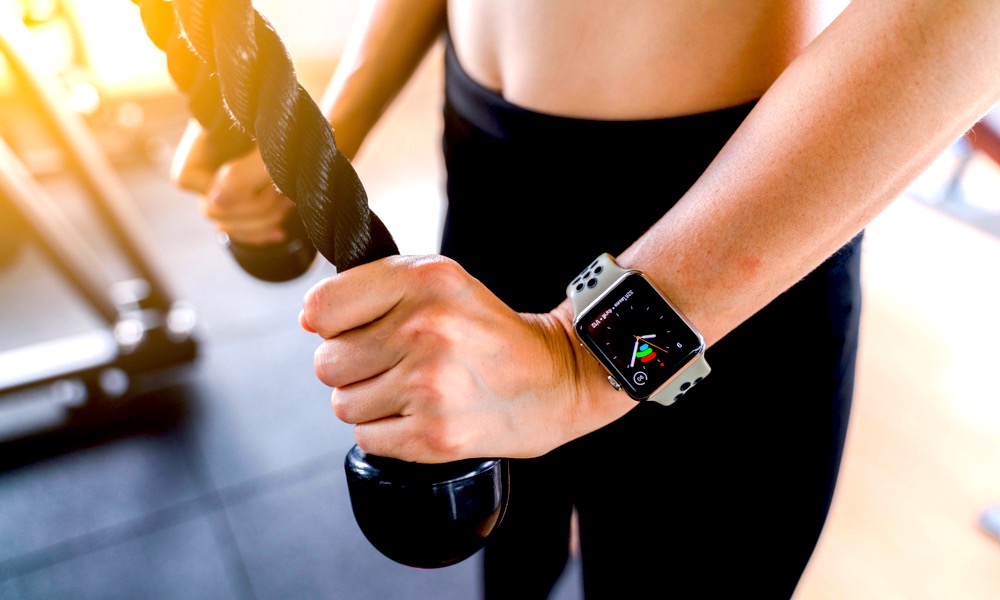
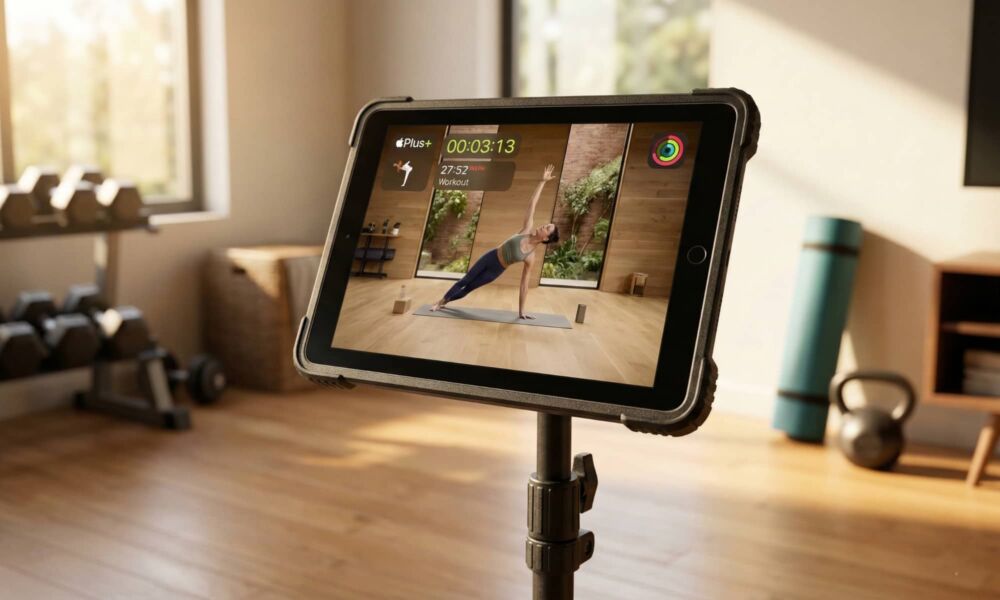
A workout iPad is one of the most satisfying ways to repurpose an older device because it solves the need to have a screen you can see from across the room, without risking your phone getting knocked off a bench or covered in sweat.
This is perfect for guided workouts, timers, music control, and classes. Nike Training Club is a popular free option. Apple Fitness+ is great if you already subscribe. And even YouTube workout channels become easier to follow on a larger screen.
Put it on a sturdy stand or mount it where you work out, then just start working out to your heart’s content.
Turn It Into a Dedicated Music Player
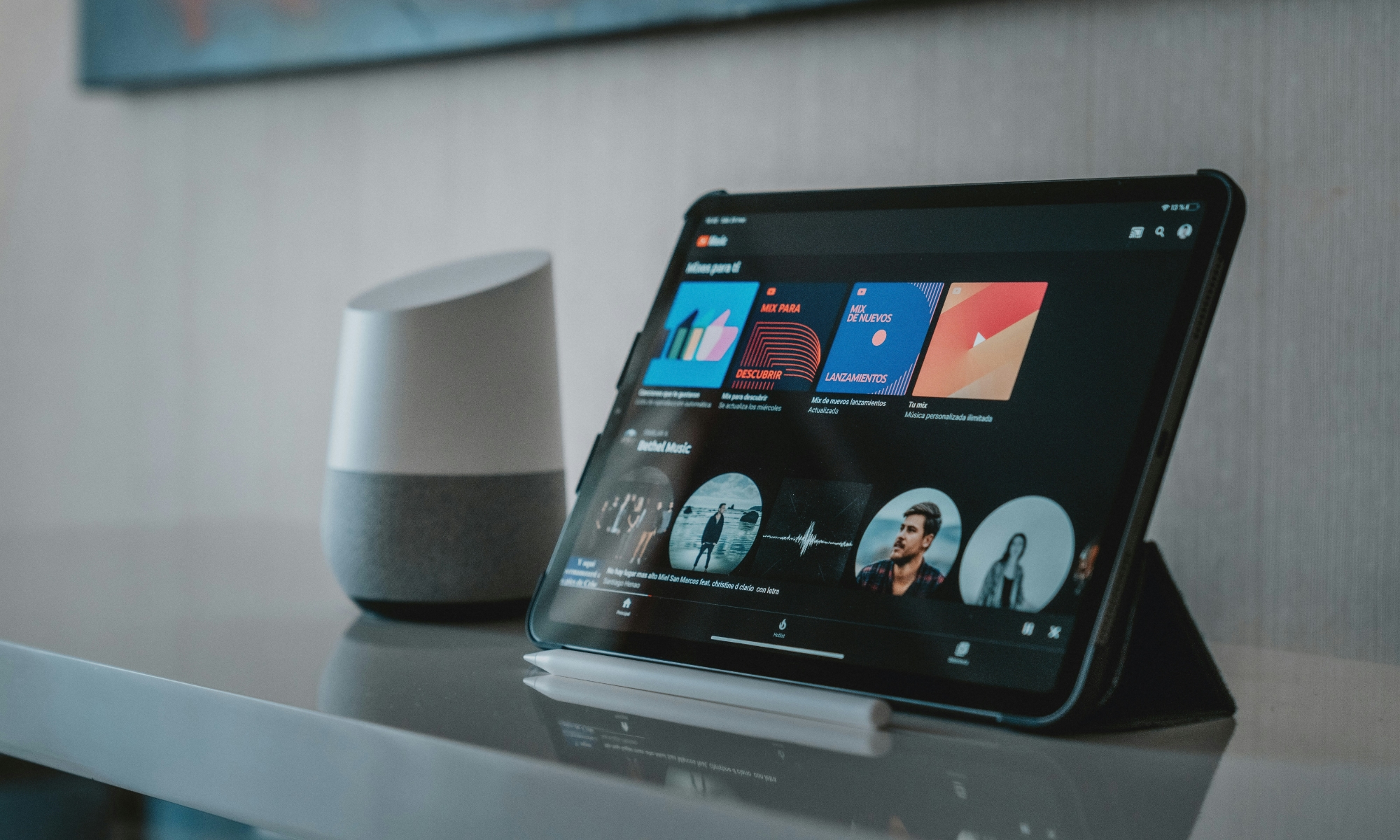
If you’ve ever had music going during cooking, cleaning, or hanging out, you know it can be an issue when someone changes the song, grabs your iPhone, or if you get a phone call. Using your iPad as a dedicated music player solves that by becoming the go-to music device.
Install Spotify or Apple Music, connect it to a speaker, and remove everything else from the Home Screen that doesn’t belong. Keep it docked in one room, and suddenly you have a simple shared music station that doesn’t mess with anyone’s personal phone.
The fun version of this is a party queue device. You can set it up so guests can add songs without needing access to your personal stuff. Not only that, but you can also have a karaoke session with friends or your kids, thanks to the larger screen.
Use It as a Security Camera Viewer or Baby Monitor Screen
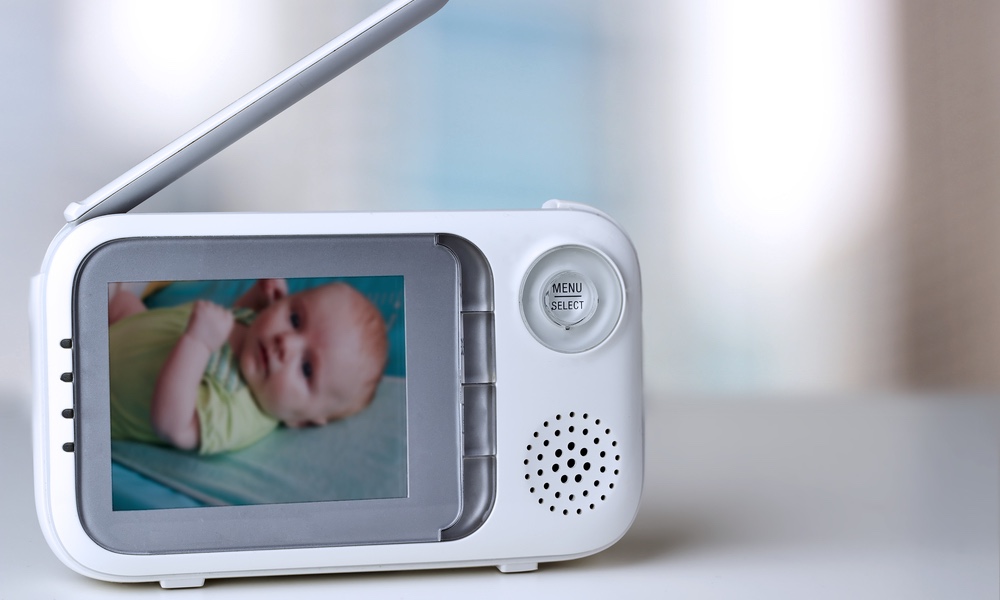
If you have security cameras, a doorbell cam, or even a baby monitor setup that supports live viewing, an old iPad can become a permanent security monitor. As long as you keep it on and connected, you’ll be able to use it whenever you want to look over the feed without unlocking your phone or switching apps.
Install your camera app, pin it where you’ll use it, and keep the iPad plugged in. That way, your old iPad stays a viewer, not a general tablet that ends up on a couch cushion with 36 tabs open.
This can also become a front-door dashboard, where the iPad lives near the entryway and shows you the camera feed when you need it.
Use Your Old iPad as a Smart Remote for Your TV
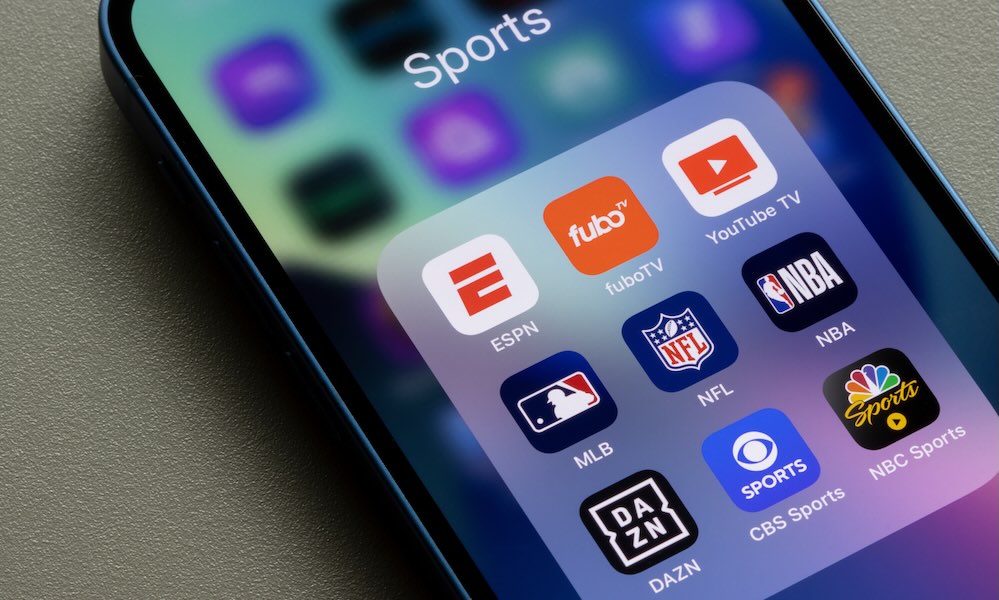
Most living rooms have the same problem: too many remotes, too many apps, and too many devices that don’t talk to each other nicely. An old iPad can become the one screen that handles streaming, playback control, and browsing without you constantly passing a phone around.
Install your main streaming apps, keep them on a single Home Screen page, and treat the iPad as the coffee-table controller. If you use Apple TV, the remote controls are conveniently accessible, and even without it, many TVs and streaming devices have their own remote apps.
This is also a great way to keep kids from constantly switching between apps and restarting shows every two minutes.
Give a New Life to Your Old iPad
The most common reason an old iPad feels useless is that it’s still being treated like just an iPad. Once you stop asking it to compare to the other more modern iPads and start letting it do one job really well, it becomes genuinely valuable again.
A kitchen screen that always has your recipe ready, a wall dashboard that controls your home in one tap, a reading device that never interrupts you, or a kid-safe tablet that doesn’t wreck your settings are all wins because they remove hassle from everyday life.
Pick a new role for your iPad that matches how it actually helps you, simplify the Home Screen until it only has the most useful apps, and use tools like Focus to keep notifications away. You’ll be surprised how quickly your old iPad stops feeling old and starts feeling like a smart upgrade you already own.