
Right-Click Exists, It Just Might Not Be Obvious
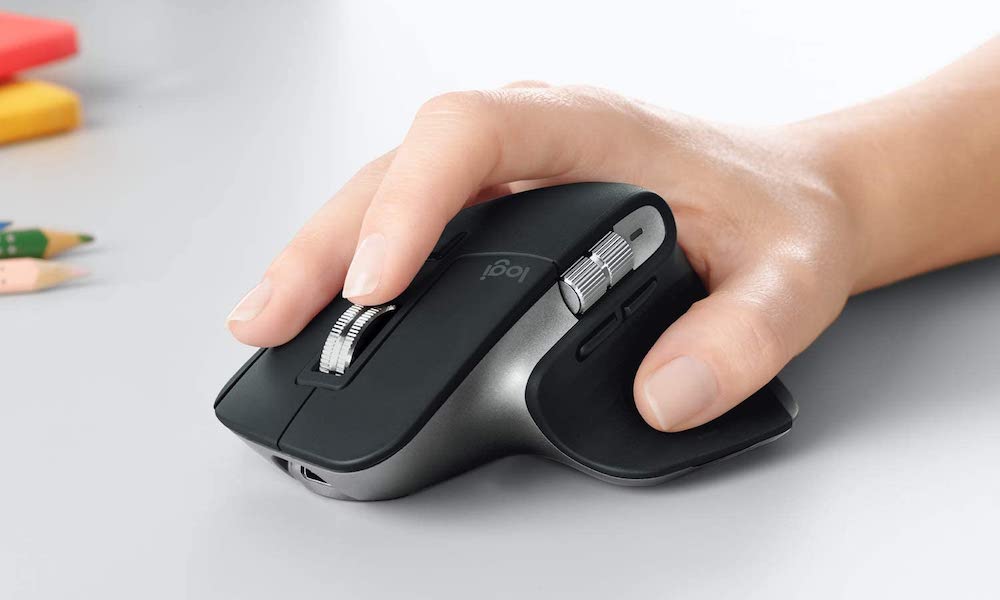
A surprising number of new Mac users assume right-click is missing because the trackpad looks like one big button. But right-click is absolutely there. On a Mac trackpad, the default right-click is a two-finger click. And instead of “right-click,” it’s often called “Control-click.”
That’s not just because Apple wants to be different; it comes from the early days of the company’s single-button mice, when a right-click required holding down the CTRL key on your keyboard while clicking the mouse button. That still works, but you’ll likely find it easier to use the two-finger gesture or a two-button mouse.
So, if someone tells you to control-click on your Mac, it means they want to right-click, which, again, is done by pressing your trackpad with two fingers.
But if that doesn’t work for you, it might mean that you have the “secondary click” feature disabled. You can turn it on by doing the following:
- Click on the Apple menu (Apple logo) in the top left corner of your screen.
- Go to System Settings.
- Scroll down on the left sidebar and go to Trackpad.
- Look for Secondary Click.
- Choose Click With Two Fingers or your preferred option.