
Trackpad Gestures Are a Bigger Deal on Mac
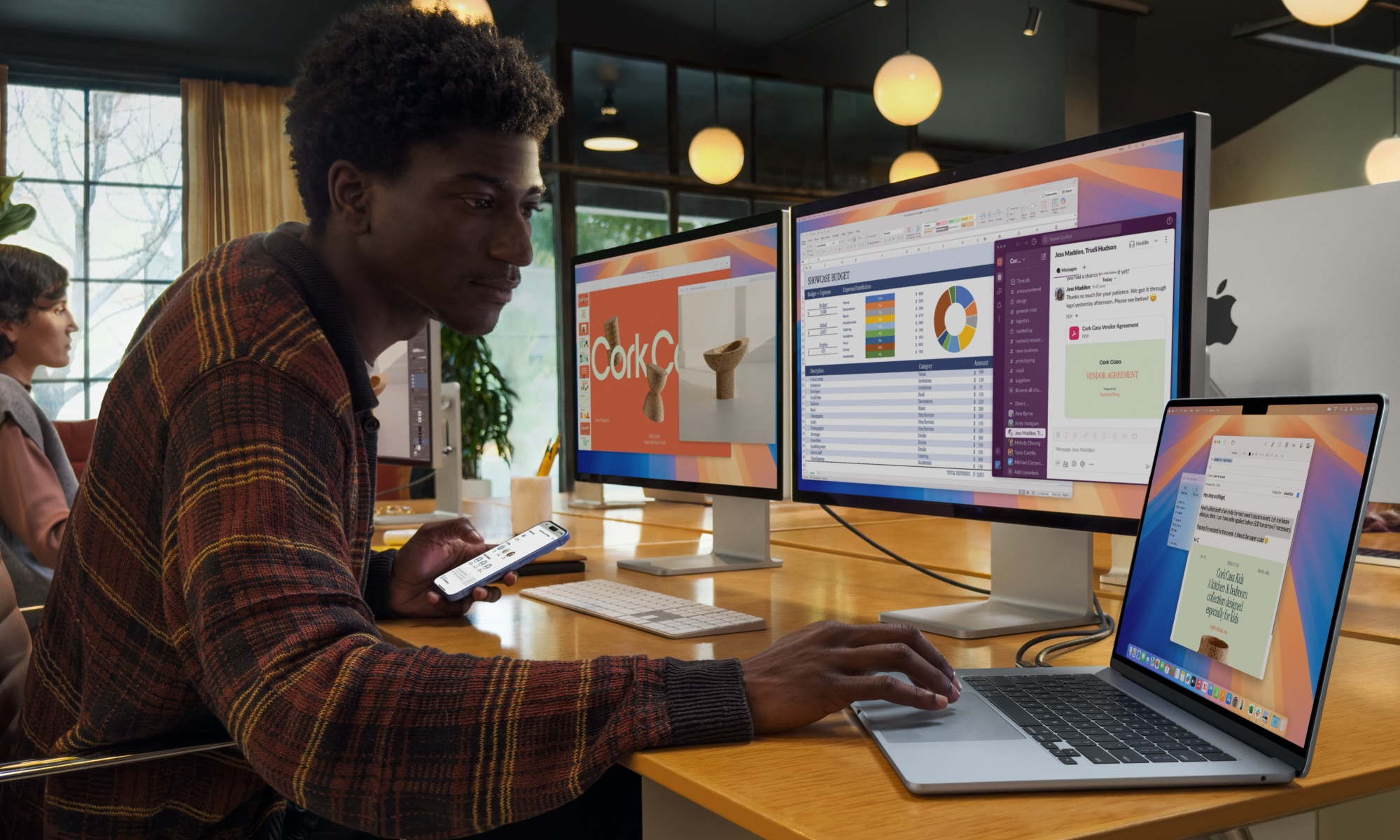
MacBooks are built around the trackpad in a way most Windows laptops aren’t. Gestures aren’t just nice extras; they’re the normal way macOS expects you to move between apps, desktops, and windows.
If you’re coming from a mouse-heavy Windows workflow, you can still use a mouse on Mac. But if you’re on a MacBook or you also have an Apple Magic Trackpad, learning a few gestures will make everything feel smoother.
There are more than a handful of gestures you can try, but to get started, the most basic ones are:
- Scroll up or down: Drag two fingers up or down the trackpad.
- Switch between apps (only works with apps that are in full screen): Swipe with three fingers to the left or right.
- See all your open apps at once: Swipe up from the bottom of the trackpad with three fingers.
- See all your installed apps: Do a pinching gesture on the trackpad with four fingers or with your thumb and three fingers.
The best part is that you can check and even customize some trackpad gestures by clicking the Apple menu (the Apple logo in the top left corner of your screen), going to System Settings, scrolling down on the left sidebar, and selecting Trackpad.
From there, you can explore and change the gestures available. We recommend you start by toggling on Tap to Click, which lets you gently tap the trackpad instead of having to press it all the time.