
Free Up Some Storage
When your iPhone is low on storage, everything starts to feel sluggish. Apps take longer to work, photos and videos become harder to manage, and iOS itself can feel less responsive because it doesn’t have the breathing room it needs.
Storage isn’t just about saving files; iOS uses available storage for cache, temporary system data, and general processes. When you’re constantly near the limit, your iPhone has to work harder to shuffle things around.
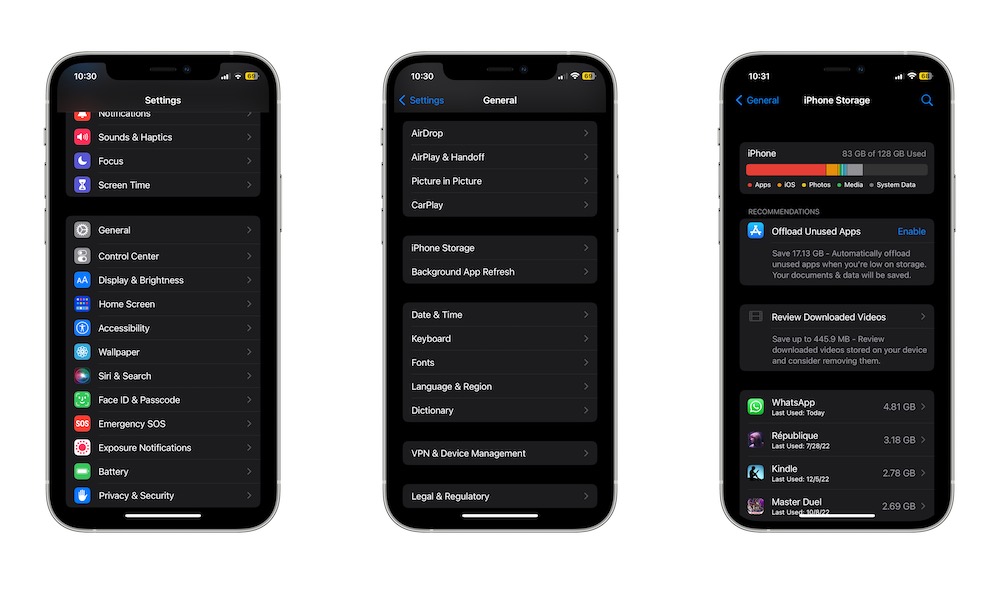
Managing storage effectively is about being surgical, not just deleting everything in sight. First, you need to know what’s taking up so much of your storage. Go to Settings > General > iPhone Storage, wait a few seconds, and your iPhone will break down what’s taking up space and even offer recommendations on ways to free up some space.
From there, you can start deleting as much useless data as you can. Remove apps you don’t use, clean up big attachments, and look for the places where storage is being wasted. Even freeing up a few gigabytes can make your phone feel noticeably smoother.
You’ll probably find the same issues that most of us run into: too many message attachments, old files and downloads, social apps with bloated cache, and a huge library of pictures that have quietly grown over the years. The goal isn’t to delete everything, but rather to delete what you don’t need anymore.