
9 Effective Tweaks to Make Your Old iPhone Feel New Again
An older iPhone doesn’t need magic performance hacks. Most of the time, it needs the same thing a cluttered desk needs: a cleanup. Freeing up some storage, leaving fewer things running in the background, and changing a couple of settings is often enough to make your whole experience feel much smoother.
When an iPhone starts feeling sluggish, it’s usually not because the device suddenly became useless overnight. It’s because storage is tight, the battery has aged, apps are constantly running in the background, and new iOS animations are asking an older chip to do a little more work than it needs to.
The good news is that you can fix a lot of these things without deleting everything or doing a full reset. Some simple adjustments can help you deal with your iPhone’s most common reasons to become sluggish and ensure that your old device has a new life. Read on for 9 safe and effective tweaks to breathe new life into your older iPhone.
Free Up Some Storage
When your iPhone is low on storage, everything starts to feel sluggish. Apps take longer to work, photos and videos become harder to manage, and iOS itself can feel less responsive because it doesn’t have the breathing room it needs.
Storage isn’t just about saving files; iOS uses available storage for cache, temporary system data, and general processes. When you’re constantly near the limit, your iPhone has to work harder to shuffle things around.
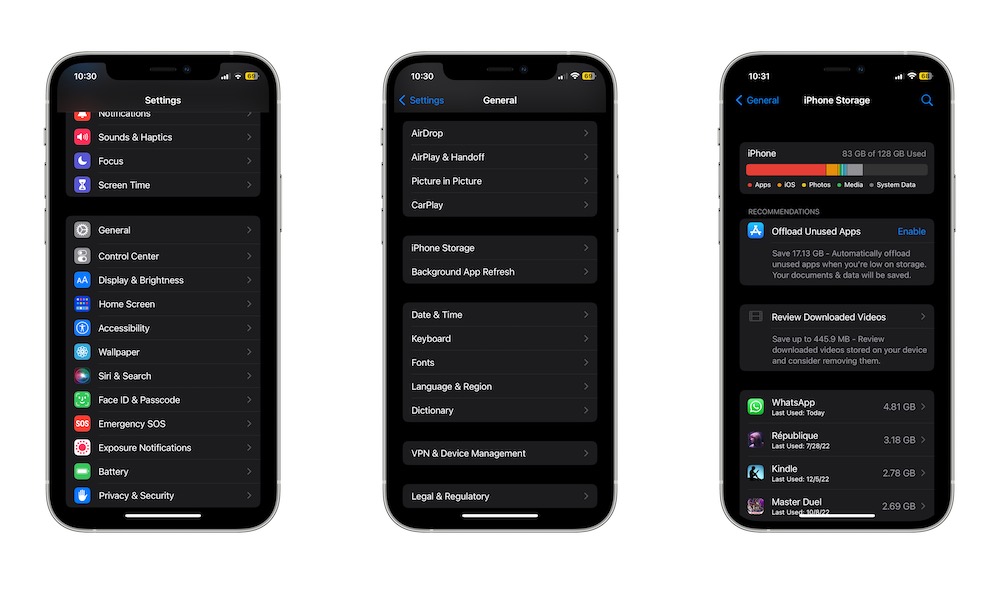
Managing storage effectively is about being surgical, not just deleting everything in sight. First, you need to know what’s taking up so much of your storage. Go to Settings > General > iPhone Storage, wait a few seconds, and your iPhone will break down what’s taking up space and even offer recommendations on ways to free up some space.
From there, you can start deleting as much useless data as you can. Remove apps you don’t use, clean up big attachments, and look for the places where storage is being wasted. Even freeing up a few gigabytes can make your phone feel noticeably smoother.
You'll probably find the same issues that most of us run into: too many message attachments, old files and downloads, social apps with bloated cache, and a huge library of pictures that have quietly grown over the years. The goal isn’t to delete everything, but rather to delete what you don’t need anymore.
Offload Unused Apps
Deleting apps can feel like a commitment, especially if you feel like you might use them again sometime in the future.
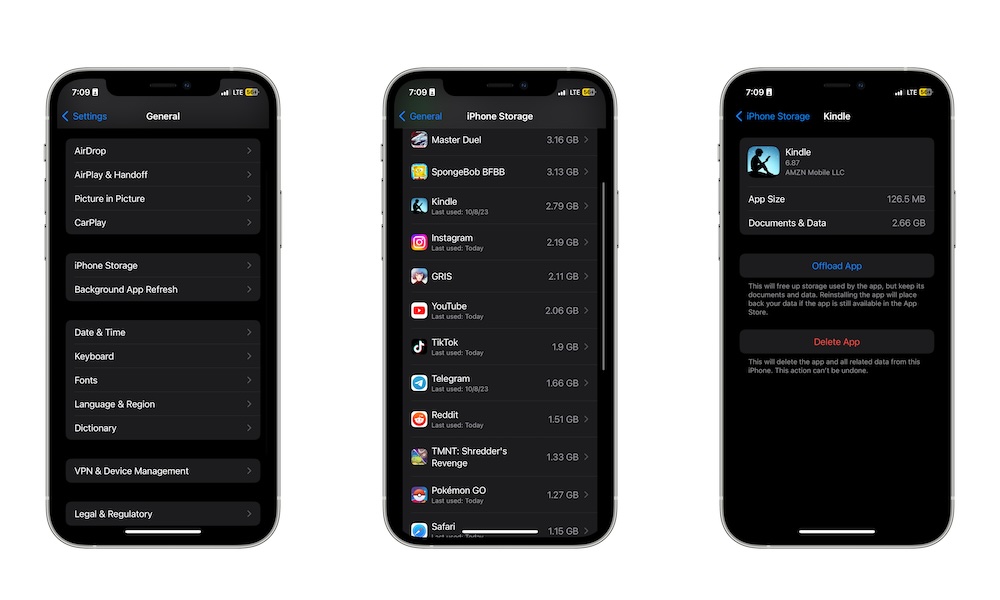
This is why Offload Unused Apps is such a handy iPhone feature. This frees up storage by removing apps you haven't used recently while keeping the documents and data. That means if you reinstall later, you’re not starting over from scratch.
This is perfect for older iPhones because you can reclaim space without worrying about which apps you might need someday. If you’re someone who downloads an app for a trip, a project, or a one-time task, offloading keeps your phone cleaner automatically.
To offload apps, go to Settings > General > iPhone Storage, then scroll down and tap on any app you don't need right now. Lastly, tap on Offload app, and your iPhone will take care of the rest.
You’ll still see the icons for offloaded apps on your Home Screen or App Library, but they won’t be taking up space. Instead, you’ll see a small download symbol to indicate their status; just tap that and the app will reinstall when needed.
Update iOS Even if You Don’t Care About New Features
It’s tempting to avoid iOS updates on an older iPhone because you’re worried about performance or bugs. However, these updates often fix performance issues, along with adding security patches and stability improvements that can help your phone run better. Even if you don’t care about what’s new, you should care about the other improvements that you don’t necessarily see.
Modern versions like iOS 26 include smarter resource allocation that actually helps older hardware manage heavy tasks better than older software could, so don't assume that a newer update will automatically demand more performance than your old iPhone can handle.
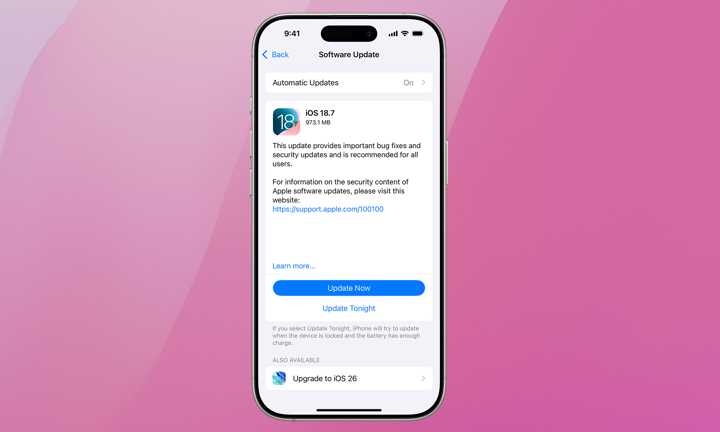
To update your iPhone, go to Settings > General > Software Update. If there’s an update available, tap on Download and Install. You might need to plug in your iPhone, and it’s always recommended to use Wi-Fi to download software updates.
Yes, it’s true that more modern software updates aren’t completely optimized for older iPhones. But whether it’s because of performance, bug issues, or security, it’s always important to keep your iPhone up to date.
Update Your Apps
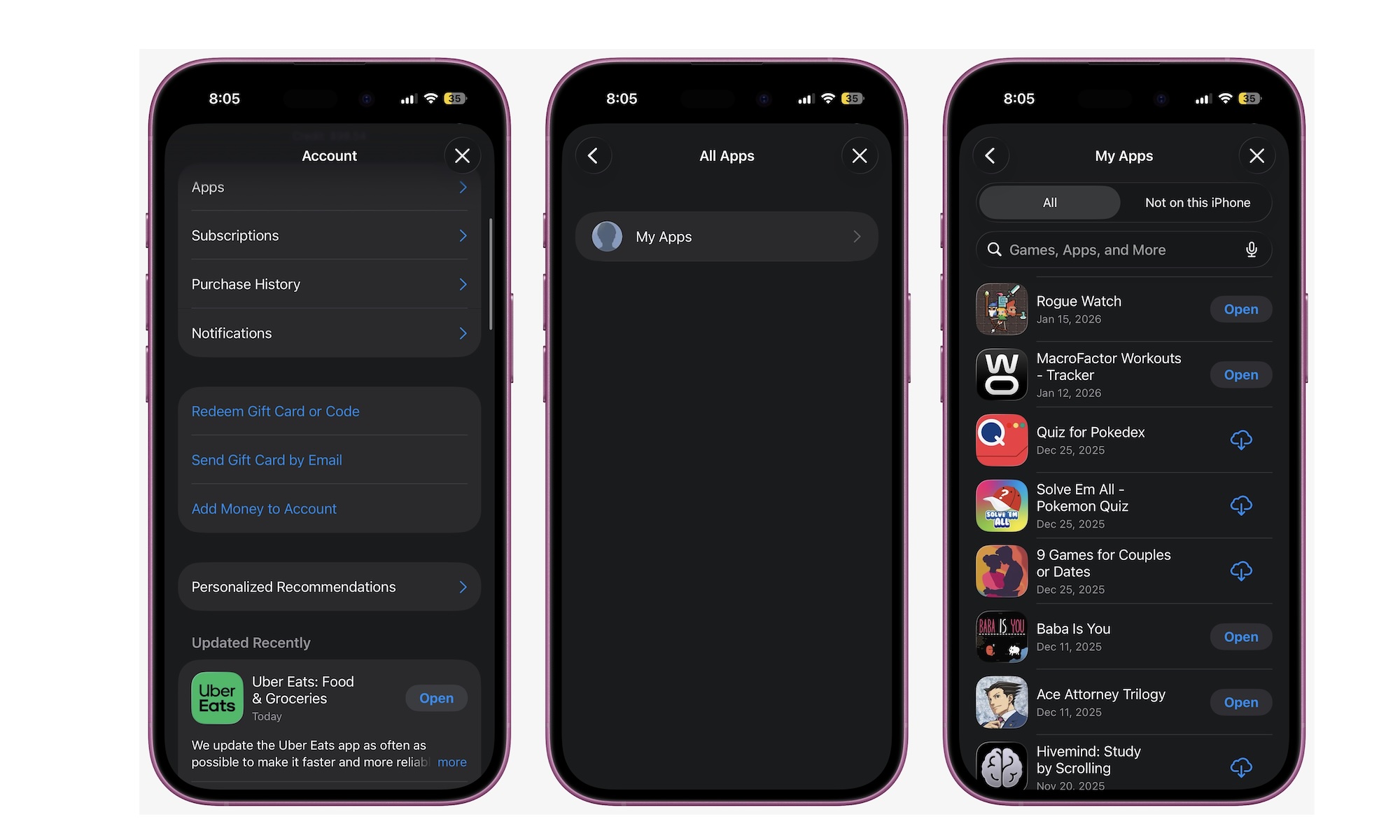
Apps can make an old iPhone feel even older. If you’re running outdated versions of social, messaging, banking, and media apps, you’re more likely to encounter bugs, crashes, performance hiccups, and battery drain. App updates often include optimizations that matter more than you’d think, especially when developers adjust for newer iOS versions.
To update all your apps, open the App Store, tap your profile icon in the top right corner of your screen and scroll down to look for any pending app updates.
Prioritize the apps you use most and the ones that tend to run in the background. Messaging apps, email apps, social apps, and streaming apps are common culprits.
Even if you’re not seeing obvious issues, keeping apps up to date is one of the easiest ways to keep an older iPhone feeling stable.
Check Battery Health and Performance Status
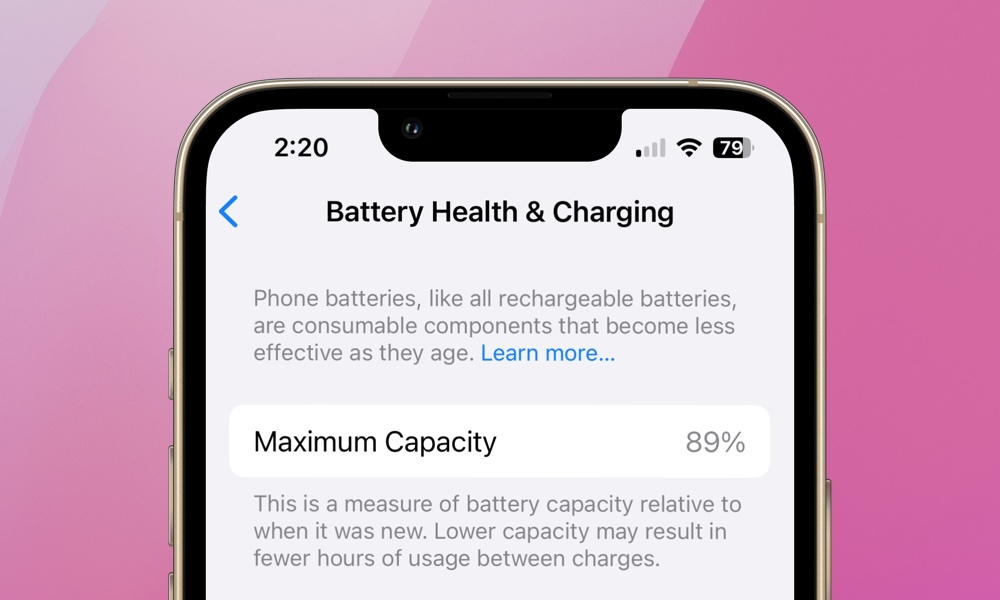
Nothing makes you feel like you have an old iPhone more than battery issues. An overaged battery can ruin your overall experience as iOS throttles your iPhone's performance to avoid power spikes that can cause sudden shutdowns.
This is why Apple has introduced a couple of useful features to make sure your battery life is as healthy as possible. For starters, you can check your battery health to make sure your iPhone is actually working properly.
Go to Settings > Battery > Battery Health and Charging and look at Maximum Capacity. If the battery health is significantly degraded — anything below 80% — a battery replacement will give your iPhone a second life by restoring it to full performance.
Of course, this won’t magically turn your iPhone into a new model, but an $89 battery replacement for an older iPhone is also a lot easier on the wallet, and you might be surprised at how much it can restore stability and improve day-to-day responsiveness.
Even if you don’t replace the battery immediately, knowing where you stand helps you make smarter decisions about the rest of your tweaks.
Turn On Optimized Battery Charging and Charge Limit If You Have It
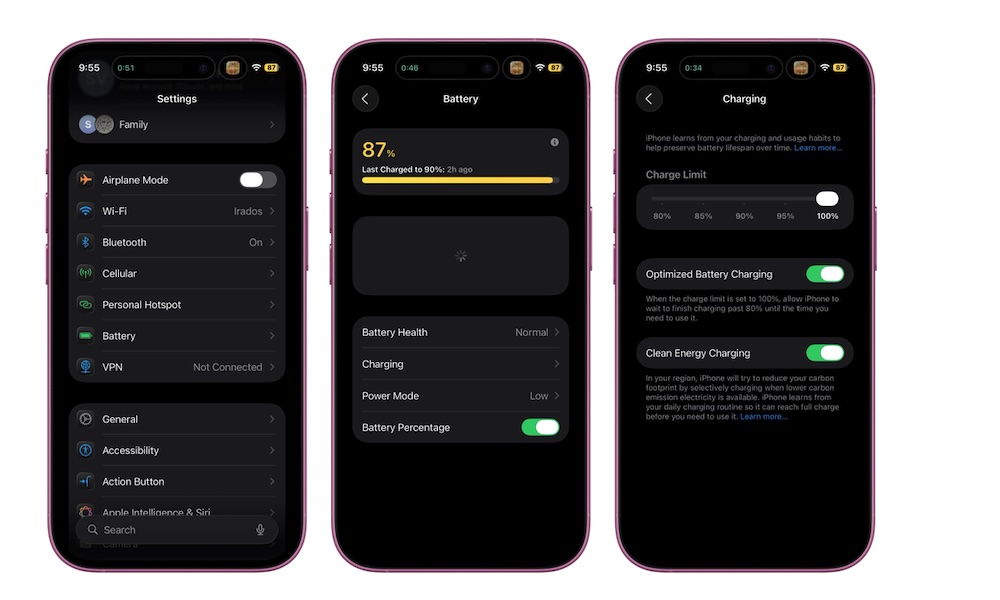
Battery health isn’t only about how old your phone is; it’s also about how you charge it. Keeping a battery at 100 percent for long periods can contribute to wear over time, which is why Apple’s charging optimizations are worth using.
In Settings > Battery > Charging, turn on Optimized Battery Charging. This feature lets your iPhone learn your charging patterns so it slows down charging times, only topping it up to 100% in time for you to unplug it.
If you have an iPhone 15 or newer model, you'll also see a Charge Limit option here that lets you cap charging at a certain percentage. This is a great way to slow battery aging if your iPhone supports it, especially if you keep your phone plugged in for long periods and don't have a consistent enough schedule to rely on Optimized Battery Charging.
Limit Location Access
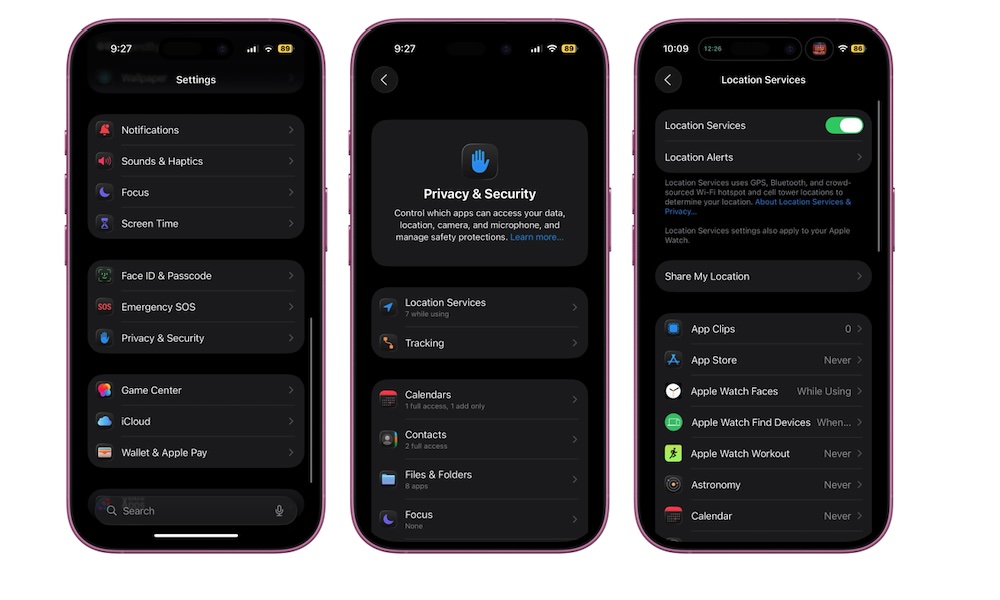
Location services are another sneaky battery drain. Apps that constantly check your location can affect battery life and create background activity you don’t notice. If your iPhone seems to lose battery faster than it should, location permissions are worth reviewing.
Go to Settings > Privacy & Security > Location Services. From there, tap through your list of apps and choose if you really need that app tracking you. For most apps, While Using is enough. For some, Never makes sense. Reserve Always for apps that genuinely require continuous location access, like navigation or certain safety tools.
Even small adjustments here can improve battery life and reduce the feeling that your phone is constantly working.
Disable Background App Refresh for Apps That Don’t Need It
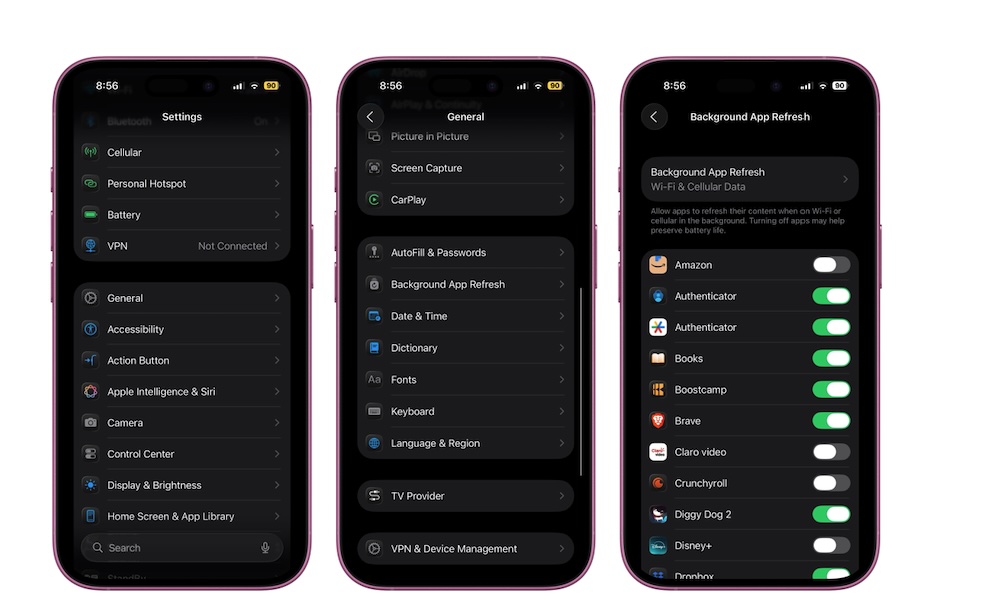
Background App Refresh sounds helpful, but it’s also one of the easiest ways for apps to quietly drain your battery and keep your iPhone busy in the background. Many apps don’t need to refresh regularly in the background; they’ll update when you open them, which is fine for the most part.
Go to Settings > General > Background App Refresh. You can turn Background App Refresh off entirely, limit it to Wi-Fi, or toggle it off for specific apps. On older iPhones, reducing background activity can make the whole system feel like a different device.
Try Resetting Your iPhone (if You Want an Extreme Solution)
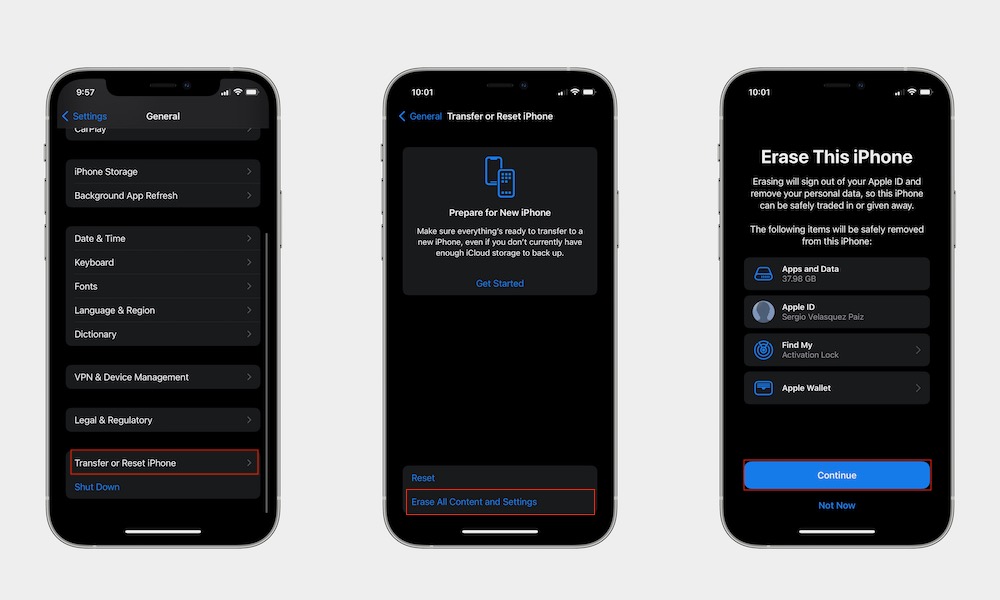
Sometimes an older iPhone feels old because of too many things at once. If that’s the case, nothing will give you that feeling of a brand new iPhone more than starting from scratch.
You can erase all your iPhone’s content and settings, which is basically a factory reset, and set it up from the get-go. Of course, this means all your data will be deleted, so make sure to back up your iPhone before you try this. You can do it by going to Settings > Apple Account (Apple ID) > iCloud > iCloud Backup, and tap on Backup Now.
After that’s done, you can factory reset your iPhone by going to Settings > General > Transfer or Reset iPhone. From there, tap on Erase All Content and Settings, and follow the instructions on your screen.
This means that your iPhone will go back to its default settings, so if you want to follow this step, we recommend you try it first and then tweak the other settings on this list, so you don’t have to do everything twice.
Make Your iPhone Feel New Again
An older iPhone can still feel great if you treat it like a device that needs occasional maintenance, not a device that’s doomed to slow down forever. You don’t need risky hacks or random apps. You need space, better battery habits, fewer background drains, and to follow specific tweaks that are easier on older hardware.
You can try one or more tips on this list. The goal is that you find something that works for you and makes your iPhone feel like a newer device again.