
Clean Up the Dock and Menu Bar Right Away
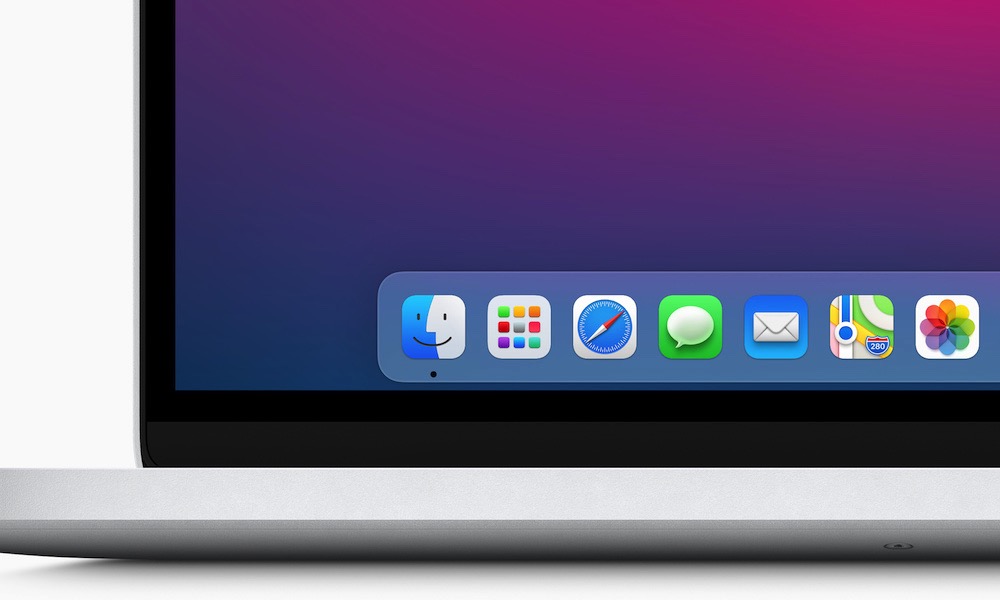
Apple gives you a really useful Dock full of default apps you might never use. Instead of having apps like TV on your work Mac, you can customize the Dock so your most important apps are always at hand — and the ones you don’t want aren’t cluttering things up.
To remove an app from the Dock, control-click (right-click or two-finger click) on it, choose Options > Remove From Dock. You can also drag an icon up and out of the dock until you see the word “Remove” appear over it and release the mouse button.
To add an app, click on the Apps icon on the left side of the Dock to open all your apps. Next, find the app you want, and drag it to the Dock. Once you find the perfect place for it, release your mouse. Apps will also show on the right side of the dock when they’re running, so if you’re already using an app, you can either right-click on it and choose Options > Keep in Dock or simply drag it to the left to place it in the spot where you want it to live.
You can add as many apps as you need, and you can drag them around to arrange them however you want.
You can also choose what appears in the menu bar by going to Apple menu > System Settings > Menu Bar and deciding which features you want to keep visible at the top.