
Unlock Your Mac With Touch ID (or With Your Apple Watch)
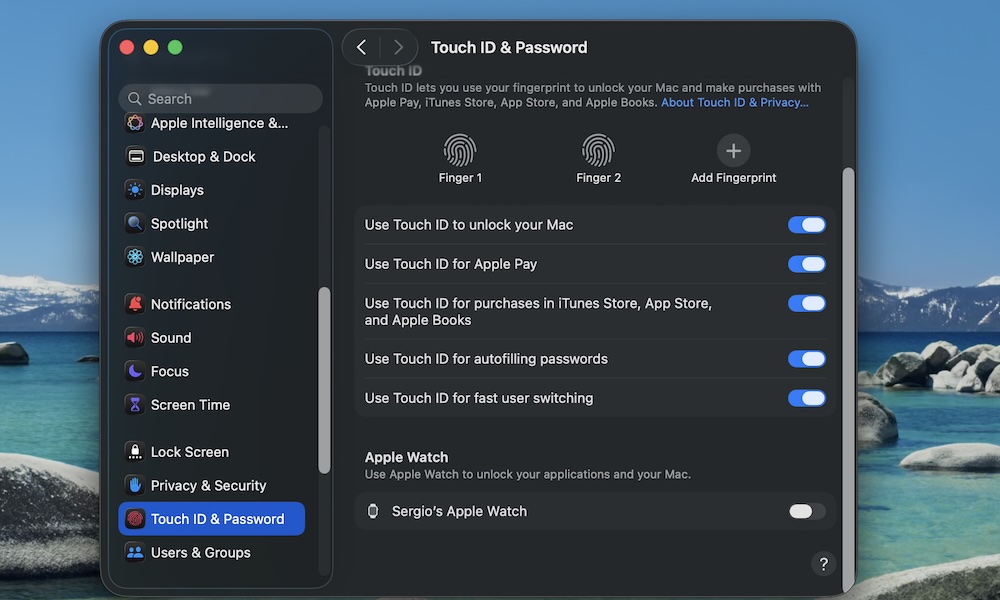
Typing your password a hundred times a day is no way to live. Touch ID on the Mac is fast, secure, and it also works for Apple Pay, password autofill, and App Store purchases.
By default, you’ll be walked through the steps to enable Touch ID on your MacBook when you set it up for the first time. However, many new users don’t realize you can add more than one finger or that you can turn on Touch ID for more than just unlocking.
To enable more Touch ID features on your Mac, you can follow these steps:
- Click the Apple menu (Apple logo) in the top left corner of your screen.
- Go to System Settings.
- On the left sidebar, scroll down and click on Touch ID & Password.
- Click Add Fingerprint and follow the instructions on your screen.
From here, you can also choose when you want to be asked to use Touch ID instead of being asked for your password. We recommend using it for things like Apple Pay or autofilling passwords. This makes it both faster for you to use these features and a bit harder for others to control your Mac without your consent.
If you have an Apple Watch, you can also use that to unlock your Mac automatically, and this works even on Macs without Touch ID (or a MacBook connected to an external display and keyboard with the lid closed). To enable this, scroll down to the bottom of Touch ID & Password settings, and toggle the switch on beside the name of your Apple Watch.