
Update macOS Before You Do Anything Serious
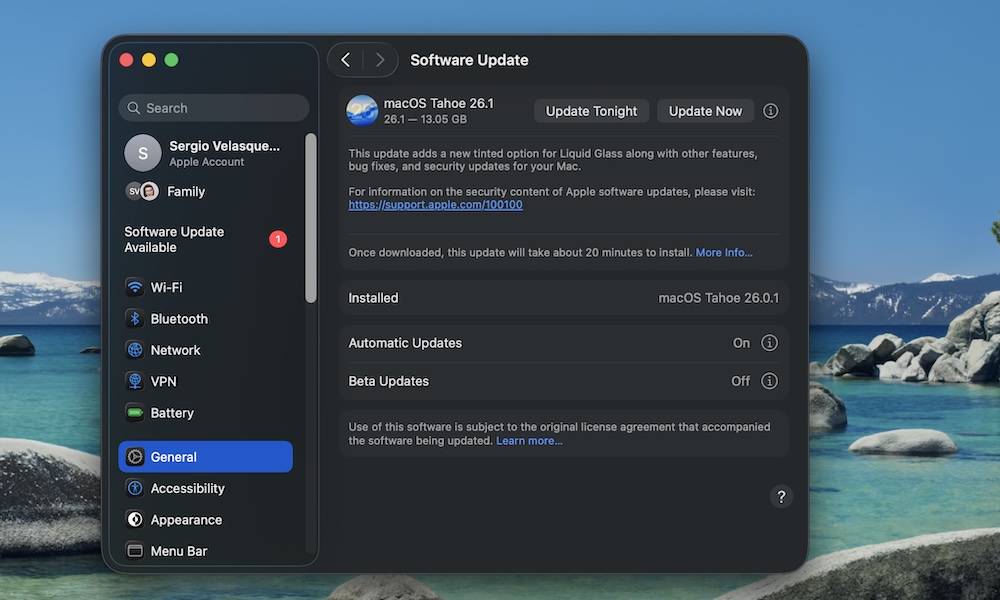
New Macs seldom ship with the very latest macOS version. Unless you’re buying the latest M5 MacBook Pro that Apple released in October, chances are you’ll be one version behind, as most current models may have been manufactured before Apple’s fall macOS 26 Tahoe release,
However, even if your new Mac ships with Tahoe out of the box, there are still “point releases” like macOS 26.2 that include new features and security patches you’ll surely need.
So before you start installing all your favorite apps, make sure to give your Mac time to get the latest software update so you don’t have to worry about that later.
Here’s how to manually update your Mac:
- Click the Apple menu (Apple logo) in the top left corner of your screen.
- Go to System Settings.
- On the left sidebar, click on General.
- Go to Software Update.
If there’s a software update available, click on Update Now. It might take a few minutes, and your Mac will restart itself, so make sure to do it when you have time and when your Mac is plugged in to a power source.
If you don’t want to worry about installing software updates in the future, you can click the i icon next to Automatic Software Update and turn on all the options available so your Mac takes care of updating itself automatically.