
Find (and Stop) the One App That’s Eating Your Mac Alive
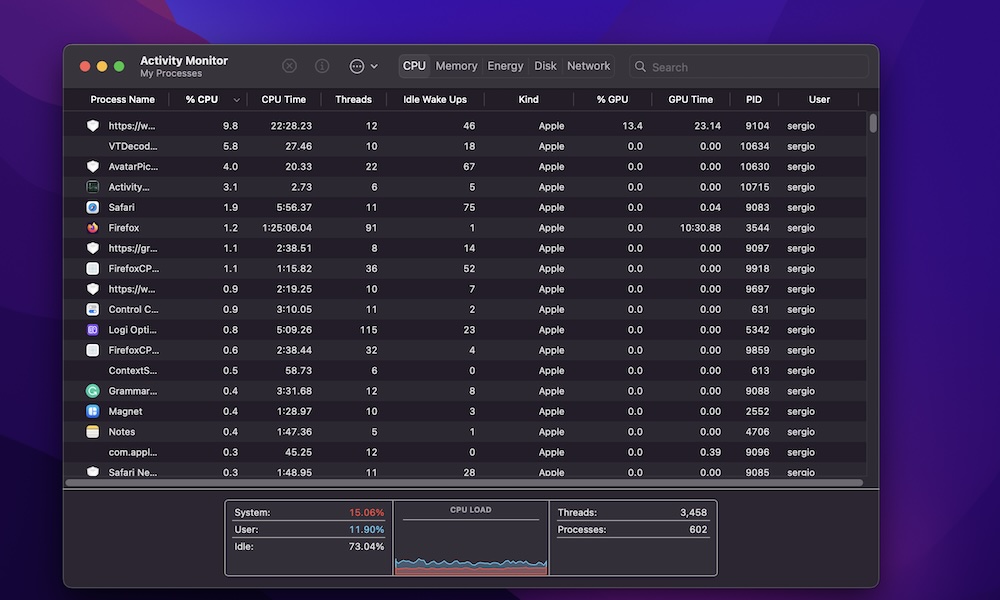
When a Mac feels slow for no apparent reason, there’s almost always an app behind the issue. Of course, it can also be a faulty process or a browser tab that’s doing something weird in the background.
Activity Monitor is a built-in tool that can help you with that. If something is ruining your CPU, hoarding memory, or running wild, you can spot it here and shut it down.
- Open Activity Monitor (use Spotlight search,or go to your Applications folder).
- Click the CPU tab (or Memory if you suspect that’s where the issue is).
- Select the app or process that’s misbehaving.
- Click the Stop (x) button at the top of the window.
- Choose Quit or Force Quit to close the app. Quit is the polite way to ask the app to stop, ensuring it shuts down properly and saves any data, so you should try this first. If that doesn’t work, you can use Force Quit as an “emergency stop” to kill the app off.
A quick note for your Mac’s safety: if you don’t recognize a process name, don’t force quit it blindly. A quick search can tell you whether it’s harmless, essential, or tied to something you installed.