
Use Storage Recommendations to Keep Breathing Room
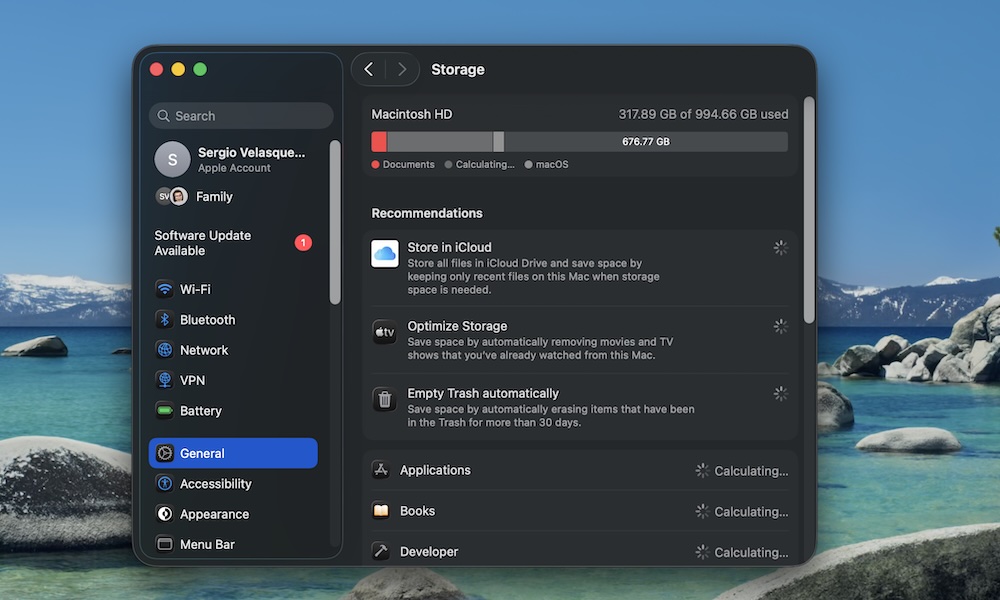
If your Mac is low on storage, it doesn’t just affect downloads; it also impacts performance. macOS uses free space for caches and swap memory (which your Mac uses as extra RAM when it runs out of physical memory). When your drive is nearly full, everything feels slower. Your apps take longer to open, updates feel really sluggish, and your Mac can feel like it’s constantly playing catch-up.
What you should probably do is go through all your files and apps and get rid of anything you don’t need. With that said, if you don’t have time for that, your Mac can help you out. The built-in Storage recommendations are a clean, Apple-approved way to reclaim space without playing “guess what I can delete.”
- Click on the Apple menu (the button with the Apple logo) in the top left corner of your screen.
- Go to System Settings.
- Click on General.
- Click on Storage.
- Review the Recommendations (such as “Store in iCloud” and other space-saving options).
A good target is keeping at least 10–20 GB free if you can. You don’t need to obsess over it, but you also don’t want your Mac living on the edge with barely any free space left.