
Turn On Reduce Motion to Speed Up System Animations
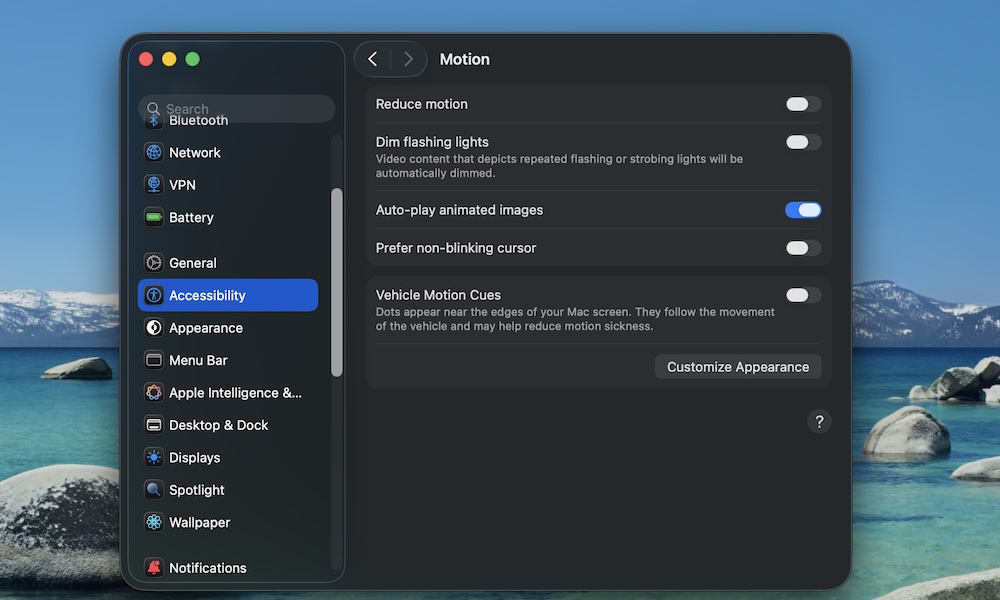
Animations are one of the biggest reasons a Mac can feel slow, even when it isn’t old. If switching Spaces feels like it takes longer than it should, or opening certain views has that minor loading effect that makes everything feel delayed, the culprit might be the animations.
The Reduce Motion feature cuts down on those transitions. Your Mac won’t suddenly benchmark higher, but it often feels faster because you’re not waiting for the UI to finish doing a little animation every time you open a window or move something around.
- Click on the Apple menu (the button with the Apple logo) in the top left corner of your screen.
- Go to System Settings.
- Click on Accessibility.
- Click on Motion.
- Turn on Reduce Motion.
If you like macOS animations, you can leave this off. But if your goal is to feel like your Mac is faster, you might want to consider trying it out, even if everything feels less “alive.”