
Use Reduce Transparency to Make macOS Feel More Responsive
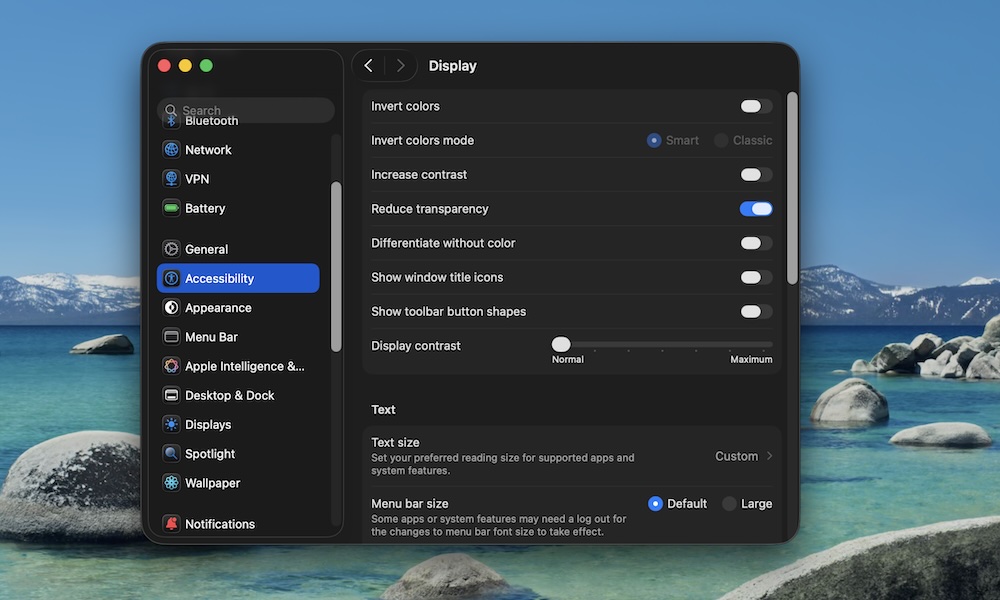
The glassy design look in macOS Tahoe may look great to some of us, but those transparency effects force your Mac to constantly redraw what’s behind menus, sidebars, and window elements. On newer Macs, that’s usually fine, but on older Intel Macs — and even some Apple silicon machines — it can make everything feel a little more sluggish than it needs to as the GPU struggles to keep up with the glassy blur effects.
Reducing transparency does two things at once: it makes the interface easier to read, and it cuts down on some of the visual work your Mac is doing every time you move around the system. Here’s where to find that setting:
- Click on the Apple menu (the button with the Apple logo) in the top left corner of your screen.
- Go to System Settings.
- Click on Accessibility.
- Click on Display.
- Turn on Reduce Transparency.
You’ll usually notice the change right away in the menu bar and certain side panels. The overall feel becomes a bit more solid, and that’s a good thing if you care more about speed and clarity than visual flair.