
Remove ‘Open at Login’ Apps You Don’t Need
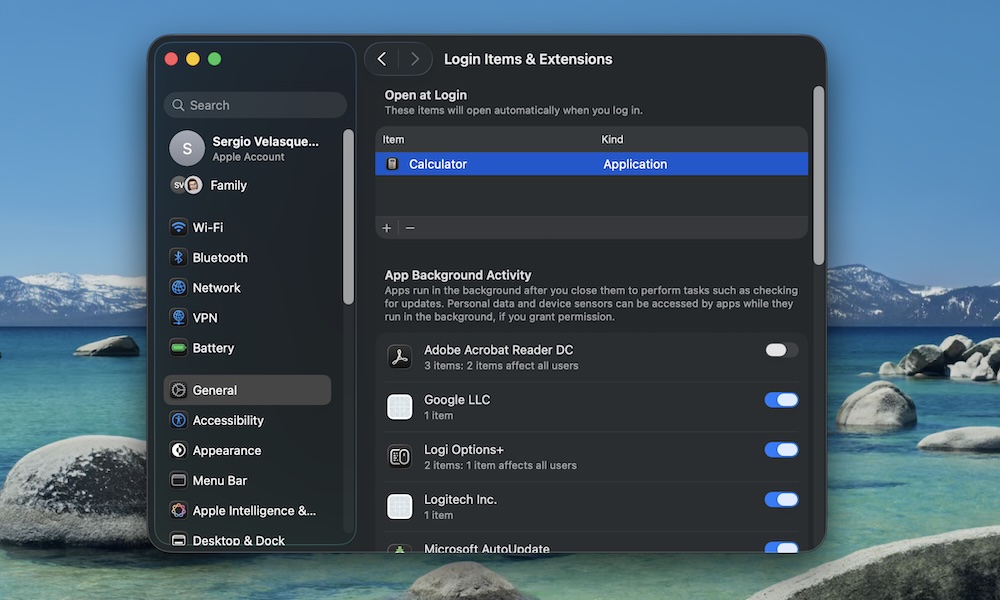
One of the fastest ways to make your Mac feel faster is to stop it from doing extra work before you even start working. Many apps will quietly add themselves to your login list when you install them, resulting in your Mac launching a bunch of stuff you didn’t ask for every time you log in. This consumes memory and makes the first few minutes of your session feel slow.
Even if your Mac boots quickly, having too many apps open at once can eventually slow things down, and you probably don’t really need all that clutter from the get-go.
Luckily, you can get rid of your login items in a couple of steps: Here’s how:
- Click on the Apple menu (the button with the Apple logo) in the top left corner of your screen.
- Go to System Settings.
- Click on General.
- Go to Login Items & Extensions.
- Under Open at Login, click an app you don’t need.
- Click the Remove (–) button.